How To Fix Double Clicking Mouse On Your Windows PC
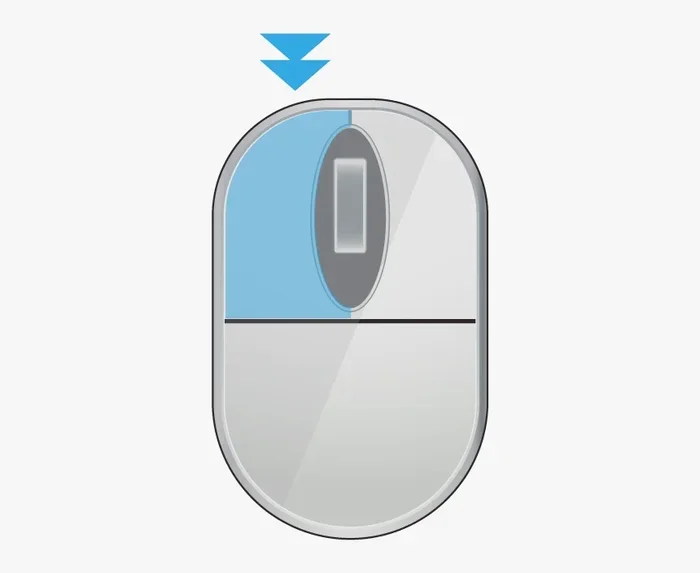
A double clicking mouse on Windows PC can frustrate anyone, especially when it opens files or folders you only wanted to single-click. The problem usually stems from double click speed settings, worn-out mouse buttons, or outdated drivers. This guide walks you through every fix — from simple software adjustments to hardware repairs — so your mouse clicks feel normal again. Whether you use a laptop touchpad or a standalone mouse, we have solutions that work.
A double clicking mouse on your Windows PC can turn a simple task into a headache. You single-click a file, and suddenly two windows open. You try to close a program, and it highlights everything instead. This annoying behavior happens to millions of Windows users every day.
The good news? Most fixes are quick, free, and easy to try. Whether your mouse double click problem comes from software settings or worn-out hardware, this guide covers every solution you need. Let us walk through them one by one so you can get back to working without frustration.
Key Takeaways
- Adjust Double Click Speed: The most common fix is simply slowing down your double click speed in Windows settings.
- Check Your Mouse Hardware: Worn-out microswitches inside the mouse button often cause accidental double clicks.
- Update or Reinstall Drivers: Outdated or corrupted mouse drivers can trigger erratic clicking behavior.
- Clean the Mouse Button: Dirt and debris under the button can make it register multiple clicks at once.
- Test with Another Mouse: This quickly tells you whether the problem is your hardware or your software.
- Try Mouse Properties Troubleshooting: Windows has built-in tools that can diagnose and repair mouse issues automatically.
📑 Table of Contents
- Understanding Why Your Mouse Double Clicks
- How To Adjust Double Click Speed on Windows
- Update or Reinstall Your Mouse Drivers
- Clean Your Mouse Button and Hardware
- Test Your Mouse and Isolate the Problem
- Advanced Fixes and When To Seek Professional Help
- Preventing Double Clicking Problems in the Future
- Final Thoughts
Understanding Why Your Mouse Double Clicks
Before you start fixing anything, it helps to understand what causes the problem. A double clicking mouse happens when your computer registers two clicks from one press. This can occur for several reasons, and knowing the cause helps you pick the right fix.
Software-Related Causes
Sometimes the issue lives entirely in your Windows settings. Your double click speed might be set too fast, making normal clicks feel like double clicks. Outdated mouse drivers or corrupted system files can also mess with how Windows reads your clicks. Even Windows 10 mouse fix settings can shift after a system update, triggering unexpected behavior.
Hardware-Related Causes
Other times, the problem is physical. Inside every mouse button sits a tiny microswitch. Over time, these switches wear out and start misfiring. Dust, crumbs, or moisture can also get under the button and cause false clicks. If you have been using the same mouse for years, hardware wear is the most likely culprit.
How To Adjust Double Click Speed on Windows
The first thing you should try is adjusting your double click speed. This is the most common fix, and it takes less than a minute. If your settings are too fast, even a normal click can register as a double click.
Step-by-Step Instructions
Open the Start menu and type “Mouse Settings.” Click on the result to open the Mouse Properties window. Alternatively, you can go to Control Panel and find the Mouse icon. Look for the “Buttons” tab at the top of the window.
You will see a slider labeled “Double-click speed.” Slide it to the left to slow it down. Click “Apply” and then “OK.” Now try clicking a folder or icon slowly and see if the problem goes away.
Quick Tip: Test your new setting by double-clicking the folder icon in the middle of the test box. If it opens on the first try, your speed is just right. If it still double-clicks, move the slider a bit more to the left.
Update or Reinstall Your Mouse Drivers
Outdated or corrupted drivers are a sneaky cause of mouse double clicking issues. Windows relies on drivers to communicate with your mouse, and when those drivers break, strange things happen.
How To Update Your Mouse Driver
Right-click on the Start button and select “Device Manager.” Expand the “Mice and other pointing devices” section. Right-click on your mouse device and choose “Update driver.” Select “Search automatically for drivers” and let Windows do its work.
How To Reinstall the Driver
If updating does not help, try uninstalling the driver. Right-click on the mouse device in Device Manager and select “Uninstall device.” Restart your computer, and Windows will automatically reinstall a fresh driver. This simple step often resolves troubleshoot mouse problems that nothing else can fix.
Clean Your Mouse Button and Hardware
Dirt and grime build up under mouse buttons over time. This debris can press the microswitch prematurely, causing accidental double clicks. Cleaning your mouse is one of the easiest laptop mouse troubleshooting steps you can take.
What You Need
- A soft, lint-free cloth
- Compressed air or a small brush
- Isopropyl alcohol (optional, for sticky buttons)
Cleaning Steps
Turn off your computer first. Use compressed air to blow out any dust around the mouse buttons. For sticky or grimy buttons, dampen a cloth with a small amount of isopropyl alcohol and gently clean around the edges. Let the mouse dry completely before turning it back on.
If cleaning does not help and your mouse is old, the microswitches inside may be worn out. At that point, you might want to look into repair mouse double click options or consider replacing the mouse entirely.
Test Your Mouse and Isolate the Problem
Before spending time on complex fixes, it is smart to figure out whether the problem is your mouse or your computer. Connect a different mouse to your PC and see if the double-clicking stops. If the new mouse works perfectly, your original mouse likely has a hardware issue.
This simple test saves you hours of unnecessary troubleshooting. Many users skip this step and waste time adjusting software settings when the real problem is a worn-out mouse. If you are working on a laptop without a separate mouse, try using a USB mouse temporarily.
For laptop users, you might also want to check whether the laptop touchpad not working is contributing to the issue. Some laptops let you plug in an external mouse while keeping the touchpad active, which can help you test both input devices at the same time.
Advanced Fixes and When To Seek Professional Help
If none of the above solutions work, the problem may be deeper. Here are a few advanced steps to try before giving up.
Run Windows Troubleshooter
Windows has a built-in troubleshooter for mouse problems. Go to Settings, then Update & Security, then Troubleshoot. Select “Hardware and Devices” and run the troubleshooter. It can sometimes find and fix issues you would never notice.
Check for Windows Updates
Sometimes a Windows update fixes mouse bugs. Go to Settings, then Update & Security, then Windows Update. Click “Check for updates” and install anything available. Restart your PC after the update completes.
When To Replace Your Mouse
If your mouse is more than three to five years old and none of the software fixes work, the hardware is probably failing. Replacing a mouse is far cheaper than repairing one. A decent new mouse costs between $10 and $30, and it will last you years. If you are unsure which mouse to buy, check out guides on how to make the mouse on a laptop work for helpful tips on choosing the right one.
When To Call a Professional
If you are comfortable with opening electronics, you can replace the microswitches inside your mouse yourself. Search for a repair mouse pad on laptop guide for related hardware repair tips. However, if you are not comfortable opening your mouse, take it to a local repair shop. The cost is usually low, and it saves you the hassle of buying a new one.
Preventing Double Clicking Problems in the Future
Once you fix the issue, you want to keep it from coming back. Here are a few habits that help:
- Keep your mouse clean: Wipe it down weekly to prevent dust buildup.
- Avoid eating over your keyboard and mouse: Crumbs are a leading cause of sticky buttons and false clicks.
- Update your drivers regularly: Set a reminder to check for driver updates every few months.
- Store your mouse properly: Do not throw it around or drop it, as this damages the internal switches.
- Use a mouse pad: A good mouse pad reduces wear on the sensor and keeps debris away from the buttons.
Following these simple steps keeps your mouse double clicking issue from returning and extends the life of your mouse significantly.
Final Thoughts
A double clicking mouse on Windows PC is almost always fixable without spending a dime. Start with the double click speed setting, then move through the driver updates, cleaning, and hardware checks. Most users find their fix within the first two or three steps. If your mouse is truly worn out, replacing it is the fastest and most reliable solution.
Do not let a faulty mouse slow you down any longer. Try these fixes today and enjoy smooth, accurate clicking on your Windows PC again. If you are still having trouble, explore more how to fix my laptop mouse guides for additional help with common mouse problems.
Remember, the key is patience. Work through each step one at a time, and you will have your mouse working perfectly in no time.
Frequently Asked Questions
Why does my mouse keep double clicking when I only click once?
This usually happens because your double click speed is set too fast, or the microswitch inside your mouse is worn out. Try adjusting the speed first, and if that does not work, the hardware may need replacement or repair.
How do I stop my mouse from double clicking on Windows 10?
Go to Mouse Settings, find the “Buttons” tab, and adjust the double-click speed slider to the left. Also update your mouse drivers through Device Manager, as outdated drivers often cause this issue on Windows 10.
Can a dirty mouse cause double clicking?
Yes, absolutely. Dust, crumbs, and grime can press the internal switch prematurely, making your mouse register multiple clicks from a single press. Regular cleaning prevents this problem from developing.
Is it cheaper to repair or replace a double-clicking mouse?
For most users, replacing the mouse is cheaper and faster. A new mouse costs $10 to $30, while professional repair may cost a similar amount with no guarantee of a permanent fix.
Does adjusting double click speed really fix the problem?
In many cases, yes. When the speed is set too fast, normal clicks get interpreted as double clicks. Adjusting the slider to a slower speed solves the problem for a large number of users.
When should I stop troubleshooting and buy a new mouse?
If you have tried all the software fixes, cleaned the mouse thoroughly, and the problem persists, it is time for a new mouse. A hardware failure in the microswitch is usually not worth the cost or effort of repairing.