How To Fix Razer Mouse Scroll Wheel Jumping Issues
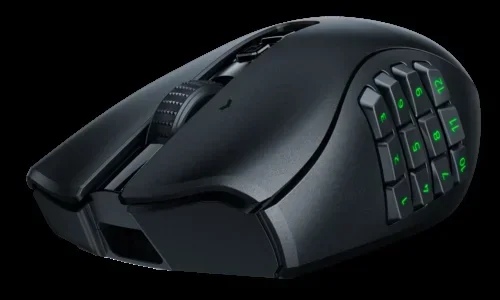
A Razer mouse scroll wheel jumping can ruin your workflow and gaming experience. This guide covers everything from simple cleaning fixes to driver updates and advanced troubleshooting. Whether your scroll wheel is glitching, jumping lines, or scrolling on its own, you will find clear, step-by-step solutions that actually work. Most fixes take just a few minutes and require no technical expertise.
There is nothing more frustrating than trying to scroll through a webpage or a game menu and your Razer mouse scroll wheel jumping all over the place. One moment you are reading a long article, and the next your cursor has rocketed past everything you wanted to see. This problem is incredibly common among Razer mouse users, and the good news is that it is almost always fixable.
If you have been dealing with a mouse wheel jumping issue, you are not alone. Thousands of users report this problem every month, and it can happen with any Razer model, from the DeathAdder to the Basilisk and beyond. The scroll wheel is one of the most used parts of any mouse, so wear and tear is inevitable over time.
The reason this topic matters so much is that a malfunctioning scroll wheel can slow you down significantly. Whether you are working, gaming, or just browsing, smooth scrolling is essential. In this article, we will walk you through every possible fix, from the simplest cleaning trick to more advanced solutions. By the end, you will know exactly what is causing the problem and how to make it disappear.
Key Takeaways
- Dirt and dust buildup are the most common causes of scroll wheel jumping and are easy to fix at home.
- Updating or reinstalling your Razer driver through Razer Synapse often resolves jumping issues instantly.
- Adjusting scroll settings in Windows or Razer Synapse can stop the wheel from jumping too many lines at once.
- Physical damage to the scroll encoder may require replacement parts or professional repair.
- Disabling smooth scrolling in Windows settings is a quick fix many users overlook.
- Regular cleaning and maintenance prevents scroll wheel problems from returning.
📑 Table of Contents
- Why Does Your Razer Mouse Scroll Wheel Jump?
- How To Clean Your Razer Mouse Scroll Wheel
- Update or Reinstall Your Razer Mouse Driver
- Adjust Scroll Settings in Windows and Razer Synapse
- Fix Mouse Scroll Issues When the Wheel Scrolls on Its Own
- When To Replace the Scroll Wheel or Seek Professional Help
- Preventing Scroll Wheel Problems in the Future
- Final Thoughts
Why Does Your Razer Mouse Scroll Wheel Jump?
Before you start fixing anything, it helps to understand why the scroll wheel is jumping in the first place. There are several common causes, and identifying the right one saves you a lot of time. Most of the time, the issue is simple and easy to resolve.
Dust and Debris Buildup
The most frequent cause of a Razer mouse scroll wheel jumping is dirt trapped inside the wheel mechanism. Over weeks and months of daily use, dust, crumbs, and tiny particles build up around the encoder. This encoder is the small component that reads your scroll movements. When it gets dirty, it misreads your inputs, causing the wheel to jump or scroll on its own.
This happens to everyone eventually. Even if you keep your desk clean, tiny particles still find their way into the mouse. The good news is that cleaning the scroll wheel is simple and takes less than five minutes.
Outdated or Corrupted Drivers
Your Razer mouse relies on specific drivers to communicate with your computer. If those drivers are outdated or corrupted, the mouse may behave unpredictably. Scroll wheel jumping is a classic symptom of driver problems. This is especially true after a Windows update, which can sometimes conflict with older driver versions.
Razer releases regular driver updates through its Synapse software. If you have not updated your mouse drivers in a while, this could very well be the culprit behind your jumping scroll wheel.
Incorrect Scroll Settings
Sometimes the problem is not hardware at all. Windows and Razer Synapse both have scroll settings that control how many lines the wheel moves per notch. If these settings are too high or too sensitive, the wheel can feel like it is jumping. This is a common issue for users who switch between different computers or mice.
Physical Damage or Wear
Over time, the internal components of a scroll wheel can wear out. The encoder wheel itself can become scratched or misaligned. If you have been using your Razer mouse for several years, physical wear might be the reason your scroll wheel is jumping. This type of issue usually requires either a part replacement or professional repair.
How To Clean Your Razer Mouse Scroll Wheel
Cleaning is the first and most important step when fixing a Razer mouse scroll wheel jumping problem. It costs nothing and takes just a few minutes. Many users are surprised at how much this simple fix solves the problem.
What You Need
- A can of compressed air
- A cotton swab or toothpick
- Isopropyl alcohol (90% or higher)
- A soft, lint-free cloth
Step-by-Step Cleaning Process
- Turn off your mouse or unplug it from your computer. If it is a wireless Razer mouse, remove the batteries.
- Blow compressed air around the scroll wheel to dislodge loose dust and debris. Hold the can upright and use short bursts.
- Dip a cotton swab in isopropyl alcohol and gently rub it around the base of the scroll wheel. Go slowly and cover all sides.
- Use a toothpick to carefully scrape away any stubborn grime stuck around the wheel edges. Be gentle to avoid damaging the encoder.
- Wipe the area clean with a soft, lint-free cloth. Let the alcohol evaporate completely before turning your mouse back on.
After cleaning, test your scroll wheel immediately. In most cases, the jumping stops right away. If the problem persists, move on to the next fix.
Update or Reinstall Your Razer Mouse Driver
If cleaning did not fix the Razer mouse scroll wheel jumping, the next step is to check your drivers. Outdated drivers are one of the leading causes of mouse scroll problems on Windows computers.
Using Razer Synapse
Razer Synapse is the official software for all Razer devices. It handles driver updates, firmware upgrades, and custom settings. Open Synapse and check for any available updates for your mouse model. If an update is available, install it and restart your computer.
If the driver is already up to date, try uninstalling and reinstalling it. Go to Device Manager, find your Razer mouse under Mice and other pointing devices, right-click, and select Uninstall Device. Then restart your computer. Windows will automatically reinstall the driver, or you can use Synapse to do it manually.
Using Windows Device Manager
You can also update your mouse driver directly through Windows. Open Device Manager, expand the Mice section, right-click your Razer mouse, and select Update Driver. Choose Search Automatically for Drivers and follow the prompts. This method works well for users who do not use Razer Synapse.
After updating, test your scroll wheel again. Many users report that a simple driver update completely eliminated their mouse wheel jumping issue.
Adjust Scroll Settings in Windows and Razer Synapse
Sometimes the fix is as simple as changing a setting. Both Windows and Razer Synapse offer scroll customization options that can cause or solve jumping problems.
Windows Scroll Settings
Open Settings in Windows, go to Bluetooth and Devices, then Mouse. Look for the Lines to scroll at a time option. The default is usually 3, but if it is set too high, it can feel like the wheel is jumping. Try reducing it to 1 or 2 and see if the scrolling feels smoother.
You should also check the box for “Turn off smooth scrolling.” This feature can sometimes interfere with the scroll wheel encoder, causing erratic behavior. Disabling it is a quick test that many users find helpful.
Razer Synapse Scroll Settings
Inside Razer Synapse, navigate to your mouse settings and look for the Scroll section. You can adjust the scroll speed and the number of lines per notch here. Lowering the scroll speed often helps with jumping issues. You can also try switching between “Standard” and “Precise” scroll modes to see which works better for your setup.
If you have recently changed any scroll settings, try resetting them to default. Sometimes a misconfiguration is all it takes to cause a scroll wheel jumping problem.
Fix Mouse Scroll Issues When the Wheel Scrolls on Its Own
A particularly annoying variation of the scroll wheel jumping problem is when the wheel scrolls by itself without you touching it. This usually points to a hardware issue, but there are a few software fixes worth trying first.
Check for Software Conflicts
Some third-party applications can interfere with mouse input. Programs like gaming overlays, macro software, or even certain accessibility tools can cause the scroll wheel to behave erratically. Try closing background applications one by one to see if any of them are causing the problem.
If you recently installed new software and noticed the jumping started around the same time, that software is likely the cause. Uninstall it and check if the problem goes away.
Reset Your Razer Mouse
A factory reset can clear out any software glitches causing scroll wheel issues. In Razer Synapse, look for the Reset or Factory Default option under your mouse settings. This restores all settings to their original state and can often resolve mysterious jumping problems.
For users who prefer a hardware reset, most Razer mice have a small reset button on the bottom. Use a paperclip to press and hold it for about five seconds. This clears the mouse memory and forces it to reconnect fresh.
When To Replace the Scroll Wheel or Seek Professional Help
If none of the software fixes work, the problem is likely hardware-related. A damaged scroll encoder or worn-out wheel mechanism needs physical repair or replacement.
Signs of Hardware Failure
- The scroll wheel clicks but does not move smoothly
- Jumping persists even after cleaning and driver updates
- The wheel feels loose or wobbly when you rotate it
- Scrolling works intermittently or stops completely
Replacement Options
For popular Razer models like the DeathAdder or Basilisk, replacement scroll wheels and encoders are readily available online. You can find them on sites like Amazon or eBay for a reasonable price. If you are comfortable with small electronics repair, replacing the encoder yourself is a viable option.
However, if you are not confident in your soldering skills, it is best to seek professional help. Many local repair shops can replace a scroll encoder for a small fee. You can also contact Razer support directly to check if your mouse is still under warranty.
Before going through the trouble of a replacement, try using a different USB port on your computer. Sometimes a faulty USB port can cause intermittent scroll issues that mimic a jumping wheel. This is a quick check that many people skip.
Preventing Scroll Wheel Problems in the Future
Once you have fixed your Razer mouse scroll wheel jumping, you want to make sure it does not come back. Prevention is always better than cure, and a few simple habits can extend the life of your scroll wheel significantly.
Keep Your Mouse Clean
Make it a habit to clean your mouse regularly. A quick wipe-down once a week and a deeper clean once a month goes a long way. Pay special attention to the scroll wheel area where dust tends to accumulate the most.
Use a Mouse Pad
A good mouse pad keeps dust and debris away from your mouse sensors and wheels. It also reduces the strain on the scroll wheel mechanism during heavy use. If you game or work for long hours, a quality mouse pad is a small investment that pays off.
Update Drivers Regularly
Make it a routine to check for driver updates every few weeks. Razer releases firmware and driver patches that fix bugs and improve compatibility. Keeping your drivers up to date prevents many scroll wheel issues before they start.
Handle Your Mouse with Care
Avoid dropping your mouse or applying excessive force to the scroll wheel. The encoder is a delicate component, and rough handling can cause misalignment or damage. Treat your Razer mouse well, and it will last you for years.
Final Thoughts
Fixing a Razer mouse scroll wheel jumping problem does not have to be complicated. Start with the simplest solutions like cleaning and driver updates before moving on to more advanced troubleshooting. Most users find that one of the first three fixes resolves the issue completely.
If your scroll wheel is physically damaged, do not despair. Replacement parts are affordable, and professional repair is always an option. The key is to act quickly and not ignore the problem, as continued use with a damaged encoder can make things worse.
Remember, a smooth-scrolling mouse makes everything from work to gaming more enjoyable. Take the time to apply the fixes in this guide, and your Razer mouse will feel like new again. If you also need help with general mouse issues on your laptop, check out our guide on how to fix mouse on laptop for additional troubleshooting tips. And if you are dealing with broader laptop mouse pad problems, our article on how to fix your laptop mouse covers more solutions.
For users who want to explore more about maintaining their setup, you might also find our guide on how to fix my laptop mouse helpful for related issues. And once your mouse is working perfectly, make sure you are getting the most out of it by reading our tips on how to use a mouse on laptop effectively.
Frequently Asked Questions
Why is my Razer mouse scroll wheel jumping randomly?
The most common reason is dust and debris buildup inside the scroll wheel mechanism. Cleaning the wheel with compressed air and isopropyl alcohol usually fixes this. If cleaning does not help, outdated drivers or incorrect scroll settings may be the cause.
Can I fix a Razer mouse scroll wheel jumping issue without opening the mouse?
Yes, most fixes do not require opening the mouse. Start by cleaning the exterior of the scroll wheel, updating your drivers, and adjusting scroll settings in Windows and Razer Synapse. These steps resolve the problem for the majority of users.
How do I clean my Razer mouse scroll wheel properly?
Use compressed air to blow out loose dust, then rub around the wheel base with a cotton swab dipped in isopropyl alcohol. A toothpick can help remove stubborn grime. Let everything dry completely before using the mouse again.
Is scroll wheel jumping covered under Razer warranty?
It depends on your warranty status and the cause of the issue. Physical damage from misuse may not be covered, but manufacturing defects usually are. Contact Razer support with your purchase details to confirm your coverage.
What should I do if cleaning and driver updates do not fix the jumping?
Try resetting your mouse to factory defaults through Razer Synapse. If that does not work, the scroll encoder may be physically damaged. At that point, you will need to replace the encoder or seek professional repair services.
How can I prevent my Razer mouse scroll wheel from jumping again?
Clean your mouse regularly, use a mouse pad to reduce dust exposure, keep your drivers updated, and handle your mouse gently. These simple habits can significantly extend the life of your scroll wheel and prevent future jumping issues.