How To Fix Sticky Mouse Click With These Simple Tricks
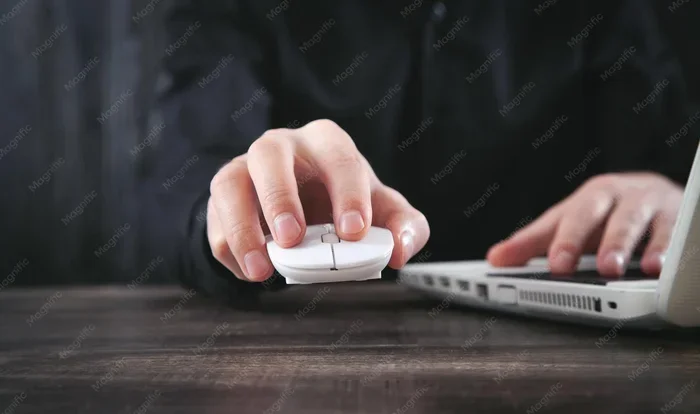
A sticky mouse click can frustrate anyone trying to work or browse on a laptop. This guide walks you through simple, proven fixes that restore smooth clicking in minutes. You will learn cleaning tricks, setting adjustments, and hardware solutions that actually work. Whether your mouse button sticks or misses clicks, we cover it all.
A sticky mouse click is one of those small problems that makes using your laptop feel impossible. You press the button, and nothing happens. Or worse, it stays stuck and won’t pop back. This issue affects laptop users of all ages and skill levels. Whether you use your laptop for work, gaming, or casual browsing, a sticky click slows you down.
The good news is that fixing a sticky mouse click does not require expensive tools or technical expertise. Most solutions take just a few minutes. You can try them at home with items you already have. In this article, we share simple tricks that actually work. We also cover when the problem is deeper and needs professional attention.
We have organized this guide so you can jump to the section that fits your situation. Start with the easiest fix and work your way down. By the end, your mouse will feel brand new again. Let us dive in and get your clicking smooth once more.
Key Takeaways
- Dirt and grime cause most sticky clicks: A simple cleaning routine often solves the problem completely.
- Adjusting mouse settings can help: Tweaking click force and sensitivity in your operating system reduces stickiness.
- Hardware fixes are easy to try: Replacing switches or applying contact cleaner fixes stubborn sticky buttons.
- Preventive maintenance keeps your mouse working: Regular cleaning and care extend your mouse lifespan significantly.
- Know when to seek professional help: Some issues need expert repair, and that is perfectly okay.
- Software updates matter: Outdated drivers often cause mouse click problems that mimic hardware faults.
📑 Table of Contents
Why Does Your Mouse Click Become Sticky?
Understanding the cause helps you pick the right fix. A sticky mouse click usually comes from one of a few common sources. Dirt and dust build up under the button over time. Spills and crumbs can work their way inside the mouse mechanism. Sometimes the plastic parts wear out from heavy use.
Humidity and sweat from your hands also play a role. They create a thin film on the button surface that reduces responsiveness. In some cases, the mouse switch itself wears out. This happens most often with laptops that are several years old.
Common Causes of Sticky Mouse Clicks
- Dust and debris buildup under the mouse button
- Food particles or liquid spills that got inside the device
- Worn-out mechanical switches from repeated use
- Humidity or moisture on the button surface
- Outdated or corrupted drivers causing software issues
- Loose or damaged ribbon cables connecting the mouse to the motherboard
If your mouse button sticks after cleaning, the switch may need replacement. Do not worry. We cover that fix below. Also, if you notice your laptop mouse not working in other ways, the same troubleshooting steps often help. For a deeper look at related problems, check out our guide on How To Fix Your Laptop Mouse for more solutions.
Quick Cleaning Fixes for Sticky Mouse Clicks
Cleaning is the first step because it solves the problem most of the time. Dirt and grime are the number one culprits behind sticky clicks. A thorough cleaning can bring your mouse back to life in under ten minutes.
Method 1: The Compressed Air Technique
Grab a can of compressed air. Turn your laptop upside down gently. Spray short bursts around the sticky mouse button. This blows out loose dust and crumbs. Hold the can upright to avoid moisture buildup. Repeat on all sides of the button.
After blowing out debris, press the button several times. This helps dislodge anything still stuck inside. You will often hear small particles fall out. This simple method works surprisingly well for light stickiness.
Method 2: Isopropyl Alcohol Cleaning
Dampen a cotton swab with isopropyl alcohol. Gently rub around the edges of the sticky button. The alcohol dissolves grime and evaporates quickly. Do not soak the button. A light dampness is all you need.
Let the area dry completely before testing. This usually takes about five minutes. The alcohol also disinfects the surface, which is a nice bonus. For best results, repeat this process once a week if you use your laptop daily.
Method 3: The Tape Trick
This trick sounds too simple, but it works. Press a piece of clear tape onto the sticky button. Pull it off quickly. The tape lifts grime from the surface. Use a fresh piece of tape each time. Repeat until the button feels smooth again.
This method is great for light residue. It works especially well for sticky clicks caused by hand oils and sweat buildup. Keep a roll of clear tape near your workspace for quick fixes.
Adjusting Mouse Settings to Fix Sticky Clicks
Sometimes the problem is not physical at all. Your mouse settings might be too sensitive or too stiff. Adjusting these settings can make a sticky click feel much better. This fix works especially well for touchpad issues.
Windows Mouse Settings
Open your Control Panel and click on Mouse. Go to the Buttons tab. Here you can adjust the double-click speed. If the speed is too fast, clicks may not register properly. Slow it down slightly and test. You can also adjust the click pressure if your laptop supports it.
Under the Pointer Options tab, reduce the pointer speed. A slower pointer speed often reduces accidental clicks. This makes your mouse feel more responsive overall. Apply the changes and test your mouse before closing the window.
Mac Mouse Settings
On a Mac, open System Preferences and go to Trackpad. Adjust the tracking speed to a comfortable level. For physical mice, open Mouse Settings in the System Preferences. Change the click pressure to a lighter setting. This helps if your mouse feels like it requires too much force.
Mac users can also enable “Tap to click” as an alternative. This reduces wear on the physical button. For more on touchpad-specific issues, see our guide on How To Fix Laptop Mouse Touchpad for detailed steps.
Linux Mouse Settings
Linux users can access mouse settings through the system settings panel. Look for the Mouse or Touchpad section. Adjust sensitivity and click timing there. Some Linux distributions also allow you to remap mouse buttons. This can help if one button feels stickier than the others.
Hardware Fixes When Cleaning and Settings Do Not Work
If cleaning and settings adjustments do not solve the problem, it is time to try hardware fixes. These steps require a little more care. But they are still manageable for most users. Always power off your laptop before opening any panels.
Replacing the Mouse Switch
The mouse switch is the small mechanical part under the button. Over time, these switches wear out. They lose their spring tension and start sticking. Replacing a switch is easier than it sounds. You need a small screwdriver and a replacement switch.
First, remove the battery or unplug your laptop. Carefully pry open the mouse button cover. Disconnect the old switch and connect the new one. Snap the cover back in place. Test the button before reassembling everything. Replacement switches are inexpensive and widely available online.
Using Contact Cleaner Spray
Contact cleaner spray is a specialized product for electronic components. Spray a small amount onto the mouse switch mechanism. This cleans the electrical contacts inside the switch. It also removes oxidation that can cause stickiness.
Let the cleaner dry for at least ten minutes before testing. Do not use household cleaners on electronic parts. They can damage sensitive components. Contact cleaner spray costs just a few dollars at any electronics store.
When to Replace the Entire Mouse or Laptop
Sometimes the cost of repair does not make sense. If your laptop is old and the mouse issues are widespread, consider replacing the device. A new laptop comes with a fresh mouse and better overall performance. For standalone mice, replacement is often cheaper than repair.
Also, if you have tried all the fixes above, the ribbon cable connecting the mouse to the motherboard might be damaged. This requires professional repair. Do not force any connections. A damaged cable can cause bigger problems if handled incorrectly.
Preventing Sticky Mouse Clicks in the Future
Prevention is always better than cure. A few simple habits keep your mouse click smooth for years. These tips are easy to follow and take almost no time.
- Clean your mouse buttons weekly with a dry microfiber cloth
- Avoid eating over your laptop to prevent crumbs and spills
- Wash your hands before using your laptop to reduce oil buildup
- Use a laptop cover when not in use to keep dust out
- Update your mouse drivers regularly to ensure smooth performance
- Apply a thin layer of silicone lubricant to the button mechanism once a month
For more tips on keeping your laptop mouse in top shape, read our article on How To Fix Mouse On Laptop. It covers additional maintenance steps that go beyond fixing sticky clicks.
Regular care also extends the life of your touchpad. A clean touchpad responds better and lasts longer. If you also deal with touchpad problems, our guide on How To Fix My Laptop Mouse Pad provides extra troubleshooting steps.
Expert Insights on Mouse Click Problems
Tech professionals agree that most sticky mouse clicks are preventable. Regular cleaning and proper handling make a huge difference. They also recommend keeping your laptop in a clean, dry environment. Humidity is a silent killer of mouse mechanisms.
Experts suggest using a soft brush to clean hard-to-reach areas around the mouse button. A toothbrush with soft bristles works perfectly. Brush gently in one direction to push debris out. Never use sharp objects to pry at a sticky button. You risk damaging the mechanism further.
Another expert tip is to check for software updates regularly. Manufacturers often release driver updates that improve mouse performance. These updates can fix bugs that cause click issues. Keeping your system updated is one of the easiest ways to prevent problems.
If you work in a dusty environment, consider using a laptop at a desk rather than on your lap. Dust settles quickly on flat surfaces. A clean workspace means a longer-lasting mouse. Small changes in your routine can save you from frequent repairs.
Key Takeaways
- Clean first: Most sticky mouse clicks are caused by dirt and grime that cleaning removes.
- Check your settings: Adjusting click speed and pressure in your operating system can fix perceived stickiness.
- Try hardware fixes when needed: Replacing switches or using contact cleaner solves deeper issues.
- Prevent with simple habits: Regular cleaning and careful use keep your mouse working smoothly.
- Know your limits: Some problems need professional help, and that is perfectly fine.
- Stay updated: Driver and software updates often resolve mouse click issues you might not expect.
Conclusion
Fixing a sticky mouse click does not have to be complicated. You can start with simple cleaning methods that take just minutes. If that does not work, adjusting your settings is the next step. Hardware fixes like switch replacement and contact cleaning handle the stubborn cases. Prevention through regular care keeps the problem from coming back.
Remember that every laptop is different. What works for one person might not work for another. Try each method patiently and in order. Most users find relief with the first or second fix. If the problem persists, do not hesitate to seek professional help.
A smooth mouse click makes your laptop experience so much better. You deserve a device that responds quickly and reliably. Use the tips in this guide and enjoy a sticky-free clicking experience. Your laptop will thank you for it.
Frequently Asked Questions
Why does my mouse click feel sticky even after cleaning?
The stickiness might come from inside the switch mechanism rather than the surface. Try using contact cleaner spray on the switch. If the problem continues, the switch may need replacement. Sometimes wear and tear on internal parts causes lasting stickiness that cleaning alone cannot fix.
Can a sticky mouse click damage my laptop?
A sticky click itself does not damage your laptop. However, forcing a stuck button repeatedly can wear out the mechanism faster. It is best to fix the issue promptly. Ignoring it may lead to the button becoming completely unresponsive over time.
How much does it cost to fix a sticky mouse click professionally?
Professional repair costs vary. Simple cleaning services are often free or low-cost. Switch replacement typically costs between $20 and $50. The price depends on your laptop model and the repair shop. Always get a quote before agreeing to any repair work.
Is a sticky mouse click covered under laptop warranty?
It depends on your warranty terms. Wear and tear is usually not covered. However, if the issue is caused by a manufacturing defect, it might be. Check your warranty documentation or contact the manufacturer to confirm your coverage.
Can I use a external mouse to avoid the sticky click problem?
Yes, using an external mouse is a great temporary workaround. It lets you continue working while you troubleshoot the built-in mouse. Wireless mice are easy to connect and use. Just make sure to also fix the internal issue to keep your laptop fully functional.
How often should I clean my laptop mouse to prevent sticky clicks?
Cleaning once a week is ideal for most users. If you eat near your laptop, clean it every few days. A quick wipe with a microfiber cloth takes only seconds. Regular cleaning prevents buildup and keeps your mouse responding smoothly all the time.