How to Get a Mouse to Work on a Laptop
Getting a mouse to work on a laptop is usually simple, but connection glitches, disabled settings, or driver issues can stop it from responding. This guide walks you through how to connect, enable, and troubleshoot a mouse on a laptop—whether it is wired, wireless, or Bluetooth—so you can get back to work or gaming fast.
Key Takeaways
- Check the basics first: Make sure the mouse has power, the USB receiver is plugged in, or Bluetooth is on before diving into settings.
- Use the right port or pairing mode: Wired mice need a working USB port; wireless mice need the USB dongle or Bluetooth pairing.
- Enable the mouse in your OS: Windows, macOS, and Chromebook all have settings where the mouse or touchpad can be disabled by accident.
- Update or reinstall drivers: Outdated or corrupted drivers are a common reason a mouse stops working after updates.
- Try another device: Test the mouse on a different computer to rule out hardware failure.
- Know the quick fixes: Restarting your laptop, trying a different USB port, or re-pairing Bluetooth often solves the issue.
- Use built-in tools: Device Manager (Windows), System Settings (macOS), and Settings (Chromebook) let you troubleshoot and reset mouse devices.
📑 Table of Contents
- How to Get a Mouse to Work on a Laptop
- 1. Understand How Your Mouse Connects to a Laptop
- 2. How to Connect a Wired Mouse to a Laptop
- 3. How to Connect a Wireless Mouse with a USB Receiver
- 4. How to Connect a Bluetooth Mouse to a Laptop
- 5. How to Enable or Unlock a Mouse on a Laptop
- 6. How to Fix a Mouse That Is Not Working on a Laptop
- 7. How to Use a Laptop Without a Mouse (If You Need To)
- 8. Special Tips for Gaming and High-Performance Mice
- 9. How to Keep Your Mouse Working Smoothly
- Conclusion
How to Get a Mouse to Work on a Laptop
So you plugged in your mouse, wiggled it around, and… nothing. The cursor is stuck, the clicks do not register, or the mouse does not show up at all. It is frustrating, especially when you have work to do or a game to play.
The good news is that most mouse issues on laptops are easy to fix. In most cases, it is a simple connection problem, a disabled setting, or a driver that needs a refresh. You do not need to be a tech expert to solve it.
In this guide, you will learn how to get a mouse to work on a laptop step by step. We will cover wired mice, wireless mice with USB receivers, and Bluetooth mice. We will also go through the most common problems and how to fix them on Windows, macOS, and Chromebook.
1. Understand How Your Mouse Connects to a Laptop
Before you start troubleshooting, it helps to know how your mouse talks to your laptop. There are three main types of connections, and each one has its own setup steps.

Visual guide about How to Get a Mouse to Work on a Laptop
Image source: 2.bp.blogspot.com
1.1 Wired USB Mice
A wired mouse connects to your laptop using a USB plug. Most of the time, you just plug it in and it works. The laptop detects it automatically and starts using it right away.
- Uses a USB-A or USB-C connector (some come with an adapter).
- No batteries or charging needed.
- Usually plug-and-play on Windows, macOS, and Chromebook.
1.2 Wireless Mice with a USB Receiver
These mice come with a small USB dongle, often called a nano receiver. You plug the receiver into your laptop, turn on the mouse, and they connect to each other.
- Uses a 2.4 GHz wireless signal.
- Needs batteries or charging.
- Usually plug-and-play, but sometimes needs a button press to pair.
1.3 Bluetooth Mice
Bluetooth mice connect without a USB receiver. Your laptop must have Bluetooth turned on, and you pair the mouse in your system settings.
- No USB dongle needed.
- Needs batteries or charging.
- Requires pairing in Bluetooth settings.
Knowing which type you have will help you follow the right steps to get your mouse working.
2. How to Connect a Wired Mouse to a Laptop
Wired mice are the simplest to set up. If your wired mouse is not working, the problem is usually the port, the cable, or a software setting.

Visual guide about How to Get a Mouse to Work on a Laptop
Image source: 2.bp.blogspot.com
2.1 Plug the Mouse into a USB Port
Take the USB plug from your mouse and insert it into a USB port on your laptop. If it is a USB-C mouse and your laptop only has USB-A ports, use a USB-C to USB-A adapter.
After plugging it in, move the mouse around. The cursor should start moving within a few seconds.
2.2 Try a Different USB Port
If nothing happens, unplug the mouse and try a different USB port. Sometimes one port may be damaged or not supplying enough power.
On some laptops, certain ports are meant mainly for charging and may not work well with all devices. Try a port on the other side of the laptop if available.
2.3 Check the Cable and Connector
Look at the mouse cable for any obvious damage, like fraying or bent connectors. If you have another USB device, plug it into the same port to make sure the port itself works.
If another device works in that port but the mouse does not, the mouse or its cable may be the problem.
2.4 Restart Your Laptop
Sometimes the laptop just needs a fresh start. Save your work and restart your laptop with the mouse plugged in. When it boots up, the mouse should be detected automatically.
3. How to Connect a Wireless Mouse with a USB Receiver
Wireless mice with a USB dongle are very popular. They are easy to use, but a few things can stop them from working.
Visual guide about How to Get a Mouse to Work on a Laptop
Image source: appinventor.mit.edu
3.1 Insert the USB Receiver
Find the small USB receiver that came with your mouse. It is usually stored in the battery compartment or in a small slot on the mouse. Plug it into a free USB port on your laptop.
3.2 Turn On the Mouse
Flip the power switch on the bottom of the mouse to the “On” position. Some mice turn on automatically when you insert batteries.
Look for a small LED light on the mouse. If it blinks or lights up, the mouse has power.
3.3 Check the Batteries or Charge
If the mouse does not respond, check the batteries. Replace them with fresh ones, or charge the mouse if it has a built-in battery.
Even if the LED lights up, weak batteries can cause connection problems. New batteries often fix the issue.
3.4 Let the Laptop Install Drivers
When you plug in the receiver, your laptop may need a moment to install drivers. You might see a notification like “Setting up device” or “Installing drivers.”
Wait a minute or two, then move the mouse to see if the cursor responds.
3.5 Use the Pairing Button (If Needed)
Some wireless mice have a small connect button on the bottom or near the receiver. If the mouse does not work right away, press the button on the mouse and, if there is one, on the receiver.
Check your mouse manual for the exact pairing steps. Usually, you press and hold the button for a few seconds until a light blinks.
4. How to Connect a Bluetooth Mouse to a Laptop
Bluetooth mice are great because they do not need a USB receiver. But they do require a few more steps to set up.

Visual guide about How to Get a Mouse to Work on a Laptop
Image source: film-rezensionen.de
4.1 Turn On Bluetooth on Your Laptop
First, make sure Bluetooth is enabled on your laptop.
- Windows: Open Settings, go to Bluetooth & devices, and toggle Bluetooth on.
- macOS: Open System Settings, click Bluetooth, and turn it on.
- Chromebook: Click the time in the bottom-right corner, then click the Bluetooth icon to turn it on.
4.2 Put the Mouse in Pairing Mode
Turn on the mouse and activate pairing mode. This is usually done by pressing and holding a button on the bottom of the mouse until a light blinks.
Some mice enter pairing mode automatically the first time you turn them on.
4.3 Pair the Mouse in Your Laptop Settings
On your laptop, go to the Bluetooth settings and look for available devices. You should see the name of your mouse in the list.
- Windows: In Bluetooth & devices, click “Add device,” then choose Bluetooth, and select your mouse.
- macOS: In Bluetooth settings, find your mouse and click “Connect.”
- Chromebook: In Bluetooth settings, click the mouse name and select “Connect.”
Once connected, move the mouse to see if the cursor moves. If it does, you are all set.
4.4 Re-Pair If the Connection Drops
If your Bluetooth mouse stops working after sleep or restart, you may need to re-pair it. Turn the mouse off and on again, or remove it from the Bluetooth list and pair it again.
5. How to Enable or Unlock a Mouse on a Laptop
Sometimes the mouse is connected, but it is disabled in software. This can happen after updates, accidental key presses, or changes in settings.
5.1 Check If the Mouse or Touchpad Is Disabled
On many laptops, you can disable the touchpad or external mouse by accident. Some laptops have a function key (like Fn + F3, F5, F7, or F9) that toggles the touchpad or pointing device.
Look for a small touchpad icon on the function keys. Press Fn and that key to see if it enables the device.
If you are not sure how to unlock your mouse on a laptop, check your laptop manual or the manufacturer’s support site for the correct key combination.
5.2 Enable the Mouse in Windows Settings
On Windows, you can check if the mouse is enabled in the system settings.
- Open Settings.
- Go to Bluetooth & devices, then click Mouse.
- Make sure the mouse settings are not set to disable the device.
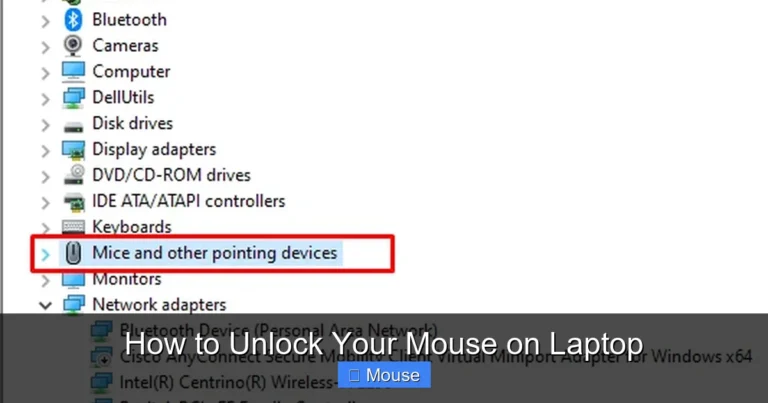
You can also open Device Manager, expand “Mice and other pointing devices,” and make sure your mouse is listed and not disabled. If it has a down arrow icon, right-click it and choose “Enable device.”
5.3 Enable the Mouse in macOS Settings
On a Mac, go to System Settings, then click Mouse or Trackpad. Make sure the device is recognized and the settings are turned on.
If you are using a Bluetooth mouse, check the Bluetooth settings to see if it shows as connected.
5.4 Enable the Mouse on a Chromebook
On a Chromebook, open Settings, then go to Device > Touchpad (or Mouse). Make sure the touchpad or external mouse is enabled and the sensitivity is set to a usable level.
6. How to Fix a Mouse That Is Not Working on a Laptop
If your mouse still does not work after connecting and enabling it, it is time to troubleshoot. Here are the most common fixes.
6.1 Restart Your Laptop
This sounds too simple, but restarting fixes many issues. It clears temporary glitches and forces the system to re-detect connected devices.
6.2 Update or Reinstall Mouse Drivers (Windows)
Outdated or corrupted drivers can stop your mouse from working.
- Right-click the Start button and open Device Manager.
- Expand “Mice and other pointing devices.”
- Right-click your mouse and choose “Update driver.”
- Select “Search automatically for drivers.”
If that does not help, right-click the mouse again and choose “Uninstall device.” Then restart your laptop. Windows will reinstall the driver automatically.
6.3 Check for System Updates
Sometimes a system update can cause mouse issues, and a newer update can fix them.
- Windows: Go to Settings > Windows Update and install any available updates.
- macOS: Go to System Settings > General > Software Update.
- Chromebook: Click the time, go to Settings > About ChromeOS, and check for updates.
6.4 Test the Mouse on Another Computer
Plug your mouse into a different computer. If it works there, the problem is with your laptop’s settings or ports. If it does not work on another computer, the mouse itself may be faulty.
6.5 Try a Different Mouse on Your Laptop
If you have another mouse, plug it into your laptop. If the second mouse works, your original mouse is likely the problem. If the second mouse also does not work, the issue is probably with your laptop.
6.6 Disable Conflicting Devices
Sometimes other devices can interfere with your mouse, especially wireless ones. Disconnect other USB devices, like external drives or other receivers, and see if the mouse starts working.
On Bluetooth, too many connected devices can cause issues. Try disconnecting other Bluetooth devices temporarily.
7. How to Use a Laptop Without a Mouse (If You Need To)
While you are fixing your mouse, you might need to keep working. Most laptops let you do basic tasks using the keyboard and touchpad.
7.1 Use Keyboard Shortcuts
Keyboard shortcuts can replace many mouse actions.
- Ctrl + C / Ctrl + V: Copy and paste.
- Ctrl + Z: Undo.
- Alt + Tab: Switch between open apps.
- Windows key + D: Show desktop (Windows).
- Tab and Enter: Navigate menus and buttons.
If you need to right-click on a laptop without a mouse, you can often press Shift + F10 or use the context menu key on your keyboard.
7.2 Use the Touchpad
If your touchpad is working, you can use it as a temporary mouse. Tap to click, use two fingers to right-click, and drag to select items.
On Windows and macOS, you can adjust touchpad sensitivity and gestures in the settings to make it easier to use.
8. Special Tips for Gaming and High-Performance Mice
Gaming and high-performance mice often have extra features like custom DPI, RGB lighting, and programmable buttons. Sometimes these features need special software.
8.1 Install the Manufacturer’s Software
Brands like Logitech, Razer, Corsair, and SteelSeries have their own software (like Logitech G Hub or Razer Synapse). Install the software from the manufacturer’s website to unlock all features and fix detection issues.
8.2 Check DPI and Polling Rate Settings
If your mouse feels too slow or too fast, check the DPI (dots per inch) setting. Many gaming mice have a button on top to cycle through DPI levels.
Higher DPI means faster cursor movement. Lower DPI gives you more control for precise tasks.
8.3 Use a Direct USB Port Instead of a Hub
For gaming mice, plug the receiver or cable directly into the laptop instead of a USB hub. Hubs can add latency or cause connection drops.
9. How to Keep Your Mouse Working Smoothly
Once your mouse is working, a little maintenance can help prevent future problems.
9.1 Keep Batteries Fresh
If you use a wireless mouse, keep spare batteries or charge the mouse regularly. Low battery power can cause lag or disconnections.
9.2 Clean the Mouse
Dust and dirt can build up around the sensor on the bottom of the mouse. Use a soft cloth or a cotton swab to clean the sensor and the mouse feet.
9.3 Update Software and Drivers
Check for driver updates every few months, especially after major system updates. This helps avoid compatibility issues.
9.4 Store the USB Receiver Safely
If your wireless mouse uses a receiver, store it in the mouse when you travel. Losing the receiver can make the mouse unusable unless you buy a replacement.
Conclusion
Getting a mouse to work on a laptop is usually quick and simple. Start with the basics: check the connection, make sure the mouse has power, and verify that it is enabled in your system settings. If that does not work, move on to drivers, updates, and testing on another device.
Most of the time, the problem is something small, like a loose USB plug, a dead battery, or a disabled setting. With the steps in this guide, you should be able to fix the issue and get back to work, study, or gaming without too much hassle.
If your mouse still does not work after trying everything, it might be time to replace it. But in many cases, a few minutes of troubleshooting is all you need to get your mouse up and running again.
Frequently Asked Questions
Why is my mouse plugged in but not working on my laptop?
This is often caused by a bad USB port, a loose cable, or outdated drivers. Try a different port, check the cable for damage, and update or reinstall the mouse drivers in Device Manager (Windows) or System Settings (macOS).
How do I connect a wireless mouse to my laptop?
Plug the USB receiver into your laptop and turn on the mouse. If it uses Bluetooth, enable Bluetooth on your laptop, put the mouse in pairing mode, and connect it through your system’s Bluetooth settings.
How do I unlock a mouse on a laptop?
Some laptops have a function key (like Fn + F3 or F7) that disables the touchpad or pointing device. Press that key combination again, and check your system settings to make sure the mouse is enabled.
Can I use a mouse on any laptop?
Most mice work with any laptop that has a USB port or Bluetooth. Wired and wireless USB mice are usually plug-and-play. Bluetooth mice need a laptop with Bluetooth support.
What should I do if my mouse works on another laptop but not mine?
This usually means the problem is with your laptop, not the mouse. Try updating drivers, checking for system updates, and testing different ports. If you are not sure how to fix a mouse on a laptop, start with a simple restart and then move to more advanced troubleshooting.
How do I use my laptop if the mouse is not working?
You can use keyboard shortcuts and the touchpad to navigate. For example, use Tab to move between items, Enter to select, and Shift + F10 to open the right-click menu. This can help you keep working while you fix the mouse.