How to Get Mouse Working on Laptop
Struggling with an unresponsive mouse on your laptop? This guide walks you through simple checks, driver fixes, and hardware tips to get mouse working on laptop fast. Follow the clear steps and you’ll be scrolling, clicking, and dragging again in minutes.
Key Takeaways
- Check hardware first: Ensure the mouse or touchpad is properly connected and not physically damaged.
- Update or reinstall drivers: Out‑of‑date or corrupted drivers are the most common cause of mouse failures.
- Adjust settings: Touchpad sensitivity, disabled buttons, and power‑saving options can hide the cursor.
- Use built‑in troubleshooting tools: Windows and macOS include utilities that automatically detect and fix mouse problems.
- Know when to replace: If software fixes fail, the mouse hardware may need replacement.
- Tip for wireless users: Interference, low batteries, and USB port issues often affect wireless mouse performance.
- Backup plan: Keyboard shortcuts let you navigate even when the mouse won’t cooperate.
📑 Table of Contents
Introduction
There’s nothing more frustrating than moving your laptop around, only to find the cursor frozen or missing. Whether you rely on the built‑in touchpad, an external USB mouse, or a sleek Bluetooth device, a non‑functional pointer can halt your work, gaming, or browsing in an instant.
Fortunately, most mouse problems are easy to diagnose and fix. In this article we’ll explore why your mouse might have stopped responding, walk you through troubleshooting steps, and share tips to keep it running smoothly. By the end, you’ll know exactly how to get mouse working on laptop without calling tech support.
1. Basic Hardware Checks
1.1 Verify Physical Connections
Start with the simplest step: make sure the mouse is firmly plugged in. For USB mice, try a different port. Some laptops disable USB 3.0 ports to save power; switching to a USB 2.0 slot can help.
1.2 Test the Mouse on Another Device
If possible, connect the mouse to another computer. A working cursor confirms the mouse itself isn’t broken. If it fails on both machines, consider replacing it.
1.3 Inspect the Touchpad
Many laptops have a built‑in touchpad that can be disabled by accident. Look for a function key (often Fn + F7/F9) with a touchpad icon. Press it to toggle the pad on or off.
2. Software and Driver Solutions
2.1 Update Drivers Automatically
Windows Update often includes the latest drivers for common hardware. Go to Settings > Update & Security > Windows Update and click “Check for updates.” macOS users can check System Settings > Software Update.
2.2 Reinstall the Mouse Driver Manually
1. Open Device Manager (right‑click the Start button and select it).
2. Expand “Mice and other pointing devices.”
3. Right‑click your mouse entry and choose “Uninstall device.”
4. Restart the laptop; Windows will reinstall a fresh driver automatically.
2.3 Use the Manufacturer’s Utility
Brands like Logitech, Razer, and Microsoft provide dedicated software (Logitech Options, Razer Synapse, Microsoft Mouse and Keyboard Center). Installing these tools can resolve compatibility quirks and give you extra customization.
2.4 Roll Back a Recent Update
If the cursor vanished after a Windows or driver update, roll back to the previous version. In Device Manager, right‑click the mouse, select “Properties,” go to the “Driver” tab, and click “Roll Back Driver.”
3. Touchpad and Settings Tweaks
3.1 Enable the Touchpad in Settings
Windows 10/11: Settings > Devices > Touchpad → toggle “Touchpad” on.
macOS: System Settings > Trackpad → ensure “Tap to click” and “Tracking speed” are set appropriately.
3.2 Adjust Sensitivity and Gestures
Too low sensitivity can make the cursor feel stuck. Increase the tracking speed slider until movement feels natural. Disable any gestures you don’t use to reduce accidental disabling.
3.3 Disable “Touchpad Block” When Mouse Is Connected
Some laptops automatically turn off the touchpad when an external mouse is detected. If you need both, uncheck “Leave touchpad on when a mouse is connected” in the touchpad settings.
3.4 Power Management Settings
Power‑saving options may turn off USB ports or the touchpad to conserve battery. Go to Device Manager > Universal Serial Bus controllers, right‑click each hub, choose “Properties,” and under the “Power Management” tab, uncheck “Allow the computer to turn off this device to save power.”
4. Wireless and Bluetooth Mouse Issues
4.1 Check Batteries and Power
Low battery voltage often causes lag or complete failure. Replace AA/AAA cells or recharge the built‑in battery.
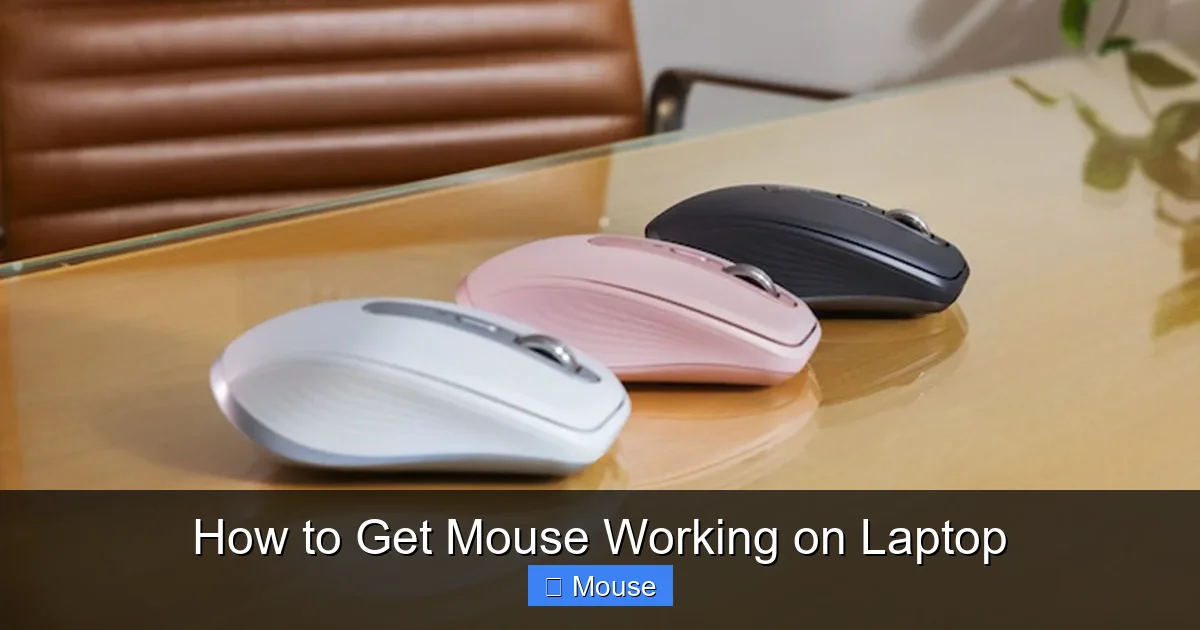
Visual guide about How to Get Mouse Working on Laptop
Image source: i.ytimg.com
4.2 Re‑pair the Bluetooth Connection
1. Open Bluetooth & devices in Settings.
2. Remove the mouse from the list of paired devices.
3. Turn the mouse off, then on, and press the pairing button.
4. Add the device again.
4.3 Reduce Interference
Wireless 2.4 GHz signals can clash with Wi‑Fi, microwaves, or other peripherals. Move the receiver to a USB port closer to the mouse, or switch to a 5 GHz mouse if available.
4.4 Update Bluetooth Drivers
In Device Manager, expand “Bluetooth,” right‑click your adapter, and select “Update driver.” If the laptop uses a combo Wi‑Fi/Bluetooth card, update the entire chipset driver from the manufacturer’s website.
5. Advanced Troubleshooting Tools
5.1 Run the Built‑In Windows Troubleshooter
Go to Settings > Update & Security > Troubleshoot > Additional troubleshooters and run “Hardware and Devices.” Windows will scan for common issues and attempt fixes.
5.2 Check for Conflicting Software
Security suites, remote‑desktop applications, or third‑party mouse utilities can interfere. Temporarily disable them to see if the cursor returns.
5.3 Use Safe Mode
Booting into Safe Mode loads only essential drivers. If the mouse works there, a third‑party program is likely the culprit. Uninstall recent apps or perform a clean boot to isolate the problem.
5.4 Review Event Viewer Logs
Open Event Viewer (type “eventvwr” in the Run dialog). Look under “Windows Logs > System” for errors related to “hidclass” or “usb.” These entries can point to a failing USB controller.
6. When to Replace the Mouse
6.1 Signs of Hardware Failure
Clicking feels inconsistent, the cursor jumps, or the device is physically damaged (broken cable, worn-out scroll wheel). In these cases, a new mouse is the quickest solution.
6.2 Choosing a Replacement
Consider ergonomics, connection type (wired vs. wireless), and DPI range. For laptops, a compact wireless mouse with a USB‑C receiver often offers the best portability.
6.3 Installing a New Mouse
Plug the new device into a USB port or pair via Bluetooth. Windows will automatically install generic drivers, and you can fine‑tune settings later.
Conclusion
Getting your mouse back on track doesn’t have to be a nightmare. By starting with simple hardware checks, updating or reinstalling drivers, tweaking touchpad settings, and addressing wireless quirks, you can resolve the majority of issues that prevent a mouse from working on a laptop. Keep the troubleshooting steps handy, and remember that a fresh set of batteries or a quick driver roll‑back often does the trick. If all else fails, a replacement mouse is a small investment for a big productivity boost.
Now you know exactly how to get mouse working on laptop—so go ahead, test the steps, and enjoy a smooth, responsive cursor once again.
Frequently Asked Questions
Why is my laptop mouse not moving?
The cursor may be frozen due to a disabled touchpad, outdated drivers, or a low‑battery wireless mouse. Checking settings and updating drivers usually resolves it.
How can I enable the touchpad if it’s disabled?
Press the function key with the touchpad icon (often Fn + F7) or go to Settings → Devices → Touchpad and toggle it on.
My external USB mouse works on another PC but not on my laptop. What should I do?
Try a different USB port, disable power‑saving for USB hubs in Device Manager, and reinstall the mouse driver.
What can I do if a Bluetooth mouse keeps disconnecting?
Replace the batteries, re‑pair the device, reduce wireless interference, and update the Bluetooth adapter driver.
Is there a way to use the keyboard while the mouse is broken?
Yes—use the Tab key to move focus, Enter to select, and the Windows key + Ctrl + Shift + B shortcut to reset the graphics driver, which can sometimes revive the cursor.
When should I consider buying a new mouse?
If troubleshooting steps don’t help, the scroll wheel is erratic, or the cable/receiver is damaged, it’s time for a replacement.