How To Increase Mouse Sensitivity on Your Mac Today
Increasing mouse sensitivity on your Mac is quick, easy, and can transform how you work and browse. Whether you use a wireless mouse or a trackpad, adjusting your pointer speed takes just a few clicks. This guide walks you through every method to get your mouse sensitivity Mac dialed in perfectly.
Adjusting your mouse sensitivity on a Mac can make a huge difference in how smoothly you navigate your screen. If your cursor feels too slow or too jumpy, you are not alone. Many Mac users want to tweak their mouse sensitivity Mac settings but do not know where to start. This guide covers every method you need.
Whether you use a wireless mouse or the built-in trackpad, macOS gives you several ways to control pointer speed. You do not need to be a tech expert to make these changes. In fact, most adjustments take less than a minute. Let us walk through them together.
## Why Mouse Sensitivity Matters on Your Mac
Mouse sensitivity controls how fast your cursor moves across the screen. When the sensitivity is too low, you need to move your hand constantly. When it is too high, you overshoot your targets. Finding the right balance makes your workflow smoother and more comfortable.
### The Impact of Incorrect Sensitivity
Wrong sensitivity settings can cause real problems. You might experience cursor jitter, slow response times, or wrist strain. Over time, these issues affect your productivity and even your health. Taking a few minutes to adjust your mouse speed Mac settings can save you hours of frustration.
### Who Benefits from Adjusting Sensitivity?
– Graphic designers who need precise cursor control
– Gamers who want fast, responsive movement
– Office workers who navigate many screens daily
– Users with accessibility needs who require larger or faster pointers
## How To Adjust Mouse Sensitivity Through System Preferences
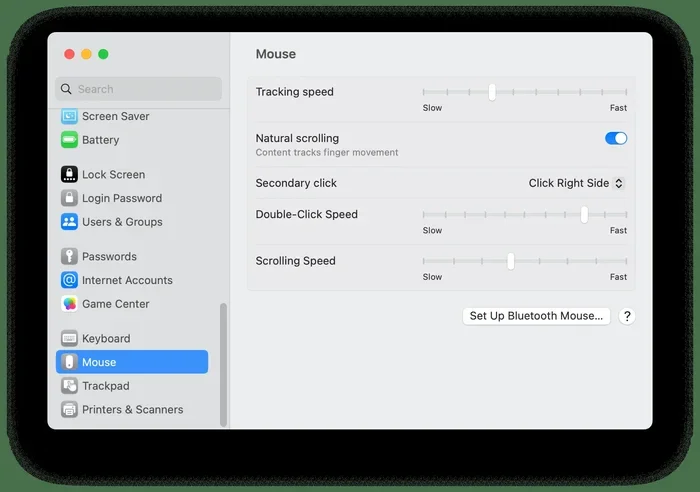
The most straightforward way to change your pointer speed Mac is through System Preferences. This method works for all Mac models and all connected mice. Here is exactly what to do.
### Step-by-Step Guide
1. Click the Apple menu in the top-left corner of your screen.
2. Select System Settings (or System Preferences on older Macs).
3. Click on Mouse or Trackpad, depending on your device.
4. Look for the Tracking Speed slider.
5. Drag the slider to the right for faster movement or left for slower movement.
6. Test your cursor movement immediately to see if it feels right.
### Finding the Right Speed
There is no single “perfect” setting. Everyone has a different preference. Start by moving the slider to the middle and test it. Then adjust in small increments until it feels natural. Your macos mouse configuration should feel effortless, not forced.
## Using Accessibility Settings for Advanced Control
macOS includes powerful accessibility features that let you go beyond basic tracking speed. These options are perfect for users who need more precise control over their mouse cursor speed.
### Adjusting Pointer Size and Speed
1. Open System Settings.
2. Navigate to Accessibility.
3. Click on Display.
4. Select Pointer Controls.
5. Here you can adjust both pointer size and pointer speed independently.
This method gives you finer control than the standard Mouse settings. You can make your pointer larger while also increasing mouse acceleration Mac for faster screen coverage.
### Enabling Shake to Locate
A handy accessibility feature lets you shake your mouse to temporarily enlarge the pointer. This is great if you lose your cursor on a cluttered screen. To enable it:
– Go to Accessibility > Display > Pointer Controls
– Toggle on “Shake mouse pointer to locate”
This small trick can save you significant time during your daily work.
## Third-Party Apps for Custom Mouse Sensitivity on Mac
Built-in settings cover most needs, but some users want more control. Third-party applications open up advanced customization for your mouse sensitivity settings.
### USB Overdrive
USB Overdrive is a popular choice for Mac users who want full control over their input devices. It supports mice, trackpads, and even gaming controllers. You can create custom profiles for different tasks and switch between them instantly.
### Steermouse
Steermouse is another excellent option. It lets you assign custom actions to mouse buttons and adjust sensitivity per application. This means you can have one speed for work and another for gaming, all on the same device.
### Logitech Options
If you use a Logitech mouse, the Logi Options+ app provides built-in sensitivity controls. You can adjust DPI levels directly from the application without touching macOS settings. This is especially useful for users who own a wireless mouse mac setup.
## Trackpad Sensitivity vs. Mouse Sensitivity on Mac
Many Mac users switch between a mouse and the built-in trackpad. Understanding the differences helps you optimize both setups for the best experience.
### Trackpad Settings You Should Know
The trackpad has its own sensitivity controls separate from your external mouse. To adjust trackpad speed:
1. Open System Settings.
2. Click on Trackpad.
3. Adjust the Tracking Speed slider.
4. Enable or disable “Force Click and haptic feedback” if needed.
### When to Use Each
– Use your mouse for precise tasks like design work or detailed editing.
– Use the trackpad for quick navigation and casual browsing.
– Adjust sensitivity differently for each device based on your workflow.
Knowing when to switch devices and how to set each one up properly makes a big difference. If you ever need to use your Mac without a mouse, check out our guide on How To Use Laptop Without A Mouse for helpful tips.
## Common Mouse Sensitivity Problems and How To Fix Them
Even after adjusting settings, some users still experience issues. Here are the most common problems and their solutions.
### Cursor Moves Too Fast
If your cursor flies across the screen, your tracking speed is likely too high. Go back to System Settings > Mouse and move the slider to the left. Also check your Accessibility settings in case a second speed control is overriding your preferences.
### Cursor Moves Too Slow
A slow cursor often means your tracking speed is set too low. Increase the slider gradually. If the problem persists, check for dust or debris on your mouse sensor. Clean sensors often restore normal speed.
### Cursor Jumps or Stutters
Jumpy cursors usually result from wireless interference or low battery. If you use a wireless mouse mac, try moving closer to the receiver or replacing the batteries. You can also learn more about connecting your device properly in our article on How To Connect Wireless Mouse With Laptop.
### Double-Click Speed Issues
Sometimes the problem is not sensitivity but double-click timing. To fix this:
– Go to System Settings > Mouse.
– Adjust the Double-Click Speed slider.
– Test by double-clicking a file icon.
## Expert Tips for Optimizing Mouse Sensitivity on Mac
Getting the most out of your mouse goes beyond just adjusting one slider. Here are some expert tips that make a real difference.
### Tip 1: Match Sensitivity to Your Display Size
Larger monitors need higher sensitivity because you cover more physical distance. If you use a 27-inch display, consider increasing your cursor movement speed compared to a 13-inch MacBook screen.
### Tip 2: Disable Mouse Acceleration for Gaming
Mac users who game often benefit from disabling mouse acceleration. This makes cursor movement proportional to your hand movement, which many gamers prefer. Third-party tools like USB Overdrive make this easy to configure.
### Tip 3: Keep Your macOS Updated
Apple regularly improves trackpad and mouse handling in macOS updates. Running the latest version of macOS ensures you have the best mouse performance Mac possible.
### Tip 4: Clean Your Mouse Sensor Regularly
Dust and grime on your mouse sensor can cause erratic behavior. A quick wipe with a microfiber cloth keeps your device running smoothly and maintains consistent mouse click speed and tracking accuracy.
## Frequently Asked Questions
How do I increase mouse sensitivity on my Mac?
Go to System Settings, click Mouse, and drag the Tracking Speed slider to the right. You can also adjust pointer speed in Accessibility settings for finer control. These simple steps let you customize your mouse sensitivity Mac to match your preferences.
What is the best mouse sensitivity for Mac?
There is no universal “best” setting because everyone has different preferences. Start with the middle position on the tracking speed slider and adjust from there. Most users find a setting between 60 and 80 percent comfortable for daily tasks.
Can I adjust sensitivity separately for my trackpad and mouse?
Yes, macOS treats trackpad and mouse settings independently. You can set different speeds for each device under their respective sections in System Settings. This lets you optimize mouse cursor speed for both input methods.
Why does my mouse feel less sensitive after a macOS update?
macOS updates sometimes reset peripheral settings to defaults. After an update, check your Mouse and Trackpad settings to confirm your preferred speed is still selected. Reapplying your settings takes just a few seconds.
Do I need third-party software to adjust mouse sensitivity on Mac?
No, macOS built-in settings cover most sensitivity adjustments. However, third-party apps like USB Overdrive and Steermouse offer advanced features like per-app profiles and button customization. These are great for power users who want deeper control over their macos mouse configuration.
How can I improve my wireless mouse performance on Mac?
Ensure your mouse batteries are fresh, stay within range of the receiver, and minimize wireless interference from other devices. You can also check our guide on How To Use Mouse On Laptop for additional tips on optimizing wireless mouse performance.
## Conclusion
Adjusting your mouse sensitivity Mac settings is one of the simplest ways to improve your daily computing experience. Whether you prefer a fast-paced cursor or slow, precise movement, macOS gives you the tools to get it right. From System Preferences to Accessibility features and third-party apps, you have plenty of options at your fingertips.
Take a few minutes today to experiment with different settings. You will be surprised how much smoother your workflow becomes once your pointer speed matches your natural rhythm. A well-configured mouse or trackpad makes every click, scroll, and drag feel effortless. Start with the built-in settings, explore advanced options if needed, and enjoy a Mac experience that truly fits your style.
Key Takeaways
- System Preferences Method: The easiest way to adjust your mouse speed through Mac settings.
- Accessibility Options: Fine-tune pointer size and speed for users with visual needs.
- Third-Party Tools: Apps like USB Overdrive offer advanced customization beyond built-in settings.
- Trackpad vs. Mouse: Different devices need different sensitivity approaches on macOS.
- Reset Options: You can always revert to default settings if adjustments don’t work.
Frequently Asked Questions
What is How To Increase Mouse Sensitivity Mac?
How To Increase Mouse Sensitivity Mac is an important topic with many practical applications.