How To Invert Mouse Scroll On Mac For Better Control
Inverting your mouse scroll on a Mac is a quick and easy tweak that can transform how you navigate your screen. Whether you prefer traditional or natural scrolling, macOS lets you flip the direction in just a few clicks. This guide walks you through every method, from system preferences to third-party mouse settings, so you can take full control of your scroll experience.
Have you ever scrolled through a web page on your Mac and felt like the content was moving in the wrong direction? You are not alone. Many people want to invert mouse scroll on Mac to match their personal preference or muscle memory. Whether you are a designer, a gamer, or just someone who spends hours browsing the web, getting your scroll direction right makes a huge difference.
The good news is that macOS makes this process surprisingly simple. You do not need to be a tech expert to flip your scroll direction. In this guide, we will walk you through every step, from the built-in system settings to advanced tweaks for third-party mice. By the end, you will know exactly how to set up your scroll behavior the way you want it.
We will also cover common problems you might run into and how to fix them. So grab your Mac, your mouse, and let us get started. This guide covers everything you need to know about inverting scroll direction on macOS for a smoother and more natural experience.
Key Takeaways
- Easy Toggle: You can invert mouse scroll direction on Mac through System Preferences or System Settings in under a minute.
- Works For All Mice: The setting applies to both Apple Magic Mouse and third-party mice like Logitech and Dell models.
- Natural Scrolling Explained: macOS uses natural scrolling by default, which mimics the feel of moving a physical page.
- Scroll Speed Matters: Adjusting scroll speed alongside inversion gives you a truly customized experience.
- Troubleshooting Is Simple: Most scroll issues can be fixed by resetting your mouse or updating your macOS.
- Trackpad And Mouse Share Settings: The same scroll inversion option often controls both your trackpad and external mouse.
- Third-Party Apps Add Power: Apps like StealthEX and USB Overdrive offer even more scroll customization options.
📑 Table of Contents
- Why Invert Mouse Scroll On Mac Makes Sense
- How To Invert Mouse Scroll On Mac Using System Preferences
- Inverting Scroll Direction For Third-Party Mice
- Fine-Tuning Scroll Speed And Sensitivity On Your Mac
- Troubleshooting Common Scroll Inversion Issues
- Expert Tips For Getting The Most Out Of Your Mac Scroll Settings
- Frequently Asked Questions
- Conclusion
Why Invert Mouse Scroll On Mac Makes Sense
Before we dive into the steps, let us talk about why you might want to invert your mouse scroll on Mac in the first place. Understanding the difference between natural and traditional scrolling helps you make the right choice for your workflow.
Understanding Natural Scrolling Vs. Traditional Scrolling
macOS uses what Apple calls natural scrolling. With natural scrolling, when you swipe up with two fingers on your trackpad or scroll up with your mouse wheel, the content on screen moves up. This mimics the feeling of physically pushing a page upward with your hand. It feels intuitive if you are used to touching and moving objects directly on a screen.
Traditional scrolling works the opposite way. When you scroll up, the content moves down, revealing the content above. This has been the standard on computers for decades. Many people who grew up with desktop computers prefer this method because it matches the behavior of a physical scroll bar.
Both methods have their merits. Natural scrolling feels great on trackpads and touchscreens. Traditional scrolling often feels more comfortable when using a mouse on a laptop with a scroll wheel. The key is choosing what works best for you.
Who Should Invert Their Scroll Direction
You might want to reverse scroll direction on your Mac if any of these situations sound familiar:
- You switched from Windows to Mac: Windows traditionally uses the opposite scroll direction than macOS natural scrolling.
- You use a mouse with a scroll wheel: Many mice are designed with traditional scrolling in mind.
- You are a graphic designer or video editor: Flipping the scroll can make timeline and canvas navigation feel more natural.
- You have wrist or hand discomfort: Some users find that inverted scrolling reduces strain during long work sessions.
- You use multiple devices: Matching scroll behavior across your Mac, iPad, and PC can reduce confusion.
No matter your reason, the ability to invert mouse scroll on Mac gives you the flexibility to work comfortably.
How To Invert Mouse Scroll On Mac Using System Preferences
The built-in macOS settings make it incredibly easy to flip your scroll direction. Here is exactly how to do it on different versions of macOS.
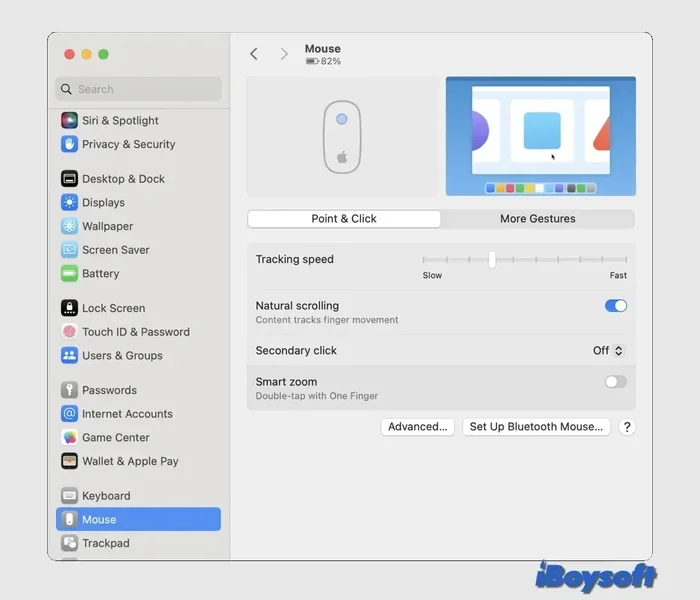
Step-By-Step Guide For macOS Ventura And Newer
If your Mac runs macOS Ventura or later, Apple moved the settings to a new location. Here is what to do:
- Click the Apple menu in the top-left corner of your screen.
- Select System Settings from the dropdown menu.
- In the left sidebar, click on Mouse.
- Look for the option labeled Scroll Direction.
- Toggle off the switch next to Natural Scroll.
That is it. Your scroll direction is now inverted. Try scrolling a web page or a document to feel the difference. The change takes effect immediately.
Steps For Older macOS Versions
On older versions of macOS, the process is slightly different but just as simple:
- Click the Apple menu in the top-left corner.
- Select System Preferences.
- Click on Mouse or Trackpad, depending on your device.
- Find the checkbox for Scroll direction: Natural.
- Uncheck the box to disable natural scrolling.
Your scroll direction will flip right away. You can always go back and toggle this setting whenever you want to switch things up.
Inverting Scroll Direction For Third-Party Mice
Using an external mouse with your Mac opens up more customization options. Whether you use a wireless mouse with laptop setup or a high-end gaming mouse, you can adjust the scroll behavior to match your preferences.
If you are using a Logitech mouse connected to your laptop, you may need to install Logi Options or Logitech Options+ software. These free apps let you fine-tune every button, scroll speed, and gesture on your mouse. Inside the app, look for the scroll settings section where you can flip the scroll direction specifically for your Logitech device.
For other brands like Dell, HP, or Microsoft, check if the manufacturer offers a dedicated Mac-compatible software tool. Some mice work plug-and-play with macOS, while others require additional drivers. Once the software is installed, you can usually find scroll direction settings under the mouse configuration panel.
One important thing to keep in mind: if your mouse is not responding properly after changing settings, try resetting your mouse. You can follow our detailed guide on how to reset the mouse on a laptop to troubleshoot common issues.
Fine-Tuning Scroll Speed And Sensitivity On Your Mac
Inverting your scroll direction is only half the equation. Adjusting your scroll speed and sensitivity completes the picture and gives you a truly personalized experience.
Adjusting Scroll Speed In System Settings
To change how fast your content scrolls on Mac, follow these steps:
- Go to System Settings (or System Preferences on older Macs).
- Click on Mouse.
- Find the Scroll Speed slider.
- Drag the slider left to slow down scrolling or right to speed it up.
Finding the right scroll speed is a personal preference. Some users like fast scrolling for browsing long articles, while others prefer slower, more precise scrolling for detailed work like photo editing or spreadsheet navigation.
Tracking Speed And Double-Click Speed
While you are in the Mouse settings, take a moment to adjust your tracking speed and double-click speed too. These settings work together with your scroll preferences to create a seamless navigation experience. A well-configured mouse setup reduces strain and improves productivity throughout your workday.
Troubleshooting Common Scroll Inversion Issues
Sometimes things do not work as expected. Here are the most common problems people face when trying to invert mouse scroll on Mac and how to fix them.
When The Scroll Direction Reverts Back
If your scroll direction keeps switching back to the default setting, there are a few likely causes. First, check if you have multiple input devices connected. macOS sometimes applies different settings to different devices. Go to your Mouse settings and make sure you are adjusting the correct device.
Second, software updates can occasionally reset your preferences. After a major macOS update, Apple may reset some system settings to their defaults. Simply go back into the settings and reapply your changes. Third, if you use third-party mouse software, make sure it is not overriding your macOS scroll settings.
Mouse Not Responding After Scroll Changes
If your mouse stops responding after changing scroll settings, try disconnecting and reconnecting the device. For wireless mice, make sure the battery is charged and the USB receiver is properly seated. You can also try turning off the mouse pad on your laptop if you are using both a trackpad and an external mouse simultaneously, as this can sometimes cause conflicts.
Trackpad And Mouse Scroll Mismatch
Another common issue is when your trackpad and mouse scroll in different directions. This usually happens because macOS treats them as separate input devices. To fix this, go to System Settings and check both the Mouse and Trackpad sections. Make sure the scroll direction setting matches on both devices.
Expert Tips For Getting The Most Out Of Your Mac Scroll Settings
Now that you have your scroll direction set up perfectly, here are some expert tips to enhance your overall scrolling experience on macOS.
First, consider using scroll gestures on your trackpad. A two-finger swipe gives you smooth, continuous scrolling that feels natural and responsive. You can adjust the sensitivity of these gestures in your Trackpad settings under System Preferences.
Second, if you frequently work with multiple monitors, experiment with your scroll speed. Fast scrolling helps you move quickly between documents on different screens, while slower scrolling is better for detailed work on a single display.
Third, keep your macOS updated. Apple regularly improves trackpad and mouse handling with each new version of macOS. Updates often include better support for third-party mice and refined scroll algorithms that make the experience feel smoother.
Finally, if you want even more control, look into third-party apps like StealthEX or USB Overdrive. These tools let you create custom profiles for different applications, so your scroll behavior can adapt automatically depending on what software you are using. For example, you might want fast scrolling in a web browser but slow, precise scrolling in a design application.
Taking a few extra minutes to optimize your scroll settings pays off in comfort and efficiency every single day. Your mouse and trackpad are your primary tools for navigating your Mac, so make sure they work exactly the way you want them to.
Frequently Asked Questions
Can I Invert Mouse Scroll On Mac Without Installing Any Software?
Yes, absolutely. macOS has a built-in setting that lets you invert your scroll direction without downloading anything. Simply go to System Settings, click on Mouse, and toggle off Natural Scroll. This works for both Apple Magic Mouse and most third-party mice connected to your Mac.
Will Inverting Scroll On My Mac Affect My Trackpad Too?
It depends on your macOS version. On newer versions, the scroll direction setting in the Mouse preferences often controls both your external mouse and your trackpad. However, you can also find separate trackpad scroll settings under System Settings to fine-tune each device independently.
Why Does My Scroll Direction Keep Switching Back To Default?
This usually happens after a macOS software update, which can reset some system preferences. It can also occur if you have third-party mouse software that overrides macOS settings. Simply go back into your Mouse settings and reapply your preferred scroll direction to fix the issue.
Is It Better To Use Natural Scrolling Or Traditional Scrolling?
There is no objectively better option. It comes down to personal preference. Natural scrolling mimics the feel of moving a physical page, while traditional scrolling matches the behavior of scroll bars on older computers. Try both for a few days and see which one feels more comfortable for your workflow.
Can I Invert Scroll For Just One Mouse On My Mac?
Yes. If you have multiple mice or input devices connected, macOS allows you to configure settings for each device individually. Go to System Settings, select the specific mouse from the device list, and adjust the scroll direction for that device only.
Do I Need To Restart My Mac After Changing Scroll Settings?
No. macOS applies scroll direction changes immediately. You can test the new setting right away by scrolling through a web page or document. If the change does not take effect, try disconnecting and reconnecting your mouse or trackpad.
Conclusion
Inverting your mouse scroll on Mac is one of those small tweaks that makes a surprisingly big difference in your daily computing experience. Whether you prefer the natural feel of macOS scrolling or the traditional direction you are used to from other devices, the power is in your hands. The built-in settings make it easy to switch between scroll directions in seconds, and third-party software opens up even more customization possibilities.
We covered everything from the basic steps in System Settings to troubleshooting common issues and expert tips for maximizing your scroll experience. Now that you know how to invert mouse scroll on Mac, take a few minutes to set it up and see how it transforms your workflow. A comfortable, personalized setup is one of the simplest ways to boost your productivity and enjoyment while using your Mac every day.