How To Use Mouse As Wii Pointer Dolphin Step By Step
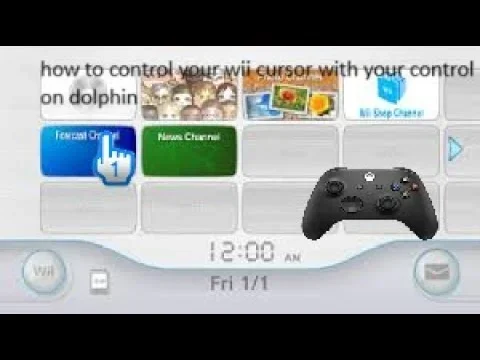
Using a mouse as a Wii pointer in Dolphin is one of the best ways to enjoy Wii and GameCube games on your PC. This guide walks you through every step, from downloading Dolphin to calibrating your pointer for perfect accuracy. You will learn the settings, tips, and tricks that make mouse-based Wii controls feel natural and responsive.
Playing Wii and GameCube games on your computer feels amazing, especially when you use a mouse instead of a traditional controller. The Dolphin emulator lets you do exactly that. It supports using a mouse as a Wii pointer, which opens up a whole new way to play games that rely on pointing and clicking. If you have ever wanted to play Wii Sports or The Legend of Zelda with precise mouse control, this guide is for you.
The Dolphin emulator is one of the most popular tools for playing GameCube and Wii games on a PC. It has been around for many years and continues to improve with each update. One of its standout features is the ability to use a mouse as a Wii pointer. This feature mimics the Wii Remote’s sensor bar functionality, letting you point, click, and interact with games just like you would on a real Wii console. Whether you are a casual gamer or a retro gaming enthusiast, knowing how to set this up will level up your experience.
In this article, we will cover everything you need to know. From downloading and installing Dolphin to configuring your mouse settings, we will walk you through each step. You will also learn how to fix common issues and get the best performance out of your setup. By the end, you will be ready to play your favorite Wii games with a mouse and keyboard combo that feels just right.
Key Takeaways
- Dolphin emulator supports mouse pointer input for a more intuitive Wii gaming experience on PC.
- Setting up the mouse as a Wii pointer requires just a few simple configuration steps inside Dolphin.
- Calibrating your pointer ensures smooth and accurate cursor movement across the screen.
- Using a mouse with Dolphin works great for games that rely on motion-based pointing controls.
- Common issues like pointer offset or lag can be fixed with a few quick tweaks in the settings.
- Combining a mouse with a keyboard gives you a full controller setup for the best emulation experience.
📑 Table of Contents
- What Is Dolphin Emulator and Why Use Mouse as Wii Pointer?
- Step-by-Step Guide to Setting Up Mouse as Wii Pointer
- Best Practices for Using a Mouse with Dolphin
- Common Issues and How to Fix Them
- Mouse vs. Wiimote: Which Is Better for Dolphin?
- Enhancing Your Dolphin Experience with a Mouse and Keyboard
- Final Thoughts
What Is Dolphin Emulator and Why Use Mouse as Wii Pointer?
The Dolphin emulator is a free, open-source program that lets you play GameCube and Wii games on your computer. It works on Windows, Linux, and even some mobile devices. The emulator recreates the hardware and software of the original consoles, giving you a faithful gaming experience on modern hardware. One of the reasons Dolphin is so popular is its high compatibility with a wide range of games.
Using a mouse as a Wii pointer in Dolphin changes how you interact with games. The Wii console originally used a sensor bar and the Wii Remote to track movement. Dolphin replaces the sensor bar with your computer screen and uses your mouse to simulate that same pointing functionality. This means you can aim in shooting games, point at menu items, and play rhythm or sports games with much more precision than a standard gamepad offers.
Many people who play Dolphin prefer using a mouse because it feels familiar. If you spend a lot of time on your computer, you already know how to use a mouse. This makes Dolphin much more accessible, especially for games that require precise aiming or selection. It also pairs well with a keyboard, giving you a full control setup that rivals any original Wii configuration.
How Mouse Pointer Emulation Works in Dolphin
Dolphin uses your mouse movements to simulate the infrared tracking that the Wii sensor bar provides. When you move your mouse across the screen, Dolphin translates that movement into pointer coordinates within the game. The emulator then sends those coordinates to the game as if they came from a Wii Remote pointed at the sensor bar.
This process happens in real time, which means your cursor moves exactly where you move the mouse. You can click to select items, drag and drop objects, and interact with menus just like you would on a real Wii. The accuracy depends on your mouse settings, your screen resolution, and how well you configure the Dolphin input options.
Step-by-Step Guide to Setting Up Mouse as Wii Pointer
Setting up your mouse as a Wii pointer in Dolphin is straightforward. Follow these steps carefully, and you will be gaming in no time. This guide assumes you already have Dolphin installed on your computer. If you have not yet downloaded Dolphin, visit the official Dolphin emulator website and grab the latest stable release.
Step 1: Open Dolphin and Go to Input Settings
Launch Dolphin on your computer. From the main menu, click on Options and then select Controller Settings. This window is where you configure all your input devices, including your mouse, keyboard, and any connected gamepads.
Once the Controller Settings window opens, look at the bottom of the screen. You will see a section labeled Wiimote. This is where you set up your Wii Remote emulation. Click on the Configure button next to the Wiimote slot to open the detailed input configuration panel.
Step 2: Enable Mouse as Wii Pointer
Inside the Wiimote configuration panel, look for an option called Cursor or Mouse Emulation. Check the box that enables mouse input as a pointer. This tells Dolphin to treat your mouse movements as Wii Remote pointer movements.
You may also see options for adjusting the sensitivity of the pointer. Higher sensitivity means your cursor moves faster across the screen with less physical mouse movement. Lower sensitivity gives you more precise control but requires larger physical movements. Start with the default settings and adjust later based on your preference.
Step 3: Assign Mouse Buttons for Clicking
Next, you need to assign mouse buttons to Wii Remote actions. The left mouse button typically maps to the A button on the Wii Remote, which is used for selecting and confirming. The right mouse button can map to the B button, which is used for canceling or attacking in many games.
You can also map additional mouse buttons if your mouse has extra buttons. For example, the scroll wheel can sometimes be used as a middle button or for scrolling through menus. Experiment with different button mappings until you find a setup that feels comfortable for the games you want to play.
Step 4: Adjust Pointer Speed and Calibration
Pointer speed is one of the most important settings for a smooth experience. If your pointer moves too fast, you will overshoot targets. If it moves too slow, you will struggle to reach the other side of the screen. Go back to the Controller Settings and fine-tune the pointer speed slider.
Calibration ensures that your mouse cursor stays centered when you are not moving the mouse. In Dolphin, you can reset the pointer calibration by clicking the Clear or Reset button in the Wiimote settings. This removes any accumulated offset and centers your pointer. Some games may also have their own calibration options in their settings menus.
Step 5: Test Your Setup with a Game
Load a Wii game that uses pointer controls. Good test games include Mario Kart Wii, Wii Sports, or The Legend of Zelda: Twilight Princess. These games use the Wii pointer for menus, aiming, and item selection, making them perfect for testing your setup.
Move your mouse around the screen and check if the pointer moves smoothly and accurately. Try clicking on different menu items and in-game objects. If the pointer feels off, go back to the settings and adjust the sensitivity or recalibrate. It may take a few tries to get everything dialed in perfectly.
Best Practices for Using a Mouse with Dolphin
Getting the most out of your mouse setup in Dolphin requires a few best practices. These tips will help you achieve the smoothest and most accurate pointer experience possible.
- Use a quality mouse with a good sensor. A wired optical mouse or a high-quality wireless mouse will give you the best tracking accuracy. Cheap mice with poor sensors may cause jittery or inconsistent pointer movement. If you are using a budget mouse, consider upgrading to something with a reliable optical sensor.
- Keep your mouse pad clean. Dust and dirt on your mouse pad or surface can affect tracking. A clean, flat surface ensures smooth and consistent mouse movement. If you do not have a dedicated mouse pad, a clean desk works just as well.
- Adjust your screen resolution. Higher screen resolutions can make the pointer feel more sensitive because the cursor has to cover more pixels. If you find the pointer too jumpy, try lowering your resolution slightly or reducing the pointer sensitivity in Dolphin.
- Use a mouse with a comfortable grip. Since you will be using the mouse for extended gaming sessions, comfort matters. Choose a mouse that fits your hand well and does not cause fatigue during long play sessions.
Quick Tips for Better Pointer Accuracy
- Turn off any mouse acceleration features in your operating system. Mouse acceleration can make your pointer behave unpredictably in Dolphin.
- If you are using a wireless mouse, make sure the receiver is close to your computer to avoid interference.
- Close unnecessary background programs while gaming to free up system resources and reduce input lag.
- Keep your Dolphin emulator updated to the latest version for the best performance and bug fixes.
Common Issues and How to Fix Them
Even with a proper setup, you might run into some issues when using a mouse as a Wii pointer in Dolphin. Here are the most common problems and their solutions.
Pointer Offset or Drift
If your pointer drifts away from where you are pointing, this is called pointer offset. It happens when the calibration gets slightly misaligned over time. To fix this, go back to the Wiimote settings in Dolphin and click the reset calibration button. This recenters your pointer and removes the drift.
Another cause of pointer offset is using multiple displays. If you have more than one monitor, Dolphin may get confused about which screen the pointer should be on. Make sure Dolphin is set to fullscreen on the correct display, and that your mouse cursor stays within the game window.
Pointer Lag or Delay
Pointer lag feels like there is a delay between your mouse movement and the on-screen cursor. This can be caused by several factors. First, check your Dolphin settings and make sure hardware acceleration is enabled. Second, close any programs running in the background that might be using your CPU or GPU. Third, update your mouse drivers to the latest version.
If you are using a wireless mouse, interference from other wireless devices can also cause lag. Try moving your wireless receiver closer to the mouse or switching to a wired mouse to see if the lag disappears.
Mouse Not Working at All in Dolphin
If your mouse does not work in Dolphin at all, first check that your operating system recognizes the mouse. Try using your mouse in another application to confirm it is working. If the mouse works elsewhere but not in Dolphin, go to Dolphin’s Controller Settings and make sure the mouse is enabled as an input device.
Sometimes, conflicting input drivers can prevent Dolphin from detecting your mouse. Uninstall any third-party mouse software or drivers and restart your computer. This often resolves detection issues and allows Dolphin to recognize your mouse properly.
Mouse vs. Wiimote: Which Is Better for Dolphin?
Both a mouse and a Wiimote have their advantages when playing games on Dolphin. Here is a quick comparison to help you decide which input method works best for you.
| Feature | Mouse | Wiimote |
|---|---|---|
| Precision | Very high | Good, but less precise |
| Ease of Setup | Simple, just plug and play | Requires Bluetooth pairing |
| Comfort for Long Sessions | Comfortable for most users | Can feel awkward over time |
| Button Layout | Limited to mouse buttons | Full Wiimote button layout |
| Motion Controls | No motion detection | Full motion and tilt detection |
| Cost | Free if you already have one | Requires purchasing a Wiimote |
| Best For | Point-and-click games, menus | Full Wii game experience |
Many experienced Dolphin users use a combination of both. They use the mouse for pointer-based gameplay and a Wiimote or gamepad for buttons and motion controls. This hybrid setup gives you the best of both worlds and works great for a wide variety of games.
Enhancing Your Dolphin Experience with a Mouse and Keyboard
Pairing your mouse with a keyboard creates a powerful control setup for Dolphin. You can map keyboard keys to Wii Remote buttons, giving you access to all the controls you need without a physical gamepad. This setup works especially well for games that rely heavily on menu navigation and pointer interaction.
For example, in The Legend of Zelda games, you can use the mouse to aim the hookshot or select items from your inventory while using the keyboard for movement and other actions. In racing games like Mario Kart Wii, the mouse handles steering while the keyboard manages acceleration, braking, and item usage.
To set up keyboard controls, go to Dolphin’s Controller Settings and configure the keyboard layout for each Wiimote slot. You can map individual keys to specific Wii buttons, giving you a fully customized control scheme. Save multiple profiles so you can switch between different control setups depending on the game you are playing.
Final Thoughts
Using a mouse as a Wii pointer in Dolphin is a fantastic way to enjoy your favorite Wii and GameCube games on the PC. It offers precision, comfort, and a familiar control scheme that makes emulation feel natural. With just a few simple steps, you can transform your computer into a powerful Wii gaming machine.
Remember to take your time with the setup process. Calibrate your pointer, adjust sensitivity, and test with different games until you find the perfect configuration. Once you dial in your settings, you will wonder how you ever played without a mouse. Dive into your favorite Wii titles and experience them in a whole new way with Dolphin and your trusty computer mouse.
If you are new to using a mouse with your laptop for emulation or other tasks, check out our guide on how to use a mouse on laptop for additional tips. You may also want to learn more about connecting a wireless mouse with laptop to set up a clean, clutter-free gaming desk. For those who want to understand the full range of mouse pad options, explore our article on how to use mouse pad on laptop for helpful insights on choosing the right surface for precise tracking.
Frequently Asked Questions
Can I use any mouse with Dolphin emulator?
Yes, you can use almost any mouse with Dolphin. Whether it is a wired USB mouse or a wireless mouse with a USB receiver, Dolphin supports both. The key is to make sure your operating system recognizes the mouse before you configure it inside Dolphin. Most standard optical mice work perfectly for pointer emulation.
Do I need a sensor bar to use a mouse as a Wii pointer in Dolphin?
No, you do not need a physical sensor bar. Dolphin replaces the sensor bar functionality with your computer screen. The emulator uses your mouse movements to simulate the infrared tracking that the sensor bar provides on a real Wii console. This is one of the great advantages of using Dolphin for Wii emulation.
Why is my mouse pointer jittery in Dolphin?
A jittery pointer is usually caused by a low-quality mouse sensor, a dirty mouse pad, or incorrect sensitivity settings. Try cleaning your mouse and surface first. If the problem persists, lower the pointer sensitivity in Dolphin’s Controller Settings. Using a high-quality optical mouse will also eliminate jitter and improve tracking accuracy.
Can I use a trackpad instead of a mouse with Dolphin?
Yes, you can use a laptop trackpad as a Wii pointer in Dolphin. However, trackpads are generally less precise than a dedicated mouse. If you are using a trackpad, reduce the pointer sensitivity to compensate for the smaller tracking surface. For the best experience, a physical mouse is recommended.
What games work best with mouse pointer controls in Dolphin?
Games that rely on pointing and clicking work best with mouse controls. These include Wii Sports Resort, The Legend of Zelda: Twilight Princess, Resident Evil 4, and various puzzle games. Point-and-click adventure games and shooting games also benefit greatly from mouse-based pointer input.
How do I save my Dolphin mouse configuration?
Dolphin automatically saves your controller settings once you click Apply or OK in the Controller Settings window. To back up your configuration, you can copy the Dolphin settings folder from your user directory. This way, if you ever need to reinstall Dolphin, you can restore your custom mouse and keyboard mappings easily.
=== CONCLUSION ===
Using a mouse as a Wii pointer in Dolphin is one of the simplest and most effective ways to enhance your emulation experience. It gives you precision, comfort, and a familiar control layout that makes playing Wii and GameCube games on your PC feel natural. Whether you are a seasoned Dolphin user or just getting started, setting up mouse pointer controls is a quick process that pays off immediately.
Follow the steps in this guide, fine-tune your settings, and enjoy your favorite Wii titles with the accuracy and responsiveness that only a mouse can provide. Your setup will feel polished, your controls will feel intuitive, and your gaming sessions will be more enjoyable than ever before.