How To Fix Wireless Mouse Scroll Wheel Jumping For Good
A jumping scroll wheel on your wireless mouse is frustrating but usually easy to fix. Dirty sensors, outdated drivers, and loose connections are the most common culprits behind this annoying problem. This guide walks you through simple fixes that restore smooth scrolling in just a few minutes.
There is nothing worse than you are scrolling through a webpage or a document and suddenly your cursor jumps around like it has a mind of its own. The wireless mouse scroll wheel jumping problem is incredibly common, and it can turn a simple task into a real headache. Whether you are working, gaming, or just browsing, a jumpy scroll wheel makes everything feel broken.
The good news is that this issue is almost always fixable. You do not need to be a tech expert. Most solutions take just a few minutes and use things you already have at home. In this guide, we will walk you through every possible fix, from quick cleaning tips to deeper software solutions. By the end, your scroll wheel will glide smoothly again.
Before we dive in, let us quickly understand why this happens. The scroll wheel uses a sensor to detect movement. When that sensor gets blocked, dirty, or misread, the wheel starts jumping. Sometimes the problem comes from the mouse itself. Other times, it is a wireless connection or software issue. We will cover all of these causes step by step.
Key Takeaways
- Dust and debris are the #1 cause: A quick cleaning session often solves the problem instantly.
- Outdated drivers can trigger jumping: Updating or reinstalling your mouse driver fixes most software-related issues.
- Wireless interference matters: Moving your USB receiver closer to the mouse eliminates many scroll problems.
- Battery levels affect performance: Low batteries can cause erratic scroll wheel behavior.
- Surface and settings play a role: Adjusting scroll speed and using the right surface helps prevent future jumping.
- Firmware updates keep mice running well: Check the manufacturer’s software for the latest updates.
- When all else fails, try a reset: A factory reset clears deep settings that may be causing the issue.
📑 Table of Contents
- Why Does Your Wireless Mouse Scroll Wheel Jump?
- How To Clean Your Wireless Mouse Scroll Wheel
- Update or Reinstall Your Mouse Driver
- Fix Wireless Connection Issues
- Adjust Mouse and Scroll Settings
- Reset Your Wireless Mouse
- Preventing Scroll Wheel Jumping in the Future
- When Should You Replace Your Mouse?
- Final Thoughts
Why Does Your Wireless Mouse Scroll Wheel Jump?
Understanding the root cause helps you pick the right fix. Here are the most common reasons your scroll wheel starts acting up.
Dust and Debris Buildup
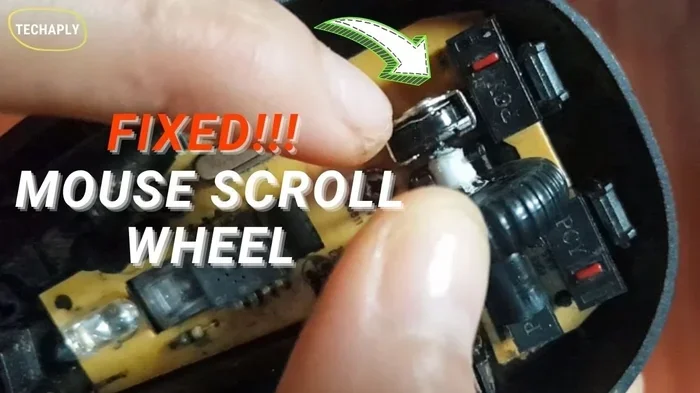
This is the number one cause of scroll wheel jumping. Tiny dust particles, crumbs, and lint get trapped inside the scroll wheel mechanism. They block the sensor and make it send wrong signals. You might notice the wheel jumps a few lines at a time instead of scrolling one line smoothly.
Outdated or Corrupt Drivers
Your mouse needs the right driver to communicate with your computer. When the driver gets outdated or corrupted, the scroll wheel can start behaving strangely. This is especially common after a Windows update that changes how devices are handled.
Wireless Interference
Wireless mice use a USB receiver to connect to your laptop. Other wireless devices, USB hubs, and even Wi-Fi routers can create interference. When the signal gets disrupted, the scroll wheel may jump or stop responding altogether.
Low Battery Power
A wireless mouse needs steady power to work correctly. When the battery drops low, the mouse sends weaker signals. This can cause the scroll wheel to act erratically. If you notice jumping along with a slow cursor, the battery might be the problem.
Wrong Scroll Settings
Sometimes the issue is not hardware at all. Windows lets you adjust how many lines the scroll wheel moves at a time. If this setting gets changed accidentally, scrolling can feel jumpy or unpredictable.
How To Clean Your Wireless Mouse Scroll Wheel
Cleaning is the first thing you should try. It is fast, free, and fixes the problem more often than you would think.
What You Need
- A can of compressed air
- A cotton swab or toothpick
- A small drop of rubbing alcohol
- A soft, lint-free cloth
Step-by-Step Cleaning Process
- Turn off the mouse: If your mouse has an on/off switch, flip it to off. This prevents any accidental clicks while you clean.
- Blow out loose debris: Use the compressed air to blow around the scroll wheel. Hold the can upright and use short bursts. This removes dust and crumbs from the surface.
- Clean the wheel gently: Dip a cotton swab in a tiny amount of rubbing alcohol. Gently rotate the scroll wheel while holding the swab against it. This removes sticky grime that builds up over time.
- Wipe the outer surface: Use a soft cloth lightly dampened with water to wipe down the mouse body. Do not soak it.
- Let it dry completely: Wait a few minutes before turning the mouse back on. This ensures no moisture gets inside the mechanism.
After cleaning, test the scroll wheel right away. In most cases, this alone stops the jumping. If the problem persists, move on to the next fix.
Quick Tip: Clean your scroll wheel once a month to prevent buildup. A little regular maintenance goes a long way in keeping your wireless mouse working perfectly.
Update or Reinstall Your Mouse Driver
If cleaning does not fix the issue, the next step is to check your drivers. A driver problem can make the scroll wheel jump even when the mouse hardware is perfectly fine.
How to Update the Mouse Driver on Windows
- Right-click on the Start button and select Device Manager.
- Expand the Mice and other pointing devices section.
- Right-click on your wireless mouse and select Update driver.
- Choose Search automatically for drivers and let Windows do its work.
- Restart your computer after the update is complete.
After restarting, test the scroll wheel. If the jumping stops, you have found the culprit. If the problem continues, you can try uninstalling the driver completely and letting Windows reinstall it fresh.
How to Reinstall the Driver
- Go back to Device Manager.
- Right-click on your mouse and select Uninstall device.
- Check the box that says Delete the driver software for this device.
- Click Uninstall.
- Restart your computer. Windows will automatically reinstall the driver.
For some wireless mice, you may also need to visit the manufacturer’s website and download the latest driver manually. This is especially true for gaming mice from brands like Logitech or Razer. Check their support pages for the most recent driver version.
Another option is to visit how to connect your wireless mouse to your laptop running Windows 10 for additional setup guidance that can help resolve driver-related scroll issues.
Fix Wireless Connection Issues
A weak or unstable connection between your mouse and laptop can cause the scroll wheel to jump. Here are the best ways to stabilize your wireless link.
Move the USB Receiver Closer
The USB receiver should be within a few feet of your mouse. If it is plugged into a USB hub at the back of your desk, try moving it to a front port. Even a few inches of extra distance can reduce interference and smooth out scrolling.
Remove Other Wireless Devices
Wireless keyboards, Bluetooth speakers, and USB 3.0 devices can all interfere with your mouse signal. Try unplugging other wireless devices temporarily and see if the scroll wheel improves. If it does, you know the source of the problem.
Replace the Batteries
Weak batteries are a sneaky cause of scroll wheel jumping. Replace your batteries with fresh ones, even if they are not completely dead. A fresh pair gives the mouse a strong, steady signal that keeps the scroll wheel working smoothly.
If you are having trouble getting your mouse connected properly in the first place, check out this guide on how to connect your wireless mouse with your laptop for a complete walkthrough.
Try a Different USB Port
Sometimes a faulty USB port causes connection drops. Plug the receiver into a different port and test again. Avoid using USB hubs or extension cables if possible, as they can weaken the signal.
Adjust Mouse and Scroll Settings
Sometimes the fix is as simple as changing a setting. Windows and mouse software both offer scroll customization options.
Adjust Scroll Lines in Windows
- Open the Control Panel and go to Mouse.
- Click on the Wheel tab.
- Under Vertical scrolling, adjust the number of lines to scroll at a time.
- Try setting it to 3 or 4 lines and test the scroll wheel.
Setting the scroll lines too high can make the wheel feel jumpy. A lower number often provides smoother, more controlled scrolling.
Check Your Mouse Manufacturer Software
Many wireless mice come with dedicated software. Logitech has Logitech G HUB, and Razer has Razer Synapse. These programs let you fine-tune scroll speed, adjust sensitivity, and even update firmware. Open your mouse software and look for scroll wheel settings. Resetting them to default can fix jumping caused by custom settings gone wrong.
Disable Enhanced Pointer Precision
Windows has a setting called Enhanced Pointer Precision that changes how your mouse moves. While it is designed to help with tracking, it can sometimes interfere with scroll behavior.
- Go to Settings > Bluetooth & Devices > Mouse.
- Look for Enhanced pointer precision and toggle it off.
- Test your scroll wheel to see if jumping stops.
Not sure if your mouse pad or surface is contributing to the problem? You can find more troubleshooting help at how to fix your laptop mouse pad for broader mouse troubleshooting tips.
Reset Your Wireless Mouse
If none of the fixes above work, a factory reset can clear out deep settings that may be causing the scroll wheel to jump. Most wireless mice have a simple reset process.
How to Reset a Wireless Mouse
- Turn off the mouse.
- Unplug the USB receiver from your laptop.
- Wait about 30 seconds.
- Plug the receiver back into a USB port.
- Turn the mouse back on.
- Re-pair the mouse with the receiver if needed.
Some mice have a small reset button on the bottom. Look for a tiny pinhole and press it with a paperclip. This resets the mouse to its factory settings and clears any custom configurations that might be causing issues.
If you need help re-pairing your mouse after the reset, check out how to pair your wireless mouse with your laptop for a detailed walkthrough.
Preventing Scroll Wheel Jumping in the Future
Once you fix the problem, you want to keep it from coming back. Here are simple habits that keep your wireless mouse scroll wheel working smoothly for the long term.
- Clean your mouse regularly: A quick wipe-down once a week keeps dust from building up inside the scroll wheel.
- Keep batteries fresh: Replace batteries before they get too low. A weak signal leads to erratic behavior.
- Update drivers regularly: Check for driver updates once a month, especially after major Windows updates.
- Use a mouse pad: A smooth, consistent surface helps the sensor track accurately and reduces scroll issues.
- Store the mouse properly: When not in use, keep the mouse in a protective case or drawer to prevent dust buildup.
- Avoid extreme temperatures: Heat and cold can affect the internal sensor and cause scroll problems.
When Should You Replace Your Mouse?
Most of the time, the fixes above will solve your scroll wheel jumping problem. But there are times when the mouse is simply too old or damaged to save.
If you have tried every fix and the wheel still jumps, the internal sensor may be worn out. This is common in mice that are more than 3 to 5 years old. Also, if the scroll wheel physically feels loose or wobbly, the internal mechanism may be broken and cannot be repaired at home.
At that point, it makes sense to invest in a new mouse. A good wireless mouse with a quality scroll wheel will give you a much better experience. Look for models with optical scroll sensors, as they tend to be more reliable than mechanical ones.
Final Thoughts
A wireless mouse scroll wheel jumping does not have to be a permanent problem. Start with the simplest fix: cleaning the wheel. Then work your way through the drivers, connection settings, and configuration options. Most people find their fix within the first few steps.
Remember that regular maintenance is the best prevention. A little care goes a long way in keeping your wireless mouse working smoothly for years. If the problem still persists after trying everything in this guide, it may be time for a new mouse. But for most users, one of the solutions above will bring your scroll wheel back to life.
Now that you know how to fix this issue, you can get back to work, gaming, or browsing without frustration. Your scroll wheel should glide smoothly, and your cursor should stay exactly where you want it. Happy scrolling!
Frequently Asked Questions
Why does my wireless mouse scroll wheel keep jumping on its own?
The most common reason is dust and debris trapped inside the scroll wheel mechanism. Tiny particles block the sensor and cause it to send incorrect signals. Cleaning the wheel with compressed air and a cotton swab usually fixes this right away.
Can a low battery cause my wireless mouse scroll wheel to jump?
Yes, absolutely. When the battery power drops low, the mouse sends weaker signals to the receiver. This can make the scroll wheel behave erratically or jump unexpectedly. Replacing the batteries with fresh ones often solves the problem immediately.
How do I know if the scroll wheel jumping is a driver problem?
If cleaning the wheel and replacing the batteries do not help, the issue is likely software-related. Check Device Manager for any warning icons next to your mouse. Updating or reinstalling the driver through Device Manager is a quick way to test if a driver problem is the cause.
Does the surface I use affect my wireless mouse scroll wheel?
Yes, the surface can play a role. Rough or uneven surfaces can interfere with the mouse sensor and contribute to scroll wheel jumping. Using a smooth mouse pad provides a consistent surface that helps the sensor track accurately and scroll smoothly.
How often should I clean my wireless mouse scroll wheel?
A good rule of thumb is to clean your scroll wheel once a month. If you eat or drink near your computer, you may need to clean it more often. Regular cleaning prevents dust buildup and keeps your scrolling smooth and responsive.
Is it worth replacing a wireless mouse if the scroll wheel keeps jumping?
If you have tried all the fixes in this guide and the wheel still jumps, the internal sensor may be worn out. Mice older than 3 to 5 years may have components that are no longer reliable. In that case, investing in a new mouse with an optical scroll sensor is a smart choice.