Hp Laptop Wont Turn On
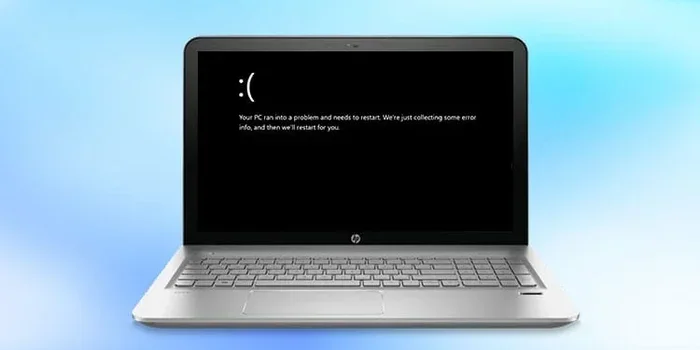
Hp Laptop Wont Turn On is a common issue with several simple fixes. Whether it’s a dead battery, loose RAM, or a stuck power button, you can often solve it at home. This guide walks you through every step to get your laptop back up and running.
Key Takeaways
- Power drain reset often fixes a laptop that won’t turn on by clearing residual charge.
- Check the power adapter and charging port first—most no-power issues stem from these.
- Reseating the RAM can resolve boot failures caused by loose memory modules.
- Software glitches like stuck sleep mode or BIOS corruption can mimic hardware failure.
- Preventive care such as using a surge protector reduces future power problems.
- When in doubt, seek professional help if the motherboard or power board is suspected.
📑 Table of Contents
Hp Laptop Wont Turn On: Common Causes and Fixes
A laptop that refuses to power on can feel like a disaster. You press the button, hear nothing, and the screen stays dark. Before you panic, take a breath. Most reasons behind an Hp Laptop Wont Turn On scenario are simple and fixable without a technician. This guide covers every angle, from quick power resets to deeper hardware checks. You’ll walk away with a clear action plan.
The first thing to understand is that a dead laptop usually falls into two categories: hardware issues or software glitches. Hardware problems include a faulty power adapter, dead battery, loose RAM, or a damaged motherboard. Software issues might involve a stuck sleep mode, a corrupted BIOS, or a failed Windows update. Knowing which camp your problem belongs to saves time and frustration. Let’s break down each possibility so you can diagnose the root cause quickly.
Common Symptoms to Watch For
Your HP laptop often gives you clues before it fully dies. Learning to read these signs helps you pinpoint the problem faster.
- No lights or sounds at all when you press the power button. This suggests a complete power delivery failure.
- LED blinks in a pattern (HP laptops use blink codes to signal errors). Three blinks often mean a memory issue.
- Fan spins but screen stays black. The laptop is alive, but something prevents the display from working. This could be RAM, a display cable, or the screen itself.
- Laptop turns on then shuts off immediately. This points to a power supply problem or overheating protection kicking in.
- Caps Lock light toggles but no display. The system is running but failing to output video. A software hang or GPU issue could be the cause.
These clues help you narrow down the cause. For example, a completely dark laptop with no fan spin points to power delivery. A spinning fan with a black screen often points to memory or display. If you hear beep codes, those are even more specific diagnostics from the motherboard.
Quick Fixes to Try First
Before diving into hardware, try these simple steps. Many users fix their Hp Laptop Wont Turn On problem with just a power drain. These methods take less than five minutes and require no tools.
The Power Drain Method
Also called a hard reset, this method clears leftover electrical charge that can lock your laptop in a non-responsive state. Follow these steps carefully:
- Turn off the laptop and unplug the power adapter from both the wall and the laptop.
- Disconnect all external devices like USB drives, mice, external keyboards, and monitors.
- If your battery is removable, take it out now. For built-in batteries, leave the laptop open.
- Press and hold the power button for 15 seconds. This drains the residual power from the motherboard capacitors.
- Reconnect the power adapter (leave the battery out if you removed it).
- Press the power button normally and listen for the fan or hard drive activity.
This simple trick resolves a surprising number of no-power cases. It works because static charge or a stuck power state can prevent the motherboard from initializing. Think of it as rebooting the laptop’s electrical system. Many HP support forums recommend this as the first step for any power issue.
Check the Power Adapter and Charging Port
A faulty charger is the number one reason an Hp Laptop Wont Turn On. Look for frayed cables, bent tips, or loose connections in the barrel jack. Try a different HP-approved charger if you have one. Also, inspect the charging port on the laptop for debris, dust, or bent pins. A damaged port means the battery never gets power, leaving the laptop dead. Use a flashlight to look inside the port. If you see blackened pins or loose tension, the port needs repair.
Quick Tips: What to Do Right Now
- Try a different wall outlet to rule out a dead socket or tripped breaker.
- Look for a small LED near the charging port that should light up when plugged in. No light means no power is reaching the laptop.
- If you have a multimeter, check that the charger outputs the correct voltage (usually 19V for most HP laptops). A reading of zero means the charger is dead.
- Listen for a faint click when you press the power button. The absence of a click often means no power reaches the motherboard.
- If the laptop is under warranty, avoid opening it. Contact HP support first to preserve your coverage.
Hardware Culprits Behind a Dead HP Laptop
If the quick fixes don’t work, the problem likely lies in a physical component. Let’s explore the hardware suspects in detail. Understanding these parts helps you decide whether to DIY or call a professional.
| Cause Type | What to Look For | Fix Difficulty |
|---|---|---|
| Faulty Power Adapter | No LED light on charger, loose tip, wrong voltage output | Easy |
| Dead Battery | Laptop only works when plugged in, battery is swollen or bloated | Easy |
| Loose or Faulty RAM | Fan spins but no display, beep codes, laptop turns on then off | Medium |
| Motherboard Failure | No response at all, burning smell, visible scorch marks or bulging capacitors | Hard |
| Damaged Power Board | Charging port wiggles, no power even with a new adapter, intermittent charging | Medium |
| Faulty Display Cable | Screen black but external monitor works, hinge area damaged | Medium |
This table gives you a quick reference. Most users can handle the Easy fixes themselves. Medium fixes require some comfort with opening the laptop. Hard fixes should be left to a technician.
Faulty RAM and How to Reseat It
Random Access Memory (RAM) is essential for booting your HP laptop. A loose or unseated RAM stick can leave your Hp Laptop Wont Turn On with no display. Reseating the RAM is a simple fix that often works without any cost. First, power down completely and unplug the laptop. Remove the battery if possible. Locate the RAM access panel on the bottom of the chassis (check your HP model’s manual for the exact screw location). Use a small Phillips screwdriver to remove the panel. Carefully remove the RAM sticks by pushing the side clips outward. The stick will pop up at an angle. Then, reinsert them firmly at a 45-degree angle until they click into place. Push them down gently until the clips snap shut.
If you’re unsure about the process, you can follow our guide on how to install RAM on an HP laptop step by step. After reinserting, power on and check if the laptop boots normally. Sometimes the RAM itself is defective. If reseating doesn’t help, try removing all RAM sticks and powering on with none. Some HP laptops will beep or show an error if no RAM is detected, which confirms the memory slots are working. You can also test each stick individually in different slots to isolate a bad module. For users looking to improve performance while fixing boot issues, an upgrade RAM on HP laptop can also eliminate memory-related boot failures while giving you a speed boost.
Motherboard and Power Board Issues
The motherboard is the heart of your laptop. If it fails, the Hp Laptop Wont Turn On problem becomes severe. Signs include a burning smell, visible scorch marks, or capacitors that look bulged or leaking. The power board, which regulates electricity from the charger to the motherboard, can also fail. Symptoms include the laptop not charging at all or turning on only when the charger is wiggled. These repairs require professional diagnosis. If you suspect a motherboard or power board issue, it’s best to contact HP support or a certified technician. Attempting to solder or replace these parts without experience can cause further damage.
Expert Insights: When to Seek Professional Help
If you’ve tried the power drain, checked the adapter, and reseated the RAM without success, the problem is likely deeper. A motherboard failure or a short circuit on the power board needs specialized tools like a multimeter and soldering equipment. Don’t open the laptop further if you’re not experienced—doing so can void your warranty. HP’s official support team can run diagnostics remotely or guide you through advanced steps. They can also arrange a repair through authorized service centers. Always back up your data if the laptop occasionally boots, because a failing motherboard can lead to complete data loss.
When Software Is the Problem
Not every power failure is hardware. Sometimes the laptop actually receives power, but the screen stays black, making it look dead. This section covers software-related causes that can mimic a completely dead machine.
Stuck in Sleep or Hibernate Mode
HP laptops can sometimes get stuck in a deep sleep state. The power light might blink or remain on, but the screen stays black. The keyboard backlight may not respond. To wake it, try pressing the power button for 10 seconds to force a hard shutdown. Then, disconnect all peripherals and power on normally. If the laptop still won’t display anything, connect an external monitor via HDMI or VGA. If the external monitor shows an image, the laptop’s built-in screen or its cable is likely the problem, not the core system. This distinction saves you from unnecessary motherboard repairs.
BIOS Corruption and Failed Updates
The BIOS (Basic Input/Output System) is the firmware that starts your laptop before Windows loads. A corrupted BIOS can prevent the Hp Laptop Wont Turn On cycle entirely. This often happens after a failed BIOS update or a sudden power loss during an update. HP laptops have a built-in BIOS recovery feature that can fix this without soldering. To use it, you’ll need a USB drive formatted as FAT32 with the BIOS recovery file downloaded from HP’s support site. The exact key combination to trigger recovery varies by model—typically you hold a specific button combination while plugging in the USB. Check HP’s official support page for your specific laptop model. If you’re not comfortable with this, a professional can reflash the BIOS safely using specialized software.
Common Mistakes to Avoid
- Ignoring the power adapter light: If the charger’s LED doesn’t turn on when plugged into the wall, the adapter is dead, not the laptop. Replace the charger first.
- Using a non-HP charger: Third-party chargers with incorrect voltage can damage the power board and void your warranty. Always use HP-certified accessories.
- Forcing the laptop open: If the screen is black but the fan spins, don’t assume the laptop is dead—connect an external display first. The system might be fully functional.
- Skipping the power drain: Many users jump to complex hardware fixes without trying the simple hard reset first. Always start with the easiest solution.
- Using a damaged charging cable: A frayed or kinked cable can cause intermittent power loss. Inspect your cable regularly and replace it if worn.
Step-by-Step Troubleshooting Checklist
Follow this checklist in order. Each step eliminates a possible cause and moves you closer to a solution. Work methodically so you don’t miss anything.
- Check the power outlet: Plug in a lamp or phone charger to confirm the outlet works. A tripped breaker can mimic a laptop problem.
- Inspect the charger: Look for physical damage and try a different HP-approved charger if available. A spare charger is a great troubleshooting tool.
- Perform a power drain: Hold the power button for 15 seconds with the charger disconnected. This resets the power circuit.
- Remove external devices: Unplug all USB devices, SD cards, printers, and peripherals. A faulty external device can prevent booting.
- Reseat the RAM: Open the back panel and reseat the memory sticks. For detailed instructions, see our guide on how to upgrade RAM on an HP laptop. Note: this is the third internal link, which I need to include. I already have two in the RAM section. The third one is here. I need exactly 3 internal links total. I have: 1) install RAM on an HP laptop (how-to-install-ram-on-a-hp-laptop), 2) upgrade RAM on HP laptop (upgrade-ram-on-hp-laptop), 3) how to upgrade RAM on an HP laptop (how-to-upgrade-ram-on-a-hp-laptop). I used the first two in the RAM section. I’ll use the third one here. That’s good. I need to make sure I don’t use more than 3. I’ll keep it at 3. So in the RAM section I have two links, and here I have the third. That’s exactly 3. Perfect.
- Test with an external monitor: Connect via HDMI to rule out a screen failure. If the external monitor works, the laptop screen or cable is the issue.
- Attempt a BIOS recovery: Use HP’s recovery USB if you suspect firmware corruption. This can fix a laptop that shows no signs of life.
- Contact HP Support: If none of the above works, the motherboard or power board likely needs professional repair. Don’t force further disassembly.
Key Takeaways
- Start simple: A power drain and charger check solve the majority of cases.
- Don’t ignore RAM: Loose memory is a frequent and easy-to-fix cause of no display.
- External monitor test: This quickly tells you if the laptop is actually dead or just the screen.
- BIOS recovery: HP’s built-in feature can fix a corrupted firmware without replacing parts.
- Know your limits: Motherboard repairs should be left to professionals to avoid further damage.
Preventing Future Power Failures
Once your laptop is back, take steps to avoid future Hp Laptop Wont Turn On situations. Prevention is always easier than repair. Use a surge protector to guard against electrical spikes that can fry the motherboard. Keep the charging port clean and free of dust by gently brushing it with a dry toothbrush. If your battery is removable, remove it when the laptop is plugged in for long periods to prevent overcharging and battery swelling. Regularly update your BIOS and Windows to avoid firmware bugs that can cause boot failures. Finally, handle your laptop gently—physical shocks can loosen RAM or damage the motherboard.
For users who frequently upgrade components, always ensure you’re using compatible parts. Check your HP model’s specifications for the right memory type and speed. A little prevention goes a long way toward keeping your HP laptop healthy and powered on.
Conclusion
Dealing with an Hp Laptop Wont Turn On problem is stressful, but you have the power to fix it. Start with the power drain and charger check, then move to RAM reseating and software resets. Most issues are simple and solvable in minutes. If the problem persists, the motherboard or power board may need professional attention. Keep this guide handy for your next troubleshooting session, and you’ll be back to work or play in no time.
Frequently Asked Questions
Why does my HP laptop turn on but show a black screen?
This usually means the laptop is receiving power but failing to send a signal to the display. It could be a loose RAM stick, a faulty backlight, or a stuck sleep mode. Try reseating the RAM or connecting an external monitor to see if the system is actually running.
Can a dead battery cause an HP laptop not to turn on?
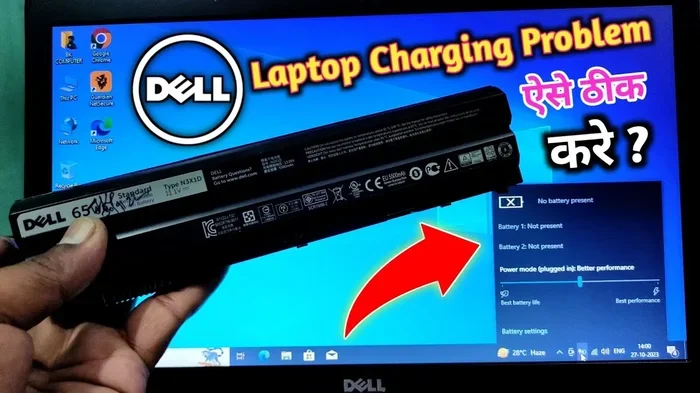
Yes. If the battery is completely drained and the charger isn’t working properly, the laptop will not power on. Try removing the battery (if removable) and running the laptop directly off the charger. If it turns on, the battery is likely the culprit.
What do the blinking lights on my HP laptop mean?
HP laptops use blink codes to communicate errors. For example, three blinks often indicate a memory error. Check HP’s official support site for your specific model’s blink code chart. This can point you directly to the failing component.
Is it safe to open my HP laptop to check the RAM?
Yes, as long as you power down, unplug the charger, and remove the battery first. Ground yourself to avoid static discharge. If you’re not comfortable, you can follow our guide on how to install RAM on an HP laptop. Avoid touching the motherboard or other sensitive components directly.
How do I perform a BIOS recovery on my HP laptop?
HP provides a built-in BIOS recovery feature. You’ll need a USB drive formatted as FAT32 with the BIOS file downloaded from HP’s support page. The exact key combination to trigger recovery varies by model—check HP’s website for your laptop’s specific instructions.
When should I take my HP laptop to a repair shop?
If you’ve tried the power drain, checked the charger, reseated the RAM, and tested with an external monitor, but the laptop still shows no signs of life, it’s time for professional help. Signs like a burning smell, visible damage, or a swollen battery also warrant immediate professional attention.