Intel Nuc 13 Pro Ram Ssd Upgrade Everything You Need

The Intel Nuc 13 Pro is a powerful mini PC, but it can fall behind without the right upgrades. Upgrading your Intel Nuc 13 Pro RAM and SSD is one of the best ways to breathe new life into your system. This guide walks you through everything from choosing compatible parts to installing them yourself.
If you own an Intel Nuc 13 Pro, you already know it is a compact powerhouse. But even the best mini PCs can feel slow over time. The good news is that upgrading your RAM and SSD can make a huge difference. In this guide, we will cover everything you need to know about the Intel Nuc 13 Pro RAM SSD upgrade. Whether you are a casual user or a power user, this article has you covered.
We will walk you through compatible parts, step-by-step installation, and tips to get the most out of your upgrade. You will learn what RAM and SSD combinations work best, how to install them safely, and what to avoid during the process. Let us dive in.
Key Takeaways
- RAM and SSD upgrades can dramatically improve your Intel Nuc 13 Pro speed and multitasking ability.
- The Intel Nuc 13 Pro supports DDR5 RAM and M.2 NVMe SSDs, making upgrades straightforward.
- Choosing the right SSD capacity and RAM size depends on your specific needs and budget.
- Upgrading yourself saves money and is easier than most people think.
- Proper thermal management matters after upgrading both RAM and storage.
- Backing up your data before any upgrade is essential and should never be skipped.
📑 Table of Contents
- Why Upgrade Your Intel Nuc 13 Pro?
- Understanding Your Intel Nuc 13 Pro Specifications
- Choosing the Right RAM for Your Intel Nuc 13 Pro
- Selecting the Best SSD for Your Upgrade
- Step-by-Step Intel Nuc 13 Pro RAM SSD Upgrade Guide
- Common Mistakes to Avoid During the Upgrade
- Expert Tips to Maximize Your Upgrade
- How Much Does the Upgrade Cost?
- Final Thoughts on the Intel Nuc 13 Pro RAM SSD Upgrade
Why Upgrade Your Intel Nuc 13 Pro?
The Intel Nuc 13 Pro is an impressive small-form-factor PC. It packs strong performance into a tiny chassis. But over time, your system can start to feel sluggish. Applications take longer to open. Files load slowly. Multitasking becomes frustrating. Upgrading your RAM and SSD addresses these issues directly.
More RAM allows your system to handle multiple tasks at once. A faster SSD reduces load times for your operating system and apps. Together, these upgrades transform your experience. The Intel Nuc 13 Pro RAM SSD upgrade is one of the most cost-effective ways to boost performance.
Who Benefits Most From This Upgrade?
Several types of users see major improvements after upgrading. Here are the groups that benefit the most:
- Multitaskers: If you run many apps at once, more RAM helps your system stay responsive.
- Content creators: Video editing, photo processing, and design work demand fast storage and memory.
- Gamers: A quick SSD reduces game load times significantly.
- Professionals: Developers and engineers running virtual machines or large datasets need both speed and capacity.
- Everyday users: Even basic web browsing and office work feel faster with upgraded components.
Understanding Your Intel Nuc 13 Pro Specifications
Before you buy any parts, it is important to understand what your Intel Nuc 13 Pro supports. Not all RAM or SSD modules fit every system. Checking compatibility first saves you time and money.
RAM Compatibility
The Intel Nuc 13 Pro uses DDR5 memory. It typically supports dual-channel RAM configurations. The base models often come with 8GB or 16GB of RAM soldered onto the motherboard. However, many models also have a RAM slot available for expansion. Check your specific Nuc 13 Pro model to confirm whether you can add or replace RAM modules.
For most users, upgrading to 16GB or 32GB of RAM provides a noticeable boost. If you run heavy applications, 32GB or even 64GB can make a big difference. The Intel Nuc 13 Pro RAM upgrade is simple as long as you choose the right DDR5 modules.
SSD Compatibility
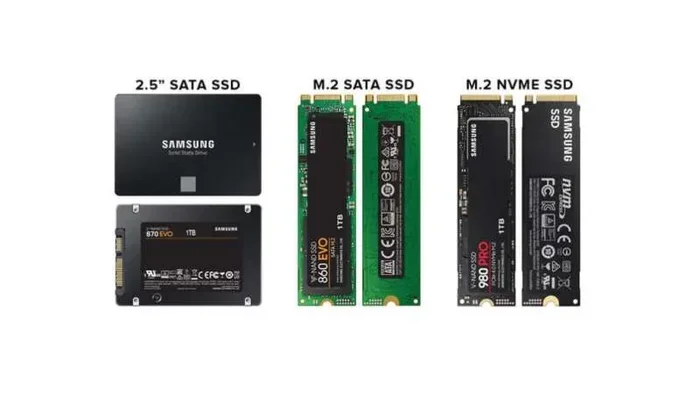
The Intel Nuc 13 Pro uses M.2 NVMe SSDs. These are small, fast storage drives that connect directly to the motherboard. The system typically supports PCIe Gen 4 NVMe drives, which offer excellent read and write speeds. Most models have one or two M.2 slots available for SSD installation.
You can choose from a range of capacities. A 512GB SSD works well for general use. If you store large files or games, a 1TB or 2TB drive gives you more room. When you plan your Intel Nuc 13 Pro SSD upgrade, match the drive to your storage needs and budget.
Choosing the Right RAM for Your Intel Nuc 13 Pro
Selecting the correct RAM is the first step in your upgrade journey. The wrong type will not work, and the right type can make your system fly. Here is what you need to know.
DDR5 vs DDR4
The Intel Nuc 13 Pro uses DDR5 RAM. This is the latest generation of memory and offers faster speeds than DDR4. DDR5 provides higher bandwidth and better power efficiency. Do not buy DDR4 RAM for this system. It will not be compatible.
How Much RAM Do You Need?
The right amount of RAM depends on what you do. Here is a quick breakdown:
- 8GB: Enough for basic tasks like web browsing and document editing.
- 16GB: A solid choice for multitasking, light creative work, and general productivity.
- 32GB: Ideal for heavy multitasking, video editing, and running multiple virtual machines.
- 64GB: Best for professionals who work with large datasets or intensive 3D rendering.
For most Intel Nuc 13 Pro users, 16GB or 32GB strikes the perfect balance between performance and cost. If you want to learn more about RAM upgrades in general, you can check out our guide on how to upgrade the RAM of a laptop. The principles are similar, though the Nuc 13 Pro has its own specific requirements.
Selecting the Best SSD for Your Upgrade
Your SSD choice affects both speed and storage capacity. The Intel Nuc 13 Pro supports M.2 NVMe drives, which are among the fastest storage options available today.
NVMe vs SATA SSD
NVMe SSDs use the PCIe interface and are much faster than SATA SSDs. The Intel Nuc 13 Pro is designed for NVMe drives. If you want the best performance, always choose NVMe over SATA. A SATA SSD will work in some systems but will not unlock the full speed of your Nuc 13 Pro.
Recommended SSD Capacities
Here are some popular SSD options for the Intel Nuc 13 Pro:
- 512GB: Great for the operating system, essential apps, and moderate file storage.
- 1TB: A sweet spot for most users who want speed plus plenty of space.
- 2TB: Ideal for users who store large media libraries, games, or professional projects.
For the best results, pair your SSD upgrade with a RAM upgrade. A system with fast storage and plenty of memory feels incredibly responsive. If you are considering a larger SSD like the 1TB option, you might also want to look at laptops with 16GB RAM and SSD configurations for inspiration on how to balance your components.
Step-by-Step Intel Nuc 13 Pro RAM SSD Upgrade Guide
Now that you have chosen your parts, it is time to install them. The Intel Nuc 13 Pro RAM SSD upgrade process is straightforward. Follow these steps carefully for a smooth installation.
Step 1: Prepare Your Workspace
Find a clean, flat surface to work on. Gather a small Phillips screwdriver and an anti-static wrist strap if you have one. Back up all important files before you begin. An external drive or cloud storage works well for this purpose.
Step 2: Open the Nuc 13 Pro Chassis
The Intel Nuc 13 Pro has a removable bottom panel. Place the unit upside down and locate the screws holding the panel in place. Use your screwdriver to gently remove them. Lift the panel off carefully. Keep the screws in a safe spot.
Step 3: Install the RAM
Locate the RAM slot on the motherboard. If you are replacing existing RAM, gently release the clips on either side and remove the old module. Align the notch on your new DDR5 RAM stick with the slot. Press the module firmly into place until the clips click. This ensures a secure connection.
Step 4: Install the SSD
Find the M.2 slot on the motherboard. Remove the mounting screw that secures the slot. Align your NVMe SSD with the connector at a 30-degree angle. Gently press the drive down and secure it with the screw. Do not overtighten the screw, as this can damage the slot.
Step 5: Close Up and Test
Replace the bottom panel and screw it back in. Power on your Intel Nuc 13 Pro. Enter the BIOS or UEFI to confirm that both the new RAM and SSD are detected. If everything shows up correctly, you are all set. Install your operating system on the new SSD if needed, or clone your existing drive for a seamless transition.
Common Mistakes to Avoid During the Upgrade
Even with a clear guide, mistakes can happen. Here are the most common errors people make during an Intel Nuc 13 Pro RAM SSD upgrade:
- Buying incompatible RAM: Always confirm DDR5 compatibility before purchasing. DDR4 will not work.
- Forgetting to back up data: A simple backup saves you from potential data loss.
- Overtightening screws: This can strip threads or damage the motherboard.
- Ignoring thermal considerations: The Nuc 13 Pro is compact. Good airflow helps keep your upgraded components cool.
- Skipping BIOS updates: A BIOS update before upgrading can improve compatibility with newer RAM and SSD modules.
Avoiding these pitfalls ensures a smooth and successful upgrade. Take your time and follow each step carefully.
Expert Tips to Maximize Your Upgrade
You have upgraded your Intel Nuc 13 Pro RAM and SSD. Now what? Here are some expert tips to get the most out of your new components.
Enable XMP or DOCP Profiles
DDR5 RAM often supports XMP (Extreme Memory Profile) or DOCP settings in the BIOS. Enabling these profiles allows your RAM to run at its rated speed instead of the default slower speed. This alone can improve performance noticeably.
Optimize Your SSD Settings
Make sure your operating system recognizes your SSD as an NVMe drive. Enable TRIM support to keep the drive performing at its best over time. Avoid filling your SSD beyond 80% capacity, as this can slow down write speeds.
Monitor Temperatures
The Intel Nuc 13 Pro has a small chassis with limited airflow. After upgrading, keep an eye on temperatures. Use built-in monitoring tools or free software to check that your RAM and SSD are running within safe thermal ranges. If temperatures run high, consider adding a small fan or improving ventilation.
Keep Your System Updated
Regular BIOS and driver updates can improve compatibility and performance. Intel frequently releases updates that optimize memory and storage handling for the Nuc 13 Pro. Check for updates every few months to stay current.
How Much Does the Upgrade Cost?
The cost of upgrading your Intel Nuc 13 Pro depends on the parts you choose. Here is a rough breakdown:
- 16GB DDR5 RAM: Typically around $50 to $80.
- 32GB DDR5 RAM: Usually $90 to $150.
- 512GB NVMe SSD: Around $35 to $55.
- 1TB NVMe SSD: Roughly $60 to $100.
- 2TB NVMe SSD: Can range from $120 to $200.
Overall, a full upgrade with 32GB of RAM and a 1TB SSD can cost between $150 and $250. This is a fraction of what a new PC would cost, yet the performance boost is significant. For comparison, a system with 16GB of RAM and a 512GB SSD already provides a great experience, but stepping up to 32GB and 1TB takes things to the next level.
Final Thoughts on the Intel Nuc 13 Pro RAM SSD Upgrade
Upgrading your Intel Nuc 13 Pro is one of the smartest investments you can make. The process is simple, affordable, and delivers real results. A RAM upgrade gives your system the memory it needs to handle demanding tasks. An SSD upgrade slashes load times and makes everything feel snappier. Together, they turn your Nuc 13 Pro into a truly modern machine.
Whether you are a student, a professional, or a casual user, the Intel Nuc 13 Pro RAM SSD upgrade offers excellent value. Choose compatible parts, follow the installation steps carefully, and enjoy a faster, more responsive computer. Your upgraded Nuc 13 Pro will thank you every day.
Remember to back up your data, take your time during installation, and monitor your system after the upgrade. With the right approach, you will get years of excellent performance from your Intel Nuc 13 Pro.
Frequently Asked Questions
Can I upgrade the RAM in the Intel Nuc 13 Pro?
Yes, the Intel Nuc 13 Pro supports RAM upgrades using DDR5 memory modules. Some models have soldered RAM, but most also include an upgradeable slot. Check your specific model to confirm compatibility before purchasing new memory.
What type of SSD does the Intel Nuc 13 Pro support?
The Intel Nuc 13 Pro supports M.2 NVMe SSDs with PCIe Gen 4 connectivity. These drives offer fast read and write speeds and are the best choice for maximizing your Nuc 13 Pro performance.
How much RAM can the Intel Nuc 13 Pro hold?
The Intel Nuc 13 Pro can typically support up to 64GB of DDR5 RAM, depending on the specific model. Most users find that 16GB or 32GB is the sweet spot for everyday use and productivity tasks.
Is it difficult to upgrade the RAM and SSD myself?
No, the upgrade process is straightforward and does not require advanced technical skills. You only need a small screwdriver and about 20 to 30 minutes. Always follow safety precautions like grounding yourself to prevent static damage.
Will upgrading RAM and SSD void my warranty?
This depends on your warranty terms. In many cases, upgrading RAM and SSD does not void the warranty as long as you do not damage the system during installation. Check with Intel or your retailer for specific warranty details.
How do I know if my Intel Nuc 13 Pro needs a RAM or SSD upgrade?
If your system feels slow, takes a long time to boot, or struggles with multitasking, an upgrade can help. Check your current RAM and storage usage in your system settings. If you are consistently near maximum capacity, it is time to upgrade.