How To Read Ram Ssd Specs And Choose The Best Drive
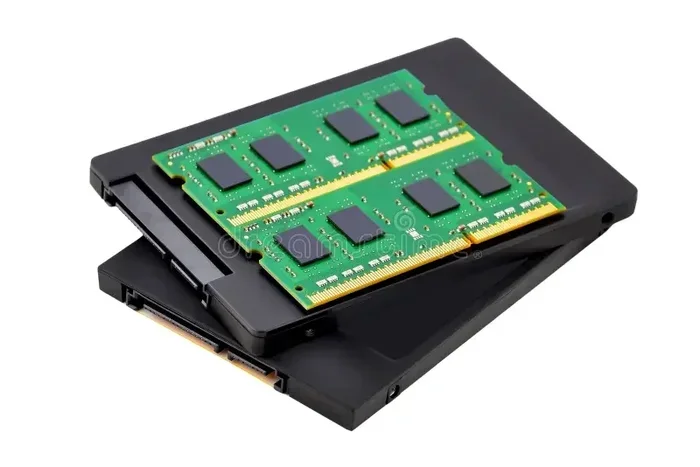
Understanding how to read Ram Ssd specs helps you pick the right drive for faster boot times and smoother performance. This guide breaks down read speeds, write speeds, capacity, and endurance ratings in plain language. You will also learn how to match SSD specs to your actual needs.
Shopping for a new Ram Ssd can feel confusing. Store shelves and online listings throw around numbers like 7000 MB/s and 550 TBW. But what do those numbers actually mean? Understanding how to read Ram Ssd specs saves you money and prevents buyer’s regret. This guide walks you through every spec you need to know, in simple terms.
Whether you are upgrading a laptop or building a new desktop PC, the right SSD specs make all the difference. A fast drive cuts boot times, loads games quicker, and handles large files with ease. But a slow or mismatched drive can bottleneck your entire system. Let us break it all down together.
Key Takeaways
- Read and write speeds determine how fast your SSD transfers data and loads applications.
- NAND flash type (SLC, MLC, TLC, QLC) directly impacts performance and lifespan.
- Form factor matters — M.2 and 2.5-inch SSDs fit different systems and slots.
- TBW and DWPD ratings tell you how durable the drive is over time.
- DRAM cache can significantly boost real-world performance for heavy workloads.
- Match your SSD to your use case — gaming, work, or casual use requires different specs.
📑 Table of Contents
- What Is A Ram Ssd And Why Does It Matter?
- Understanding Read And Write Speeds
- Understanding Storage Capacity
- Understanding NAND Flash Types
- Understanding Endurance Ratings
- Understanding DRAM Cache And Controllers
- How To Match SSD Specs To Your Needs
- Common Mistakes To Avoid When Reading SSD Specs
- Quick Tips For Choosing The Best Drive
- Final Thoughts On Reading Ram Ssd Specs
What Is A Ram Ssd And Why Does It Matter?
A Ram Ssd is a solid-state drive that uses flash memory to store data. Unlike traditional hard drives with spinning disks, SSDs have no moving parts. This makes them faster, quieter, and more reliable. The Ram Ssd specs on a product page tell you exactly what the drive can do.
When you learn how to read Ram Ssd specs, you gain the power to compare drives side by side. You will see which one fits your budget and your needs. Without this knowledge, you might pay extra for features you do not need. Or worse, you might buy a drive that struggles with your workload.
Understanding Read And Write Speeds
The first thing you will notice on any SSD specs sheet is the read and write speed. These numbers measure how fast data moves to and from the drive.
What Is Sequential Read Speed?
Sequential read speed measures how fast your SSD can pull large, continuous files. Think of it like reading a long book cover to cover. A higher read speed means your PC boots faster and apps launch quicker. Most modern NVMe drives offer read speeds between 3500 MB/s and 7000 MB/s.
What Is Sequential Write Speed?
Sequential write speed measures how fast the drive can save large files. Imagine writing that same long book from scratch. Write speeds usually sit lower than read speeds. For everyday use, a write speed above 3000 MB/s feels very smooth.
Here is a quick look at typical speed ranges you will see in Ram Ssd specs:
- Budget SATA SSDs: 500 MB/s read, 400 MB/s write
- Mid-range NVMe SSDs: 3500 MB/s read, 3000 MB/s write
- High-end NVMe SSDs: 7000 MB/s read, 5500 MB/s write
For most users, a mid-range NVMe drive provides excellent value. You do not need the top-tier speed unless you work with huge video files or run heavy workloads.
Understanding Storage Capacity
Storage capacity tells you how much data the drive can hold. Ram Ssd specs usually list capacity in gigabytes (GB) or terabytes (TB).
Common Capacity Options
- 250 GB: Enough for your operating system and a few apps
- 500 GB: A solid choice for most casual users
- 1 TB: Great for gaming and moderate file storage
- 2 TB and above: Ideal for creators and professionals
When choosing capacity, think about what you actually store. Games today can take up 50 GB to 100 GB each. If you have a large game library, you will want at least 1 TB of storage. Always leave some breathing room. A drive that is nearly full will slow down over time.
Understanding NAND Flash Types
Inside every SSD is NAND flash memory. The type of NAND used has a big impact on performance and durability. Learning how to read this spec is a key part of understanding Ram Ssd specs.
SLC, MLC, TLC, And QLC Explained
Each NAND type stores a different number of bits per cell:
- SLC (Single-Level Cell): Stores 1 bit per cell. Fastest and most durable but expensive.
- MLC (Multi-Level Cell): Stores 2 bits per cell. A good balance of speed and cost.
- TLC (Triple-Level Cell): Stores 3 bits per cell. The most common type in consumer SSDs today.
- QLC (Quad-Level Cell): Stores 4 bits per cell. Cheaper but slower and less durable.
For most buyers, a TLC NVMe SSD offers the best mix of speed, price, and lifespan. QLC drives can work well for light use but may wear out faster under heavy workloads.
Understanding Endurance Ratings
Endurance tells you how long the drive will last under normal use. Two main specs measure this: TBW and DWPD.
What Is TBW?
TBW (Terabytes Written) estimates how many terabytes of data you can write to the drive before it may start to fail. For example, a drive rated at 300 TBW can handle 300 terabytes of written data over its lifetime. For a typical user, this number is very hard to reach.
What Is DWPD?
DWPD (Drive Writes Per Day) tells you how many times you can rewrite the full drive capacity each day during the warranty period. A 1 TB drive rated at 1 DWPD means you can write 1 TB of data every single day for the warranty length.
Most consumer Ram Ssd specs include a TBW rating. Higher is better, but even a moderate TBW rating is more than enough for everyday use.
Understanding DRAM Cache And Controllers
Two hidden specs can make a big difference in real-world performance: the DRAM cache and the controller chip.
What Is A DRAM Cache?
A DRAM cache is a small amount of fast memory on the SSD. It acts like a shortcut, storing frequently accessed data for quick retrieval. Drives with DRAM cache often feel snappier during heavy multitasking. You will see this listed in the SSD specs on most product pages.
What Is A Controller Chip?
The controller chip is the brain of the SSD. It manages data flow between the NAND flash and your system. Better controllers mean faster response times and more efficient power use. Brands like Samsung, Phison, and Silicon Motion make well-known controller chips.
When comparing Ram Ssd specs, look for drives with a dedicated DRAM cache and a reputable controller. These small details can significantly boost your daily experience.
How To Match SSD Specs To Your Needs
Now that you know how to read Ram Ssd specs, let us talk about matching the right drive to your actual use case.
For Casual And Office Use
A 500 GB SATA SSD works perfectly for basic tasks like browsing, email, and document editing. You do not need blazing fast speeds. A budget-friendly drive with 500 MB/s read speed is more than enough.
For Gaming
Gamers benefit most from a fast NVMe drive. Look for at least 3500 MB/s read speed and 1 TB of storage. This combination delivers quick game loads and smooth performance. If you want to learn more about setting up your drive, check out our guide on how to install an NVMe SSD for step-by-step instructions.
For Content Creation And Workstations
Video editors and designers need high write speeds and large capacity. A 2 TB NVMe SSD with a DRAM cache and over 5000 MB/s write speed handles heavy file work with ease. Consider adding a second drive for extra storage if needed.
For Laptop Upgrades
Laptop users need to pay attention to form factor and compatibility. An M.2 NVMe SSD fits most modern laptops. Before buying, check out our article on how to install an M.2 NVMe SSD in a laptop to make sure you pick the right drive and install it correctly.
Common Mistakes To Avoid When Reading SSD Specs
Even experienced buyers sometimes make mistakes when reading Ram Ssd specs. Here are a few to watch out for.
- Ignoring write speeds: Many people focus only on read speed. Write speed matters just as much for saving files and installing software.
- Overlooking form factor: An M.2 drive will not fit a 2.5-inch slot without an adapter. Always check your system first.
- Trusting marketing numbers: Some brands advertise peak speeds that only occur under ideal lab conditions. Real-world speeds are often lower.
- Forgetting endurance: A cheap drive with low TBW might save money upfront but fail sooner under heavy use.
- Not checking compatibility: Not every motherboard supports every NVMe drive. Always verify your system supports the SSD interface you choose.
Avoiding these mistakes helps you buy a drive that truly fits your needs. Take a few minutes to review your system specs before shopping.
Quick Tips For Choosing The Best Drive
- Always compare Ram Ssd specs side by side before purchasing.
- Prioritize NVMe over SATA if your system supports it.
- Choose TLC NAND for the best balance of speed and price.
- Look for at least 1 TB if you store games or media files.
- Check warranty length — longer warranties usually mean better build quality.
- Read real-world reviews to understand actual performance beyond the numbers.
These simple tips help you navigate the overwhelming world of SSD specs with confidence. You will walk away with a drive that delivers real value.
Final Thoughts On Reading Ram Ssd Specs
Learning how to read Ram Ssd specs is a skill that pays off every time you buy storage. You now understand read and write speeds, capacity, NAND types, endurance ratings, and controller details. These are the building blocks of a smart purchase.
You do not need to be a tech expert to choose the right drive. Just match the specs to your daily routine. A casual user and a video editor need very different drives, and that is perfectly fine. The best SSD for you is the one that fits your actual life.
Take what you have learned here and apply it on your next purchase. You will feel confident walking into any store or scrolling through any online listing. And if you ever need help with setup, remember that installing your new drive is easier than you think. A well-chosen Ram Ssd will serve you well for years to come.
Frequently Asked Questions
What do Ram Ssd specs mean?
Ram Ssd specs are the numbers and details listed on a product page that describe how the SSD performs. They include read speed, write speed, capacity, NAND type, endurance ratings, and more. Understanding these specs helps you choose the right drive for your needs.
Is a higher read speed always better?
Generally yes, a higher read speed means faster file access and quicker app launches. But real-world benefits depend on your use case. For casual browsing, a 3500 MB/s drive feels just as fast as a 7000 MB/s drive. You only need the top speeds for heavy workloads like video editing or large data transfers.
What TBW rating should I look for?
For most users, a TBW rating above 200 is more than enough. This rating tells you how much data you can write over the drive’s lifetime. Heavy writers like content creators should look for 600 TBW or higher to ensure long-lasting durability.
Do I need a DRAM cache on my SSD?
A DRAM cache is not strictly necessary for basic use, but it helps a lot with multitasking and heavy workloads. Drives with DRAM cache handle large files and many open apps more smoothly. If you can afford it, choosing a drive with DRAM is a smart move.
Can I use any SSD in my laptop?
Not all SSDs fit every laptop. You need to check the form factor your laptop supports. Most modern laptops use M.2 NVMe slots, but some still use 2.5-inch SATA bays. Always verify your laptop’s specifications before buying a new SSD.
How do I know if an NVMe SSD is compatible with my PC?
Check your motherboard manual for M.2 slot support and NVMe compatibility. Most PCs built after 2018 support NVMe drives. You can also check your system BIOS or use a free tool like CPU-Z to see which storage interfaces your system supports.