Is Usb C to Hdmi Reversible

A USB C to HDMI cable is not reversible in the traditional sense — the USB C end plugs into a USB C port, and the HDMI end plugs into an HDMI port, and they are not interchangeable. However, the USB C connector itself is reversible, meaning you can flip it either way when plugging it in. This guide explains exactly how USB C to HDMI connections work, what reversible really means, and how to avoid common setup mistakes.
This is a comprehensive guide about Is Usb C To Hdmi Reversible.
Key Takeaways
- USB C to HDMI cables are directional: The USB C end only fits a USB C port, and the HDMI end only fits an HDMI port.
- The USB C connector is reversible: You can flip the USB C plug either way, but the HDMI side is fixed.
- Not all USB C ports support video output: Check your device specs before buying a USB C to HDMI adapter.
- Active vs passive cables matter: Some setups need an active adapter for full 4K display support.
- Common mistakes cause frustration: Forcing the wrong connector or using an incompatible cable can damage ports.
[FEATURED_IMAGE_PLACEHOLDER]
Is USB C to HDMI Reversible? The Short Answer
Many people ask, “Is USB C to HDMI reversible?” and the answer is more nuanced than a simple yes or no. The cable itself has two different ends — one is a USB Type C connector, and the other is an HDMI connector. These two ends are not interchangeable. You cannot plug the HDMI end into a USB C port, and you cannot plug the USB C end into an HDMI port.
However, here is where it gets interesting. The USB C connector on the cable is reversible. This means you can flip it 180 degrees and plug it into a USB C port either way. The HDMI connector, on the other hand, has a fixed orientation. You must align the metal pins correctly before inserting it.
So when people ask if the cable is reversible, they are usually confused about two different things. The cable direction (which end goes where) is not reversible. But the USB C plug orientation is reversible. Understanding this difference is the first step to using your cables correctly.
This topic matters more than most people think. With so many laptops, tablets, and streaming devices using USB C ports, knowing how these connections work saves time and prevents damage. Whether you are setting up an external monitor or connecting a laptop to a TV, getting the basics right makes a huge difference.
Understanding USB C and HDMI Connectors
What Makes USB C Special
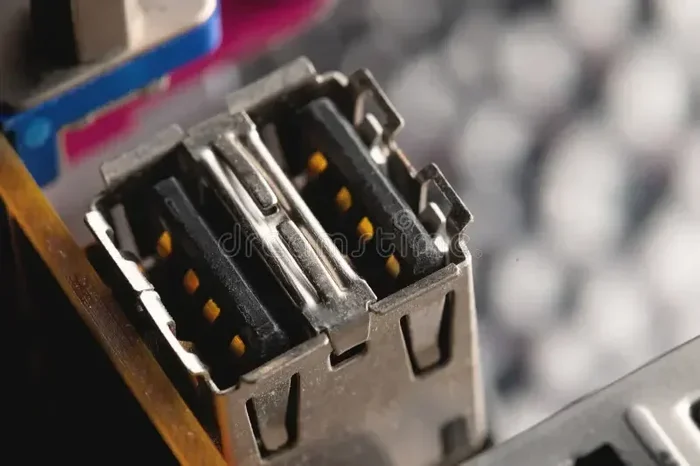
The USB Type C connector is small, oval-shaped, and reversible. Unlike older USB Type A plugs that only fit one way, the USB C plug has pins on both sides. This means you can flip it and plug it in without checking the orientation. It is a small but huge quality-of-life improvement.
USB C does much more than just charge devices. It can transfer data, carry audio, and transmit video signals all at the same time. This is why it has become the go-to port for modern laptops and USB C docking stations. The port supports various protocols, including DisplayPort and HDMI Alt Mode, which allow video output to external displays.
Not every USB C port supports video output, though. Some ports on certain devices are power-only ports. They charge the battery but cannot send a video signal to an external display. Always check your device specifications before assuming your USB C port can output video.
How HDMI Connectors Work
The HDMI connector is a flat, trapezoidal plug that only fits one way. There is no reversibility here. You must align the connector correctly before pushing it in. The HDMI standard has evolved over the years, with versions supporting different resolutions and features.
Most modern HDMI ports support 4K display output and even higher resolutions. The latest HDMI 2.1 standard supports up to 10K resolution at high refresh rates. But the cable and port on both ends need to support the same standard for the best results.
HDMI carries both audio and video through a single cable. This makes it incredibly convenient for connecting laptops, gaming consoles, and streaming devices to TVs and monitors. The simplicity of one cable for everything is a big reason HDMI remains so popular.
Why USB C to HDMI Cables Are Not Reversible
The USB C to HDMI cable is a directional cable. Each end serves a specific purpose and connects to a specific type of port. Here is why you cannot reverse the entire cable:
- Different connector shapes: USB C is small and oval. HDMI is larger and flat with a trapezoidal shape. They physically cannot fit into each other’s ports.
- Different pin layouts: The pins inside a USB C connector carry data, power, and video signals differently than HDMI pins. Swapping them would not work.
- Different protocols: USB C uses a packet-based data protocol, while HDMI uses a dedicated video and audio signal protocol. They are fundamentally different systems.
Think of it like a power outlet and a phone charger. The plug fits the outlet, and the outlet does not fit the plug. The USB C to HDMI cable works the same way. Each end is designed for a specific port type, and reversing the entire cable is physically impossible.
When People Get Confused
Many users get confused because the USB C end of the cable is reversible. They plug it in one way, it works. They flip it, it still works. Then they assume the HDMI end works the same way. It does not. The HDMI connector has a fixed orientation and will only go in one way.
This confusion is very common and completely understandable. Cable manufacturers could do a better job of labeling cables clearly. Some USB C to HDMI cables now come with clear markings that show which end goes where, which helps reduce confusion.
Another source of confusion is the term “reversible” itself. In the context of cables, reversible can mean two things. It can mean the plug orientation is reversible (like USB C). Or it can mean the cable direction is reversible (which is not possible for a USB C to HDMI cable). Always clarify what kind of reversibility you are looking for.
How to Choose the Right USB C to HDMI Cable
Not all USB C to HDMI cables are created equal. Choosing the right one depends on your device, your display needs, and what you plan to do. Here is what to look for:
Check Your Device Compatibility
Before buying any cable, check if your device supports video output through USB C. Look for terms like “DisplayPort Alt Mode” or “HDMI Alt Mode” in your device specs. Some devices, especially budget laptops and tablets, only support charging through their USB C ports.
If you are unsure, check the manufacturer’s website or user manual. You can also test with a known working cable first. Many USB C docking stations also support video output, which is another option if your laptop lacks a dedicated HDMI port.
Consider Resolution and Refresh Rate
Think about what resolution you need. For everyday office work and web browsing, a standard 1080p display is fine. For video editing, gaming, or creative work, you want a cable that supports 4K display at 60Hz or higher.
Here is a quick comparison of common USB C to HDMI cable types:
- Standard USB C to HDMI: Supports 1080p at 60Hz. Great for basic presentations and media viewing.
- Premium USB C to HDMI: Supports 4K at 60Hz. Ideal for creative professionals and gamers.
- Active USB C to HDMI: Includes built-in chip for wider compatibility. Needed for some devices that do not support HDMI Alt Mode natively.
For most users, a standard USB C to HDMI cable works perfectly. If you need higher resolution or your device has compatibility issues, an active adapter is the way to go.
Look for Plug and Play Support
The best USB C to HDMI cables are plug and play. You plug one end into your device, the other into your display, and it just works. No drivers, no software, no setup hassles. Most modern cables and devices support this out of the box.
If you need to install drivers or software, that is a sign the cable or adapter may not be fully compatible. Look for cables that explicitly state “plug and play” on the packaging or product description.
Common Mistakes When Using USB C to HDMI Cables
Forcing the HDMI Connector
The most common mistake is forcing the HDMI connector into the port. Since the HDMI plug is not reversible, if it does not fit, do not push harder. Check the orientation. The HDMI plug has a specific shape, and it only goes in one way. Forcing it can damage both the cable and the port.
Using the Wrong Cable for the Job
Not every USB C cable supports video output. Some cables are power-only or data-only. Using a cable that does not support video will result in no signal on your external display. Always buy a cable specifically labeled as “USB C to HDMI” or “USB C with HDMI output.”
Similarly, using a USB C to HDMI cable that does not support the resolution you need will result in a lower-quality image or no image at all. Check the cable specifications before purchasing.
Ignoring Adapter Quality
If you are using a separate USB C to HDMI adapter instead of an all-in-one cable, adapter quality matters a lot. Cheap adapters can cause signal loss, flickering, or no signal at all. Invest in a reputable brand for reliable performance.
Expert Tips for the Best Experience
Here are some practical tips from experience that will help you get the most out of your USB C to HDMI setup:
- Always check port compatibility first. Not all USB C ports support video. A quick check of your device specs saves a lot of frustration.
- Buy a cable with a good length. A 6-foot cable gives you flexibility in positioning your external monitor or TV.
- Use a USB C hub for multiple connections. A hub lets you connect HDMI, USB devices, and charging all at once from a single port.
- Keep your cables in good condition. Avoid bending them sharply or pulling them by the cable. This extends the life of your USB C to HDMI cable significantly.
- Test with a known working setup first. If you are having issues, try the cable with a different device to isolate the problem.
Quick Tips Section
Quick Tip: If your USB C to HDMI cable is not working, try flipping the USB C end. Since the USB C connector is reversible, a different orientation might make the connection. This simple fix works more often than you would think.
Quick Tip: For the best 4K display experience, make sure both your source device and your display support HDMI 2.0 or higher. Older HDMI versions may limit your resolution or refresh rate.
Quick Tip: If you are traveling, a compact USB C to HDMI adapter is more portable than a full-length cable. It takes up less space in your bag and works with multiple display setups.
Quick Tip: When buying a USB C to HDMI cable, look for certifications like HDMI Premium or USB-IF certification. These ensure the cable meets quality standards and will work reliably.
Final Thoughts
So, is USB C to HDMI reversible? The short answer is no — the cable direction is not reversible. The USB C end connects to a USB C port, and the HDMI end connects to an HDMI port. You cannot swap them. But the USB C plug itself is reversible, which means you can flip it either way when plugging it into your device.
Understanding this distinction is important for anyone who works with external displays, streaming devices, or laptop displays. It helps you set up your equipment correctly and avoid frustrating mistakes. The right cable, used the right way, makes connecting your devices to a bigger screen simple and reliable.
Whether you are a student presenting a project, a professional working with an external monitor, or a gamer connecting to a TV, knowing how your USB C to HDMI cable works gives you confidence. You will troubleshoot faster, set up smarter, and get better results every time.
Take a moment to check your current setup. Make sure you are using the right cable, the right adapter, and the right port. A small investment in knowledge and the right accessories pays off in a smoother, more reliable experience every single day.
Frequently Asked Questions
Can I plug a USB C to HDMI cable into an HDMI port on my laptop?
No. The HDMI end of the cable only fits an HDMI port, and the USB C end only fits a USB C port. Laptops with HDMI ports use standard HDMI cables, not USB C to HDMI cables. Check your laptop ports to use the right cable.
Do all USB C ports support video output?
No. Some USB C ports on certain devices are power-only or data-only ports. They cannot send a video signal to an external display. Always check your device specifications for video output support before buying a USB C to HDMI cable.
What is the difference between a passive and active USB C to HDMI cable?
A passive cable relies on your device to output the video signal natively. An active cable has a built-in chip that converts the signal, making it compatible with more devices. Active cables are helpful when your device does not fully support HDMI Alt Mode through its USB C port.
Can I use a USB C to HDMI cable for gaming on a TV?
Yes, as long as your device and the cable support the resolution and refresh rate you need. For casual gaming, a standard USB C to HDMI cable works great. For competitive gaming at high refresh rates, look for cables that support HDMI 2.1 and your device’s output capabilities.
Why does my USB C to HDMI cable work sometimes but not other times?
This is often caused by a loose connection, an incompatible USB C port, or a cable that does not support the resolution your display requires. Try flipping the USB C connector since it is reversible, and make sure both your device and display support the same video standard.
Are USB C to HDMI cables the same as USB C to HDMI adapters?
Not exactly. A cable is a single piece with USB C on one end and HDMI on the other. An adapter is a small device that converts the signal and may require a separate cable. Both serve the same purpose, but adapters offer more flexibility and are often more portable for travel setups.