How to Use a Laptop as a Monitor
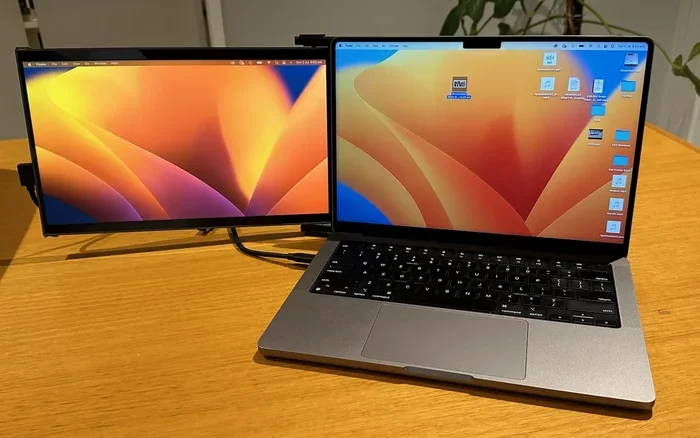
Using a laptop as a monitor is a simple and affordable way to get a second screen without buying new hardware. Whether you want to extend your desktop, connect a gaming console, or repurpose an old laptop, this guide covers every method you need. You will learn how to hook up your laptop using HDMI, USB-C, and even a capture card, plus how to adjust your display settings for the best experience.
Have you ever wondered if you could use your laptop as a monitor? The good news is that you absolutely can, and it is much easier than most people think. Whether you need a second screen for work, want to hook up a gaming console, or simply have an old laptop sitting around, turning it into an external display is a smart move. In this guide, we will walk you through every method, step by step, so you can get started right away.
The process depends on what devices you are connecting and what ports your laptop has. Some setups use a simple cable, while others need a small adapter or a capture card. We will cover all of these options in detail. By the end of this article, you will know exactly how to use a laptop as a monitor and get the best results from your setup.
Key Takeaways
- Multiple connection options: You can use HDMI, USB-C, or a capture card to turn your laptop into a second monitor.
- It works with many devices: PCs, Xbox, PlayStation, and even older laptops can be connected this way.
- Display settings are easy to adjust: Windows and Mac both offer simple options to extend or mirror your screen.
- There are pros and cons: Using a laptop as a monitor is cost-effective but may have input lag and resolution limits.
- Quick tips make a big difference: Using the right cable and closing your laptop lid can improve your setup significantly.
- An old laptop can still be useful: Even outdated laptops can serve as functional secondary displays with the right connection method.
📑 Table of Contents
What Does It Mean to Use a Laptop as a Monitor?
Using a laptop as a monitor means taking the screen of your laptop and displaying content from another device on it. Instead of the laptop being the main computer, it becomes a display output, just like a traditional monitor. This is also called using your laptop as an external display or a secondary screen.
People do this for many reasons. Some want more screen space for multitasking at work. Others want to play games on a bigger screen without buying a new monitor. Whatever your reason, the concept is the same: you send a video signal from one device into the screen of another device.
How To Connect Your Laptop to Another Device
There are several ways to connect a laptop to another device and use it as a monitor. The method you choose depends on the ports available on both your laptop and the source device. Below, we cover the most common and reliable options.
Using an HDMI Cable
The HDMI method is the simplest and most common way to connect devices. Most modern laptops have an HDMI port, and so do most desktop PCs, gaming consoles, and media players. All you need is an HDMI cable that fits both devices.
Here is how to do it:
- Plug one end of the HDMI cable into the output port on your source device (like a PC or console).
- Plug the other end into the HDMI input port on your laptop.
- Turn on both devices.
- Switch your laptop to the correct input mode if needed.
Some laptops do not have an HDMI input port. In that case, you may need a different method. If your laptop only has HDMI output and not input, you will not be able to receive a signal directly through HDMI. This is an important thing to check before you buy a cable.
Using USB-C or DisplayPort
Many newer laptops come with USB-C ports that support video input. This is great news because USB-C cables can carry both power and video signals at the same time. If your laptop has a USB-C port that supports DisplayPort input, you can use a USB-C to HDMI or USB-C to DisplayPort cable to connect your source device.
Here are the steps for a USB-C connection:
- Check if your laptop supports video input through USB-C.
- Get a USB-C cable or adapter that matches both devices.
- Connect the cable from the source device output to your laptop.
- Adjust your display settings on the laptop to recognize the new input.
USB-C connections are fast and can support high resolutions. They are a great option if your laptop has the right ports. If you are using a secondary monitor setup often, USB-C is definitely worth considering for its versatility.
Using a Capture Card
A capture card is a small device that converts video signals and sends them to your laptop through USB. This method works when your laptop does not have a direct video input port. It is especially popular among gamers who want to use their laptop as a monitor for a gaming console.
Here is how a capture card setup works:
- Connect the capture card to your source device using an HDMI cable.
- Connect the capture card to your laptop using a USB cable.
- Install the capture card software on your laptop.
- Open the software and select the capture card as your video source.
The capture card method adds a small amount of input lag, which means there might be a slight delay between your actions and what shows on screen. For most work tasks, this is not noticeable. For fast-paced gaming, it might be a concern. If you want a lag-free experience, a direct HDMI or USB-C connection is better.
Setting Up Your Laptop Display Settings
Once you have connected your laptop to another device, you need to adjust the display settings so everything looks right. The process is different depending on whether you are using Windows or Mac, but both are straightforward.
Adjusting Display Settings on Windows
On a Windows laptop, go to Settings and then click on System. From there, select Display. You will see options for how your laptop screen and the connected device interact. You can choose to extend your desktop, duplicate the screen, or show the display only on the second screen.
Here are the main options:
- Extend: This gives you two separate screens. You can drag windows between them and use more space for multitasking.
- Duplicate: This shows the same image on both screens. It is useful for presentations or sharing your screen with others.
- Second screen only: This turns off your laptop screen and shows the image only on the external display.
You can also adjust the resolution and scale of the external display. If the image looks blurry or too small, go into the display settings and change the resolution to match your laptop screen. This will give you the clearest picture possible.
Adjusting Display Settings on Mac
Mac laptops work in a similar way. Go to System Preferences and click on Displays. You will see options to arrange your screens, set the resolution, and choose whether to mirror or extend your desktop. Mac users can also use Sidecar, which is a built-in feature that lets you use your iPad as a secondary display. However, using a laptop as a monitor requires a direct cable connection and display settings adjustment.
If you are using a mouse with your laptop during this setup, make sure it is connected and working properly. A mouse makes it much easier to navigate display settings and arrange windows across multiple screens.
Common Uses for a Laptop as a Monitor
There are many practical reasons why people turn their laptops into secondary monitors. Here are the most common use cases.
Extending Your Workspace
If you work from home or do tasks that require multiple windows open, using a laptop as a second monitor can boost your productivity. You can keep your email and chat apps on one screen while working on documents or spreadsheets on the other. This setup is especially helpful for people who do not have room for a large external monitor.
Gaming on a Bigger Screen
Gamers often want to play on a bigger screen than their laptop offers. You can connect a gaming console like an Xbox or PlayStation to your laptop and use the laptop screen as your display. This is a great option if you do not own a separate TV or monitor. Just keep in mind that there may be some input lag depending on your connection method.
If you want a better gaming experience without lag, a direct HDMI connection works best. You can also check out our guide on working a laptop without a mouse if you prefer using a keyboard or touchscreen for gaming navigation.
Using an Old Laptop as a Monitor
Got an old laptop that is too slow for daily use? Do not throw it away yet. An older laptop can still work well as a secondary display for basic tasks like browsing the web, watching videos, or checking email. The screen might not be as sharp as a modern monitor, but it gets the job done.
Pros and Cons of Using a Laptop as a Monitor
Before you commit to this setup, it is smart to understand the advantages and disadvantages. Here is a quick comparison table:
| Pros | Cons |
|---|---|
| Saves money by repurposing old hardware | Not all laptops support video input |
| Gives you a second screen without buying a new monitor | Some setups have input lag or delay |
| Portable and easy to set up | Laptop screens are usually smaller than dedicated monitors |
| Works with PCs, consoles, and media players | Resolution may be limited by the laptop screen |
| No extra power supply needed | Using the laptop while it is a monitor drains the battery faster |
Overall, using a laptop as a monitor is a practical solution for many situations. It is especially useful when you need a quick second screen or want to give new life to an old device. Just be aware of the limitations, and choose the connection method that best fits your needs.
Tips for the Best Experience
To get the most out of using your laptop as a monitor, follow these simple tips.
- Use the right cable: Always use a high-quality cable that matches your ports. A bad cable can cause signal loss or poor image quality.
- Close your laptop lid: If you are only using the laptop screen as a display, go into your power settings and choose to do nothing when the lid is closed. This prevents your laptop from sleeping.
- Match the resolutions: Set the external display resolution to match your laptop screen for the sharpest image.
- Keep your laptop plugged in: Using the laptop as a monitor uses more power. Keep it connected to a charger to avoid battery drain.
- Update your graphics drivers: Make sure your laptop graphics drivers are up to date for the best compatibility and performance.
- Use a cooling pad: Running your laptop as a display for long periods can generate heat. A cooling pad helps keep temperatures down.
These small adjustments can make a big difference in how smooth and enjoyable your setup feels. Take a few minutes to tweak your settings, and you will notice a better experience right away.
Frequently Asked Questions
Can any laptop be used as a monitor?
Not every laptop can be used as a monitor. The key factor is whether your laptop has a video input port. Most laptops only have video output ports, which means they can send a signal to another display but cannot receive one. Some laptops with USB-C or HDMI input ports can accept a video signal directly. If your laptop does not have an input port, you can still use it as a monitor with a capture card.
Is it bad to use a laptop as a monitor?
No, it is not bad at all. Using a laptop as a monitor is safe and will not damage your hardware. The only thing to watch out for is battery drain and heat. If you plan to use the setup for long periods, keep your laptop plugged in and make sure it has good ventilation. Other than that, it is a perfectly fine and practical way to get a second screen.
What cable do I need to connect a laptop as a monitor?
The cable you need depends on the ports available on both devices. HDMI cables are the most common and work with most devices that have HDMI ports. USB-C cables are great for newer laptops that support video input. If your laptop does not have a direct input port, a capture card with an HDMI cable and a USB connection will do the job.
Can I use a laptop as a monitor for a PlayStation or Xbox?
Yes, you can use a laptop as a monitor for both PlayStation and Xbox consoles. The easiest way is through an HDMI connection if your laptop has an HDMI input port. If it does not, a capture card is the best alternative. Just keep in mind that there may be a slight delay with a capture card, which can affect fast-paced gaming slightly.
Does using a laptop as a monitor affect its performance?
Using your laptop as a display does not significantly affect its computing performance. However, it does use more battery power because the screen is actively being used. The laptop may also run warmer than usual since the screen and graphics components are working. Plugging in your laptop and using a cooling pad will help keep everything running smoothly.
Can I use my laptop screen and the external device at the same time?
Yes, you can use both screens at the same time. In your display settings, choose the “Extend” option to use your laptop screen and the connected device as two separate displays. This lets you drag windows and apps between both screens, giving you more workspace. It is a great way to multitask without buying a new monitor.
Conclusion
Learning how to use a laptop as a monitor opens up new possibilities for your setup without spending extra money. Whether you need a second screen for work, want to play games on a bigger display, or simply want to repurpose an old laptop, the methods in this guide will help you get there. From HDMI cables to USB-C connections and capture cards, you have several options to choose from based on your devices and needs.
Remember to check your laptop ports first, adjust your display settings after connecting, and follow the quick tips we shared for the best experience. With the right setup, your laptop can serve as a reliable and functional monitor for many different purposes. Give it a try, and you will see how simple and rewarding it can be to turn an extra screen into a useful tool.