Lenovo Thinkpad T490 Ram Ssd Upgrade Made Easy Guide

The Lenovo Thinkpad T490 is a reliable business laptop, but upgrading its RAM and SSD can make it feel brand new. This guide walks you through everything you need to know about a Lenovo Thinkpad T490 Ram Ssd Upgrade, from picking the right parts to installing them yourself. You will save money, gain speed, and extend the life of your machine with just a few simple steps.
The Lenovo Thinkpad T490 has been a popular choice for professionals and students alike. It offers solid build quality, a great keyboard, and reliable performance. But over time, even the best laptops can start to feel slow. If your T490 is struggling with multitasking or taking forever to boot up, a Lenovo Thinkpad T490 Ram Ssd Upgrade might be exactly what you need.
Upgrading the memory and storage on your Thinkpad T490 is one of the best ways to breathe new life into an older machine. Instead of buying a brand new laptop, you can get faster speeds, more capacity, and a smoother experience for a fraction of the cost. This guide makes the Lenovo Thinkpad T490 Ram Ssd Upgrade process simple and easy to follow, even if you have never opened a laptop before.
We will cover everything from choosing the right parts to step-by-step installation instructions. By the end of this guide, you will feel confident enough to do the upgrade yourself. Let us get started and make your Thinkpad T490 run like it did on day one.
Key Takeaways
- Easy DIY Upgrade: You can upgrade the RAM and SSD on your Thinkpad T490 at home with basic tools.
- Big Performance Boost: More RAM and a faster SSD make your laptop run smoother and faster.
- Cost Savings: Doing it yourself costs a fraction of what a repair shop would charge.
- Compatible Parts Matter: Choosing the right RAM and SSD for your T490 is essential for success.
- Backup First: Always back up your data before starting any upgrade to keep your files safe.
- Warranty Check: Opening your laptop may void the warranty, so check before you begin.
📑 Table of Contents
- Why Upgrade the RAM and SSD on Your Thinkpad T490?
- What You Need Before Starting the Upgrade
- Step-by-Step RAM Upgrade Process
- Step-by-Step SSD Upgrade Process
- How to Choose the Right RAM and SSD for Your T490
- Common Mistakes to Avoid During the Upgrade
- What to Expect After the Upgrade
- Final Thoughts
Why Upgrade the RAM and SSD on Your Thinkpad T490?
Over time, laptops accumulate digital clutter. Applications take longer to open, files load slowly, and switching between tasks becomes frustrating. The Lenovo Thinkpad T490 Ram Ssd Upgrade directly addresses these common problems.
More RAM allows your laptop to handle multiple applications at once without slowing down. A faster SSD reduces boot times and makes file transfers lightning quick. Together, these two upgrades transform how your laptop feels during daily use.
If you use your Thinkpad T490 for work, school, or creative projects, the performance gains from a Lenovo Thinkpad T490 Ram Ssd Upgrade are hard to ignore. You will notice smoother video playback, faster application launches, and an overall more responsive system.
Signs Your Thinkpad T490 Needs an Upgrade
Not sure if your laptop needs an upgrade? Here are some clear signs:
- Your laptop takes more than a minute to boot up.
- Apps take a long time to open or frequently freeze.
- You struggle to run two or more programs at the same time.
- The hard drive light stays lit constantly during basic tasks.
- Your current storage is almost full and you need more space.
If any of these sound familiar, a Lenovo Thinkpad T490 Ram Ssd Upgrade should be your next step. It is a simple fix that delivers noticeable results.
What You Need Before Starting the Upgrade
Before you dive into the Lenovo Thinkpad T490 Ram Ssd Upgrade, gather everything you need. Preparation is the key to a smooth and stress-free experience.
Tools Required
You do not need many tools for this upgrade. Here is a simple list:
- A small Phillips-head screwdriver (size #1 or #0 works best).
- A plastic spudger or prying tool to open the case safely.
- A clean, flat workspace with good lighting.
- An anti-static wrist strap (optional but recommended).
Parts You Will Need
For the Lenovo Thinkpad T490 Ram Ssd Upgrade, you need compatible parts. The T490 supports DDR4 RAM modules and 2.5-inch SATA SSDs or M.2 NVMe SSDs depending on the configuration. Check your current specs before purchasing new components.
When shopping for parts, look at the Upgrade Ram For Lenovo Laptop guide for helpful tips on finding compatible memory. Also consider reading about Laptop With Ssd And 16Gb Ram to understand ideal configurations for the best performance.
Backup Your Data First
This is the most important step before any Lenovo Thinkpad T490 Ram Ssd Upgrade. Before you remove or replace any component, back up all your important files. Use an external hard drive, cloud storage, or a USB flash drive to save your data.
Even though upgrading RAM and SSD rarely causes data loss, accidents can happen. A simple backup takes a few minutes and saves you hours of stress later.
Step-by-Step RAM Upgrade Process
Upgrading the RAM on your Thinkpad T490 is straightforward. Follow these steps carefully to ensure a successful Lenovo Thinkpad T490 Ram Ssd Upgrade.
Step 1: Power Down and Unplug
Turn off your Thinkpad T490 completely. Unplug the power adapter and disconnect any external devices like USB drives, mice, or monitors. Removing power from the laptop prevents any electrical damage during the upgrade.
Step 2: Remove the Back Panel
Flip your laptop over and locate the screws on the bottom panel. Use your Phillips-head screwdriver to remove them carefully. Keep the screws in a safe place because you will need them later. Gently pry off the back panel using your plastic spudger.
Step 3: Locate the RAM Slots
Once the back panel is off, you will see the RAM slots. The Thinkpad T490 typically has two RAM slots. The existing memory module(s) will be seated in these slots. If both slots are occupied, you will need to remove the existing module(s) to install the new ones.
Step 4: Remove the Old RAM
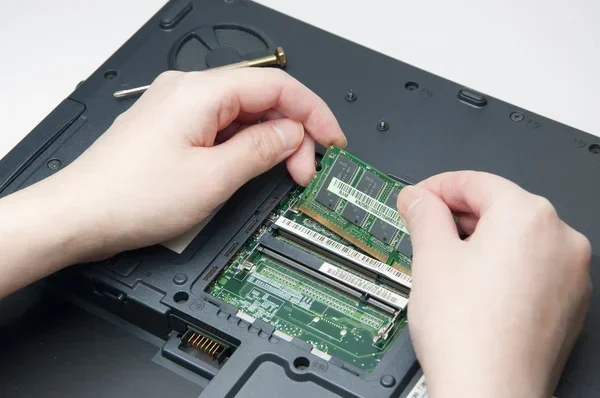
Push the metal clips on either side of the RAM module outward gently. The module will pop up at an angle. Carefully pull it out. For detailed guidance on this process, check the How To Upgrade The Ram Of A Laptop guide for helpful visual references.
Step 5: Install the New RAM
Take your new DDR4 RAM module and align the notch with the slot. Insert it at a 45-degree angle and press it firmly down until the metal clips click into place. Make sure the module is fully seated and secure.
Step 6: Reassemble and Test
Replace the back panel and screw it back in. Plug in your power adapter and turn on the laptop. Check the system settings to confirm the new RAM is recognized. On Windows, you can go to Task Manager and click the Performance tab to see your total memory.
Step-by-Step SSD Upgrade Process
The SSD upgrade on the Thinkpad T490 is just as manageable as the RAM upgrade. Follow these steps as part of your Lenovo Thinkpad T490 Ram Ssd Upgrade journey.
Step 1: Prepare Your New SSD
If you are cloning your existing drive, use cloning software like Macrium Reflect or Clonezilla to copy everything onto the new SSD before installation. This ensures you do not lose your operating system, applications, or files during the switch.
Step 2: Open the Laptop and Locate the Storage Bay
With the back panel removed, look for the storage bay. The Thinkpad T490 has a dedicated 2.5-inch drive bay or an M.2 slot depending on the model. The existing SSD will be secured with a small screw.
Step 3: Remove the Old SSD
Unscrew the mounting bracket or screw holding the old SSD in place. Gently slide the drive out of its connector. Handle the SSD carefully and avoid touching the gold connectors on the bottom.
Step 4: Install the New SSD
Place your new SSD into the slot or bracket. Secure it with the screw. Make sure the connector is fully seated and the drive is firmly in place. A loose SSD can cause connection issues and data errors.
Step 5: Boot and Verify
Close the back panel, plug in the power, and turn on the laptop. Enter the BIOS by pressing F1 or F2 during startup. Confirm that the new SSD is detected. If you cloned your old drive, the laptop should boot directly into your operating system with everything intact.
How to Choose the Right RAM and SSD for Your T490
Choosing the right components is critical for a successful Lenovo Thinkpad T490 Ram Ssd Upgrade. Not all RAM and SSD modules work with every laptop, and the wrong choice can lead to compatibility issues.
RAM Selection Guide
The Thinkpad T490 uses DDR4 SO-DIMM RAM modules. Here are the key factors to consider:
- Capacity: The T490 supports up to 32GB of RAM (2 x 16GB). For most users, 16GB is the sweet spot.
- Speed: DDR4-2666MHz is the standard for the T490. Higher speed modules may work but will downclock to match.
- Type: Make sure you purchase SO-DIMM (small outline) modules, not full-size desktop RAM.
SSD Selection Guide
When selecting a new SSD for your Lenovo Thinkpad T490 Ram Ssd Upgrade, consider these factors:
- Interface: Check whether your T490 uses a 2.5-inch SATA SSD or an M.2 NVMe SSD. The model varies, so check your current drive type first.
- Capacity: 256GB is the minimum for comfortable use. 512GB or 1TB is recommended if you store large files or applications.
- Brand: Stick with reputable brands like Samsung, Crucial, Kingston, or WD for reliability and performance.
Compatibility Checklist
Before purchasing any parts, run through this quick checklist:
- Confirm your T490 model number (check the bottom label or BIOS).
- Verify the RAM type (DDR4 SO-DIMM) and maximum supported capacity.
- Check the SSD interface (SATA or NVMe) supported by your model.
- Ensure the SSD thickness is compatible with the drive bay (7mm is standard).
Common Mistakes to Avoid During the Upgrade
Even with a clear guide, mistakes can happen. Here are common errors people make during a Lenovo Thinkpad T490 Ram Ssd Upgrade and how to avoid them.
Skipping the Backup
This cannot be stressed enough. Always back up your data first. A simple mistake during the SSD swap can result in lost files if you did not clone or back up properly.
Using Incompatible Parts
Not all RAM or SSD modules work with the T490. Using the wrong type can cause boot failures or damage. Always double-check compatibility before purchasing.
Forcing Components Into Place
If a RAM module or SSD does not slide in easily, do not force it. Check the alignment and try again. Forcing parts can bend pins or damage the connector.
Losing the Screws
Keep all screws in a small container or magnetic mat. Losing a screw means you cannot reassemble your laptop properly, which leaves internal components exposed.
Rushing the Process
Take your time. A Lenovo Thinkpad T490 Ram Ssd Upgrade should take about 30 to 45 minutes. Rushing increases the chance of mistakes and can lead to damage.
What to Expect After the Upgrade
Once you complete your Lenovo Thinkpad T490 Ram Ssd Upgrade, the difference should be immediate and noticeable. Your laptop will boot faster, applications will open more quickly, and multitasking will feel effortless.
With 16GB or more of RAM and a fast SSD, the Thinkpad T490 handles modern workloads with ease. Video editing, programming, and heavy multitasking become much smoother experiences. Even everyday tasks like web browsing and office work feel noticeably snappier.
Many users report that a Lenovo Thinkpad T490 Ram Ssd Upgrade makes their laptop feel like a brand new machine. The cost of the upgrade is a small fraction of what a new laptop would cost, yet the performance improvement is dramatic.
Final Thoughts
The Lenovo Thinkpad T490 Ram Ssd Upgrade is one of the most rewarding upgrades you can do for your laptop. It is affordable, straightforward, and delivers real results. Whether you are a student, a professional, or a casual user, this upgrade will improve your daily computing experience.
Follow the steps in this guide carefully, take your time, and enjoy the process. You do not need to be a tech expert to upgrade your Thinkpad T490. With the right parts and a little patience, you will have a faster, more capable laptop in no time.
Start your Lenovo Thinkpad T490 Ram Ssd Upgrade today and give your trusted laptop the performance boost it deserves. Your future self will thank you every time you open your laptop and feel the difference.
Frequently Asked Questions
What is the maximum RAM supported by the Lenovo Thinkpad T490?
The Lenovo Thinkpad T490 supports up to 32GB of RAM using two DDR4 SO-DIMM slots. Most users find that 16GB (2 x 8GB) provides the best balance of performance and value for everyday use.
Can I upgrade the SSD on my Thinkpad T490 if it already has a 256GB drive?
Yes, absolutely. You can replace the existing 256GB SSD with a larger drive. The Thinkpad T490 supports both 2.5-inch SATA SSDs and M.2 NVMe SSDs depending on the configuration. Just make sure you choose the right type for your model.
Do I need any special software to clone my old SSD to the new one?
You will need cloning software if you want to transfer everything from your old drive to the new one. Popular options include Macrium Reflect, Clonezilla, and Samsung Data Migration. These tools make the process simple and keep all your files and settings intact.
Will upgrading the RAM void my Thinkpad T490 warranty?
This depends on your warranty terms. In most cases, upgrading RAM does not void the warranty because it is a user-replaceable component. However, it is always best to check with Lenovo directly or review your warranty documentation before opening the laptop.
How long does a Lenovo Thinkpad T490 Ram Ssd Upgrade take?
Most people complete the entire upgrade in about 30 to 45 minutes. If you are cloning your old SSD, add an extra 30 to 60 minutes for the cloning process. The actual installation is quick and straightforward.
Can I upgrade just the RAM or just the SSD, or do I need to do both?
You can upgrade either component independently. If your laptop is slow because of limited memory, adding RAM is the best fix. If your storage is full or your drive is slow, upgrading the SSD is the way to go. Doing both together gives you the best overall performance boost.