Can You Use A Microsoft Mouse On An Apple Computer
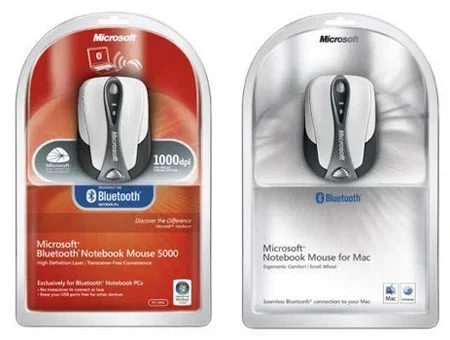
Yes, you can use a Microsoft mouse on an Apple computer. Most Microsoft mice work right out of the box on macOS. You just need a USB port or Bluetooth connection, and your mouse will function normally.
Can you use a Microsoft mouse on an Apple computer? The short answer is yes. You can absolutely connect a Microsoft mouse to a Mac and use it without a hitch. Many people switch between Apple and Windows devices every day. They need one mouse that works on both. The good news is that most Microsoft mice are cross-platform compatible. This means they work on macOS just as well as they work on Windows. In this guide, we will walk you through everything you need to know. You will learn about compatibility, setup, common issues, and the best Microsoft mouse models for Mac users. Let us get started.
Using a Microsoft mouse on a Mac is simpler than you might think. Apple computers support a wide range of USB and Bluetooth mice. The macOS operating system includes built-in drivers for most peripheral devices. This means your mouse will likely start working the moment you plug it in or pair it. You do not need to download special software from Microsoft. However, there are a few things to keep in mind. Some advanced features may not work the same way as they do on Windows. We will cover all of that in detail below.
Key Takeaways
- Full Compatibility: Most Microsoft mice work seamlessly with Apple computers without extra software.
- Easy Setup: You can connect via USB or Bluetooth in just a few simple steps.
- Limited Buttons: Some advanced Microsoft mouse buttons may not map perfectly on macOS.
- Driver-Free Use: macOS supports most Microsoft mice natively, so no downloads are needed.
- Best Models: Microsoft Surface Mouse and Microsoft Sculpt Mouse are top picks for Mac users.
- Troubleshooting Available: If issues arise, simple fixes like resetting Bluetooth usually solve the problem.
📑 Table of Contents
- Can You Use A Microsoft Mouse On An Apple Computer?
- How Microsoft Mice Work With Apple Computers
- Setting Up Your Microsoft Mouse On A Mac
- Common Issues And How To Fix Them
- Benefits Of Using A Microsoft Mouse On An Apple Computer
- Which Microsoft Mouse Works Best With Mac
- Tips For Getting The Most Out Of Your Microsoft Mouse On A Mac
- Final Thoughts
Can You Use A Microsoft Mouse On An Apple Computer?
The answer is a clear yes. Microsoft mice are designed to be universal. They work on virtually any computer that supports USB or Bluetooth connections. Apple computers are no exception. Whether you own an iMac, MacBook Pro, MacBook Air, or Mac Mini, your Microsoft mouse should work fine. The macOS system recognizes most mice as standard input devices. This includes basic functions like clicking, scrolling, and moving the cursor.
You might wonder if there are any limitations. The truth is that most basic functions work perfectly. You get left-click, right-click, and scroll wheel support right away. Some mice with extra buttons might not map correctly. For example, a side button on a Microsoft mouse might not perform a specific action on a Mac. But this does not stop the mouse from working. It just means you might not get every feature you would on a Windows PC. Overall, the experience is smooth and reliable.
If you are looking for more details on how to use a mouse with your laptop or computer, check out our guide on How To Use A Mouse On Laptop. It covers general mouse usage tips that apply to all setups.
How Microsoft Mice Work With Apple Computers
When you connect a Microsoft mouse to a Mac, the computer treats it like any other pointing device. macOS has built-in support for HID devices. HID stands for Human Interface Device. This is the standard protocol that most mice use. Because of this, your Microsoft mouse will be recognized immediately. You do not need to install any drivers or software.
USB Connection
If your Microsoft mouse uses a USB receiver, the setup is super easy. Just plug the small USB dongle into your Mac. The computer will detect the mouse within seconds. You can start using it right away. This plug-and-play experience works on all modern Mac models. Even older Macs with USB-A ports will recognize the mouse. If your Mac only has USB-C ports, you can use a simple adapter. The mouse will work exactly the same way.
Bluetooth Connection
Many Microsoft mice now come with Bluetooth support. This is great news for Mac users. Apple computers have excellent Bluetooth capabilities. To connect a Bluetooth Microsoft mouse, open your Mac settings. Go to the Bluetooth section and turn it on. Put your mouse in pairing mode. It should appear in the list of available devices. Click connect, and you are all set. The process is quick and painless. For more tips on making any mouse work with your setup, visit our article on How To Make A Mouse Work On A Laptop.
Setting Up Your Microsoft Mouse On A Mac
Setting up a Microsoft mouse on an Apple computer takes only a few minutes. Follow these steps to get started quickly. The process is the same whether you use a wired or wireless mouse.
- Check the batteries. Make sure your Microsoft mouse has fresh batteries or is fully charged.
- Turn on the mouse. Slide the power switch to the on position.
- Choose your connection method. Decide whether you want to use USB or Bluetooth.
- Connect the mouse. Plug in the USB receiver or pair via Bluetooth.
- Test the mouse. Move it around and check if the cursor responds.
- Adjust settings if needed. Go to System Settings and tweak the speed or scrolling options.
Once connected, you can customize your mouse settings on your Mac. Apple makes this easy. You can adjust the tracking speed, scroll direction, and more. Go to System Settings and look for the Mouse section. Here you can change how fast your cursor moves. You can also switch between natural scrolling and traditional scrolling. These small tweaks can make a big difference in your daily workflow.
For general tips on using a mouse with any computer, you might also enjoy our piece on Mouse For A Laptop Computer. It covers helpful advice that works across all platforms.
Common Issues And How To Fix Them
Even though most setups work smoothly, you might run into a few hiccups. Do not worry. These issues are easy to fix. Here are the most common problems and their solutions.
Mouse Not Recognized by Mac
If your Mac does not detect your Microsoft mouse, try these steps. First, check the batteries. A low battery can prevent the mouse from connecting. Next, try a different USB port if you are using a receiver. Sometimes the port might not be working properly. For Bluetooth mice, make sure Bluetooth is turned on. You can also try turning Bluetooth off and back on again. Restarting your Mac is another quick fix that often works.
Right-Click Not Working
On a Mac, the right-click function works differently than on Windows. By default, a secondary click on a Mac is done by clicking with two fingers on the trackpad. If you are using a mouse, you can configure it in System Settings. Go to Mouse settings and look for the secondary click option. You can set it to click on the right side or the left side. This makes your Microsoft mouse feel right at home on your Mac.
Scroll Direction Feels Wrong
Some users notice that the scroll direction feels reversed on a Mac. This is because macOS uses natural scrolling by default. To change this, go to System Settings. Find the Mouse section and toggle off natural scrolling. Your scroll wheel will now behave the way you expect. This small change can make a huge difference in comfort.
Extra Buttons Do Not Work
Microsoft mice often come with extra side buttons. These buttons are designed for Windows shortcuts. On a Mac, they might not work at all. This is a known limitation. macOS does not support all the custom buttons that Windows does. If you need those extra buttons, you might need third-party software. However, for most users, the basic click and scroll functions are more than enough.
Benefits Of Using A Microsoft Mouse On An Apple Computer
You might wonder why anyone would use a Microsoft mouse on a Mac. There are actually several great reasons. Here are some benefits that make this a smart choice.
- Comfort and Ergonomics: Microsoft designs mice with comfort in mind. Many models feature ergonomic shapes that reduce hand strain during long work sessions.
- Cost Savings: You do not need to buy a separate mouse for your Mac. If you already own a Microsoft mouse, you can use it on both your Windows PC and your Mac.
- Wide Selection: Microsoft offers a huge range of mice at different price points. From budget-friendly options to premium models, there is something for everyone.
- Familiar Feel: If you are used to a Microsoft mouse on Windows, you will feel right at home on your Mac. The basic functions are the same across platforms.
- No Extra Software: macOS supports most Microsoft mice out of the box. You do not need to download any drivers or additional software.
- Build Quality: Microsoft mice are known for their durability and solid build. They are built to last, which means good value for your money.
Using a Microsoft mouse on a Mac gives you the best of both worlds. You get a high-quality input device that works across platforms. This is especially helpful for people who work in mixed environments. Whether you are at home on a Mac and at the office on a PC, one mouse can serve you everywhere.
Which Microsoft Mouse Works Best With Mac
Not all Microsoft mice are created equal. Some models work better with macOS than others. Here are some of the top choices for Mac users.
| Mouse Model | Connection | macOS Support | Price Range |
|---|---|---|---|
| Microsoft Surface Mouse | Bluetooth | Excellent | Mid-Range |
| Microsoft Sculpt Mouse | USB | Very Good | Budget |
| Microsoft Bluetooth Mouse | Bluetooth | Excellent | Mid-Range |
| Microsoft Arc Mouse | USB / Bluetooth | Very Good | Mid-Range |
| Microsoft IntelliMouse Explorer | USB | Good | Budget |
The Microsoft Surface Mouse is a top pick for Mac users. It connects via Bluetooth and has a sleek design that matches Apple’s aesthetic. The Microsoft Sculpt Mouse is another great option. It is affordable and works well via USB. The Microsoft Bluetooth Mouse is also a solid choice. It offers reliable wireless performance and long battery life.
When choosing a mouse for your Mac, consider your needs. Do you want a Bluetooth mouse for a clean desk setup? Or do you prefer a USB mouse for simple plug-and-play use? Both options work great with Apple computers. Think about ergonomics, battery life, and design. These factors will help you pick the best mouse for your workflow.
Tips For Getting The Most Out Of Your Microsoft Mouse On A Mac
Here are some practical tips to help you get the most from your Microsoft mouse on an Apple computer. These small adjustments can improve your daily experience significantly.
- Keep your mouse clean. Dust and grime can affect sensor performance. Wipe your mouse regularly with a soft cloth.
- Use a mouse pad. A smooth surface helps your mouse track accurately. This is especially important for optical sensors.
- Update your macOS. Apple regularly releases updates that improve peripheral compatibility. Keep your system up to date.
- Charge or replace batteries often. A low battery can cause connection issues. Keep your mouse powered at all times.
- Explore macOS settings. Spend a few minutes in System Settings to customize your mouse behavior. Small tweaks can make a big difference.
These tips will help ensure your Microsoft mouse works perfectly on your Mac. They are simple to follow and require no technical expertise. A little maintenance goes a long way in keeping your setup running smoothly.
Final Thoughts
So, can you use a Microsoft mouse on an Apple computer? Absolutely. The answer is yes, and the setup is easy. Most Microsoft mice work right out of the box on macOS. You get full support for clicking, scrolling, and cursor movement. Some advanced features might not map perfectly, but the core experience is excellent. Whether you choose a Bluetooth model or a USB mouse, your Mac will recognize it quickly. You do not need any special software or drivers.
Using a Microsoft mouse on a Mac is a practical and cost-effective choice. It saves you money and simplifies your workflow. You get a reliable, comfortable mouse that works across platforms. Next time someone asks you if a Microsoft mouse works on a Mac, you can confidently say yes. Give it a try and enjoy the seamless cross-platform experience.
Frequently Asked Questions
Do I need to install drivers to use a Microsoft mouse on a Mac?
No, you do not need to install any drivers. macOS supports most Microsoft mice natively. The computer recognizes the mouse automatically when you plug it in or pair it via Bluetooth. You can start using it right away without downloading any software.
Will all the buttons on my Microsoft mouse work on a Mac?
Most basic buttons will work perfectly. This includes left-click, right-click, and scroll wheel functions. However, extra side buttons or custom buttons might not map correctly on macOS. These advanced features are designed for Windows and may not be supported on Mac.
Can I use a wireless Microsoft mouse with a MacBook?
Yes, you can. Wireless Microsoft mice that use Bluetooth work great with MacBooks. Simply go to your Bluetooth settings and pair the mouse. Some wireless models also come with a USB receiver, which works just as well on a Mac.
Is a Microsoft mouse better than the Apple Magic Mouse?
This depends on your personal preference. The Apple Magic Mouse has a sleek design and supports multi-touch gestures. A Microsoft mouse often offers better ergonomics and more physical buttons. Many users find Microsoft mice more comfortable for long work sessions.
Can I use a Microsoft mouse on a MacBook Pro and MacBook Air?
Yes, absolutely. Microsoft mice work on all Apple laptop models, including MacBook Pro and MacBook Air. The setup process is the same regardless of which Mac model you own. Just connect via USB or Bluetooth and start using it.
What should I do if my Microsoft mouse stops working on my Mac?
Try resetting your Bluetooth connection or using a different USB port. You can also restart your Mac to refresh the system. Check the batteries if you are using a wireless model. Most issues are easy to fix with these simple steps.