The Complete List Of Computer Memory Sizing Explained

Computer memory sizing covers both RAM and storage, and choosing the right amount can make or break your system’s speed. This guide breaks down every memory size, from megabytes to terabytes, so you can upgrade or build with confidence. We cover DDR4, DDR5, laptop RAM, and storage sizing in simple terms anyone can understand.
Key Takeaways
- RAM sizing matters: 8GB is the minimum for basic tasks, while 16GB or 32GB suits gaming and heavy work.
- Storage comes in different sizes too: SSDs and HDDs range from 256GB to 4TB and beyond.
- Memory types affect performance: DDR4 and DDR5 offer different speeds and capacities.
- Laptop memory has limits: Not all laptops let you upgrade RAM, so check before buying.
- Matching memory to your use case saves money: You do not need top-tier memory for browsing and emails.
📑 Table of Contents
- The Complete List Of Computer Memory Sizing Explained
- Understanding RAM Memory Sizes
- Storage Memory Sizing
- RAM Types and Their Impact on Sizing
- How to Choose the Right Memory Size
- Common Memory Sizing Mistakes to Avoid
- Quick Tips for Checking Your Current Memory
- How Memory Sizing Affects Performance
- Future-Proofing Your Memory
- Expert Insights on Memory Sizing
- Conclusion
The Complete List Of Computer Memory Sizing Explained
Computer memory sizing can feel confusing at first. You see numbers like 8GB, 16GB, 256GB, and 1TB everywhere. But what do they all mean? And more importantly, how much do you actually need? This guide walks you through every common memory size for both RAM and storage. By the end, you will know exactly what to look for when buying or upgrading a computer.
Memory is the backbone of any computer system. It holds data your processor needs right now. Without enough memory, even the fastest CPU will struggle. Think of it like a desk. A bigger desk lets you spread out more papers at once. More memory means your computer can handle more tasks at the same time without slowing down.
We will cover RAM sizing, storage sizing, memory types, and how to match memory to your needs. Whether you are a casual user, a gamer, or a creative professional, this guide has you covered. Let us dive in.
Understanding RAM Memory Sizes
RAM, or Random Access Memory, is the short-term memory of your computer. It stores data your computer is actively using. The amount of RAM you have directly impacts how smoothly your system runs. Let us look at the common RAM sizes available today.
4GB of RAM
Four gigabytes of RAM is the smallest common size you will find in modern computers. It was standard many years ago, but today it is barely enough. You can browse the web and open a few documents. But as soon as you open multiple browser tabs or a video, things get slow. Most modern operating systems need at least 4GB just to run comfortably.
8GB of RAM
Eight gigabytes is the current baseline for most budget and office computers. It handles web browsing, word processing, and light multitasking well. If your main use is email, streaming, and basic office work, 8GB will serve you fine. However, modern games and video editing software will push 8GB to its limits. Many experts now suggest that 8GB is the minimum, not the target for most users.
16GB of RAM
Sixteen gigabytes has become the sweet spot for most PC users. It handles gaming, photo editing, and moderate multitasking with ease. Most modern games list 16GB as the recommended requirement. If you want a computer that feels fast and responsive for years to come, 16GB is a safe bet. Laptops with 16GB of RAM are widely available and offer great value.
32GB of RAM
Thirty-two gigabytes is where things get serious. This amount is ideal for video editing, 3D rendering, programming, and heavy multitasking. Content creators and professionals benefit greatly from 32GB. It also future-proofs your system for demanding software. For most everyday users, 32GB is overkill. But if your work depends on heavy memory use, it is worth every penny.
64GB and Beyond
Sixty-four gigabytes and higher is for extreme workloads. Scientific computing, massive data sets, and professional-grade video production need this much memory. Regular users will never need 64GB. But for those who do, having enough RAM eliminates bottlenecks and boosts productivity significantly.
Storage Memory Sizing
Storage memory is different from RAM. Storage holds your files, apps, and operating system permanently. When people talk about computer memory sizes, they often mix up RAM and storage. Let us clarify the common storage sizes.
256GB Storage
Two hundred fifty-six gigabytes is the smallest common SSD size today. It works well for basic users who store documents, a few photos, and a handful of apps. You will need to manage space carefully. Cloud storage helps fill the gap. But if you download many games or large files, 256GB fills up fast.
512GB Storage
Five hundred twelve gigabytes doubles the space of 256GB. It is a good middle ground for most users. You can install several programs, store a reasonable photo library, and still have room left. Many modern laptops come with 512GB SSDs as a standard option.
1TB Storage
One terabyte gives you plenty of space. It holds thousands of photos, dozens of games, and large media libraries. Gamers especially benefit from 1TB since modern games can be 50GB or more each. If you want to avoid constantly managing storage, 1TB is a great choice.
2TB and Larger
Two terabytes and above is for users with massive storage needs. Video editors, photographers, and data analysts often work with files that eat up space fast. Large storage sizes also mean fewer trips to external drives or cloud services. The tradeoff is cost. Higher capacity drives cost more, but prices have dropped significantly in recent years.
RAM Types and Their Impact on Sizing
Not all RAM is the same. The type of memory module you use affects both performance and compatibility. Here are the main RAM types you will encounter.
DDR4 RAM
DDR4 is the most common RAM type in modern computers. It has been around since the early 2010s and offers reliable performance. DDR4 modules come in common sizes like 4GB, 8GB, and 16GB sticks. Most laptop RAM upgrades today use DDR4 technology. It strikes a good balance between speed and affordability.
DDR5 RAM
DDR5 is the newest generation of RAM. It offers higher speeds and better efficiency than DDR4. DDR5 modules often start at 16GB per stick and can go much higher. Newer motherboards and processors support DDR5, but it costs more than DDR4. If you are building a new PC today, DDR5 is worth considering for future-proofing.
Laptop vs Desktop RAM
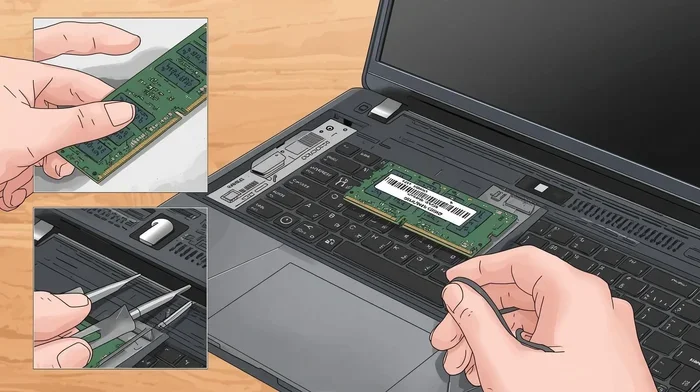
Laptops and desktops use different memory modules. Laptop RAM is smaller and often soldered onto the motherboard in thin devices. Desktop RAM uses standard DIMM modules that are easy to swap. Before buying RAM, always check whether your device uses SO-DIMM (laptop) or DIMM (desktop) modules. Upgrading laptop RAM requires checking compatibility first.
How to Choose the Right Memory Size
Choosing the right memory size depends on what you do with your computer. Here is a simple breakdown to help you decide.
For Basic Users
If you mainly browse the web, check email, and use office apps, 8GB of RAM and 256GB to 512GB of storage is enough. You do not need to spend extra on high-end memory. Focus on getting a reliable SSD for faster boot times.
For Gamers
Gamers need more memory. Aim for at least 16GB of RAM. Modern games use a lot of memory, and running a game while streaming or browsing will push 8GB to its limit. Pair 16GB of RAM with a 1TB SSD for the best gaming experience.
For Content Creators
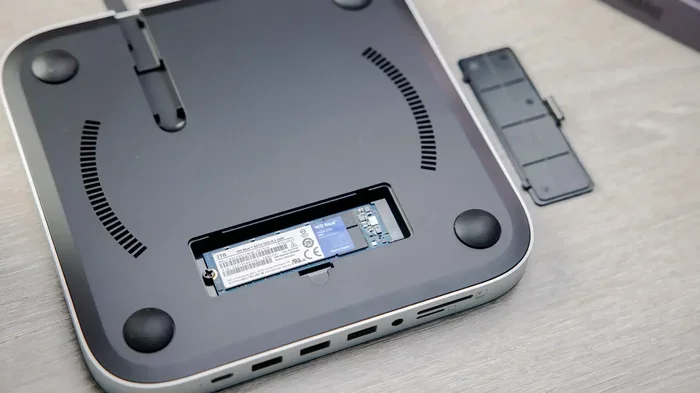
Video editors, graphic designers, and 3D artists need serious memory. 32GB of RAM is a solid starting point. Storage should be at least 1TB, preferably 2TB if you work with large project files. Fast storage like NVMe SSDs reduces load times significantly.
For Professionals and Developers
Software developers, data scientists, and engineers often run virtual machines and large applications. 32GB to 64GB of RAM is common in this group. Storage needs vary based on project size, but 1TB or more is typical.
Common Memory Sizing Mistakes to Avoid
Many people make mistakes when choosing or upgrading computer memory. Here are the most common ones to watch out for.
- Buying RAM without checking compatibility: Not all RAM works with all motherboards. Check your motherboard manual for supported types and speeds.
- Ignoring the RAM speed: Capacity matters, but speed also affects performance. Higher MHz RAM can improve responsiveness in some tasks.
- Mixing RAM sizes and brands: Using different RAM sticks can cause issues. Try to match the same brand, size, and speed for best results.
- Confusing RAM with storage: More RAM does not mean more file storage. They serve different purposes and you need both in the right amounts.
- Overbuying memory you do not need: If you only browse the web, 64GB of RAM is a waste of money. Match your memory to your actual use case.
Quick Tips for Checking Your Current Memory
Before you buy new memory, check what you already have. Knowing your current setup helps you decide what to upgrade. On Windows, you can press Ctrl + Shift + Esc to open Task Manager. Click the Performance tab and look at the Memory section. It shows your total RAM and how much you are using.
On a Mac, click the Apple menu and select About This Mac. The memory section shows your RAM size and type. If you want a detailed breakdown of your system specs, you can also check your how to know the RAM of your laptop through system settings or third-party tools.
How Memory Sizing Affects Performance
Memory sizing directly impacts how your computer performs daily tasks. Insufficient RAM causes slowdowns, freezing, and lag. Your computer starts using your storage drive as temporary memory, which is much slower. This is called virtual memory, and it can make even fast computers feel sluggish.
On the other hand, having too much RAM does not always help. If your typical use only needs 8GB, adding 32GB will not make your browser load faster. The key is matching memory size to your workload. Is 8GB enough for a laptop depends entirely on what you plan to do with it. For many users, the answer is yes. For others, it is a hard no.
Storage memory also plays a role in performance. An SSD with 512GB will boot your system and load apps much faster than a 1TB HDD. The type of storage matters just as much as the size. When planning your setup, consider both capacity and speed for the best results.
Future-Proofing Your Memory
Technology changes fast. The memory you buy today should last a few years. DDR5 is gaining traction, and future software will demand more RAM. When possible, choose a motherboard or laptop that supports the latest memory standard. This gives you room to upgrade later without replacing the entire system.
For RAM, 16GB is a safe choice for most users today. It will handle everyday tasks and moderate workloads for years. If your budget allows, go with 32GB. It gives you headroom for future software updates and heavier use cases. For storage, 512GB to 1TB is the current sweet spot that balances cost and capacity.
Expert Insights on Memory Sizing
According to industry experts, the most common mistake consumers make is underestimating their memory needs. Many buy budget systems with 4GB or 8GB of RAM and quickly find them insufficient. Technology reviewer John Carmody notes that 16GB should be the new minimum for any modern PC purchase. Storage experts recommend pairing at least a 512GB SSD with your RAM for a balanced system.
Another expert tip is to buy RAM in matching pairs. Using two 8GB sticks in dual channel mode performs better than one 16GB stick on some systems. This small detail can boost memory bandwidth and improve overall responsiveness. Always check your motherboard or laptop specifications before purchasing memory modules.
Conclusion
The complete list of computer memory sizing comes down to understanding your needs and matching them to the right components. RAM sizing from 8GB to 32GB covers most users. Storage sizing from 256GB to 2TB handles files and applications of all sizes. The key is not to overbuy or underbuy. Assess what you do on your computer, plan for the future, and choose memory that gives you the best balance of performance and value.
Whether you are upgrading an existing system or building a new one, getting the memory sizes right makes all the difference. Your computer will run faster, smoother, and last longer. Take the time to understand your options, and you will make a purchase you will be happy with for years to come.
Frequently Asked Questions
What is the difference between RAM and storage memory?
RAM is short-term memory your computer uses while running programs. Storage memory holds your files and apps permanently. Think of RAM as your workspace and storage as your filing cabinet. Both are essential, but they serve different purposes in your computer.
Is 8GB of RAM enough for a laptop in 2025?
Eight gigabytes is enough for basic tasks like web browsing and office work. But for gaming, video editing, or multitasking, 16GB is a better choice. The right amount depends entirely on what you plan to do with your laptop.
Can I mix different RAM sizes in my computer?
Yes, you can mix RAM sizes, but it is not always ideal. Matching the same brand, size, and speed gives the best performance. Mixing can sometimes cause compatibility issues or force your system to run in single-channel mode, which slows things down.
How do I know if my laptop RAM is upgradeable?
Check your laptop’s manual or look up the model online. Some laptops have soldered RAM that cannot be upgraded. Others have open memory slots. If you are unsure, search for your specific model to see if it supports RAM upgrades.
What is the best storage size for a laptop?
For most users, 512GB to 1TB is the best storage size. It gives you enough room for apps, files, and media without breaking the bank. If you work with large files or play many games, consider 1TB or more.
Does more RAM always make a computer faster?
More RAM helps when you run many programs at once or use memory-heavy applications. But if you already have enough RAM for your tasks, adding more will not make a noticeable difference. The key is having the right amount for your specific use case.