Mouse Lock on Hp Laptop
Is your HP laptop mouse acting up or seemingly locked? This guide covers everything you need to know about mouse lock on HP laptop issues. From accidental touchpad disabling to cursor freezing, we walk you through simple fixes that get your mouse working again in minutes. Whether you’re dealing with a locked touchpad, a frozen cursor, or a completely unresponsive mouse, this article has you covered.
Key Takeaways
- Accidental lock is common: Most HP laptop mouse lock issues happen because the touchpad was accidentally disabled using a keyboard shortcut or double-tap gesture.
- Fn key shortcuts work fast: Pressing Fn + F5, Fn + F7, or Fn + F9 (depending on your model) is the quickest way to toggle the touchpad on and off.
- Double-tap the touchpad corner: Many HP laptops have a small LED indicator in the top-left corner of the touchpad that you can double-tap to enable or disable it.
- Driver issues cause lock-ups: Outdated or corrupted touchpad drivers can make your mouse appear locked even when it’s technically enabled.
- Windows settings matter: The touchpad can be disabled through Windows Settings, Device Manager, or HP’s own software, so check all three locations.
- External mouse conflicts: Plugging in an external USB or Bluetooth mouse can sometimes automatically disable the built-in touchpad.
- BIOS settings can lock the mouse: In rare cases, the touchpad may be disabled at the BIOS level, requiring a restart and BIOS menu change.
📑 Table of Contents
What Does “Mouse Lock on HP Laptop” Actually Mean?
So you’re sitting there, trying to get work done on your HP laptop, and suddenly your mouse stops responding. The cursor won’t move. The touchpad feels dead. You might think your laptop is broken, but hold on — it’s probably not as bad as it seems.
When we talk about mouse lock on HP laptop, we’re referring to a situation where the touchpad or pointing device becomes unresponsive or disabled. This can happen for a bunch of different reasons. Maybe you accidentally hit a keyboard shortcut. Maybe a Windows update messed with your drivers. Or maybe there’s a setting you didn’t even know existed that turned things off.
The good news? This is one of the most common laptop issues out there, and it’s almost always fixable without a trip to the repair shop. In this guide, we’ll walk you through every possible cause and every possible solution. By the end, you’ll know exactly how to handle mouse lock situations like a pro.
Why Does the Mouse Get Locked on HP Laptops?
Before we jump into fixes, it helps to understand why this happens in the first place. Knowing the cause makes the solution a whole lot easier.
Accidental Keyboard Shortcuts
This is the number one reason people experience a mouse lock on HP laptop. HP laptops come with function key shortcuts that let you quickly enable or disable the touchpad. The problem? These keys are easy to hit by accident, especially if you’re typing fast or resting your hands near the top of the keyboard.
Depending on your specific HP model, the shortcut is usually one of these combinations:
- Fn + F5
- Fn + F7
- Fn + F9
- Fn + F12
The exact key varies, but it’s usually one of the function keys with a small touchpad icon on it. Look closely at your F1 through F12 keys — you’ll see a tiny picture of a touchpad, sometimes with a line through it.
Double-Tap Touchpad Gesture
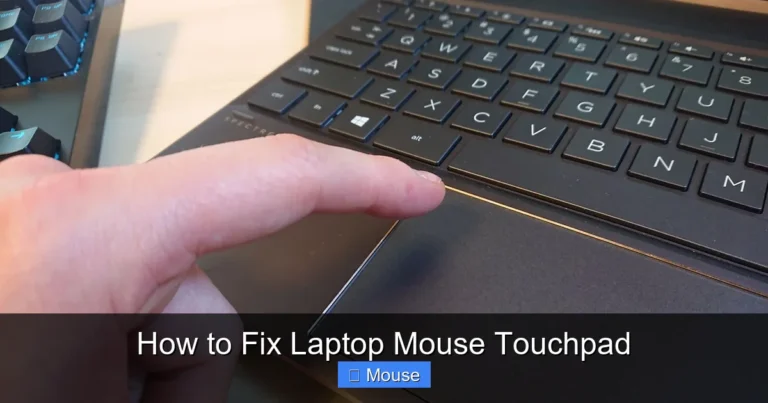
Here’s one that catches a lot of people off guard. Many HP laptops have a built-in double-tap zone on the touchpad itself. It’s usually in the top-left corner. If you double-tap that spot, it toggles the touchpad on and off.
There’s often a small LED light near that corner. When the light is on (usually orange or amber), it means the touchpad is disabled. When the light is off, the touchpad is active. It’s a handy feature when you’re using an external mouse, but it’s super annoying when you trigger it without realizing.
Windows Settings and Updates
Sometimes Windows itself is the culprit. A Windows update can change your touchpad settings without asking. Or you might have gone into Settings at some point and toggled something off. Windows 10 and Windows 11 both have touchpad settings that can disable the pointing device entirely.
Also, some HP laptops come with Synaptics or ELAN touchpad software that adds its own layer of settings. These programs can sometimes conflict with Windows settings, leading to a mouse that appears locked.
Driver Problems
Your touchpad needs a driver to communicate with Windows. If that driver gets corrupted, outdated, or deleted during an update, your mouse can stop working. This is especially common after major Windows updates like the semi-annual feature updates.
Driver issues can be tricky because the touchpad might seem enabled in settings, but it just won’t respond. If you suspect a driver problem, we’ll cover how to fix that in the solutions section below.
External Mouse Connection
Did you know that plugging in an external mouse can sometimes disable your touchpad automatically? Many HP laptops have a setting that says “disable touchpad when external mouse is connected.” It’s meant to be helpful — it prevents accidental cursor movements while you’re using a USB mouse.
But if you unplug the external mouse and the touchpad doesn’t come back on, that’s a problem. This setting can be found in your touchpad settings within Windows.
How to Unlock the Mouse on Your HP Laptop
Alright, let’s get to the good stuff. Here are all the methods to fix a mouse lock on HP laptop, starting with the easiest and most common solutions.
Method 1: Use the Keyboard Shortcut
This should always be your first move. Look at your function keys (F1 through F12) and find the one with a touchpad icon. Then press Fn + that key simultaneously.
For most HP laptops, it’s one of these:
- Fn + F5 — Common on HP Pavilion and HP Envy models
- Fn + F7 — Found on many HP ProBook and EliteBook models
- Fn + F9 — Used on some HP Spectre and HP Omen laptops
Give it a try. Press the combination once and wait a few seconds. If the touchpad was disabled, it should spring back to life immediately. If nothing happens, try the other function key combinations — your specific model might use a different one.
Method 2: Double-Tap the Touchpad Corner
Look at the top-left corner of your touchpad. Do you see a small LED light? Or maybe a tiny indented circle? That’s your touchpad toggle zone.
Double-tap that spot quickly — two fast taps, like double-clicking a mouse button. If the LED was on (orange/amber), it should turn off, meaning your touchpad is now enabled. If the LED was off, it might turn on, meaning you just disabled it — so double-tap again to re-enable.
Some HP models don’t have the LED but still have the double-tap function. Even if you don’t see a light, try double-tapping the top-left corner anyway. It might just work.
Method 3: Check Windows Touchpad Settings
If the keyboard shortcut and double-tap didn’t work, let’s dig into Windows settings. Here’s how:
- Press Windows + I to open Settings (or use keyboard navigation with Tab and arrow keys if your mouse is still locked).
- Go to Bluetooth & devices (Windows 11) or Devices (Windows 10).
- Click on Touchpad.
- Make sure the toggle at the top says “Touchpad – On”.
- Also check the setting that says “Leave touchpad on when a mouse is connected” — turn this on if you want both devices to work simultaneously.
This is a common fix because sometimes Windows updates reset these settings without warning. If the toggle was off, turning it on should immediately restore your touchpad functionality.
Method 4: Enable the Touchpad in Device Manager
If Windows settings look fine but the mouse is still locked, the issue might be in Device Manager. Here’s what to do:
- Press Windows + X and select Device Manager from the menu.
- Expand the section called “Mice and other pointing devices”.
- Look for your touchpad — it might be listed as “Synaptics TouchPad,” “ELAN TouchPad,” “HID-compliant mouse,” or “HP TouchPad.”
- If you see a down arrow icon on any of these devices, that means it’s disabled. Right-click it (or use the Menu key on your keyboard) and select “Enable device.”
- If there’s a yellow triangle with an exclamation mark, that indicates a driver problem — right-click and select “Update driver.”
Device Manager is a powerful tool, and it’s often where the real problem hides. Even if everything looks fine in Windows settings, the device might be disabled here.
Method 5: Update or Reinstall Touchpad Drivers
Corrupted or outdated drivers are a frequent cause of mouse lock on HP laptop issues. Here’s how to fix driver problems:
Option A: Update through Device Manager
- Open Device Manager (Windows + X, then select it).
- Expand “Mice and other pointing devices.”
- Right-click your touchpad device and select “Update driver.”
- Choose “Search automatically for drivers.”
- Follow the prompts and restart your laptop.
Option B: Download from HP’s website
- Go to support.hp.com on another device or use keyboard navigation.
- Enter your laptop model number.
- Go to the “Drivers” section.
- Find the touchpad or input device driver.
- Download and install it on your laptop.
Option C: Uninstall and let Windows reinstall
- In Device Manager, right-click the touchpad device.
- Select “Uninstall device.”
- Restart your laptop — Windows will automatically reinstall the driver.
This last option is surprisingly effective. Sometimes the driver just needs a fresh start.
Method 6: Check BIOS Settings
If none of the above worked, the touchpad might be disabled in your laptop’s BIOS. This is rare, but it happens — especially after a BIOS update or if someone else used your laptop and changed settings.
Here’s how to check:
- Restart your HP laptop.
- As soon as it starts booting, repeatedly press F10 (or Esc then F10) to enter BIOS Setup.
- Navigate using the arrow keys to System Configuration or Advanced.
- Look for “Built-in Pointing Device,” “Internal Pointing Device,” or “TouchPad.”
- Make sure it’s set to Enabled.
- Press F10 to save and exit.
Be careful in the BIOS — don’t change anything you’re not sure about. Only touch the pointing device setting.
What to Do If Your Mouse Cursor Disappears Completely
Sometimes the issue isn’t that the touchpad is locked — it’s that the cursor itself has vanished. You can move your finger on the touchpad, but there’s no arrow on screen. This is a different but related problem.
Press Ctrl to Find the Cursor
Windows has a feature called “Show location of pointer when I press the CTRL key.” If this is enabled, pressing Ctrl will create a radar-like animation that shows you exactly where the cursor is. It might be hiding off-screen or on a different monitor.
Check Display Settings
If you’ve ever connected your HP laptop to an external monitor or projector, Windows might think that display is still active. The cursor could be “stuck” on that non-existent second screen.
Press Windows + P and select “PC screen only” to force everything back to your laptop display.
Restart Windows Explorer
Sometimes the cursor disappears because Windows Explorer has glitched. Here’s a quick fix:
- Press Ctrl + Shift + Esc to open Task Manager.
- Find “Windows Explorer” in the list.
- Right-click it and select “Restart.”
This refreshes the entire Windows shell and often brings back a missing cursor.
Preventing Future Mouse Lock Issues on Your HP Laptop
Now that you’ve fixed the problem, let’s make sure it doesn’t happen again. Here are some practical tips to prevent mouse lock on HP laptop situations in the future.
Disable the Touchpad Toggle Shortcut
If you keep accidentally hitting the Fn key shortcut, you might want to disable it. Some HP laptops let you customize function key behavior in the BIOS. Look for an option called “Action Keys Mode” — enabling this makes the function keys work as standard F1-F12 keys without needing the Fn modifier, which can reduce accidental touchpad toggling.
Keep Drivers Updated
Set a reminder to check for driver updates every few months. You can use HP Support Assistant (pre-installed on most HP laptops) to automate this. Keeping your touchpad drivers current prevents a lot of issues before they start.
Adjust Touchpad Sensitivity
If your touchpad is too sensitive, you might accidentally trigger the double-tap disable gesture. Go to Settings > Bluetooth & devices > Touchpad and adjust the sensitivity to a level that feels comfortable. You can also disable the double-tap to disable feature in the Synaptics or ELAN touchpad software if your laptop has it.
Use an External Mouse as Backup
Keep a cheap USB mouse in your laptop bag. If your touchpad ever locks up and you can’t fix it immediately, an external mouse lets you keep working while you troubleshoot. It’s a simple backup plan that can save you a lot of frustration.
Create a System Restore Point
Before making any major changes to your system — like Windows updates or driver installations — create a restore point. That way, if something goes wrong and your mouse locks up, you can roll back to a working state.
When to Seek Professional Help
In most cases, the solutions above will resolve any mouse lock on HP laptop issue. But there are times when the problem might be hardware-related.
Consider seeking professional help if:
- The touchpad is physically damaged or has visible cracks.
- None of the software fixes work after trying every method above.
- The laptop was recently dropped or exposed to liquid.
- The touchpad works in BIOS but not in Windows (indicating a deep software issue).
- Your laptop is still under warranty — HP support may repair or replace it for free.
HP’s official support line and website are great resources. You can also visit an authorized HP service center if you prefer in-person help.
Conclusion
Dealing with a mouse lock on HP laptop can be incredibly frustrating, especially when you’re in the middle of something important. But as you’ve seen in this guide, the fix is usually simple. Start with the keyboard shortcut (Fn + the touchpad key), try the double-tap on the touchpad corner, and then work your way through the Windows settings and Device Manager options.
The key is to stay calm and methodical. Most of the time, the touchpad isn’t broken — it’s just disabled. And now you know exactly how to turn it back on. Bookmark this page so you can come back to it the next time your HP laptop mouse decides to take an unexpected break.
Remember, technology hiccups happen to everyone. The difference is that now you have the knowledge to fix them quickly and get back to what matters.
Frequently Asked Questions
How do I unlock my HP laptop mouse?
The fastest way is to press Fn + F5, Fn + F7, or Fn + F9 (depending on your model). You can also double-tap the top-left corner of your touchpad to toggle it on or off.
Why did my HP laptop touchpad suddenly stop working?
It was likely accidentally disabled through a keyboard shortcut or double-tap gesture. Driver issues, Windows updates, or external mouse connections can also cause the touchpad to stop responding.
How do I enable the touchpad in Windows settings?
Go to Settings > Bluetooth & devices > Touchpad and make sure the touchpad toggle is turned on. Also check the option to leave the touchpad on when an external mouse is connected.
Can a Windows update lock my HP laptop mouse?
Yes, Windows updates can sometimes change touchpad settings or install incompatible drivers. If your mouse stopped working after an update, try updating or reinstalling the touchpad driver through Device Manager.
What if none of the fixes work?
If software solutions don’t help, check your BIOS settings to ensure the touchpad is enabled at the hardware level. If it still doesn’t work, the issue might be hardware-related, and you should contact HP support.
How do I prevent accidentally locking my touchpad again?
You can adjust touchpad sensitivity in settings, disable the double-tap toggle feature, and be mindful of the Fn key shortcuts. Keeping drivers updated through HP Support Assistant also helps prevent issues.