Mouse Not Moving on Laptop

When your mouse stops moving on your laptop, it can bring your entire workflow to a grinding halt. This frustrating issue can stem from simple causes like a disabled touchpad, low battery on a wireless mouse, or outdated drivers. The good news is that most mouse not moving on laptop problems can be resolved in just a few minutes with basic troubleshooting steps. In this guide, we’ll walk you through every possible cause and solution so you can get back to work quickly.
Key Takeaways
- Check the basics first: A disabled touchpad, dead batteries, or a loose USB connection are the most common reasons a mouse stops moving on a laptop.
- Touchpad shortcuts matter: Most laptops have a function key or double-tap zone that can accidentally disable your touchpad without you realizing it.
- Driver issues are common: Outdated or corrupted mouse drivers can cause the cursor to freeze, lag, or disappear entirely from the screen.
- Software conflicts happen: Recent Windows updates, third-party software, or malware can interfere with mouse functionality on your laptop.
- Hardware failure is possible: If software fixes don’t work, the touchpad, USB port, or the mouse itself may need physical repair or replacement.
- Built-in keyboard shortcuts can help: You can navigate your laptop using keyboard shortcuts while troubleshooting the mouse issue.
- Prevention is key: Regularly updating drivers, keeping your system clean, and handling peripherals carefully can prevent future mouse problems.
📑 Table of Contents
- Introduction: When Your Mouse Stops Moving on Your Laptop
- Understanding the Different Types of Laptop Mice
- Common Reasons Why Your Mouse Is Not Moving on Your Laptop
- Step-by-Step Fixes for a Mouse Not Moving on Laptop
- Advanced Troubleshooting Techniques
- How to Navigate Your Laptop Without a Mouse
- Preventing Future Mouse Problems on Your Laptop
- When to Seek Professional Help
- Conclusion
Introduction: When Your Mouse Stops Moving on Your Laptop
You’re in the middle of an important project. Deadlines are looming. And then it happens — your mouse cursor freezes on screen. You wiggle the mouse, tap the touchpad, click the buttons, but nothing happens. The mouse not moving on laptop scenario is one of the most common and frustrating tech problems users face every single day.
Whether you’re using a wireless mouse, a wired USB mouse, or your laptop’s built-in touchpad, this issue can strike at any time and for a wide variety of reasons. Sometimes it’s something as simple as a disabled touchpad. Other times, it could be a deeper driver or hardware issue that requires a bit more detective work.
The great news is that you don’t need to be a tech expert to fix this problem. In this comprehensive guide, we’ll cover every possible reason why your mouse is not moving on your laptop and give you step-by-step solutions for each one. By the end of this article, you’ll have the knowledge and confidence to troubleshoot and resolve the issue quickly, no matter what’s causing it.
Understanding the Different Types of Laptop Mice
Before diving into solutions, it’s important to understand that “mouse” can mean different things on a laptop. The troubleshooting steps you’ll need depend on which type you’re using.
Built-In Touchpad
The touchpad is the rectangular surface below your keyboard. It’s the most common pointing device on laptops. Touchpads can stop working due to accidental disabling, driver issues, or physical damage. Many users accidentally turn off their touchpad by pressing a function key or double-tapping a specific corner of the pad.
External USB Mouse
A wired USB mouse plugs into one of your laptop’s USB ports. These are popular for gaming, design work, and general productivity. When a USB mouse stops moving on a laptop, the issue is often a loose connection, a faulty USB port, or a problem with the mouse itself.
Wireless Bluetooth or RF Mouse
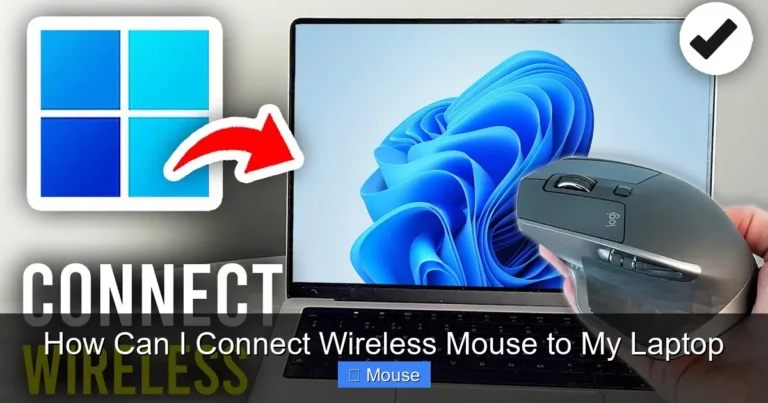
Wireless mice connect via Bluetooth or a USB receiver dongle. They offer freedom from cables but introduce additional potential problems like battery drain, signal interference, and pairing issues. If your wireless mouse is not moving on your laptop, the battery is the first thing you should check.
Common Reasons Why Your Mouse Is Not Moving on Your Laptop
There are dozens of reasons a mouse can stop working on a laptop. Let’s break down the most common culprits so you can identify which one applies to your situation.
Accidentally Disabled Touchpad
This is the number one reason people search for help with a mouse not moving on laptop. Almost every modern laptop has a keyboard shortcut — usually involving the Fn key and one of the F1-F12 keys — that toggles the touchpad on and off. It’s incredibly easy to hit this combination by accident. Some laptops also have a small LED indicator near the touchpad that shows whether it’s enabled or disabled.
Dead or Low Batteries (Wireless Mice)
If you’re using a wireless mouse, dead batteries are the most obvious and most common cause. Your mouse might still light up or show signs of power, but the sensor may not have enough juice to track movement. Always keep spare batteries on hand, or if your mouse is rechargeable, make it a habit to charge it regularly.
Outdated or Corrupted Drivers
Drivers are the software that allows your operating system to communicate with your mouse hardware. When drivers become outdated, corrupted, or incompatible after a system update, your mouse may stop responding. This is especially common after major Windows updates, which can sometimes overwrite or conflict with existing mouse drivers.
USB Port or Connection Issues
For wired and wireless dongle-based mice, the USB port itself could be the problem. Dust, debris, or physical damage inside the port can prevent a proper connection. Try plugging your mouse into a different USB port to see if that resolves the issue. If it works in one port but not another, you’ve identified a faulty port.
Software Conflicts and System Updates
Sometimes a recent software installation or Windows update can interfere with mouse functionality. Antivirus programs, third-party mouse customization software, or even browser extensions can occasionally cause conflicts that freeze or disable your mouse cursor.
Hardware Failure
In some cases, the problem is purely physical. A damaged touchpad, a broken mouse sensor, or a frayed cable can all cause the mouse to stop moving on your laptop. Hardware issues typically require repair or replacement rather than a software fix.
Step-by-Step Fixes for a Mouse Not Moving on Laptop
Now that you know the common causes, let’s walk through the solutions. Start with the simplest fixes and work your way down the list.
Step 1: Check If Your Touchpad Is Disabled
Look for a function key on your keyboard that has a touchpad icon — it’s usually on the F5, F7, or F9 key. Press Fn + the touchpad key to toggle it back on. On some laptops, you can also double-tap the top-left corner of the touchpad to enable or disable it. Check for a small LED light near the touchpad — an orange or red light usually means it’s disabled.
If you’re using an HP laptop, the process might be slightly different. You can find detailed instructions on how to unlock mouse on HP laptop in our dedicated guide.
Step 2: Replace or Recharge Batteries
For wireless mice, pop open the battery compartment and replace the batteries with fresh ones. If your mouse is rechargeable, plug it in and let it charge for at least 15-30 minutes before testing again. Also, make sure the USB receiver is firmly plugged into your laptop if your mouse uses one.
Step 3: Try a Different USB Port
Unplug your mouse and connect it to a different USB port. If you’re using a USB hub, try plugging directly into the laptop instead. USB hubs can sometimes cause power or connectivity issues that prevent the mouse from working properly.
Step 4: Restart Your Laptop
It sounds too simple, but a restart fixes a surprising number of mouse issues. When you restart, your system reloads all drivers and clears temporary glitches that might be causing the mouse to freeze. Save your work (using keyboard shortcuts if needed) and restart your computer.
Step 5: Update or Reinstall Mouse Drivers
To update your drivers, press Windows + X and select Device Manager. Expand the “Mice and other pointing devices” section. Right-click on your mouse device and select “Update driver.” Choose “Search automatically for drivers” and let Windows find the latest version.
If updating doesn’t work, try uninstalling the driver instead. Right-click the device, select “Uninstall device,” then restart your laptop. Windows will automatically reinstall the driver on reboot. This fresh installation can resolve corruption issues that were preventing your mouse from moving on your laptop.
Step 6: Check for Windows Updates
Go to Settings > Update & Security > Windows Update and click “Check for updates.” Install any available updates and restart your computer. Microsoft frequently releases patches that fix hardware compatibility issues, including mouse problems.
Step 7: Disable Fast Startup
Fast Startup is a Windows feature that can sometimes cause hardware initialization problems. To disable it, go to Control Panel > Power Options > Choose what the power buttons do. Click “Change settings that are currently unavailable,” then uncheck “Turn on fast startup.” Save changes and restart your laptop.
Step 8: Run the Hardware Troubleshooter
Windows has a built-in troubleshooter that can automatically detect and fix mouse issues. Go to Settings > Update & Security > Troubleshoot > Additional troubleshooters. Run the “Hardware and Devices” troubleshooter and follow the on-screen instructions.
Advanced Troubleshooting Techniques
If the basic steps above didn’t resolve the issue, it’s time to try some more advanced solutions.
Boot into Safe Mode
Safe Mode loads Windows with only essential drivers and services. If your mouse works in Safe Mode, the problem is likely caused by a third-party program or driver. To boot into Safe Mode, hold the Shift key while clicking “Restart” from the Start menu. Navigate to Troubleshoot > Advanced Options > Startup Settings > Restart, then press 4 or F4 for Safe Mode.
Check for Malware
Malware can interfere with hardware functionality, including your mouse. Run a full system scan using Windows Defender or your preferred antivirus software. Remove any threats detected and restart your computer to see if the mouse starts working again.
Roll Back Recent Updates
If your mouse stopped working right after a Windows update, rolling back the update might fix the issue. Go to Settings > Update & Security > Windows Update > View update history > Uninstall updates. Remove the most recent update and restart your laptop.
Modify Power Management Settings
Windows can sometimes turn off USB devices to save power, which can cause your mouse to stop working. In Device Manager, right-click your mouse device, select Properties > Power Management, and uncheck “Allow the computer to turn off this device to save power.”
Check BIOS Settings
In rare cases, the touchpad might be disabled in your laptop’s BIOS. Restart your computer and press the BIOS key (usually F2, F10, or Del) during startup. Look for touchpad or pointing device settings and make sure they’re enabled. Be careful not to change other settings in the BIOS.
How to Navigate Your Laptop Without a Mouse
While you’re troubleshooting the mouse not moving on laptop issue, you’ll still need to use your computer. Here are essential keyboard shortcuts to help you navigate.
Essential Keyboard Shortcuts
- Tab: Move between interactive elements on a page or dialog box
- Arrow keys: Navigate within menus and options
- Enter: Activate a selected button or link
- Alt + Tab: Switch between open applications
- Windows key: Open the Start menu
- Ctrl + C / Ctrl + V: Copy and paste without a mouse
- Alt + F4: Close the current window
- Windows + X: Open the quick links menu (access Device Manager)
If you need to perform tasks like copying and pasting while your mouse is out of commission, check out our guide on how to copy and paste on laptop without mouse for a complete list of keyboard-based alternatives.
Enable Mouse Keys
Windows has a built-in feature called Mouse Keys that lets you control the cursor using the numeric keypad. Press Left Alt + Left Shift + Num Lock to enable it. Once active, use the number keys on your keypad to move the cursor, and press 5 to click. This is a lifesaver when your physical mouse isn’t working.
Preventing Future Mouse Problems on Your Laptop
Once you’ve fixed the issue, take these steps to prevent it from happening again.
Keep Drivers Updated
Set a reminder to check for driver updates at least once a month. You can also enable automatic driver updates in Windows to ensure you always have the latest versions. Many mouse manufacturers like Logitech and Razer also offer their own software that keeps drivers current.
Handle Your Hardware with Care
Avoid yanking cables out of USB ports, don’t spill liquids near your laptop, and keep your touchpad clean. Dust and grime can accumulate on the touchpad surface and interfere with its sensitivity. Clean it regularly with a soft, slightly damp cloth.
Use a Surge Protector
Power surges can damage USB ports and connected peripherals. Using a surge protector or a quality UPS can protect your laptop and mouse from electrical damage.
Be Mindful of Function Keys
Since accidentally pressing the touchpad disable key is the most common cause of this issue, consider familiarizing yourself with your laptop’s keyboard layout. Some laptops let you disable the touchpad toggle function entirely in the settings.
Maintain Your Wireless Mouse
If you use a wireless mouse, keep spare batteries nearby and charge rechargeable models regularly. Also, store the USB receiver safely when not in use to avoid losing it. A lost receiver means a non-functional wireless mouse.
When to Seek Professional Help
Sometimes, despite your best efforts, the mouse not moving on laptop issue persists. Here are signs that it’s time to consult a professional.
Physical Damage
If your laptop has been dropped, exposed to liquid, or shows visible damage near the touchpad or USB ports, professional repair may be necessary. Attempting to fix hardware damage yourself can void your warranty and potentially cause more harm.
Persistent Driver Issues
If you’ve tried updating, reinstalling, and rolling back drivers multiple times without success, there may be a deeper system issue. A professional technician can perform advanced diagnostics to identify the root cause.
Warranty Coverage
If your laptop is still under warranty, contact the manufacturer before attempting any repairs yourself. Brands like Dell, HP, Lenovo, and Acer all have dedicated support teams that can help resolve mouse issues, often at no cost to you.
Conclusion
Dealing with a mouse not moving on your laptop is undeniably frustrating, but as you’ve learned in this guide, it’s usually a solvable problem. In most cases, the fix is as simple as pressing a function key to re-enable your touchpad, swapping out dead batteries, or updating a driver. The key is to approach the problem methodically — start with the easiest solutions and work your way up to more advanced troubleshooting.
Remember to keep your drivers updated, handle your hardware carefully, and familiarize yourself with keyboard shortcuts so you’re never completely stuck if the issue arises again. And if all else fails, don’t hesitate to reach out to a professional technician or your laptop’s manufacturer for support.
With the knowledge from this guide, you’re now equipped to tackle any mouse issue that comes your way. No more frozen cursors, no more panic — just quick, confident troubleshooting that gets you back to work in no time.
Frequently Asked Questions
Why is my mouse cursor frozen on my laptop screen?
A frozen cursor is often caused by outdated drivers, a software conflict, or a temporarily unresponsive touchpad. Try restarting your laptop first, then update your mouse drivers through Device Manager. If the issue persists, boot into Safe Mode to check if a third-party program is causing the conflict.
How do I unlock my touchpad on a laptop?
Most laptops have a function key shortcut — usually Fn combined with F5, F7, or F9 — that toggles the touchpad on and off. Look for a touchpad icon on your function keys. You can also check your touchpad settings in Windows by going to Settings > Devices > Touchpad and making sure it’s turned on.
Can a Windows update cause my mouse to stop working?
Yes, Windows updates can sometimes overwrite or conflict with existing mouse drivers, causing the mouse to stop moving on your laptop. If your mouse stopped working after an update, try rolling back the update or reinstalling your mouse drivers. Running Windows Update again may also provide a patch that fixes the compatibility issue.
What should I do if my wireless mouse isn’t responding?
First, replace the batteries or recharge your mouse. Then check that the USB receiver is properly connected or that Bluetooth is enabled and paired correctly. Try connecting the mouse to a different computer to determine if the issue is with the mouse or the laptop. If the mouse works on another device, the problem is likely with your laptop’s USB port or Bluetooth settings.
How can I use my laptop if the mouse isn’t working?
You can navigate your laptop entirely using keyboard shortcuts. Use Tab to move between elements, Enter to select, Alt + Tab to switch windows, and the Windows key to open the Start menu. You can also enable Mouse Keys by pressing Left Alt + Left Shift + Num Lock, which lets you control the cursor using the numeric keypad.
When should I replace my laptop’s touchpad?
Consider replacing your touchpad if it has physical damage, if it stops responding after trying all software troubleshooting steps, or if it registers phantom clicks and erratic cursor movements. If your laptop is under warranty, contact the manufacturer first. For out-of-warranty laptops, a professional repair service can replace the touchpad at a reasonable cost.