Mouse Not Working on Dell Laptop
If your mouse not working on dell laptop is causing frustration, you’re not alone—many users face touchpad or external mouse issues due to driver glitches, settings, or hardware faults. This guide walks you through quick checks, driver fixes, hardware inspections, and advanced solutions to get your cursor moving again. Follow the steps below to troubleshoot and prevent future problems.
Dealing with a mouse not working on dell laptop can bring your productivity to a sudden halt. Whether you rely on the built‑in touchpad or an external USB mouse, a non‑responsive cursor makes even simple tasks feel impossible. The good news is that most cases are fixable without needing a technician. In this comprehensive guide, we’ll walk you through every possible cause and solution, from quick software tweaks to deeper hardware checks, so you can get back to work fast.
We’ll start with the simplest steps—restarting, checking settings, and updating drivers—because they resolve a surprising number of issues. Then we’ll move into more involved troubleshooting, such as rolling back recent updates, inspecting the touchpad hardware, and using BIOS options. Finally, we’ll cover preventive habits that keep your Dell laptop’s mouse functioning smoothly for the long haul.
Key Takeaways
- Start with the basics: Restart the laptop, check for physical obstructions, and toggle the touchpad using the function key.
- Update or reinstall drivers: Use Device Manager or Dell SupportAssist to ensure the touchpad driver is current and not corrupted.
- Inspect hardware: Look for visible damage, test an external mouse, and verify BIOS touchpad settings.
- Try advanced fixes: Perform a system restore, clean boot, or test with a Linux live USB to isolate software conflicts.
- Prevent future issues: Keep the touchpad clean, avoid spills, regularly update drivers, and consider using an external mouse as a backup.
📑 Table of Contents
Understanding the Problem: What Does “Mouse Not Working on Dell Laptop” Mean?
When users say they have a mouse not working on dell laptop, they could be referring to several distinct symptoms:
- The touchpad does not move the cursor at all.
- The cursor moves erratically or jumps around.
- An external USB or Bluetooth mouse is not recognized.
- The cursor disappears after waking from sleep.
- Clicking works but movement does not, or vice‑versa.
Identifying the exact behavior helps narrow down the cause. For example, a cursor that freezes after a Windows update often points to a driver conflict, while a completely dead touchpad might hint at a hardware disconnect or a disabled setting.
Types of Mouse Issues on Dell Laptops
Dell laptops typically use either a Synaptics, Alps, or Precision touchpad. External mice can be wired USB, wireless USB dongle, or Bluetooth. Each type has its own failure points:
- Touchpad: Driver corruption, disabled via function key, BIOS setting turned off, or physical damage to the pad or its ribbon cable.
- USB Mouse: Faulty port, outdated USB controller driver, or insufficient power delivery.
- Bluetooth Mouse: Bluetooth service issues, pairing problems, or interference.
Understanding which category your mouse not working on dell laptop falls into guides the troubleshooting path.
Basic Troubleshooting Steps
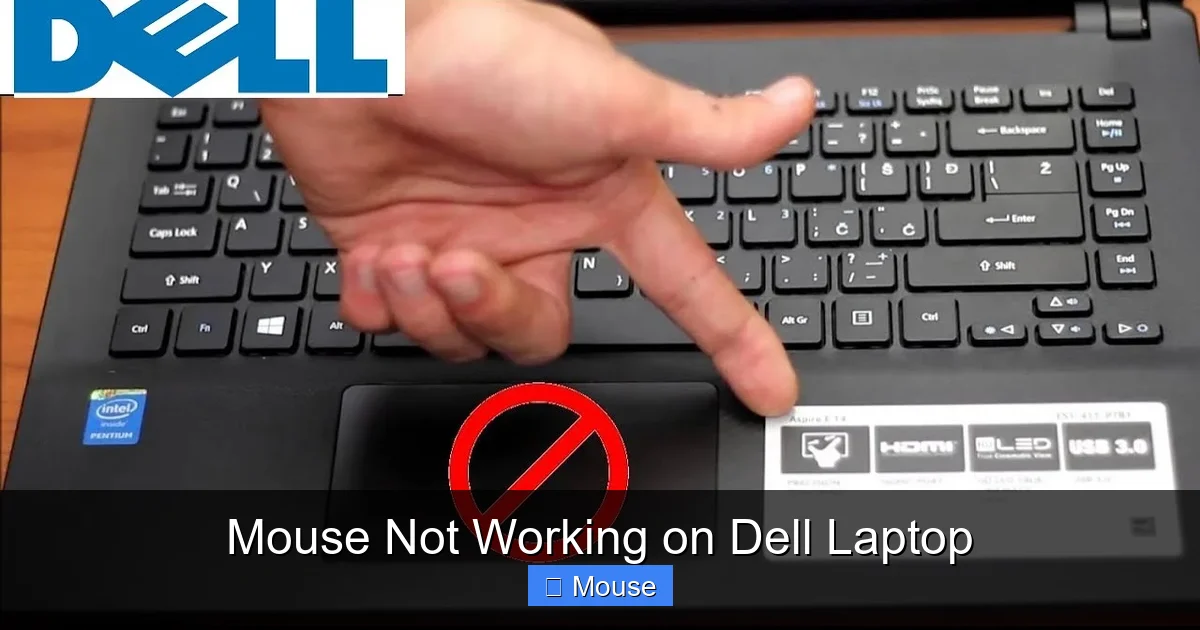
Before diving into drivers or hardware, try these quick fixes. They often resolve a mouse not working on dell laptop in under five minutes.
Visual guide about Mouse Not Working on Dell Laptop
Image source: i.ytimg.com
1. Restart Your Laptop
A simple reboot clears temporary glitches that may be blocking the touchpad or USB mouse. Click the Start menu, select Power, then Restart. After the laptop boots, test the mouse again.
2. Check for Physical Obstructions
Dust, food crumbs, or a sticker stuck on the touchpad can impede movement. Gently clean the surface with a microfiber cloth slightly dampened with water or isopropyl alcohol. Ensure nothing is pressing on the touchpad buttons.
3. Toggle the Touchpad Using the Function Key
Most Dell laptops have a function key (often F3, F5, or F7) with a touchpad icon. Press the Fn key together with that function key to enable or disable the touchpad. Look for an on‑screen indicator confirming the status.
4. Test an External Mouse
Plug a USB mouse into a different port or pair a Bluetooth mouse. If the external mouse works, the issue is likely isolated to the touchpad or its driver. If neither works, the problem may be deeper—such as a system‑wide driver or USB controller issue.
If these steps don’t fix your mouse not working on dell laptop, move on to driver and software solutions.
Driver and Software Issues
Drivers act as the translator between your operating system and hardware. A corrupted, outdated, or missing touchpad driver is a common culprit behind a mouse not working on dell laptop.
Visual guide about Mouse Not Working on Dell Laptop
Image source: i.ytimg.com
1. Update the Touchpad Driver via Device Manager
- Press Win + X and choose Device Manager.
- Expand Mice and other pointing devices.
- Right‑click your touchpad entry (often listed as Dell Touchpad, Synaptics, or Precision Touchpad) and select Update driver.
- Choose Search automatically for updated driver software and let Windows look for the latest version.
- If an update is found, install it and restart the laptop.
2. Reinstall the Driver
Sometimes a fresh install clears corruption:
- In Device Manager, right‑click the touchpad device and select Uninstall device.
- Check the box that says Delete the driver software for this device if available, then confirm.
- Restart the laptop. Windows should automatically reinstall the default driver.
- Test the touchpad. If it works, you can optionally visit Dell’s support site to download the latest driver for your exact model.
3. Use Dell SupportAssist or Drivers & Downloads Page
Dell provides a dedicated utility called SupportAssist that can detect and install the correct drivers. Alternatively, go to Dell laptop mouse not working guide on our site for a direct link to the Drivers & Downloads page, enter your Service Tag, and download the latest touchpad driver.
4. Roll Back Recent Updates
If the mouse not working on dell laptop started after a Windows update, rolling back may help:
- Open Settings > Update & Security > View update history > Uninstall updates.
- Look for recent quality updates (KB numbers) and uninstall them one by one, testing after each removal.
- Alternatively, in Device Manager, right‑click the touchpad, choose Properties > Driver tab > Roll Back Driver (if the button is active).
5. Check for Conflicting Software
Third‑party touchpad utilities (like Synaptics Pointing Device Driver) can sometimes conflict with the default Windows driver. If you have such software installed, try disabling it or uninstalling it via Control Panel > Programs.
After driver troubleshooting, if the cursor still refuses to move, it’s time to look at hardware and BIOS settings.
Hardware Checks and BIOS Settings
When software fixes don’t resolve a mouse not working on dell laptop, the issue may lie in the physical touchpad, its connection, or a BIOS setting that has disabled the device.
Visual guide about Mouse Not Working on Dell Laptop
Image source: img-s-msn-com.akamaized.net
1. Inspect the Touchpad for Damage
Look closely at the touchpad surface. Cracks, liquid residue, or visible wear can affect the sensors. If you notice any damage, the touchpad may need replacement.
2. Test the Touchpad in BIOS
Entering BIOS lets you see if the hardware is detected independent of Windows:
- Power off the laptop.
- Turn it on and immediately press F2 (or Del on some models) repeatedly to enter BIOS.
- Navigate to the Advanced or Internal Devices tab.
- Look for an option like Touchpad, Internal Pointing Device, or Trackpad.
- Ensure it is set to Enabled. If it’s disabled, enable it, save changes (usually F10), and exit.
- Reboot into Windows and test the touchpad.
If the touchpad works in BIOS but not in Windows, the problem is almost certainly software‑related. If it doesn’t work in BIOS either, the hardware or its connection is suspect.
3. Check the Ribbon Cable Connection (Advanced)
The touchpad connects to the motherboard via a thin ribbon cable. Over time, this cable can become loose, especially if the laptop has been opened or subjected to shocks. Unless you’re comfortable opening your laptop, consider having a technician reseat the cable. If you do proceed:
- Power off, unplug, and remove the battery (if removable).
- Remove the bottom case screws and gently lift the cover.
- Locate the flat ribbon cable leading from the touchpad to the motherboard.
- Disconnect and reconnect it firmly, ensuring the pins align.
- Reassemble and test.
4. Test with an External Mouse to Isolate the Issue
If an external USB mouse works flawlessly while the touchpad remains dead, you’ve confirmed the touchpad hardware or its driver is at fault. Conversely, if neither works, investigate USB controllers or Bluetooth services.
Advanced Fixes
When basic steps, driver updates, and hardware checks don’t solve a mouse not working on dell laptop, try these more involved techniques.
1. Perform a System Restore
If you suspect a recent software change caused the issue, revert Windows to a point when the mouse worked:
- Type Create a restore point in the Start menu and open it.
- Click System Restore > Next.
- Choose a restore point dated before the problem began.
- Follow the prompts to restore and restart.
2. Execute a Clean Boot
A clean boot starts Windows with minimal drivers and startup programs, helping identify if a background service is interfering:
- Press Win + R, type msconfig, and hit Enter.
- In the Services tab, check Hide all Microsoft services, then click Disable all.
- Go to the Startup tab and click Open Task Manager. Disable all startup items.
- Close Task Manager, click OK, and restart.
- Test the touchpad. If it works, re‑enable services and startup items one by one to pinpoint the offender.
3. Test with a Linux Live USB
Booting a Linux distribution (like Ubuntu) from a USB stick lets you determine if the issue is Windows‑specific:
- Download a Linux ISO and create a bootable USB using Rufus or similar.
- Boot from the USB (usually by pressing F12 at startup and selecting the USB device).
- Choose “Try Ubuntu without installing”.
- Once the desktop loads, test the touchpad.
- If it works in Linux, the problem lies within Windows drivers or settings. If it still doesn’t work, hardware is likely at fault.
4. Contact Dell Support
If all else fails, your laptop may still be under warranty. Visit the Dell support site, run the online diagnostics, or chat with a technician. They can guide you through model‑specific steps or arrange a repair.
Prevention and Maintenance Tips
Keeping your mouse not working on dell laptop at bay is easier than fixing it after it breaks. Adopt these habits to prolong the life of your touchpad and ensure reliable mouse performance.

Visual guide about Mouse Not Working on Dell Laptop
Image source: i.ytimg.com
1. Keep the Touchpad Clean
Wipe the surface weekly with a dry microfiber cloth. For stubborn grime, lightly dampen the cloth with water or a 50/50 isopropyl alcohol solution. Avoid spraying liquids directly onto the pad.
2. Avoid Eating or Drinking Near the Laptop
Spills are a leading cause of touchpad malfunction. If you must have a beverage, use a spill‑proof cup and keep it away from the keyboard area.
3. Regularly Update Drivers
Set a monthly reminder to check Dell’s SupportAssist or the Drivers & Downloads page for updates. Keeping the touchpad, chipset, and USB controllers current reduces compatibility issues.
4. Use an External Mouse as a Backup
Having a reliable USB or Bluetooth mouse on hand lets you continue working if the touchpad acts up. It also reduces wear on the built‑in pad.
5. Adjust Touchpad Sensitivity Settings
In Windows Settings > Devices > Touchpad, you can tweak sensitivity, tap‑to‑click, and scrolling speed. Setting them to comfortable levels prevents accidental inputs that might seem like a malfunction.
6. Periodically Check BIOS Settings
After a major Windows update, revisit BIOS to ensure the touchpad remains enabled. Some updates reset BIOS options to defaults.
7. Back Up Your System
Create regular restore points or use Windows File History. If a driver update causes issues, you can roll back quickly without losing data.
By following these preventive steps, you’ll dramatically reduce the chances of encountering a mouse not working on dell laptop again.
Conclusion
A mouse not working on dell laptop can be frustrating, but most cases are solvable with a systematic approach. Start with the simplest fixes—restart, clean the touchpad, toggle the function key, and test an external mouse. If the cursor still won’t move, dive into driver updates, reinstallations, and BIOS checks. For stubborn problems, consider system restores, clean boots, or testing with a Linux live USB to isolate software versus hardware causes. Finally, adopt preventive habits like regular cleaning, driver updates, and using an external mouse as a backup to keep your Dell laptop’s pointer reliable for the long haul.
Remember, if you ever feel unsure about opening your laptop or performing advanced steps, Dell’s support team is just a call or chat away. With the guidance in this article, you should be able to restore your mouse functionality and get back to work, play, or whatever you enjoy doing on your Dell laptop.
Frequently Asked Questions
Why is my touchpad not responding after a Windows update?
Windows updates can sometimes install a generic driver that conflicts with Dell’s specific touchpad driver, causing the cursor to freeze. Rolling back the update or reinstalling the Dell touchpad driver from the SupportAssist utility usually resolves the issue.
How do I enable the touchpad if the function key doesn’t work?
If the Fn + F‑key combination fails, go to Windows Settings > Devices > Touchpad and ensure the touchpad toggle is turned on. You can also check BIOS under Advanced > Internal Devices to verify the hardware isn’t disabled there.
Can a loose ribbon cable cause the mouse to stop working on my Dell laptop?
Yes. The touchpad connects to the motherboard via a thin ribbon cable; if it becomes loose due to movement or impact, the pad may lose signal. Reseating the cable (or having a technician do it) often restores functionality.
Is it safe to use a third‑party driver updater for my Dell touchpad?
While some third‑party tools work, they can install incorrect or beta versions that cause more issues. It’s safer to use Dell’s official SupportAssist or download drivers directly from the Dell Drivers & Downloads page for your exact service tag.
What should I do if neither the touchpad nor an external mouse works?
If both input devices fail, the problem may lie with the USB controller, Bluetooth service, or a deeper system issue. Try a clean boot, check Device Manager for errors with USB controllers, and consider performing a system restore or contacting Dell support for further diagnostics.