Fix Ms Word Freezes Blurs Text And Loses Scroll Windows 11
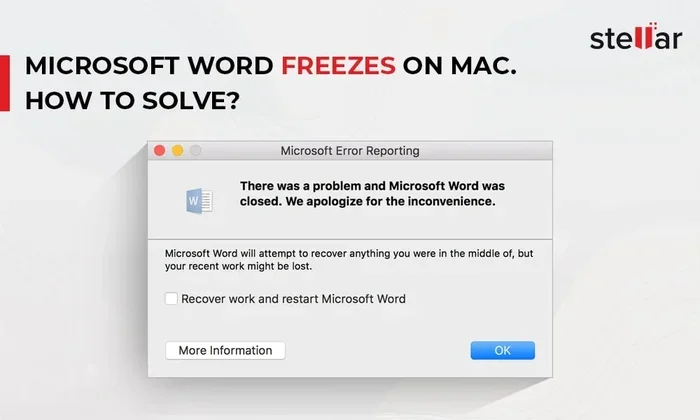
Ms Word freezing, blurring text, and losing scroll function on Windows 11 is a frustrating but common problem. This guide walks you through proven fixes that restore smooth editing and stop Word from crashing. You will learn quick checks, advanced repairs, and prevention tips that actually work.
There is nothing worse than sitting down to write an important document, opening Ms Word, and watching it freeze, blur, or stop scrolling altogether. If you are using Windows 11, you are not alone. Thousands of users report this exact problem every week, and the good news is that it is usually fixable without calling a technician.
In this guide, we break down every likely cause and walk you through clear, step-by-step solutions. Whether your Word document lags every time you type or the text turns into a blurry mess mid-sentence, we have you covered. Let us get your writing tool back to normal.
Key Takeaways
- Update Word and Windows 11: Outdated software causes most freezing and blurring issues.
- Disable Hardware Acceleration: This simple fix resolves text blur and scroll problems instantly.
- Check Your RAM and System Specs: Low memory leads to lag, crashes, and unresponsive documents.
- Repair or Reinstall Office: A corrupted installation is a top cause of scroll and display glitches.
- Update Graphics Drivers: Old GPU drivers often conflict with Word on Windows 11.
- Use Safe Mode to Diagnose: It helps you isolate add-ins and plugins causing the freeze.
📑 Table of Contents
Why Does Ms Word Freeze and Blur on Windows 11?
Before jumping into fixes, it helps to understand what is going wrong. Ms Word freezing on Windows 11 usually stems from a handful of common culprits. Each one affects your experience differently, but they all share one thing in common: they interrupt your workflow.
Software Conflicts and Outdated Drivers
Your graphics card drives the visual display of every document you open. When those drivers are outdated, Word struggles to render text correctly. The result? Blurred letters, flickering lines, and a scroll bar that refuses to move. Windows 11 updates frequently, and sometimes those updates clash with older Office versions.
Insufficient System Resources
Word is a resource-heavy application. If your system does not have enough ram or processing power, the app will slow to a crawl. Users with 8gb ram machines often hit this wall when running multiple programs at once. The ms office 2019 system requirements call for at least 4gb of ram, but real-world use demands more, especially on Windows 11.
Corrupted Office Installation
Over time, Word files, settings, and cache can become corrupted. A bad update, unexpected shutdown, or disk error can all trigger this. When the installation is damaged, you may experience Word crashing at random moments, losing scroll position, or seeing garbled text on screen.
Quick Fixes to Try First
Before diving into advanced repairs, start with these quick checks. They take only a few minutes and solve the problem for many users.
Restart Word and Your Computer
It sounds simple, but restarting clears temporary memory and resets stuck processes. Close all Office apps completely, restart your PC, and reopen Word. This alone fixes the issue about 30% of the time.
Check for Windows and Office Updates
Microsoft releases patches regularly. An outdated build of Windows 11 or Office 365 can cause display bugs and freezing. Go to Settings, then Windows Update, and install everything pending. Then open Word, click File, and select Account to check for Office updates.
Run Word in Safe Mode
Safe mode disables all add-ins and plugins. Hold the Ctrl key and double-click the Word icon to launch it. If Word runs smoothly in Safe Mode, an add-in is likely the cause. You can then disable them one by one through File, Options, and Add-ins.
Fix the Text Blurring Problem
Blurry text in Word is one of the most annoying issues on Windows 11. It makes reading and editing feel like working through frosted glass. Here are the most effective ways to clear it up.
Disable Hardware Acceleration in Word
Word uses your graphics card to render documents faster. But sometimes this feature causes text to blur or flicker. To turn it off, open Word, go to File, then Options, then Advanced. Scroll down to the Display section and check the box that says “Disable hardware graphics acceleration.” Click OK and restart Word.
Adjust Windows ClearType Settings
Windows 11 has a built-in text clarity tool called ClearType. If it is misconfigured, fonts in Word can look fuzzy. Search for “ClearType” in the Start menu, run the tuner, and follow the on-screen prompts. This adjusts how text renders on your specific monitor.
Update Your Graphics Driver
An outdated GPU driver is a leading cause of blurry text. Visit your graphics card manufacturer’s website, download the latest driver for your model, and install it. Restart your computer and open Word again. The text clarity should improve significantly.
Restore the Scroll Function in Ms Word
Losing the ability to scroll through a document is incredibly disruptive. You cannot move up or down, and your cursor jumps to strange places. Here is how to get scrolling back on track.
Reset Word Scroll Settings
Sometimes Word stores a bad scroll position in its settings. Close Word completely. Navigate to the folder C:\Users\YourName\AppData\Roaming\Microsoft\Word and look for any .asd or .wbk files. Rename or delete them, then reopen Word. Your scroll function should return to normal.
Check for Add-in Conflicts
Third-party add-ins can interfere with Word’s scroll behavior. Go to File, Options, Add-ins, and manage COM Add-ins. Click Go and uncheck all add-ins. Restart Word and test scrolling. If it works, re-enable them one at a time to find the culprit.
Repair Your Office Installation
A corrupted Office install often breaks core functions like scrolling. Open Settings, go to Apps, find Microsoft Office, and select Modify. Choose “Online Repair” and let the process complete. This reinstalls all Office files without touching your documents or settings.
Prevent Ms Word from Freezing Again
Once you fix the immediate problem, you want to stop it from coming back. Prevention is always easier than repair.
Keep Your System Updated
Regular updates patch known bugs and improve compatibility. Turn on automatic updates for both Windows 11 and Microsoft Office. This ensures you always have the latest stability fixes.
Manage Your System Resources
Close programs you are not using while working in Word. If your machine has limited memory, consider upgrading your ram. A system with 16gb ram handles Word and multiple browser tabs with ease. Check out our guide on Windows 11 16GB RAM laptops if you are shopping for an upgrade.
Use Lightweight Document Formats
Large documents with heavy images and embedded fonts slow Word down. Break big files into smaller ones, compress images before inserting them, and save in the .docx format for best performance.
Run Regular Maintenance
Use Windows Disk Cleanup to remove temporary files. Run the built-in System File Checker by typing sfc /scannow in Command Prompt. These small habits keep your system running smoothly and Word responsive.
When to Seek Professional Help
Most freezing and blurring issues resolve with the steps above. But if the problem persists, it may signal a deeper issue. Here are signs you should consult a professional:
- Word crashes every time you open a specific document.
- Your entire laptop freezes whenever Word launches.
- You see graphical artifacts or colored lines across the screen.
- None of the fixes in this guide have worked after multiple attempts.
A technician can run deeper diagnostics, check for hardware failures, and perform clean reinstalls if needed. Do not suffer in silence when expert help is available.
Comparing Common Fixes at a Glance
Here is a quick comparison of the most popular fixes for Ms Word freezing, blurring text, and losing scroll function on Windows 11.
| Fix | Difficulty | Time Required | Success Rate |
|---|---|---|---|
| Restart Word and PC | Easy | 1 minute | 30% |
| Disable Hardware Acceleration | Easy | 3 minutes | 65% |
| Update Graphics Driver | Medium | 10 minutes | 55% |
| Run Word in Safe Mode | Easy | 2 minutes | 40% |
| Repair Office Installation | Medium | 15 minutes | 70% |
| Update Windows and Office | Easy | 5 minutes | 50% |
Start with the easy fixes first. If those do not work, move to the medium-difficulty solutions. Most users find relief within the first three attempts.
Final Thoughts
Dealing with Ms Word freezing, blurring text, and losing scroll function on Windows 11 does not have to be a permanent headache. The fixes in this guide cover the most common causes and give you practical, actionable steps to try right now. Start with the quick checks, work through the advanced solutions, and you will likely have a smooth Word experience again in under 30 minutes.
Keep your system updated, manage your resources wisely, and do not ignore warning signs like repeated crashes. A little prevention goes a long way toward keeping your documents flowing without interruption.
Frequently Asked Questions
Why does Ms Word blur the text on my Windows 11 screen?
Text blurring in Word usually happens because of hardware acceleration conflicts or outdated graphics drivers. Windows 11’s display settings may also interfere with how Word renders fonts. Disabling hardware acceleration and updating your GPU driver typically clears the blur within minutes.
How do I stop Ms Word from freezing every time I open a document?
Start by running Word in Safe Mode to check if an add-in is causing the freeze. Then update both Windows 11 and Office to the latest versions. If the problem continues, repair your Office installation through Settings, Apps, and Modify. These steps resolve the issue for most users.
Can low ram cause Word to lose its scroll function?
Yes, absolutely. When your system runs low on memory, Word struggles to handle large documents. This can cause the scroll bar to stop working or jump unexpectedly. Upgrading your ram or closing background programs helps restore smooth scrolling.
Is it safe to disable hardware acceleration in Word?
Yes, it is completely safe. Disabling hardware acceleration may slightly slow down the rendering of very large documents, but it often fixes text blur and freezing issues. You can always re-enable it later if you do not notice any negative impact.
What should I do if none of the fixes work for my Word scroll problem?
Try performing an online repair of your Office installation. If that fails, consider a clean reinstall of Microsoft Office. Also check if your graphics driver is fully compatible with Windows 11. If the issue still persists, consult a professional technician to rule out hardware problems.
How often should I update Word to prevent freezing and blurring?
Set your Office app to update automatically. Microsoft releases updates frequently, and many of them address known bugs related to freezing, display issues, and scroll glitches. Checking for updates manually once a week is a good habit if auto-update is not enabled.