Msi Ram Finder Your Ultimate Guide To Memory Upgrades

Finding the right RAM for your MSI laptop is easier than you think with the right guidance. This MSI RAM Finder guide walks you through compatibility checks, upgrade options, and expert tips to boost your system’s performance. Whether you game, edit video, or multitask, we help you pick the perfect memory upgrade.
Are you tired of your MSI laptop slowing down when you open too many tabs or launch a heavy game? A RAM upgrade might be exactly what your system needs. But before you rush out and buy new memory, you need to know what works with your specific MSI model. That is where a MSI RAM Finder tool comes in handy. It takes the guesswork out of choosing the right memory for your laptop.
In this guide, we break down everything you need to know about finding and installing the perfect RAM for your MSI device. From understanding DDR types to checking your laptop’s maximum capacity, we cover it all. By the end, you will feel confident making the right upgrade decision without wasting money on incompatible parts.
Key Takeaways
- Know Your MSI Model: Always check your specific MSI laptop model before buying RAM to ensure compatibility.
- DDR Type Matters: MSI laptops use either DDR4 or DDR5 RAM, and they are not interchangeable.
- Upgrade Path Is Key: Some MSI laptops have accessible RAM slots, while others are soldered to the motherboard.
- 32GB Is the Sweet Spot: For gaming and creative work, 32GB of RAM delivers excellent performance.
- Speed and Capacity Go Hand in Hand: Matching RAM speed with your processor maximizes system responsiveness.
- Use MSI’s Official Tools: MSI provides system lookup tools that make finding compatible RAM simple and reliable.
📑 Table of Contents
- What Is a MSI RAM Finder and Why Do You Need One
- How to Use the MSI RAM Finder Tool
- Understanding RAM Types: DDR4 vs DDR5 for MSI Laptops
- How Much RAM Do You Really Need for Your MSI Laptop
- MSI Laptop Models and Their RAM Upgradability
- Best Practices for MSI RAM Upgrades
- Common Mistakes to Avoid When Upgrading MSI RAM
- Final Thoughts on Using the MSI RAM Finder
What Is a MSI RAM Finder and Why Do You Need One
A MSI RAM Finder is a tool or resource that helps you identify the correct memory modules for your MSI laptop or desktop. Every MSI system has specific requirements for RAM type, speed, capacity, and slot configuration. Using the wrong RAM can lead to compatibility issues or simply wasted money.
Think of it like shopping for shoes. You need the right size and style, or they will not work. The same goes for laptop memory. A RAM finder checks your system specifications and tells you exactly what will fit and work properly.
Why Compatibility Matters
Not all RAM is created equal. MSI laptops use specific DDR generations, usually DDR4 or DDR5. Mixing incompatible types will not work, even if the physical stick looks similar. Your laptop’s motherboard only supports one type, and using the wrong one means your system will not recognize the memory at all.
Also, some MSI models have RAM soldered directly to the motherboard. This means you cannot upgrade the memory at all. A RAM finder tool quickly tells you whether your laptop has upgradeable slots or fixed memory. This saves you time, frustration, and money.
How to Use the MSI RAM Finder Tool
MSI offers several ways to find compatible RAM for your system. The easiest method uses the official MSI website support page. You enter your laptop model number, and the site displays all approved memory configurations. This is the most reliable way to ensure you get the right parts.
Another option is to use third-party system information tools. Programs like CPU-Z or Speccy scan your laptop and tell you the exact RAM type, speed, and slots available. Once you have this information, you can cross-reference it with MSI’s official compatibility list.
Step-by-Step Process
Here is how to use the MSI RAM Finder approach step by step:
- Find your MSI laptop model number. It is usually on the bottom of the laptop or in the system settings.
- Visit the MSI support website and enter your model number.
- Look for the memory or RAM section in the specifications list.
- Note the DDR type, maximum capacity, and number of RAM slots.
- Compare this information with available RAM modules from trusted retailers.
Following these steps ensures you purchase memory that your MSI laptop will recognize and use without any issues. If you are unsure about any step, our detailed guide on how to upgrade RAM in MSI laptop provides hands-on instructions for the entire process.
Understanding RAM Types: DDR4 vs DDR5 for MSI Laptops
Not all memory is the same, and understanding the difference between DDR4 and DDR5 is essential. MSI laptops currently use both types depending on the model and generation. Newer MSI gaming laptops and workstations are moving toward DDR5, while older models still rely on DDR4.
DDR5 RAM offers faster speeds and better power efficiency compared to DDR4. However, it also tends to cost more. For most users, DDR4 RAM still delivers excellent performance for gaming and everyday tasks. The key is matching the right type to your specific MSI model.
DDR4 RAM for MSI Laptops
DDR4 RAM has been the standard for MSI laptops for several years. It comes in speeds ranging from 2666MHz to 3200MHz for most laptop configurations. Many MSI gaming laptops with 32GB RAM use DDR4 modules because they offer a great balance of speed and affordability.
If you own an MSI gaming laptop with 32GB of RAM, you likely have DDR4 modules installed. Upgrading within the DDR4 family is straightforward. You can swap in faster modules or increase the capacity, as long as your motherboard supports it.
DDR5 RAM for MSI Laptops
DDR5 is the newer generation of memory and is becoming more common in high-end MSI laptops. It starts at speeds of 4800MHz and goes higher. DDR5 provides better bandwidth and handles heavy multitasking with ease. If you are building or upgrading a modern MSI system, DDR5 is the way forward.
However, you cannot install DDR5 RAM in a DDR4 slot, and vice versa. Always double-check your laptop’s memory type before purchasing. For more information on identifying your RAM type, check out our guide on how to find RAM DDR type.
How Much RAM Do You Really Need for Your MSI Laptop
The right amount of RAM depends entirely on what you do with your MSI laptop. A casual user browsing the web needs far less memory than a video editor or competitive gamer. Understanding your usage helps you choose the right capacity without overspending.
| Usage Type | Minimum RAM | Recommended RAM |
|---|---|---|
| Web Browsing and Office Work | 8GB | 16GB |
| Photo Editing | 16GB | 32GB |
| Video Editing | 16GB | 32GB |
| Gaming | 16GB | 32GB |
| 3D Rendering and CAD | 32GB | 64GB |
| Machine Learning | 32GB | 64GB |
For most gamers, 32GB is the sweet spot. Modern games are becoming more demanding, and having extra memory ensures smooth gameplay and faster load times. If you are unsure whether 32GB is right for you, our article on do I need 32GB RAM for gaming breaks down the details clearly.
When 16GB Is Enough
If you mainly use your MSI laptop for office work, streaming, and light gaming, 16GB of RAM will serve you well. Most modern games run fine at this capacity, and you will not notice major performance drops in everyday tasks. Sixteen gigabytes is also a great starting point if you plan to upgrade later.
When You Need 32GB or More
Content creators and professionals benefit greatly from 32GB or more. Video editing software like Adobe Premiere Pro and 3D rendering tools eat up memory quickly. Having 32GB or even 64GB ensures your system stays responsive even during the most demanding projects. For more on how RAM impacts creative workflows, read our piece on does RAM affect 3D rendering speed.
MSI Laptop Models and Their RAM Upgradability
Not every MSI laptop allows you to upgrade the RAM. Some models have the memory soldered to the motherboard, which means you are stuck with whatever came installed. Other models have one or two accessible RAM slots that make upgrades simple. Knowing your specific model’s capabilities is the first step.
MSI gaming laptops like the GF series and GE series typically have upgradeable RAM slots. These models are designed with users in mind who want to customize and improve their systems over time. On the other hand, some thin and light MSI models sacrifice upgradeability for a slimmer design.
How to Check If Your MSI Laptop Has Upgradeable RAM
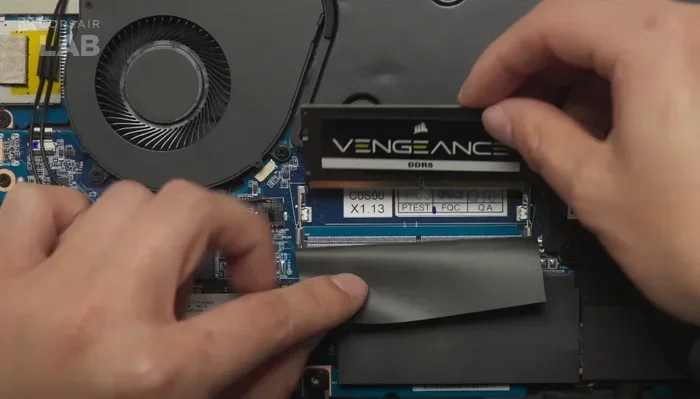
You can check your laptop’s RAM upgradability in a few simple ways. First, look up your model number on the MSI website and review the specifications. Second, open your laptop and physically inspect the interior for available RAM slots. Third, use a system information tool like CPU-Z to see how many slots are occupied.
If your MSI laptop has open RAM slots, you can add more memory easily. If all slots are filled and the RAM is soldered, you will need to replace the existing modules rather than add new ones. Always check this before purchasing any RAM.
Best Practices for MSI RAM Upgrades
Upgrading your MSI laptop’s RAM does not have to be complicated. Following a few best practices ensures a smooth process and the best performance results. These tips come from real-world experience and help you avoid common pitfalls.
Match RAM Speed and Timings
When adding new RAM sticks, try to match the speed and timings of your existing memory. Mixing different speeds can cause both modules to run at the slower speed. For example, if you have DDR4-3200 RAM installed, adding another DDR4-3200 stick keeps everything running at peak efficiency.
Install RAM in the Correct Slots
MSI laptops often have specific slot configurations for dual-channel memory. Installing RAM in the right slots enables dual-channel mode, which doubles the data transfer rate between the RAM and the processor. Check your laptop manual or MSI’s website for the recommended slot configuration.
Update Your BIOS Before Upgrading
An outdated BIOS can sometimes cause compatibility issues with new RAM modules. Before installing new memory, update your MSI laptop’s BIOS to the latest version. This ensures your system recognizes and supports the newest RAM standards and configurations.
Test Your New RAM After Installation
After installing new RAM, run a memory test to confirm everything works correctly. Windows has a built-in tool called Windows Memory Diagnostic. You can also use third-party tools like MemTest86. Running a quick test gives you peace of mind that your upgrade was successful.
Common Mistakes to Avoid When Upgrading MSI RAM
Even with the best intentions, people make mistakes when upgrading laptop RAM. Avoiding these common errors saves you time and prevents potential damage to your system.
The biggest mistake is buying RAM without checking compatibility first. Just because a stick of RAM looks like it will fit does not mean it will work. Always verify the DDR type, maximum capacity, and supported speeds for your specific MSI model.
Another common error is mixing RAM from different brands with vastly different specifications. While it can sometimes work, mismatched RAM often causes stability issues, crashes, and reduced performance. Stick to matching brands, speeds, and capacities whenever possible.
Some users forget to ground themselves before handling RAM modules. Static electricity can damage sensitive computer components. Always touch a metal surface or use an anti-static wrist strap before installing new memory.
Finally, do not force a RAM stick into a slot. If it does not go in easily, you may be aligned incorrectly or trying to insert the wrong type. Double-check the notch alignment and try again gently.
Final Thoughts on Using the MSI RAM Finder
Upgrading the RAM in your MSI laptop is one of the most effective ways to boost performance. Whether you are a gamer, a content creator, or a professional who needs a fast machine, the right memory makes a noticeable difference. Using a MSI RAM Finder tool takes the confusion out of the process and ensures you buy compatible parts the first time.
Start by identifying your laptop model, checking its RAM specifications, and using the MSI support tools to find compatible options. Match DDR types, speeds, and capacities for the best results. Follow our best practices during installation, and always test your new memory after upgrading.
With the right approach, your MSI laptop will feel faster and more responsive in no time. A simple RAM upgrade can breathe new life into an aging system and extend its useful life by years. Take the time to do your research, and your laptop will thank you with smoother performance across every task you throw at it.
Frequently Asked Questions
How do I find compatible RAM for my MSI laptop?
Visit the MSI support website, enter your laptop model number, and check the memory specifications section. This tells you the DDR type, maximum capacity, and number of RAM slots your laptop supports. You can also use tools like CPU-Z to scan your system and identify current RAM details.
Can I mix DDR4 and DDR5 RAM in an MSI laptop?
No, you cannot mix DDR4 and DDR5 RAM. They are physically different and not compatible with the same slots. Always use the same DDR generation as what your MSI laptop originally supports.
Is 32GB RAM overkill for gaming on an MSI laptop?
For most modern games, 32GB is more than enough and provides excellent headroom for multitasking. However, if you only play less demanding titles, 16GB may suffice. Check our guide on whether you actually need 32GB for gaming to decide.
Can I upgrade the RAM in any MSI laptop?
No, not all MSI laptops have upgradeable RAM. Some models have soldered memory that cannot be changed. Always check your specific model’s specifications before purchasing RAM for an upgrade.
What is the difference between RAM speed and RAM capacity?
RAM capacity refers to how much data the memory can hold, measured in gigabytes. RAM speed refers to how fast data moves in and out, measured in megahertz. Both matter, but capacity affects how many programs you can run simultaneously, while speed affects how fast they respond.
Do I need to install RAM in pairs for my MSI laptop?
Installing RAM in matched pairs enables dual-channel mode, which improves performance. If your MSI laptop has two slots, using two identical sticks is recommended. However, a single stick still works fine if you only need to add memory to an empty slot.