Nvme Ssd M.2 2280
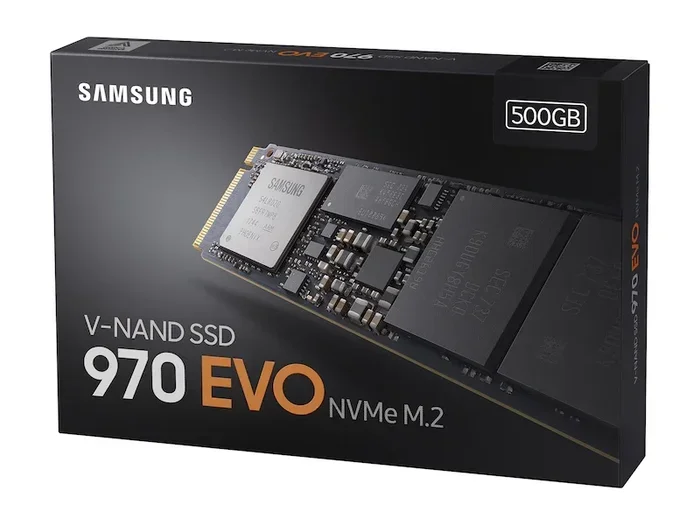
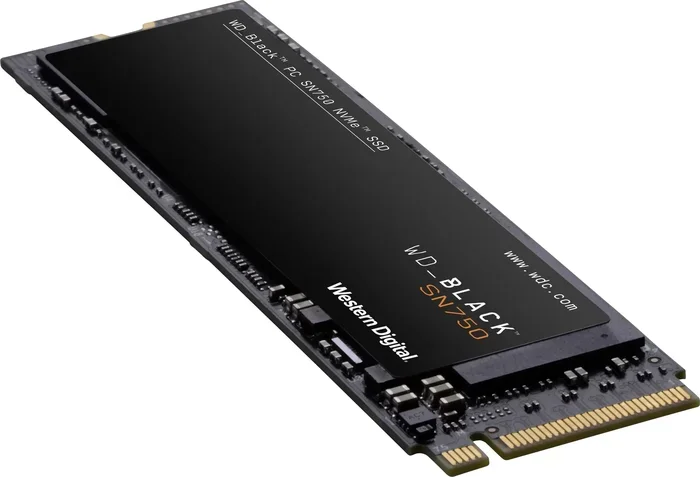
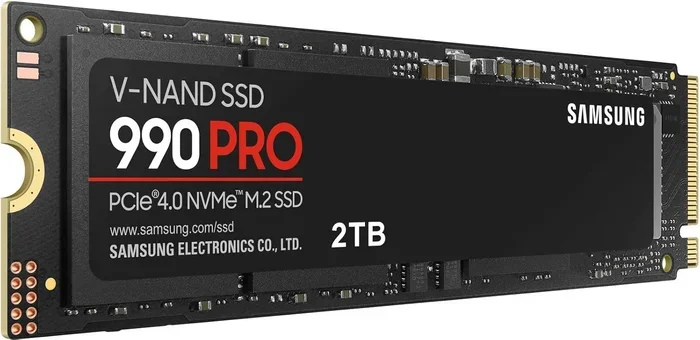
The NVMe SSD M.2 2280 is a high-speed storage drive that fits most modern laptops and desktops. It uses the PCIe interface and NVMe protocol to deliver blazing fast read and write speeds. Whether you are upgrading a gaming PC or a work laptop, this compact drive offers serious performance gains over older SATA drives.
The NVMe SSD M.2 2280 has become the go-to storage upgrade for anyone who wants faster boot times, quicker file transfers, and smoother multitasking. If you have ever waited forever for your computer to start up or watched your system lag while opening heavy applications, this little drive can change everything.
But what exactly is an M.2 2280 drive, and why does the NVMe protocol matter so much? In this guide, we will break it all down in plain language. You will learn how these drives work, what makes them different from older SATA SSDs, and how to pick the right one for your needs.
Key Takeaways
- M.2 2280 is the most popular form factor: It measures 22mm wide and 80mm long, fitting the majority of modern devices.
- NVMe protocol is much faster than SATA: You can expect read speeds of 3,500 MB/s or higher on Gen3 drives.
- Compatibility matters: Not all motherboards support NVMe M.2 slots, so always check your system first.
- Gen4 and Gen5 offer even faster speeds: PCIe Gen4 drives can hit 7,000 MB/s and Gen5 pushes past 10,000 MB/s.
- Capacity options range widely: You can find them from 256GB up to 4TB for different needs and budgets.
- Thermal management is important: High-speed drives can run hot, so heatsinks or thermal pads help maintain performance.
📑 Table of Contents
What Is an NVMe SSD M.2 2280?
Let us start with the basics. The term M.2 2280 refers to the physical size and shape of the drive. The “22” means 22 millimeters wide, and the “80” means 80 millimeters long. This is the most common size you will find in laptops, desktops, and mini PCs today.
NVMe stands for Non-Volatile Memory Express. It is a communication protocol designed specifically for flash storage. Unlike older protocols that were built for spinning hard drives, NVMe takes full advantage of the speed potential inside modern SSDs. Think of it like a highway with more lanes — more data can travel at the same time, which means faster speeds.
The NVMe SSD M.2 2280 plugs directly into your motherboard through an M.2 slot. There is no cables, no extra power connectors, and no wasted space. This slim design is one of the main reasons these drives have become so popular in compact systems.
M.2 2280 vs Other Form Factors
M.2 drives come in different lengths, such as 2230, 2242, 2260, and 2280. The 2280 is the most widely supported size. Most motherboards and laptops have M.2 slots built specifically for this length. Shorter drives like the 2230 are common in ultra-thin tablets, while the 2280 fits standard desktops and most laptops.
Here is a quick comparison of common M.2 sizes:
- 2230: Found in tablets and some slim laptops.
- 2242: Used in some mini PCs and portable devices.
- 2260: Less common but still supported by some boards.
- 2280: The standard size for most desktops and laptops.
If you are shopping for an upgrade, the 2280 is almost certainly what you need. It offers the best balance of capacity, speed, and compatibility.
Why NVMe Is Faster Than SATA SSDs
To understand the speed difference, you need to know how data moves through your system. A traditional SATA SSD uses the AHCI protocol, which was designed way back when hard drives were the norm. It has a bottleneck that limits speeds to around 550 MB/s, even on the best SATA drives.
The NVMe protocol bypasses that bottleneck entirely. It connects directly to the PCIe bus on your motherboard, which is the same highway your graphics card uses. This means the NVMe SSD M.2 2280 can transfer data at speeds that are 5 to 7 times faster than a SATA SSD.
Here is a side-by-side look at typical speeds:
- SATA SSD: Read speeds around 500-560 MB/s, write speeds around 400-530 MB/s.
- NVMe Gen3 SSD: Read speeds around 3,500 MB/s, write speeds around 3,000 MB/s.
- NVMe Gen4 SSD: Read speeds around 7,000 MB/s, write speeds around 5,000 MB/s.
- NVMe Gen5 SSD: Read speeds exceeding 10,000 MB/s, write speeds over 7,000 MB/s.
For everyday tasks like browsing, office work, and media playback, the difference might not be dramatic. But for large file transfers, video editing, and gaming, the speed boost is very noticeable. Games load faster, video exports finish sooner, and your system feels much more responsive.
How to Choose the Right NVMe M.2 2280 SSD
Not all NVMe drives are created equal. When you are shopping, there are a few key factors to keep in mind. Picking the right one ensures you get the best performance without overspending.
Consider Your PCIe Generation
PCIe Gen3, Gen4, and Gen5 are the three main generations you will encounter. Gen3 is the most affordable and still offers excellent real-world speeds. Gen4 is the current sweet spot for most users, and Gen5 is the newest but comes at a premium price.
Here is what to consider:
- PCIe Gen3: Great budget option. Speeds up to 3,500 MB/s read. Plenty fast for most users.
- PCIe Gen4: Best value for performance. Speeds up to 7,000 MB/s read. Ideal for gaming and creative work.
- PCIe Gen5: Cutting edge. Speeds over 10,000 MB/s. Best for enthusiasts and professionals.
Before buying, check your motherboard specs to see which PCIe generation your M.2 slot supports. A Gen4 drive will work in a Gen3 slot but will run at Gen3 speeds. Similarly, a Gen3 drive works fine in a Gen4 slot.
Pick the Right Capacity
Capacity depends on what you plan to do with the drive. For a boot drive with your operating system and a few apps, 500GB or 1TB is usually enough. If you store large game libraries or video projects, consider 2TB or even 4TB options.
Some popular choices include the Kingston 1Tb M.2 NVMe SSD, which offers a great balance of price and performance for everyday use. If you need more space, the 2Tb NVMe M.2 SSD category gives you plenty of room for games, media, and work files without breaking the bank.
Check the NAND Flash Type
Most NVMe SSDs use TLC (Triple-Level Cell) NAND flash. TLC offers a good balance of speed, endurance, and price. Some budget drives use QLC (Quad-Level Cell), which is cheaper but slower and less durable over time. For most users, TLC is the way to go.
Installation and Setup Tips
Installing an NVMe SSD M.2 2280 is straightforward, but there are a few things to keep in mind for a smooth setup.
Step-by-Step Installation
- Turn off your computer and unplug it from power.
- Open your case and locate the M.2 slot on the motherboard.
- Remove the protective cover from the M.2 slot.
- Insert the drive at a 30-degree angle and press it down gently.
- Secure the drive with the small screw that came with your motherboard.
- Close the case and power on your computer.
Once the drive is installed, you may need to initialize it in Windows Disk Management or format it through your operating system. Most modern systems will recognize the drive automatically, but a quick format ensures it is ready to use.
Enclosure Options for External Use
Want to use your NVMe drive as external storage? An NVMe SSD M.2 enclosure lets you turn your internal drive into a portable external drive. These enclosures connect via USB and offer transfer speeds that far exceed traditional external hard drives. They are perfect for backing up large files or carrying your data on the go.
Common Mistakes to Avoid
Even though installing an NVMe SSD is fairly simple, there are a few common mistakes that can cause problems. Avoiding these will save you time and frustration.
- Buying a drive without checking compatibility: Always verify that your motherboard has an M.2 slot and supports NVMe. Some older boards only support SATA M.2 drives.
- Ignoring thermal management: High-speed NVMe drives can get hot under heavy load. Many motherboards include M.2 heatsinks, or you can add an after-market one. Without proper cooling, your drive may slow down to protect itself.
- Forgetting to update NVMe drivers: On Windows, NVMe drivers are usually built in, but on Linux or older systems, you may need to install or update drivers manually. Check the manufacturer’s website for the latest support.
- Mixing up SATA and NVMe M.2 drives: Some M.2 slots support both SATA and NVMe, but not all. Using the wrong type of drive in the wrong slot will not work.
Expert Insights and Final Thoughts
The NVMe SSD M.2 2280 is one of the best upgrades you can make for almost any computer. It is fast, compact, and affordable compared to just a few years ago. Whether you are a casual user, a gamer, or a creative professional, this storage format delivers real-world benefits that you will notice every day.
If you are still using an older SATA SSD or a traditional hard drive, making the switch to an NVMe M.2 drive is one of the single most impactful upgrades available. Your system will boot faster, apps will launch quicker, and file transfers will feel instant.
When choosing a drive, focus on your specific needs. A 1Tb NVMe M.2 SSD is a fantastic starting point for most users. If you need more room, look at the 2Tb M.2 NVMe SSD options, which offer excellent value for storing large libraries and projects. And always make sure your system supports the PCIe generation of the drive you choose.
The technology keeps moving forward, with newer generations offering even faster speeds. But even a solid Gen3 NVMe drive will feel dramatically faster than any mechanical hard drive or SATA SSD. The bottom line is simple: if your system supports it, an NVMe M.2 2280 SSD is a smart investment.
Start by checking your motherboard specifications, pick a capacity that fits your storage needs, and enjoy the speed. The world of fast, reliable storage is just one M.2 slot away.
Frequently Asked Questions
What does M.2 2280 mean?
M.2 2280 refers to the physical dimensions of the SSD. The “22” indicates it is 22 millimeters wide, and the “80” means it is 80 millimeters long. This is the most common size for desktop and laptop NVMe drives.
Can I use an NVMe M.2 2280 SSD in any computer?
Not all computers have an M.2 slot, and not all M.2 slots support NVMe. You need to check your motherboard or laptop manual to confirm that it has an M.2 slot that supports the NVMe protocol over PCIe.
How much faster is NVMe than a SATA SSD?
NVMe SSDs are typically 5 to 7 times faster than SATA SSDs. While SATA drives max out around 550 MB/s, NVMe Gen3 drives reach speeds of 3,500 MB/s or more, and Gen4 drives can exceed 7,000 MB/s.
Do I need a heatsink for my NVMe M.2 2280 SSD?
It depends on your workload. For everyday tasks, a heatsink may not be necessary. But if you do heavy gaming, video editing, or large file transfers for extended periods, a heatsink helps maintain peak performance by preventing thermal throttling.
What is the difference between PCIe Gen3, Gen4, and Gen5 NVMe SSDs?
Each generation offers faster speeds than the last. Gen3 tops out around 3,500 MB/s, Gen4 reaches about 7,000 MB/s, and Gen5 pushes beyond 10,000 MB/s. Newer generations also tend to be more expensive, so choose based on your motherboard support and budget.
What capacity should I choose for an NVMe M.2 2280 SSD?
For most users, 1TB provides enough space for an operating system, applications, and a reasonable game or media library. If you work with large files or have an extensive game collection, 2TB or 4TB options give you much more breathing room.