Pc Builders Ram Guide Everything You Need To Know Today
The Pc Builders Ram Guide covers everything from choosing the right DDR type to installing memory in your desktop. You will learn how RAM speed, capacity, and compatibility affect your system performance. This guide breaks down complex topics into simple steps so anyone can build or upgrade with confidence.
Building a PC is exciting. Whether you are putting together a machine for gaming, work, or creative projects, one component often gets overlooked until the last minute. That component is RAM. Random Access Memory is the short-term memory your PC uses to handle tasks right now. Without the right memory, even the most expensive processor and graphics card will struggle.
This Pc Builders Ram Guide walks you through everything you need to know. We will cover types of RAM, how much you need, speed ratings, and how to install it. By the end, you will feel confident picking the perfect memory for your build.
Key Takeaways
- Choose the right DDR type: DDR4 and DDR5 are the current standards, and picking the correct one depends on your motherboard and budget.
- Capacity matters: 16GB is the sweet spot for most users, while 32GB or more suits heavy workloads and gaming.
- Speed and latency work together: Higher MHz can boost performance, but tight timings matter just as much.
- Dual channel setup doubles bandwidth: Always install RAM in matched pairs for the best results.
- Compatibility check is essential: Verify your motherboard supports your chosen RAM type before purchasing.
- Installation is straightforward: With the right guide, anyone can install RAM in under ten minutes.
📑 Table of Contents
What Is RAM and Why Does It Matter?
RAM stands for Random Access Memory. Think of it as your PC’s short-term workspace. When you open a program, play a game, or edit a video, your system loads data into RAM. This lets the processor access that information almost instantly.
Without enough RAM, your PC slows down. It starts swapping data to your storage drive, which is much slower. This causes lag, stuttering, and long load times. The right memory modules keep everything running smoothly.
RAM is temporary. It clears when you turn off your computer. That is why you need storage like an SSD or HDD for long-term files. But for day-to-day performance, RAM is king.
How RAM Affects Your System
Your system performance depends heavily on memory. Here is what RAM impacts:
- Multitasking: More RAM lets you run many apps at once without slowdowns.
- Gaming: Games load textures, maps, and assets into RAM. More memory means smoother gameplay.
- Content creation: Video editing and 3D rendering use huge amounts of memory.
- Boot times: Enough RAM helps your PC start faster and respond quicker.
When you are selecting PC components, RAM should be near the top of your list. It is one of the easiest upgrades and has an immediate impact.
Types of RAM: DDR4 vs DDR5
There are two main types of RAM in use today. Understanding the difference between them is the first step in any PC building journey.
DDR4 RAM
DDR4 has been the standard for several years. It is reliable, widely available, and affordable. Most motherboards on the market support DDR4. Typical speeds range from 2133 MHz to 3600 MHz, with some kits going even higher.
DDR4 is a great choice for most builders. It works well for gaming, office work, and general use. If you are on a budget, DDR4 gives you the best value per gigabyte.
DDR5 RAM
DDR5 is the newer standard. It offers higher speeds, better efficiency, and more capacity per module. Base speeds start at 4800 MHz and can go well beyond 6000 MHz with overclocked kits.
DDR5 is future-proof. If you are building a system that you want to last several years, DDR5 is worth considering. However, it does cost more than DDR4 right now. The performance boost is real but not dramatic for everyday tasks.
How to Choose Between DDR4 and DDR5
Your motherboard decides which type you can use. You cannot mix DDR4 and DDR5. Check your motherboard specs before buying. If you are building on a budget, DDR4 is the safe bet. If you want the latest technology, go with DDR5.
How Much RAM Do You Need?
RAM capacity is measured in gigabytes. The right amount depends on what you plan to do with your PC. Here is a simple breakdown:
- 8GB: Basic tasks like web browsing, word processing, and light media. This is the minimum for Windows 11.
- 16GB: The sweet spot for most users. Great for gaming, office work, and moderate multitasking.
- 32GB: Ideal for heavy workloads, video editing, and modern gaming at high settings.
- 64GB and above: For professionals working with 3D rendering, large datasets, or intensive simulations.
For most PC builders, 16GB is the go-to choice. It handles gaming and everyday tasks with ease. If you are a content creator or a power user, consider 32GB or more.
You can always add more RAM later. Start with what you need now and upgrade when your workload grows. Just make sure your motherboard has enough slots.
RAM Capacity for Gaming
Gaming is one of the most common reasons people build PCs. Most modern games recommend 16GB of memory. Some demanding titles perform better with 32GB. If you are unsure, check the system requirements for the games you want to play.
For a detailed look at how much RAM you really need for gaming, check out our guide on Do I Need 32Gb Ram For Gaming. It helps you decide based on your specific needs.
RAM Speed, Timings, and Frequency Explained
RAM speed can be confusing. There are numbers and abbreviations everywhere. Let us break it down into simple terms.
What Is RAM Frequency?
Frequency is measured in megahertz (MHz). It tells you how fast your memory can transfer data. Higher MHz generally means better performance. DDR4 3200 MHz is faster than DDR4 2400 MHz. DDR5 6000 MHz is faster than DDR5 4800 MHz.
For most gamers, DDR4 3200 MHz or DDR5 5600 MHz is a solid choice. You do not need the fastest kit on the market. The gains beyond a certain point are small.
What Are Timings?
Timings are a set of numbers like 16-18-18-36. They measure how many clock cycles the RAM takes to respond to requests. Lower timings mean faster response times.
CAS latency (CL) is the most important timing. It is the first number in the sequence. A lower CL means the RAM can access data quicker. However, do not obsess over timings. Speed and capacity matter more for most users.
XMP Profiles Made Simple
Most RAM kits run at slower speeds by default. XMP (Extreme Memory Profile) is a feature that lets you run your RAM at its rated speed with one click in your BIOS. Enabling XMP is one of the easiest ways to boost performance after building your PC.
Not all motherboards support XMP. Check your motherboard manual before purchasing a high-speed kit.
Dual Channel vs Single Channel
Your motherboard has different slots for RAM. How you fill them affects performance. The key concept here is dual channel vs single channel.
Dual channel means using two or four memory sticks in matching pairs. This doubles the data pathway between your RAM and the CPU. The result is better bandwidth and smoother performance.
Single channel uses one stick. It works fine for basic tasks but leaves performance on the table. For any serious build, always use matched pairs.
When buying RAM, purchase kits that come in pairs. A 2x8GB kit is better than two separate 8GB sticks because they are tested to work together.
How to Install RAM in Your PC
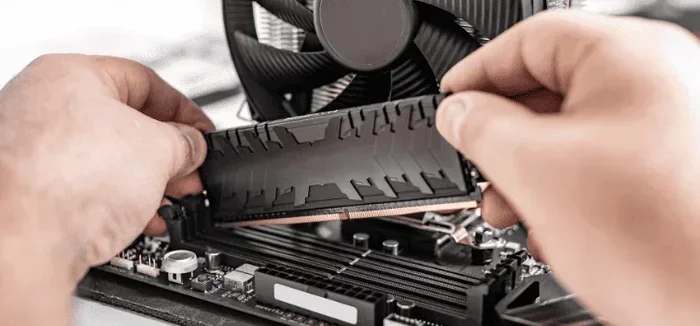
Installing RAM is one of the easiest parts of building a PC. You do not need any special tools. Just a steady hand and a moment of patience.
Step by Step RAM Installation
- Check compatibility: Make sure your motherboard supports your RAM type and capacity.
- Ground yourself: Touch a metal part of your case to discharge static electricity.
- Open the clips: Push the RAM slot clips outward on your motherboard.
- Align the notch: Look at the gold contacts on the RAM stick. There is a small notch. Line it up with the slot.
- Press firmly: Push the stick straight down until the clips click into place.
- Repeat if needed: Install additional sticks in the correct slots for dual channel.
For a more detailed walkthrough, you can also refer to our guide on How To Install M 2 Nvme Ssd In Pc, which covers general internal component installation tips that apply to RAM as well.
Quick Tips for a Smooth Installation
- Always refer to your motherboard manual for the correct slot order.
- Do not force the RAM. If it does not go in easily, check the alignment.
- Handle RAM by the edges. Avoid touching the gold contacts.
- Test your system after installation to make sure everything is recognized.
Common RAM Mistakes to Avoid
Even experienced builders make mistakes with RAM. Here are some common errors and how to avoid them.
- Mixing RAM types: Do not combine DDR4 and DDR5. They are physically different and will not work together.
- Ignoring motherboard limits: Every motherboard has a maximum RAM capacity. Check before you buy.
- Buying mismatched sticks: Using different brands or speeds can cause instability. Stick to a single kit.
- Forgetting XMP: Your RAM may run at half speed until you enable XMP in BIOS.
- Wrong slot placement: Installing sticks in the wrong slots can prevent dual channel mode from activating.
Avoiding these mistakes saves time and frustration. Take a few minutes to research before you buy.
How to Find Your RAM Type and Specs
Not sure what RAM you currently have? You can check your system specs easily in Windows. Open Task Manager, go to the Performance tab, and click on Memory. You will see your RAM type, speed, and how many slots are being used.
For a deeper dive into identifying your RAM specifications, check out our article on How To Find Ram Ddr Type. It walks you through multiple methods to identify your exact memory type.
Knowing your current specs helps you plan upgrades. It also prevents you from buying RAM that is not compatible with your system.
Does RAM Need Cooling?
Most RAM modules do not need active cooling. They run cool under normal conditions. However, if you are overclocking your memory or using very high-speed kits, a small heatsink can help.
Many RAM kits come with aluminum heatsinks already attached. These look great and provide a little extra thermal protection. For most builders, standard RAM without a heatsink works perfectly fine.
If you want to learn more about this topic, we have a dedicated article on Does Ram Need Cooling that explores when cooling becomes necessary.
Final Thoughts
Choosing the right RAM for your PC build does not have to be stressful. Start with your motherboard compatibility, then decide on capacity and speed based on your use case. For most users, 16GB of DDR4 3200 MHz in a dual channel setup is the perfect balance of performance and value.
Remember that RAM is one of the easiest components to upgrade later. If your needs grow, you can always add more memory sticks. Just make sure they match what you already have.
This Pc Builders Ram Guide gives you the foundation you need. Now go build something great. Your next PC is one good memory decision away.
Frequently Asked Questions
What is the best RAM for a gaming PC?
For most gaming builds, 16GB of DDR4 3200 MHz or DDR5 5600 MHz is ideal. This provides smooth performance in modern games and leaves room for multitasking. Check out our Best Ram For Gaming Pc guide for specific product recommendations.
Can I mix different RAM brands?
Technically yes, but it is not recommended. Different brands may have different timings and speeds, which can cause instability. Always buy a matched kit from the same brand and model for the best results.
How do I know if my motherboard supports DDR5?
Check your motherboard specifications on the manufacturer’s website. The memory type will be clearly listed. You cannot install DDR5 RAM on a DDR4 motherboard or vice versa, so always verify before purchasing.
Is 32GB of RAM overkill for gaming?
For most games, 16GB is plenty. However, 32GB is becoming more common as games and background apps use more memory. If you also do streaming, video editing, or run many browser tabs, 32GB is a smart investment.
Can I upgrade my laptop RAM?
Some laptops allow RAM upgrades, but many modern thin laptops have soldered memory. Check your laptop model’s specifications. If it has upgradeable slots, the process is similar to desktop RAM but with smaller form factors.
What happens if I install RAM in the wrong slots?
Installing RAM in the wrong slots can prevent dual channel mode from working, which reduces performance. Always refer to your motherboard manual for the correct slot configuration. Most manuals show color-coded slots indicating which pairs to fill first.