Ram Terminology Glossary Your Essential Truck Guide

Confused by RAM jargon? This Ram Terminology Glossary breaks down every key term from DDR4 and DDR5 to CAS latency and memory timings in plain English. You will learn what each term means and how it directly affects your PC performance.
If you have ever stared at a spec sheet and felt completely lost by terms like DDR4, CAS latency, or XMP, you are not alone. The world of PC memory is filled with jargon that can make even experienced users scratch their heads. That is exactly why we built this Ram Terminology Glossary. It is your one-stop guide to understanding every important RAM term you will come across.
Whether you are building a new PC, upgrading your current setup, or just trying to make sense of product listings, knowing your RAM terminology gives you a real advantage. You will be able to compare products confidently, avoid costly mistakes, and get the best performance for your money. This guide covers everything from basic concepts to more advanced topics like memory timings and overclocking profiles.
We kept the language simple and the explanations practical. No fluff, no filler. Just clear definitions, real-world examples, and actionable tips you can use right away. Let us dive in and decode the world of PC memory together.
Key Takeaways
- DDR4 vs DDR5: Understand the key differences between the two latest RAM generations and what they mean for your system.
- Memory Timings Explained: Learn what CAS latency and other timing numbers actually do behind the scenes.
- RAM Form Factors: Discover the difference between DIMM and SODIMM modules and where each type is used.
- Specialized RAM Types: Get to know ECC, registered, and unbuffered RAM and why they matter for specific workloads.
- XMP and Overclocking: Find out how XMP profiles can boost your RAM speed beyond default factory settings.
- Dual Channel Basics: See how using two RAM sticks can nearly double your memory bandwidth and system responsiveness.
📑 Table of Contents
What Is a Ram Terminology Glossary and Why It Matters
A Ram Terminology Glossary is simply a collection of definitions for the terms used to describe computer memory. Think of it as a dictionary for RAM. Every field has its own language, and memory is no different. From the type of module to the speed it runs at, each term tells you something important about how your system performs.
Why does this matter so much? Because when you go to buy RAM or troubleshoot a problem, the spec sheet uses these terms. If you do not understand them, you might end up with the wrong type of memory or pay more than you need to. For example, knowing the difference between DIMM and SODIMM saves you from buying desktop RAM for a laptop. That is a costly mistake we want to help you avoid.
Understanding RAM terminology also helps you have better conversations with tech support or when shopping online. You will know exactly what to look for and what questions to ask. It empowers you as a consumer and as a PC enthusiast. This glossary covers all the essential terms in a logical order, starting from the basics and moving toward more advanced concepts.
DDR4 vs DDR5: The Two Main RAM Generations
The most fundamental term in any Ram Terminology Glossary is the DDR generation. DDR stands for Double Data Rate. It means the memory transfers data on both the rising and falling edges of the clock signal. This effectively doubles the data rate compared to older single data rate memory. The two generations you will encounter most often today are DDR4 and DDR5.
What Is DDR4 RAM?
DDR4 RAM has been the standard for several years now. It operates at a voltage of 1.2 volts and offers speeds typically ranging from 2133 MHz to 3600 MHz for most consumer modules. DDR4 is widely compatible with older and mid-range systems. If your PC was built in the last five years, there is a good chance it uses DDR4 memory.
One of the strengths of DDR4 is its maturity. The technology is well understood, prices are competitive, and there is a huge selection of modules available. For most everyday tasks like browsing, office work, and casual gaming, DDR4 still delivers excellent performance. It remains a solid choice for budget and mid-range builds.
What Is DDR5 RAM?
DDR5 RAM is the newer generation and represents a significant step forward. It operates at a lower voltage of 1.1 volts but offers much higher bandwidth. Speeds start at 4800 MHz and can go well beyond 8000 MHz on high-end modules. DDR5 also includes on-die error correction and a redesigned architecture that improves efficiency.
If you are building a new system today, DDR5 is worth considering for its future-proofing benefits. However, it does come at a premium price point compared to DDR4. The performance gains are most noticeable in workloads that heavily stress memory bandwidth, such as video editing and data processing. For a deeper look at how DDR generations affect your system, check out our guide on how to find your RAM DDR type.
DDR4 vs DDR5 Quick Comparison
- Voltage: DDR4 runs at 1.2V while DDR5 runs at 1.1V, making DDR5 slightly more power efficient.
- Speed: DDR4 tops out around 3600 MHz commonly, while DDR5 starts at 4800 MHz and goes much higher.
- Bandwidth: DDR5 offers significantly more bandwidth per module thanks to its improved architecture.
- Compatibility: DDR4 and DDR5 are NOT interchangeable. They require different motherboards and CPUs.
- Price: DDR4 is generally cheaper and more widely available at this point in time.
RAM Speed, Frequency, and Memory Timings
Once you understand the DDR generation, the next set of terms to master in your Ram Terminology Glossary are speed, frequency, and timings. These numbers directly impact how fast your memory can read and write data. They can be confusing at first, but they become simple once you break them down.
What Does RAM Speed or Frequency Mean?
RAM speed or memory frequency is measured in megahertz (MHz). It tells you how many cycles per second the memory can perform. A higher frequency means more data can be transferred in a given time. For example, DDR4-3200 can perform 3200 million cycles per second, while DDR4-3600 can do 3600 million.
Think of it like a highway. A higher frequency is like adding more lanes to the road. More data can flow through at the same time. This is why faster RAM can improve system responsiveness, especially when you are multitasking or running memory-heavy applications.
What Are Memory Timings?
Memory timings are a set of numbers that describe how many clock cycles the RAM needs to complete specific operations. The most important timing is called CAS latency, often written as CL. CAS latency measures the delay between the memory controller requesting data and the data being available on the output pins.
Lower CAS latency is better. A module with CL16 will respond faster than one with CL18, assuming all other factors are equal. Memory timings are usually written as a series of numbers like 16-18-18-36. Each number represents a different type of delay. The first number is always the CAS latency.
Here is a quick tip: when comparing two RAM kits at the same frequency, the one with lower timings will generally perform better. This is a detail that many shoppers overlook, but it can make a real difference in certain workloads.
How Timings and Speed Work Together
RAM speed and memory timings work as a team. A module with high frequency but loose timings might not always beat a module with lower frequency but tighter timings. The real-world performance depends on the balance between both factors. This is why reading reviews and benchmarks is so important when choosing RAM.
If you are curious about how RAM performance affects your gaming experience, our article on does overclocking RAM increase FPS explores this topic in detail.
RAM Form Factors: DIMM vs SODIMM
Not all RAM sticks look the same. The physical shape and size of a memory module is called its form factor. In any Ram Terminology Glossary, you will encounter two main form factors: DIMM and SODIMM. Knowing the difference is critical when buying memory for your system.
What Is a DIMM?
DIMM stands for Dual In-line Memory Module. These are the larger RAM sticks used in desktop computers. A standard DIMM is about 133 millimeters long. They have a 64-bit data path and connect to the motherboard through gold contact pins on the bottom edge.
Desktop PCs typically have two to four DIMM slots on the motherboard. Most consumer motherboards support up to four DIMM slots, allowing you to install up to 128 GB of RAM depending on the module capacity. When shopping for desktop RAM, always look for DIMM modules.
What Is a SODIMM?
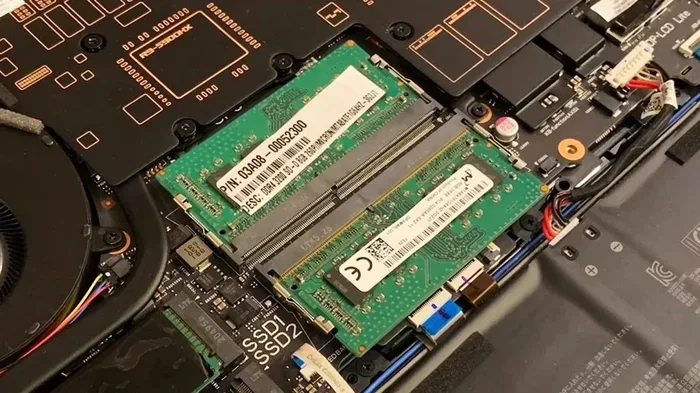
SODIMM stands for Small Outline Dual In-line Memory Module. These are the smaller RAM sticks designed for laptops and compact PCs. A SODIMM is roughly half the length of a standard DIMM, measuring about 67 millimeters. Despite their smaller size, they offer the same functionality.
Laptops usually have one or two SODIMM slots. Some ultra-thin models solder the RAM directly to the motherboard, which means it cannot be upgraded. Before buying RAM for a laptop, make sure you get the SODIMM form factor. You can learn more about laptop RAM compatibility in our guide on will laptop RAM work in desktop.
DIMM vs SODIMM at a Glance
- DIMM: Used in desktops, full-size modules, 133mm long, 288-pin DDR4 or 288-pin DDR5.
- SODIMM: Used in laptops and small form factor PCs, compact modules, 67mm long, 262-pin DDR4 or 262-pin DDR5.
- Key Difference: Physical size and pin count. They are NOT interchangeable.
Specialized RAM Types and Technologies
Beyond the standard consumer memory modules, there are several specialized types of RAM that appear in any thorough Ram Terminology Glossary. These types serve specific use cases and are not always needed for everyday computing. However, they play a critical role in servers, workstations, and professional environments.
What Is ECC RAM?
ECC RAM stands for Error-Correcting Code memory. It includes an extra chip that can detect and correct common types of internal data corruption. This is crucial in environments where data integrity is non-negotiable, such as servers, scientific computing, and financial systems.
ECC memory prevents silent data corruption, which is when data gets changed without anyone noticing. In a regular home PC, this is rarely a concern. But for a server handling thousands of transactions per second, even a single bit flip can cause serious problems. ECC RAM adds a small performance overhead but provides peace of mind.
Registered vs Unbuffered RAM
Registered RAM, also called buffered RAM, includes a register between the memory controller and the DRAM chips. This register buffers the commands and signals, reducing the electrical load on the memory controller. Registered RAM is commonly used in servers and workstations that need large amounts of memory.
Unbuffered RAM, on the other hand, connects directly to the memory controller. This is what you find in most consumer desktop and laptop systems. Unbuffered RAM is faster and cheaper than registered RAM, which is why it is the standard for personal computers.
You should not mix registered and unbuffered RAM. They are designed for different platforms and will not work together. Always check your motherboard or system manual to confirm which type you need.
VRAM: Video RAM Explained
VRAM or Video RAM is a special type of memory built into your graphics card. It stores textures, frame buffers, and other visual data that the GPU needs to render images quickly. More VRAM allows smoother performance at higher resolutions and with more detailed textures.
While VRAM is technically different from system RAM, it is closely related to overall system memory performance. If your system RAM is slow or insufficient, it can bottleneck your GPU even if it has plenty of VRAM. For more on how memory affects rendering, check out does RAM affect 3D rendering speed.
Overclocking RAM and XMP Profiles
Overclocking RAM means running your memory at speeds faster than the manufacturer’s rated specifications. This can boost performance in games and memory-intensive applications. In your Ram Terminology Glossary, you will often see the term XMP, which is Intel’s technology for easy memory overclocking.
What Is an XMP Profile?
XMP stands for Extreme Memory Profile. It is a preset configuration stored on the RAM module that tells your motherboard to run the memory at its rated speed, timings, and voltage. Without XMP, most RAM will default to slower JEDEC standard speeds, even if the module is capable of much more.
Enabling XMP is simple. You go into your BIOS or UEFI settings, find the memory or overclocking section, and select the XMP profile. Your RAM will instantly run at its advertised speed. This is the easiest way to get the most out of your memory without manually tweaking every setting.
Does Overclocking RAM Actually Help?
The answer depends on what you do. For gaming, faster RAM can improve frame rates, especially at 1080p where the CPU and memory are more likely to be the bottleneck. For tasks like video editing or 3D rendering, the benefits are more about bandwidth than raw speed.
If you want to see the real-world impact, our article on does overclocking RAM increase FPS provides detailed benchmarks and analysis. Just keep in mind that overclocking RAM can also increase heat output. If you are pushing your memory hard, make sure your system has adequate cooling. You can read more about this in our piece on does RAM need cooling.
Quick Tips for RAM Overclocking
- Start with XMP profiles before attempting manual overclocking.
- Monitor your RAM temperatures after overclocking.
- Increase voltage gradually and test stability with stress-testing tools.
- Do not overclock if your system is already running hot.
- Remember that every CPU and motherboard has different memory overclocking limits.
How to Choose the Right RAM for Your Needs
Now that you know the key terms, let us talk about how to choose the right RAM for your specific situation. The right choice depends on what you use your PC for, your motherboard, and your budget.
For general home use and office work, 8GB to 16GB of DDR4 RAM is usually plenty. If you are into gaming, 16GB is the sweet spot for most titles today. Content creators working with video or large images should consider 32GB or more. For professional workloads like machine learning or architecture, even 64GB might be necessary. You can read more about whether 16GB RAM is enough for architecture to get a clearer picture for creative workflows.
Always match your RAM to your motherboard’s supported type. A DDR5 motherboard will not work with DDR4 modules, and vice versa. Check your motherboard manual or use a tool to identify your current memory type before making a purchase.
Capacity, speed, and timings all play a role in overall performance. But the most important rule is to buy RAM that is compatible with your system. A slightly slower but compatible module will always outperform an incompatible fast one.
When in doubt, stick with well-known brands like Corsair, Kingston, G.Skill, and Crucial. These manufacturers offer reliable modules with good warranty support and clear specifications. Reading reviews and benchmarks for specific kits can also help you make a confident choice.
Conclusion
Understanding RAM terminology does not have to be intimidating. With this Ram Terminology Glossary, you now have the knowledge to decode any spec sheet and make informed decisions about your PC memory. From DDR generations and memory frequencies to CAS latency and form factors, each term plays a role in how your system performs.
The key takeaway is that every term matters, but they all work together. Speed, timings, capacity, and type all influence your experience. Take the time to learn what each term means, and you will never feel lost when shopping for or configuring RAM again.
Use this guide as a reference anytime you encounter unfamiliar terms. Bookmark it, share it, and come back whenever you need a refresher. The more you know about your memory, the better equipped you are to build, upgrade, and troubleshoot your PC with confidence.
Frequently Asked Questions
What does DDR stand for in RAM terminology?
DDR stands for Double Data Rate. It means the RAM transfers data on both the rising and falling edges of the clock signal, effectively doubling the data rate compared to older memory technologies. DDR4 and DDR5 are the two most common generations used in PCs today.
How do I know if my RAM is DDR4 or DDR5?
You can check your system information in Windows by opening Task Manager and going to the Performance tab. Click on Memory to see your RAM type, speed, and form factor. You can also physically inspect the module or refer to your motherboard manual. For a detailed walkthrough, check our guide on how to find your RAM DDR type.
What is CAS latency and why does it matter?
CAS latency, or CL, is the number of clock cycles it takes for the RAM to respond to a data request. Lower CAS latency means faster response times. It matters because even at the same frequency, RAM with lower timings can deliver data more quickly, improving overall system responsiveness.
Can I mix different RAM speeds or brands?
You can mix RAM, but it is not ideal. When you combine different modules, the system will default to the slowest speed and loosest timings among them. This can reduce performance and in rare cases cause stability issues. For best results, use matching RAM kits.
Does overclocking RAM damage your computer?
Overclocking RAM within safe limits generally does not cause damage. Modern modules and motherboards have built-in protections. However, pushing voltage or frequencies too high can reduce component lifespan or cause system instability. Always monitor temperatures and test stability after overclocking.
How much RAM do I need for everyday use?
For most everyday tasks like web browsing, office work, and media consumption, 8GB to 16GB of RAM is sufficient. If you multitask heavily or use memory-intensive applications, 16GB to 32GB is a better choice. The right amount depends on your specific workflow and usage patterns.