Solved Error 1500 Another Installation Is In Progress Win 10
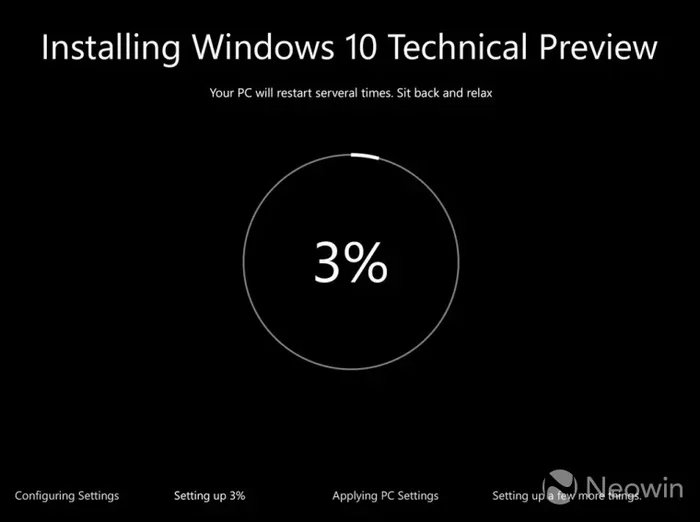
Error 1500 on Windows 10 stops your installations because another setup is already running in the background. This annoying pop-up appears when the Windows Installer service gets stuck or when pending file operations block new setups. You can fix it fast using built-in tools like the Services app, Registry Editor, and DISM commands. Follow our proven steps to clear the installation queue and get back to installing software without frustration.
Key Takeaways
- Error 1500 means the Windows Installer service thinks another installation is already running, even when it is not.
- Pending file rename operations in the registry are the most common hidden cause of this error.
- Clearing the SoftwareDistribution folder resets Windows Update and often resolves the conflict.
- Running SFC and DISM scans repairs corrupted system files that may trigger Error 1500.
- Clean Boot mode helps you identify if third-party software is causing the installation conflict.
- Restarting the Windows Installer service manually can unstick a frozen installation queue.
- Prevention tips like avoiding forced shutdowns during updates can stop Error 1500 from returning.
📑 Table of Contents
What Is Error 1500 on Windows 10?
Error 1500 pops up when you try to install something on your Windows 10 PC. The message says “Another installation is in progress.” It sounds scary, but it is very common. The problem happens because the Windows Installer service thinks a setup is still running. In reality, the previous setup may have finished or crashed without cleaning up properly.
This error can show up when you install software, run Windows Updates, or even try to uninstall a program. It blocks you from making any changes to your system until you fix it. The good news is that it is almost always solvable with basic tools you already have on your PC.
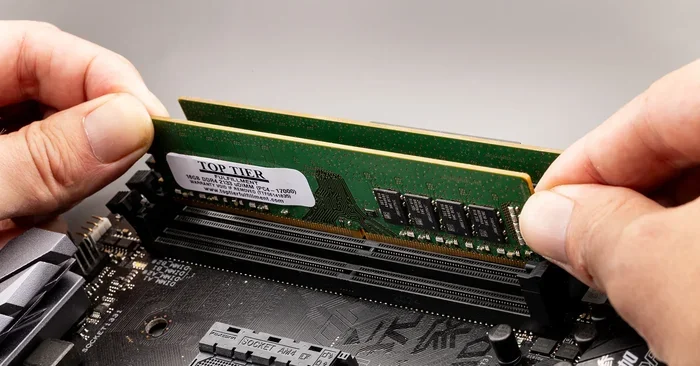
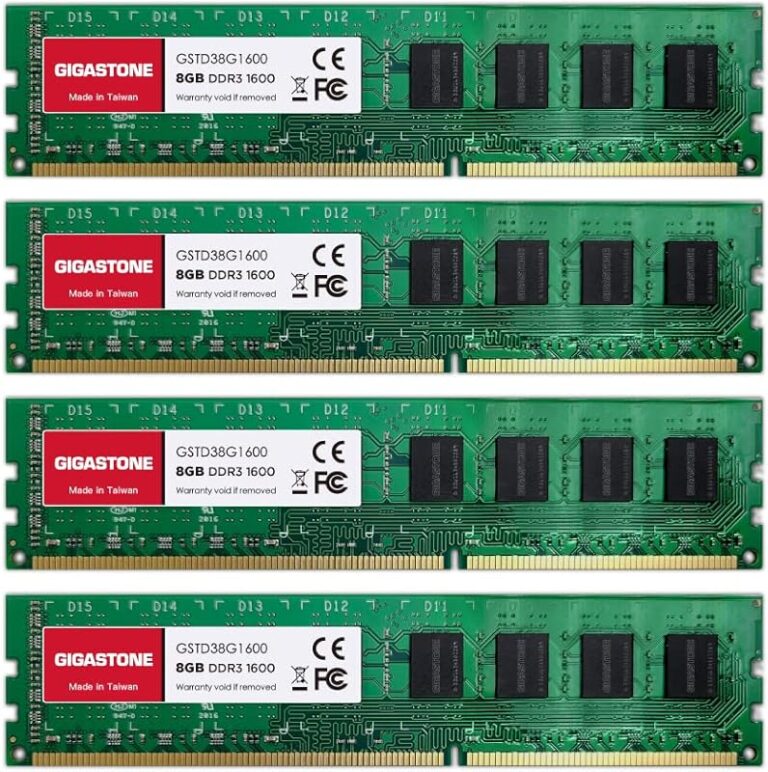
Many users with a Windows 10 laptop with 8GB RAM run into this error after a failed update or a stuck installation. Your system specs do not matter here. Whether you have a powerful machine or a basic setup, Error 1500 can hit anyone. The root cause is almost always a stuck installer service or leftover pending operations.
Why Does This Error Happen?
Several things can trigger Error 1500 on your Windows 10 system. The most common reasons include a crashed installation that left the service running, a stuck Windows Update, or corrupted registry entries. Sometimes a simple restart fixes it. Other times you need to dig deeper into your system to find the real culprit.
- Stuck Windows Installer service that did not shut down after a failed setup
- Pending file rename operations stored in the registry from a previous installation
- Corrupted SoftwareDistribution folder that holds cached Windows Update files
- Third-party software conflicts that interfere with the Windows Installer
- Corrupted system files that break the installation pipeline
How to Fix Error 1500 on Windows 10
Fixing Error 1500 is straightforward once you know the right steps. Start with the simplest solution and work your way down the list. Most users resolve the issue within the first two or three methods. Each method below includes clear instructions you can follow right now.
Method 1: Restart the Windows Installer Service
The first thing you should try is restarting the Windows Installer service. This service handles all installation tasks on your PC. When it gets stuck, it blocks everything else. Here is how to do it.
- Press the Windows key and R at the same time to open the Run dialog.
- Type services.msc and press Enter.
- Scroll down and find Windows Installer in the list.
- Right-click it and select Stop.
- Wait 10 seconds, then right-click again and select Start.
- Try installing your software again.
This simple restart clears the stuck installation queue in most cases. If the service will not start or keeps stopping, move on to Method 2.
Method 2: Clear the Pending File Rename Operations
Pending file rename operations are entries in your registry that tell Windows to rename or move files on the next restart. When these entries pile up, they can cause Error 1500. Clearing them often fixes the problem right away.
- Press Windows key and R to open the Run dialog.
- Type regedit and press Enter to open the Registry Editor.
- Navigate to HKEY_LOCAL_MACHINE\SYSTEM\CurrentControlSet\Control\Session Manager
- Find the key called PendingFileRenameOperations on the right side.
- Right-click it and select Delete.
- Restart your computer and try the installation again.
Be careful when editing the registry. Only delete the exact key mentioned above. Do not change anything else. If you are not comfortable with this step, ask someone with more experience to help you.
Method 3: Reset Windows Update Components
Sometimes Error 1500 comes from a corrupted Windows Update cache. Resetting the update components clears out the old files and lets Windows start fresh. This method works great when the error appears during a Windows Update rather than a regular software install.
- Open Command Prompt as Administrator. Right-click the Start button and select Terminal (Admin).
- Type the following commands one at a time, pressing Enter after each:
- net stop wuauserv
- net stop cryptSvc
- net stop bits
- net stop msiserver
- Now navigate to C:\Windows\SoftwareDistribution and delete everything inside that folder.
- Also go to C:\Windows\System32\catroot2 and clear that folder too.
- Run these commands to restart the services:
- net start wuauserv
- net start cryptSvc
- net start bits
- net start msiserver
After you restart your PC, try running the installation again. This method has helped thousands of users get past Error 1500 for good.
Method 4: Run SFC and DISM Scans
Corrupted system files can also cause Error 1500. Windows has built-in tools that scan for and repair damaged files. Running both SFC and DISM is a powerful combination that fixes most system-level issues.
Open Command Prompt as Administrator and run these commands in order:
- sfc /scannow — This scans all protected system files and replaces corrupted ones.
- DISM /Online /Cleanup-Image /RestoreHealth — This repairs the Windows component store that SFC relies on.
Let both scans finish completely. They may take 15 to 30 minutes depending on your system. After they are done, restart your PC and try the installation again. If you have been dealing with random errors on your PC, this method often fixes more than just Error 1500.
Method 5: Perform a Clean Boot
If none of the methods above worked, a Clean Boot can help. This starts Windows with only the essential services and drivers. It eliminates conflicts from third-party software that might be blocking the installer.
- Press Windows key and R to open Run.
- Type msconfig and press Enter.
- Go to the Services tab.
- Check the box that says Hide all Microsoft services.
- Click Disable all.
- Go to the Startup tab and click Open Task Manager.
- Disable every startup item you see.
- Restart your computer.
Now try installing your software again. If it works, you know a background program was causing the conflict. You can re-enable services one by one to find the culprit. This method takes a bit more time but is very effective for stubborn cases of Error 1500.
Common Mistakes That Trigger Error 1500
Knowing what causes Error 1500 helps you avoid it in the future. Many users make the same mistakes over and over without realizing it. Here are the top habits that lead to this annoying error.
Forcing Your PC to Shut Down During Updates
One of the biggest causes of Error 1500 is turning off your PC while Windows is updating. The installation leaves behind incomplete files and stuck services. Always let your PC finish updating before you shut it down. If you are in a hurry, at least wait for the update percentage to reach 100 percent and let your PC restart on its own.
Running Multiple Installations at Once
Trying to install several programs at the same time can confuse the Windows Installer service. It thinks another setup is already running when it is just waiting for its turn. Install one program at a time and wait for each one to finish completely before starting the next.
Ignoring Failed Installations
When an installation fails, the error message is not just a popup. It leaves behind traces in your system that can block future setups. Always check that a failed installation has fully cleared before trying again. Restarting your PC after a failed install helps clean up leftover processes.
Preventing Error 1500 From Coming Back
Once you fix Error 1500, you want to make sure it never comes back. Prevention is always easier than fixing the same problem over and over. Here are simple habits that keep your Windows 10 system running smoothly.
- Always restart your PC after updates. Do not just shut it down. A full restart clears the installation queue properly.
- Keep your system files healthy. Run SFC scans once a month to catch problems early.
- Use a reliable antivirus program. Malware can corrupt system files and cause installation conflicts.
- Avoid installing too many programs at once. Let each setup finish completely before starting another.
- Keep your disk clean. Use Disk Cleanup regularly to remove old temporary files that can interfere with installations.
If you ever notice your Windows 10 system acting strange after an update or installation, do not ignore it. Quick action can prevent Error 1500 and other installation conflicts from taking hold. A few minutes of maintenance saves hours of troubleshooting later.
When to Seek Advanced Help
Most users fix Error 1500 using the methods above. But sometimes the problem is deeper than a stuck service or corrupted registry entry. If you have tried every method and the error still appears, it might be time to look for expert help.
Here are signs that your issue needs advanced troubleshooting:
- The error keeps coming back after every fix you try.
- You see other Windows errors alongside Error 1500.
- Your PC is running very slowly and programs keep crashing.
- You are not comfortable editing the registry or running command-line tools.
In these cases, consider visiting a trusted technician or using a professional repair tool. You can also check your Windows 10 laptop with 8GB RAM specifications to make sure your system is not running low on resources during installations. Sometimes low memory or disk space can mimic the symptoms of Error 1500.
Final Thoughts
Error 1500 is frustrating but it is almost always fixable. You do not need to be a tech expert to solve it. Start with the simple steps like restarting the Windows Installer service and clearing pending operations. Move to the more advanced methods only if needed. Most people find their fix within the first two or three methods.
The key is to stay patient and follow the steps in order. Do not skip ahead to the advanced methods without trying the basics first. Each method builds on the last one and together they cover almost every possible cause of Error 1500. Keep your system maintained, follow the prevention tips, and you will rarely see this error again.
Remember that Error 1500 is just a signal that something in the installation pipeline got stuck. It is not a sign that your PC is broken. With the right approach, you can clear the blockage and get back to installing software without any hassle. Your Windows 10 system is more resilient than you think.
Frequently Asked Questions
What does Error 1500 mean on Windows 10?
Error 1500 means the Windows Installer service thinks another installation is already running. This usually happens when a previous setup crashed or did not close properly. The service stays active in the background and blocks new installations until you restart or clear it.
Can I fix Error 1500 without downloading any software?
Yes, absolutely. All the methods to fix Error 1500 use built-in Windows tools like the Services app, Registry Editor, and Command Prompt. You do not need to download anything from the internet. The steps are completely free and safe as long as you follow them carefully.
Why does Error 1500 keep coming back even after I fix it?
If Error 1500 keeps returning, the root cause is likely not fully resolved. You may have corrupted system files, a stuck Windows Update, or pending registry entries that were not cleared. Try running SFC and DISM scans and clearing the SoftwareDistribution folder to address the deeper issue.
Is Error 1500 harmful to my computer?
No, Error 1500 is not harmful. It is simply a blocking message that prevents you from installing software while another setup is in progress. It does not damage your files or system. However, leaving it unfixed can be annoying if you need to install important updates or programs.
How long does it take to fix Error 1500?
Most fixes take between 5 and 15 minutes. The simplest method, restarting the Windows Installer service, takes less than a minute. More thorough methods like running SFC and DISM scans can take up to 30 minutes. The time depends on which method you need to use.
Should I be worried if I see Error 1500 during a Windows Update?
You should not panic, but you should fix it promptly. Error 1500 during a Windows Update means the update did not complete properly. This can leave your system vulnerable if the update was a security patch. Use the methods in this guide to clear the error and let the update finish running.
=== CONCLUSION ===
Error 1500 Another Installation Is In Progress on Windows 10 is a common but easily fixable problem. You now have six proven methods to resolve it, from simple service restarts to deeper system repairs. The key is to work through the steps in order and not skip the basics. Most users find relief with Method 1 or Method 2 alone.
Prevention is your best long-term strategy. Keep your system updated, run regular maintenance scans, and avoid shutting down during installations. These simple habits will keep Error 1500 away for good. If you ever get stuck, come back to this guide and work through the steps one at a time. Your Windows 10 PC will thank you for it.