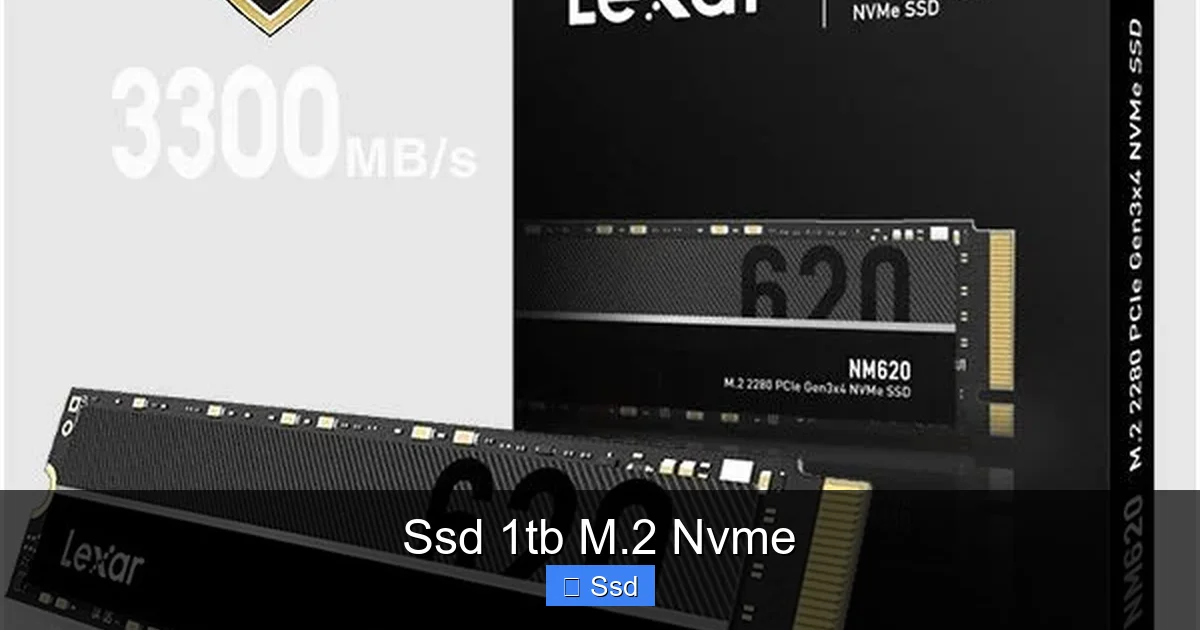
Ssd 1tb M.2 Nvme
A 1TB M.2 NVMe SSD is the ultimate storage upgrade for modern PCs and laptops. It delivers speeds 5-7 times faster than traditional SATA SSDs, all in a compact, gumstick-sized form factor that plugs directly into your motherboard. This drive eliminates loading screens, slashes file transfer times, and breathes new life into any system, making it the perfect blend of high-capacity and high-performance for gamers, creators, and professionals.
Remember that feeling? The deep sigh as you press the power button on your computer, followed by the interminable wait for the desktop to finally appear. Or the loading screen in your favorite game that feels longer than a coffee break. What if you could make all that… just go away? This isn’t a dream. It’s the reality of upgrading to a 1TB M.2 NVMe SSD. This isn’t just another storage upgrade; it’s a fundamental leap in how your computer thinks, moves, and reacts. Forget everything you knew about “fast” storage. We’re about to dive into the technology that’s rewriting the rules of PC performance, one gigabyte at a time.
Let’s be clear: not all SSDs are created equal. For years, the SATA SSD was the gold standard, a massive improvement over spinning hard drives. But technology evolved, and a new champion emerged from the world of high-performance computing. The SSD 1TB M.2 NVMe represents the convergence of a blisteringly fast communication protocol (NVMe) and a sleek, efficient physical design (M.2). Together, they create a storage solution that is compact, cable-free, and orders of magnitude quicker than what came before. Whether you’re building a new gaming rig, editing 8K video, or just want your everyday laptop to feel snappy and responsive, this drive is the single most impactful upgrade you can make. In this guide, we’ll unpack everything you need to know, from the tech under the hood to the real-world difference you’ll feel every single day.
Key Takeaways
- NVMe is the Protocol, M.2 is the Form Factor: NVMe (Non-Volatile Memory Express) is the ultra-fast communication protocol that uses the PCIe lanes on your motherboard. M.2 is the physical, stick-like shape that connects directly to the motherboard, avoiding bulky cables. A “1TB M.2 NVMe SSD” combines both.
- Massive Speed Leap Over SATA: While a SATA SSD tops out around 550 MB/s, a standard 1TB M.2 NVMe SSD (PCIe 3.0) routinely hits 3,000-3,500 MB/s. The latest PCIe 4.0 drives double that, exceeding 7,000 MB/s for unparalleled performance.
- Ideal for Demanding Tasks: This drive is perfect for operating systems, AAA game libraries, 4K video editing projects, large databases, and virtual machines where every second of load time matters.
- Check Compatibility First: Ensure your motherboard has an available M.2 slot that supports NVMe (some only support SATA-mode M.2). Also, verify your system’s BIOS is up-to-date to recognize the drive properly.
- Heat Management Matters: High-performance NVMe SSDs generate significant heat. Many come with built-in heatsinks, or you can use motherboard M.2 heatsinks or aftermarket thermal pads to maintain peak speeds and longevity.
- Not All M.2 Slots Are Equal: Some motherboards have multiple M.2 slots that may share PCIe lanes with other components (like SATA ports or GPU lanes). Consult your manual to understand potential bandwidth sharing.
📑 Table of Contents
- Demystifying the Jargon: What Exactly is a 1TB M.2 NVMe SSD?
- The Speed Difference: From “Fast” to “Instant”
- Installation & Compatibility: What You Need to Know Before You Buy
- Who Needs a 1TB M.2 NVMe SSD? (And Who Might Not)
- Buying Guide: Navigating the 1TB M.2 NVMe SSD Market
- The Future is Fast: Trends and What’s Next
- Conclusion: The Clear-Cut Verdict
Demystifying the Jargon: What Exactly is a 1TB M.2 NVMe SSD?
Before we talk about why you need one, let’s clarify what the name even means. It’s a mouthful, but each part is crucial. Think of it like a shipping address: it tells you exactly what you’re getting and where it fits.
Breaking Down the Acronym: M.2 and NVMe
M.2 is the form factor. It’s the physical shape and size. Previously, SSDs were 2.5-inch drives that required both a data cable (SATA) and a power cable. An M.2 drive is a tiny, flat stick, about the size of a piece of gum, that slides directly into a dedicated slot on your motherboard. No cables. It’s elegant, space-saving, and allows for thinner laptop and desktop designs.
NVMe stands for Non-Volatile Memory Express. This is the communication protocol—the language the drive uses to talk to your computer’s brain (the CPU). Older SATA SSDs use a protocol designed for slow, spinning hard drives. NVMe was built from the ground up for flash memory. It’s like comparing a country dirt road (SATA) to a multi-lane, no-speed-limit superhighway (NVMe). It uses the high-speed PCIe (Peripheral Component Interconnect Express) lanes that were traditionally reserved for your graphics card, allowing for vastly more data to flow in both directions simultaneously.
The “1TB” Part: Capacity in the Modern Era
One terabyte (1TB) is no longer the “luxury” capacity it once was. In today’s computing landscape, it’s the sweet spot. Modern operating systems, with updates and background processes, can easily consume 50-100GB. A single AAA game like Cyberpunk 2077 or Call of Duty: Modern Warfare II can require 150GB+ of space. Add in your creative suite, a music library, and a handful of productivity apps, and 500GB fills up fast. A 1TB M.2 NVMe SSD gives you the breathing room to install your OS, a healthy suite of games, your creative projects, and still have space left over for everything else, all without compromising on speed. It’s the practical choice for power users who refuse to compromise.
The Speed Difference: From “Fast” to “Instant”
This is where the magic happens. Numbers on a spec sheet can be abstract, so let’s translate them into human experience.
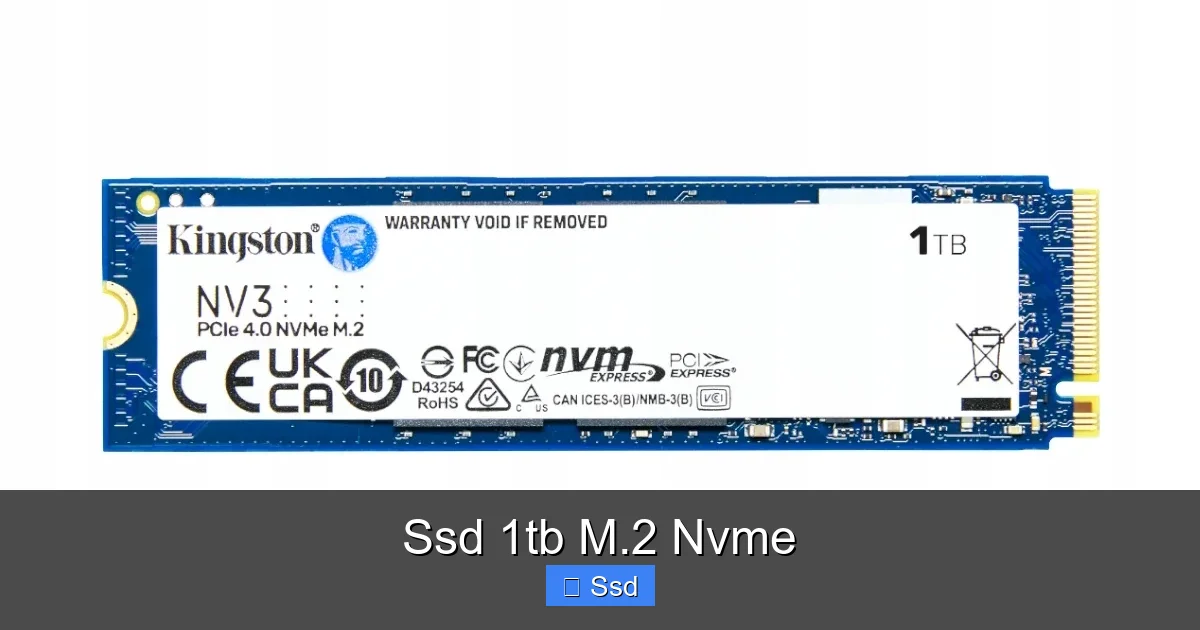
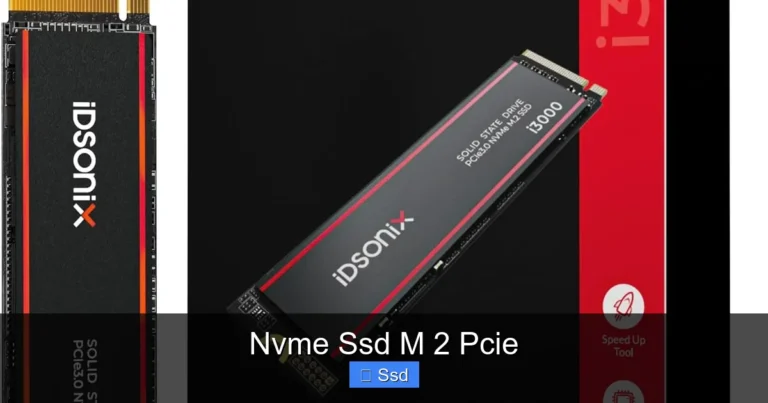
Visual guide about Ssd 1tb M.2 Nvme
Image source: a.allegroimg.com
Benchmarks vs. Real-World Feel
A quality SATA SSD might advertise sequential read/write speeds of 550 MB/s. A mainstream PCIe 3.0 NVMe SSD 1TB? Try 3,500 MB/s. That’s a theoretical 6x increase. But the real-world difference is even more dramatic in the tasks you actually care about. Why? Because of 4K Random Read/Write speeds. This measures how quickly the drive can access thousands of tiny, scattered files—the exact scenario of loading an operating system, launching an application, or opening a game level. Here, NVMe’s advantage is staggering, often 10-20x faster than SATA. This is what you feel as instant responsiveness.
Practical Examples of the Performance Leap
- Windows Boot Time: A SATA SSD might boot to a usable desktop in 15-25 seconds. A 1TB NVMe M.2 drive can often do it in 8-12 seconds. That’s not just “fast”; that’s the difference between making coffee and already having it in hand.
- Game Level Loading: In open-world games, you’ll notice terrain and textures pop in faster. For competitive shooters, you’ll be in the action seconds before players on slower drives. This isn’t a visual trick; it’s a genuine competitive edge.
- File Transfers & Creative Work: Moving a 100GB folder of 4K footage from one drive to another? On SATA, you’re looking at 3-4 minutes. On a fast NVMe drive? Under a minute. For video editors, this means less time waiting and more time creating. For architects, it means loading massive project files instantly.
Installation & Compatibility: What You Need to Know Before You Buy
excitement is great, but a paperweight is useless. Before you click “buy,” you must confirm your system is ready to host this speed demon.
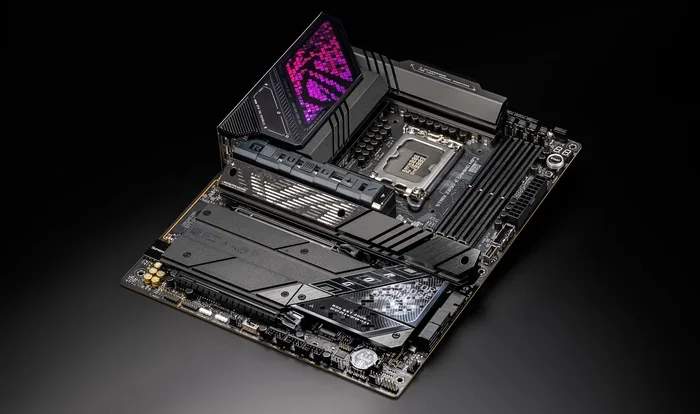
Visual guide about Ssd 1tb M.2 Nvme
Image source: 40434.cdn.simplo7.net
Checking Your Motherboard’s M.2 Slot
Open your PC case or look up your motherboard/laptop model online. You need to find an M.2 slot. Not all are the same! You must check two things:
- Keying: The notch at the end of the M.2 slot. An NVMe drive has a single “M” key. Some older M.2 slots are “B+M” keyed and may only support SATA-mode M.2 drives. Your M.2 NVMe SSD 1TB will have an M key.
- Length & Support: Slots support different lengths (2242, 2260, 2280). The vast majority of consumer 1TB M.2 NVMe drives are 2280 (22mm wide, 80mm long). Ensure your slot is at least this long. More importantly, confirm it explicitly says it supports PCIe NVMe drives, not just “M.2 SATA.”
Pro Tip: Many modern motherboards have multiple M.2 slots. Slot #1 is usually connected directly to the CPU with full x4 PCIe 4.0/5.0 bandwidth. Slots #2 and #3 often share bandwidth with SATA ports, other PCIe slots, or run at lower speeds (PCIe 3.0). Your motherboard manual is your best friend here.
The BIOS & Operating System Setup
Once physically installed (it’s literally a screw and a click), you need to make the computer see it.
- Enter BIOS/UEFI: On boot, press Delete/F2/F12 (varies by brand). Ensure the M.2 slot is enabled and set to “NVMe” or “PCIe” mode, not “SATA” mode.
- Drive Initialization: Boot into Windows. Open Disk Management. You’ll see your new 1TB drive as “Unallocated.” Right-click and create a new simple volume. Format it as NTFS (for Windows).
- Drive Migration (Optional): Want to move your old OS and files? Use cloning software (like Macrium Reflect Free or Samsung Data Migration) to copy your old drive to the new NVMe 1TB before swapping. This is cleaner than a fresh install.
Who Needs a 1TB M.2 NVMe SSD? (And Who Might Not)
This drive is a superstar, but is it the right star for your show?
Perfect For: The Power User Ecosystem
- Gamers: The #1 reason. Faster load times, seamless open-world streaming, quicker updates. A 1TB NVMe holds your OS and a large library of modern games.
- Content Creators & Professionals: Video editors, 3D artists, photographers, music producers. Working with large, uncompressed files benefits immensely from the high sequential speeds and low latency. Your project timeline scrubs smoothly; renders feel faster.
- Developers & IT Pros: Running multiple virtual machines, compiling large codebases, managing databases. The random read/write performance is a game-changer here.
- General Users Seeking “Future-Proof” Speed: Anyone frustrated with their current PC’s sluggishness. The responsiveness jump is so profound it makes an old system feel brand new. It’s the ultimate “don’t think about it” upgrade.
Think Twice If…
- Your System is Very Old: If your PC or laptop is from the pre-2017 era, it might lack an M.2 slot or only have a SATA-only one. Upgrading the CPU/RAM might be a better first step.
- Capacity is Your Only Concern, Not Speed: If you just need a bulk storage drive for archives, media libraries, or backups and speed is irrelevant, a larger, cheaper SATA SSD or even a hard drive (HDD) makes more financial sense.
- You’re on an Extremely Tight Budget: A 1TB NVMe drive costs more than a 1TB SATA SSD. If your budget is razor-thin, the SATA option is still a massive upgrade over an HDD.
Buying Guide: Navigating the 1TB M.2 NVMe SSD Market
The market is crowded. Here’s how to cut through the marketing and find the right drive for your needs and budget.
PCIe Generations: 3.0 vs. 4.0 vs. 5.0
This is the most important spec after capacity.
- PCIe 3.0: The current mainstream sweet spot. Speeds around 3,500 MB/s read. Perfectly adequate for 99% of users. Drives are affordable and widely compatible.
- PCIe 4.0: The performance king for most. Doubles the bandwidth to ~7,000 MB/s read. Requires a compatible motherboard (AMD Ryzen 3000+/Intel 11th Gen+). Great for top-tier gaming and professional work. These 1TB NVMe M.2 PCIe 4.0 drives are the go-to for new builds.
- PCIe 5.0: The bleeding edge. Speeds over 10,000 MB/s. Currently, only Intel 12th/13th Gen and AMD Ryzen 7000 series support it. Drives are expensive, generate more heat, and real-world software rarely needs this speed yet. It’s future-proofing at a premium.
Advice: Match your drive to your motherboard. A PCIe 4.0 drive in a PCIe 3.0 slot works fine (at 3.0 speeds). But a PCIe 3.0 drive in a 4.0 slot leaves performance on the table. Get PCIe 4.0 if your board supports it.
Key Brands & Controller Considerations
Stick with reputable brands like Samsung, WD (Western Digital), Crucial (Micron), SK Hynix, Sabrent, and Gigabyte. They use quality NAND flash memory and controllers (the drive’s “brain”). The controller significantly impacts sustained performance and efficiency.
- Samsung (980 Pro, 990 Pro): Consistently top-tier performance, great software suite (Magician). Often a price premium.
- WD Black SN850X / SN770: Excellent competitors, often slightly better value. SN850X is a top PCIe 4.0 performer; SN770 is a great DRAM-less budget PCIe 4.0 option.
- Crucial P5 Plus: Offers fantastic performance for the price, known for reliability.
- SK Hynix Platinum P41 / Gold P31: The manufacturer that makes memory for many others. Their own drives are exceptionally good, especially the P31 (PCIe 3.0) which is a benchmark for efficiency.
DRAM vs. DRAM-Less: Does It Matter?
DRAM (Dynamic Random-Access Memory) is a cache on the SSD that stores the mapping table of where data is stored. Drives with a DRAM cache (most higher-end models) typically have better sustained performance, especially with large, sustained file transfers. DRAM-less drives (like WD SN770, Crucial P3) use your system’s RAM for this mapping (HMB – Host Memory Buffer). For general OS use, gaming, and most productivity, the difference is often negligible in real-world use. They are a great way to get PCIe 4.0 speeds on a budget. For heavy professional workloads with constant large file access, a drive with its own DRAM may be preferable.
The Future is Fast: Trends and What’s Next
The storage revolution isn’t slowing down. The 1TB M.2 NVMe SSD you buy today is already incredible, but the horizon holds even more.
PCIe 5.0 is Here, But Is It Necessary?
As mentioned, PCIe 5.0 is available. But like a racecar with no speed limit, there’s little software that can truly saturate its 14,000 MB/s potential. Game engines and file formats aren’t built for that yet. The current benefit is for extreme professional workloads: uncompressed 16K video, massive scientific datasets. For everyone else, PCIe 4.0 is more than enough for the next 5+ years. The real benefit of PCIe 5.0 will come as the technology matures, drives become more efficient (less heat), and software catches up.
The Rise of Hybrid Storage: SLC Caching
To manage cost, most consumer NVMe SSDs use TLC or QLC NAND, which is slower to write to natively. They use a small, fast SLC (Single-Level Cell) cache to buffer writes. When the cache fills (during large file transfers), speeds can drop significantly. This is why you see specs like “up to 7,000 MB/s” but sustained write speeds might be 1,000 MB/s. Understanding your typical workload—lots of small files (OS, games) vs. one huge file (video export)—helps you choose a drive with appropriate cache size and NAND type.
Integration and the “Storage as a Service” Shift
We’re seeing storage move closer to the CPU with technologies like Intel’s Smart Response Technology (caching) and, more radically, with CXL (Compute Express Link). While not directly affecting your next 1TB M.2 NVMe purchase, it points to a future where storage is an even more integrated, intelligent part of the computing fabric, blurring the line between memory and storage.
Conclusion: The Clear-Cut Verdict
So, should you buy a 1TB M.2 NVMe SSD? If your computer has an M.2 slot and your budget allows, the answer is a resounding yes. This is one of the few PC upgrades that delivers a noticeable, daily, jaw-dropping improvement in system responsiveness for a relatively modest cost. It transforms the user experience from waiting to interacting.
The choice within the category is simpler than it seems. Determine your motherboard’s maximum PCIe generation (3.0 or 4.0 are the main contenders). Set your budget. Then, choose a reputable brand with good reviews in that tier. You will not regret it. That sigh of frustration when you boot up? That will be replaced by a smile of satisfaction. The loading screen will become a relic of the past. Your computer will finally feel as fast as your imagination. That’s the power of a 1TB M.2 NVMe SSD. It’s not just storage; it’s the key to unlocking your system’s true potential.
Frequently Asked Questions
Is a 1TB M.2 NVMe SSD worth it over a 2.5″ SATA SSD?
Absolutely, if your motherboard supports it. The speed difference is night and day for OS and application loading. You gain a cable-free installation and save space. The only reason to choose SATA is if your system has no M.2 slot or you need the absolute cheapest price per terabyte for bulk storage where speed is irrelevant.
Is installing a 1TB M.2 NVMe SSD difficult?
It’s one of the easiest upgrades you can do. You locate the M.2 slot on your motherboard, insert the drive at a slight angle, press it down, and secure it with one tiny screw. No cables to connect. The software setup (initializing in Disk Management) is also straightforward. It takes most people under 10 minutes.
Do I need a heatsink for my 1TB M.2 NVMe SSD?
It depends. Many modern motherboards have M.2 slots with integrated heatsinks. Some high-performance drives (like Samsung 990 Pro, WD Black SN850X) include their own heatsink. If your drive and motherboard don’t have one, and you’re doing sustained heavy workloads (video editing, large file transfers), a cheap aftermarket thermal pad or heatsink is a good idea to prevent thermal throttling (where the drive slows down to cool off). For general gaming and use, it’s often not critical.
Will a 1TB M.2 NVMe SSD work in any laptop?
No. Your laptop must have an available M.2 slot that supports NVMe (not just SATA). Many thin-and-light laptops solder storage directly to the motherboard and have no upgradeable slots. You must check your specific laptop model’s specifications or service manual before purchasing.
How long will a 1TB NVMe SSD last?
>A very long time. Modern NAND flash has excellent endurance. A typical 1TB consumer NVMe drive has a TBW (Total Bytes Written) rating of 600-1,200 TB. This means you could write 200-300 GB of data every single day for 5-10 years before reaching its rated lifespan. For normal use (OS, games, general files), you will likely never come close to the endurance limit. The drive will become obsolete from a speed perspective long before it wears out.
Should I use my 1TB M.2 NVMe SSD for everything?
It’s perfect for your operating system, applications, games, and active projects. However, for massive media libraries or backups that you access infrequently, it’s more cost-effective to use a larger, slower SATA SSD or HDD. Use your fast NVMe 1TB for what you use daily and need speed, and secondary drives for bulk storage.



One Comment