SSD Disappears During Use Try These Fixes To Solve It

An SSD disappearing during use is a common but fixable problem that can disrupt your workflow and put your data at risk. Whether your NVMe drive vanishes from File Explorer or your BIOS fails to detect the M.2 SSD, the causes usually boil down to loose connections, outdated drivers, or failing hardware. This guide walks you through every proven fix, from simple cable checks to advanced troubleshooting steps.
There is nothing more frustrating than sitting down to work or game, only to find your SSD disappears during use. Your drive just vanishes from File Explorer, and suddenly your programs freeze or your system crashes. You might restart your PC, and the drive comes back, or it stays missing entirely. This problem affects thousands of users every month, and the good news is that most fixes are simple and free.
Whether you use a WD Black SN850P NVMe SSD or another brand, the disappearing act has a few common culprits. Loose M.2 connections, outdated drivers, overheating, and even Windows settings can all cause your solid-state drive to drop off the system mid-task. In this guide, we will walk through every possible cause and fix, step by step, so you can get back to using your PC without worry.
Before you panic about data loss, take a deep breath. Most cases of an SSD disappearing are not signs of a dead drive. They are fixable issues that even a beginner can handle. Let us dive into what causes this and how you can solve it right now.
Key Takeaways
- Loose connections are the #1 cause: A slightly dislodged M.2 SSD or SATA cable can make your drive disappear without warning.
- Outdated or corrupt drivers often trigger the issue: Updating your NVMe and storage drivers frequently resolves the problem instantly.
- Windows Disk Management can reveal hidden drives: Your SSD may still be connected but uninitialized or unassigned.
- Overheating can cause intermittent disconnections: Poor thermal management leads to SSD drops during heavy workloads.
- BIOS and firmware updates fix compatibility bugs: Keeping your motherboard BIOS and SSD firmware current prevents many disappearing issues.
- Back up your data immediately: A disappearing SSD can signal early failure, so protect your files before attempting fixes.
📑 Table of Contents
Why Does Your SSD Disappear During Use?
Understanding the root cause makes fixing the problem much easier. When an SSD disappears during use, it usually means the connection between your drive and motherboard gets interrupted, or Windows loses communication with the drive. Several factors can trigger this interruption.
Loose or Faulty Physical Connections
The most common reason is a loose M.2 or SATA connection. When you install an M.2 NVMe SSD, it slides into a slot on the motherboard and locks in place with a small screw. Over time, vibrations from daily use or accidental bumps can slightly shift the drive. This creates an intermittent connection that causes the SSD to vanish from your system.
For SATA-based SSDs, the same issue applies to the data and power cables. A cable that is not fully seated will cause the drive to drop in and out. This is especially common in desktop PCs that get moved frequently or in laptops that undergo regular travel.
Driver and Software Conflicts
Your operating system relies on specific drivers to communicate with your NVMe M.2 SSD. When these drivers become outdated or corrupted, Windows may lose track of the drive entirely. This often happens after a major Windows update, which can overwrite or conflict with existing storage drivers.
Sometimes, third-party software like disk management tools or optimization utilities interfere with how Windows sees your SSD. These programs can change drive letter assignments or unmount the drive without your knowledge.
Overheating and Thermal Throttling
SSDs generate heat, especially during intensive tasks like gaming or large file transfers. Without proper cooling, an NVMe SSD can overheat and temporarily disconnect to protect itself. This thermal protection feature is built into most modern drives, but it becomes a problem when the drive overheats too frequently.
If you notice your SSD disappears during heavy gaming sessions or long rendering workloads, heat is likely the villain. A simple heatsink or better case airflow can often solve this entirely.
Firmware and BIOS Issues
Every SSD has firmware that controls how it communicates with your system. Outdated firmware can cause compatibility problems with newer motherboards and operating systems. Similarly, an outdated motherboard BIOS may not properly support newer PCIe Gen4 or Gen5 NVMe drives, leading to random disconnections.
Motherboard manufacturers regularly release BIOS updates that improve NVMe compatibility. If your SSD started disappearing after a new build or upgrade, a BIOS update could be the solution you need.
Common Symptoms of an SSD Disappearing
Not all SSD disappearing events look the same. Recognizing the symptoms early helps you catch the problem before it leads to data loss.
- Drive vanishes from File Explorer: Your SSD is gone from “This PC” but may still show in Disk Management.
- System freezes or crashes: Programs that rely on the SSD stop responding and your PC may freeze.
- BIOS does not detect the drive: You enter BIOS and the SSD is simply not listed among boot devices.
- Slow performance before disappearance: The drive becomes very slow right before it drops off entirely.
- Intermittent access errors: You get “drive not accessible” or “please insert a disk” messages randomly.
- Windows Event Viewer shows disk errors: System logs reveal I/O errors or connection timeouts related to your SSD.
If you experience any of these symptoms regularly, your SSD is trying to tell you something. The fix depends on which symptom matches your situation most closely.
Step-by-Step Fixes When Your SSD Disappears
Now let us get into the actual fixes. Work through these steps in order, starting with the simplest solutions first. Most users find that one of the first three steps resolves the issue completely.
Step 1: Check Physical Connections
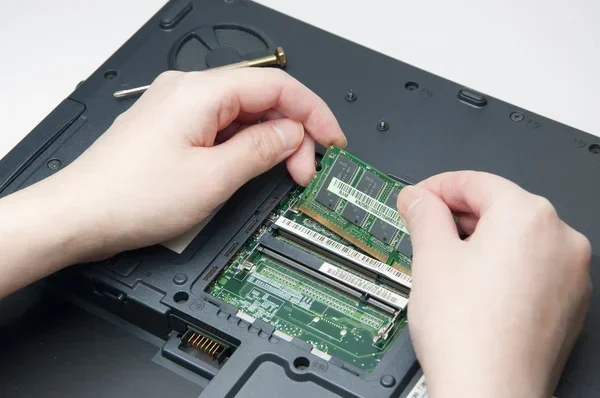
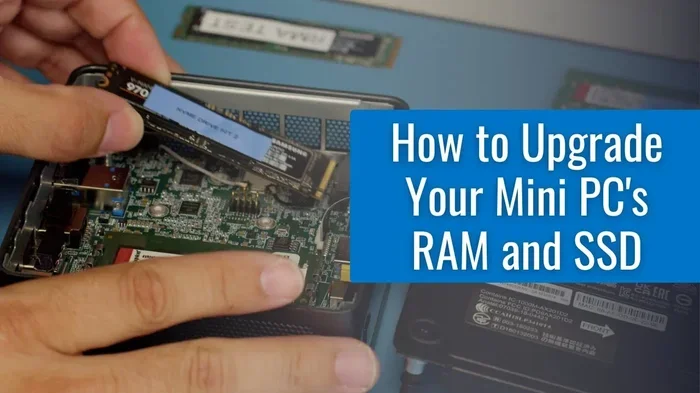
Start by powering down your PC completely and unplugging it from the wall. Open the case and locate your SSD. If you have an M.2 NVMe drive, gently remove it and reseat it firmly into the slot. Make sure the notch aligns properly and the screw is snug but not overtightened.
For SATA SSDs, unplug and replug both the data cable and the power cable. Look for any signs of damage on the cables or connectors. Sometimes a cable that looks fine on the outside is damaged on the inside and needs replacement.
After reseating everything, close the case, plug in your PC, and boot up. Check if the SSD shows up in File Explorer and Disk Management. This simple step fixes the problem more often than people realize.
Step 2: Update NVMe and Storage Drivers
Open Device Manager by right-clicking the Start button and selecting it from the menu. Expand the “Storage controllers” section and look for your NVMe drive. Right-click it and select “Update driver.” Choose “Search automatically for drivers” and let Windows do its work.
If Windows does not find a new driver, visit your SSD manufacturer’s website directly. Brands like Samsung, WD, and Crucial offer driver and firmware update tools on their support pages. For example, if you use a WD Black SN850P NVMe SSD, the WD Dashboard software can handle both driver and firmware updates in one place.
After updating, restart your PC and test whether the SSD stays visible during use. This fix is especially effective after Windows updates that may have changed driver compatibility.
Step 3: Check Disk Management for Hidden Drives
Sometimes your SSD is still connected but Windows has hidden it. Press Windows Key + X and select “Disk Management.” Look through the list of disks for your missing SSD. It might show up as “Unallocated” or “Not Initialized.”
If the drive appears but has no drive letter, right-click on the partition and select “Change Drive Letter and Paths.” Assign a new letter and check if the drive becomes accessible again.
If the drive shows as “Unallocated,” you can right-click and create a new simple volume. Be careful here, as this will erase any existing data on the drive. Only do this if you have a backup or if the drive contains no important files.
Step 4: Adjust Power Management Settings
Windows has a feature called PCI Express Link State Power Management that can put your NVMe drive to sleep to save power. Unfortunately, this feature sometimes causes the SSD to not wake back up properly, making it appear to disappear.
To disable this, open Control Panel, go to Power Options, and click “Change plan settings” for your active plan. Then select “Change advanced power settings.” Expand the PCI Express setting and set “Link State Power Management” to “Off.” Click OK and restart your PC.
This is a surprisingly effective fix, especially on laptops that aggressively manage power to extend battery life.
Step 5: Update BIOS and SSD Firmware
Visit your motherboard manufacturer’s website and check for the latest BIOS update for your model. Download and flash the BIOS following the manufacturer’s instructions carefully. An incorrect BIOS flash can cause serious issues, so make sure you follow each step precisely.
Next, check your SSD manufacturer’s website for a firmware update tool. Install it, connect your SSD, and run the update. Firmware updates often include fixes for connection stability and compatibility with newer systems.
After both updates are complete, test your system under load to see if the SSD remains visible. This step is particularly important if you recently upgraded your motherboard or CPU.
Step 6: Test with a Different Port or System
If none of the above steps work, try connecting your SSD to a different M.2 slot or SATA port on your motherboard. Some ports may have compatibility issues or may be sharing bandwidth with other devices.
You can also test the SSD in another computer to rule out a motherboard issue. If the drive works fine in another system, the problem lies with your original PC’s configuration. If it still disappears, the SSD itself may be failing and need replacement.
When Your SSD Is Failing and Needs Replacement
Not every disappearing SSD can be fixed. If your drive is physically damaged or its flash memory is degrading, no software fix will bring it back. Here are signs that your SSD is at the end of its life.
- The drive disappears more frequently over time: Each episode becomes more common and lasts longer.
- You hear clicking or grinding sounds: SSDs should be silent. Any noise suggests a mechanical issue.
- SMART data shows high reallocated sectors: Use a tool like CrystalDiskInfo to check your drive’s health status.
- The drive fails to format or initialize: Windows cannot prepare the drive for use despite multiple attempts.
- File corruption happens regularly: Files on the drive become damaged or unreadable even during normal use.
If you recognize these signs, stop using the drive immediately and recover your data from the NVMe SSD as soon as possible. Continuing to use a failing drive can cause permanent data loss. Once your data is safe, replace the SSD with a reliable model like the WD Black 4TB SN850X NVMe Internal Gaming SSD or another drive that fits your needs and budget.
How to Prevent SSD Disappearing Problems in the Future
Prevention is always better than cure. A few simple habits can keep your M.2 NVMe SSD working reliably for years.
- Keep your connections tight: Periodically check that your M.2 drive and cables are secure, especially if you move your PC often.
- Update drivers and firmware regularly: Set a monthly reminder to check for updates from your SSD and motherboard manufacturers.
- Monitor drive temperatures: Use software like HWMonitor or the manufacturer’s dashboard to keep an eye on SSD heat levels during heavy workloads.
- Enable proper cooling: Add a heatsink to your M.2 SSD or improve your case airflow to prevent overheating during intensive sessions.
- Avoid sudden power loss: Use a surge protector or UPS to prevent power cuts from damaging your drive or corrupting data.
- Back up your data regularly: Even the best SSD can fail without warning. A regular backup routine protects your important files no matter what happens.
Following these tips significantly reduces the chances of your SSD disappearing during use. Your drive will stay connected, perform well, and last longer.
Expert Insight: When to Seek Professional Help
If you have tried every fix in this guide and your SSD disappears during use still happens, it may be time to consult a professional. A qualified technician can run advanced diagnostics on your motherboard and drive to identify issues that are not visible from the software level. This is especially important if your SSD contains critical data that you cannot afford to lose.
Professional data recovery services can often retrieve information from failing drives, though the cost can be significant. Weigh the value of your data against the recovery cost before committing. In many cases, the data is not worth the expense, and starting fresh with a new drive is the smarter choice.
Final Thoughts
Dealing with an SSD disappears during use situation is stressful, but it is almost always fixable. Start with the simplest solutions like checking physical connections and updating drivers. Work your way up through the steps until you find the fix that works for your specific situation. Most users resolve the issue within the first three steps without needing advanced troubleshooting.
Remember that a disappearing SSD can also be an early warning sign of hardware failure. Take this opportunity to back up your important data and monitor your drive health going forward. With the right care and attention, your NVMe M.2 SSD will continue to serve you reliably for years to come.
Do not let a disappearing drive slow you down. Use the fixes in this guide, stay proactive with maintenance, and your storage will keep working exactly as it should.
Frequently Asked Questions
Why does my SSD keep disappearing from Windows?
The most common reason is a loose physical connection or an outdated NVMe driver. Reseating the M.2 drive and updating your storage drivers through Device Manager usually resolves this quickly. If the issue persists, check Disk Management to see if the drive is hidden or unallocated.
Can a loose M.2 SSD cause it to disappear during gaming?
Yes, absolutely. Vibrations from your PC during intense gaming sessions can cause a loosely installed M.2 SSD to lose contact with the motherboard slot. This results in the drive vanishing mid-game. Tightening the M.2 screw or reseating the drive completely eliminates this problem in most cases.
Is it safe to use an SSD that keeps disappearing?
No, it is not safe. A disappearing SSD often signals an underlying hardware issue that can worsen over time. Continuing to use the drive risks complete failure and permanent data loss. Back up your data immediately and work through the troubleshooting steps to identify the root cause.
How do I know if my SSD is failing or just disconnecting?
Check your drive health using a tool like CrystalDiskInfo or the manufacturer’s dashboard. If SMART data shows warnings like reallocated sectors or high temperature, the drive is likely failing. If the drive shows no SMART warnings but still disappears, the issue is probably a connection or driver problem.
Does updating BIOS help with SSD disappearing issues?
Yes, it can. Outdated motherboard BIOS versions sometimes have compatibility issues with newer NVMe drives, causing them to disconnect randomly. Updating your BIOS to the latest version often resolves these communication problems between your motherboard and SSD.
What should I do if my SSD disappears but works fine after a restart?
This intermittent behavior usually points to a loose connection or thermal issue. Check that your M.2 SSD is firmly seated and that your system has adequate cooling for the drive. If the problem continues after these checks, update your NVMe drivers and firmware to rule out software-related causes.
=== CONCLUSION ===
An SSD disappears during use because of a handful of common and fixable causes. From loose M.2 connections and outdated drivers to overheating and firmware bugs, each potential culprit has a clear solution. By working through the steps in this guide systematically, you can identify what is causing your drive to vanish and apply the right fix.
Do not ignore this problem. Even if your drive comes back after a restart, the underlying issue will likely get worse over time. Take action now, protect your data with regular backups, and keep your SSD connections and drivers up to date. Your NVMe M.2 SSD will stay connected, perform at its best, and keep your files safe for the long haul.