Top Uses Of Computer Hardware Components You Should Know

Computer hardware components each serve a unique purpose that keeps your PC running smoothly. From the processor handling calculations to RAM managing short-term memory, every part matters. This guide breaks down the uses of computer hardware components in simple, practical terms so anyone can understand how their system works.
Key Takeaways
- The CPU acts as the brain of your computer, executing instructions and running every program you open.
- RAM provides temporary storage that lets your system switch between tasks quickly and efficiently.
- The GPU handles visual tasks like gaming, video editing, and even AI processing.
- Storage drives (HDD and SSD) keep your files, apps, and operating system safe and accessible.
- The motherboard connects everything together, allowing all components to communicate seamlessly.
- Peripheral devices like keyboards, mice, and monitors make hardware usable for everyday tasks.
- Knowing your hardware helps you upgrade wisely and troubleshoot problems faster.
📑 Table of Contents
- What Are Computer Hardware Components?
- The Central Processing Unit (CPU) And Its Uses
- Memory And Storage: RAM And Hard Drives
- The Graphics Card (GPU) And Its Uses
- The Motherboard And Power Supply: The Backbone Components
- Peripheral Devices And Their Everyday Uses
- How To Choose The Right Hardware For Your Needs
- Conclusion
What Are Computer Hardware Components?
When you look at a computer, you see a screen, a keyboard, and maybe a mouse. But inside that machine lies a world of tiny parts working together. Each computer hardware component has a specific job. Without any one of them, the whole system would stop working.
Think of your PC like a car. The engine is the processor. The fuel tank is the storage drive. The wheels are the output devices. Every piece plays a role in making the vehicle move. Understanding these parts helps you use your computer better. It also helps you make smart choices when something breaks or needs upgrading.
The uses of computer hardware components go far beyond just running software. They power everything from simple web browsing to complex video rendering. Whether you use a desktop or a laptop, knowing what each part does gives you confidence. You will troubleshoot faster and avoid costly mistakes.
The Central Processing Unit (CPU) And Its Uses
The CPU is often called the brain of the computer. It processes every instruction you give your system. When you click a button or open a file, the CPU handles the work. Its uses in computer hardware are vast and essential.
How The CPU Processes Information
Every program you run sends instructions to the CPU. The processor reads these instructions, performs calculations, and delivers results. This happens millions of times per second. Faster CPUs handle more tasks at once without slowing down.
For example, when you open a web browser with ten tabs, the CPU manages all of them. It loads each page, runs scripts, and keeps everything responsive. Without a strong CPU, your system would freeze or lag constantly.
Everyday Uses Of The CPU
- Running operating systems like Windows or macOS smoothly
- Processing spreadsheets and financial calculations
- Compiling code for software developers
- Running background tasks like antivirus scans and updates
- Managing network connections and data transfers
The CPU also matters for gaming and content creation. While the GPU handles graphics, the CPU manages game logic, physics, and AI behavior. If your CPU is too weak, even the best graphics card will struggle.
Memory And Storage: RAM And Hard Drives
Memory and storage are two different things, but both are critical. RAM gives your computer short-term workspace. Storage drives keep your data long-term. Together, they form the backbone of your system’s performance.
What Does RAM Do?
RAM stands for Random Access Memory. It holds data your computer needs right now. When you open a program, it loads into RAM. This makes everything faster because RAM is much quicker than a hard drive.
If you want to learn more about checking your laptop’s RAM, you can read our guide on how to know the RAM of your laptop. Knowing your current RAM helps you decide if an upgrade is needed.
Here are the main uses of RAM in daily computing:
- Multitasking — keeping multiple apps open without slowdowns
- Loading games faster and reducing in-game stuttering
- Running heavy software like video editors or 3D modeling tools
- Buffering media during playback for smooth streaming
Storage Drives: HDD vs SSD
Storage drives save your files permanently. Traditional hard disk drives (HDDs) use spinning disks. Solid-state drives (SSDs) use flash memory with no moving parts. SSDs are much faster and more reliable.
If your computer feels slow when booting up or opening apps, your storage drive might be the culprit. Upgrading from an HDD to an SSD can transform your experience. The system boots in seconds, and files open almost instantly.
Choosing The Right Amount Of RAM
How much RAM you need depends on what you do. For basic tasks like browsing and word processing, 8GB works fine. For gaming or creative work, 16GB or more is better. If you run laptops with a lot of RAM, you can handle heavy workloads without breaking a sweat.
Here is a quick comparison of RAM amounts and their best uses:
| RAM Amount | Best For | Performance Level |
|---|---|---|
| 4GB | Basic browsing, word processing | Entry level |
| 8GB | Office work, light multitasking | Average |
| 16GB | Gaming, photo editing, moderate multitasking | Good |
| 32GB+ | Video editing, 3D rendering, heavy multitasking | Excellent |
The Graphics Card (GPU) And Its Uses
The GPU handles everything you see on your screen. It renders images, videos, and animations. While the CPU manages general tasks, the GPU specializes in visual processing. Its uses in computer hardware have grown enormously over the years.
Gaming And Entertainment
Gaming is the most obvious use for a powerful GPU. Modern games demand high frame rates and detailed graphics. A good GPU delivers smooth gameplay at high resolutions. Without it, games would look blurry and run choppy.
But gaming is not the only use. The GPU also accelerates video playback. It handles 4K and even 8K video smoothly. If you watch a lot of streaming content, your GPU makes sure everything looks crisp.
Professional And Creative Work
Video editors rely heavily on the GPU. Rendering a video timeline takes serious processing power. The GPU speeds up this process dramatically. The same goes for 3D modelers and animators. They use the GPU to preview and render complex scenes in real time.
Even photographers benefit from GPU acceleration. Photo editing software like Adobe Lightroom uses the GPU for faster previews and exports. If you do any kind of creative work, a decent GPU is essential.
AI And Machine Learning
One of the most exciting uses of modern GPUs is in artificial intelligence. AI models need massive parallel processing power. GPUs excel at this because they can handle thousands of calculations simultaneously. This is why GPUs are used in data centers and research labs around the world.
The Motherboard And Power Supply: The Backbone Components
These two components might not get as much attention, but they are just as important. The motherboard connects everything. The power supply delivers energy to all parts. Without them, nothing else can work.
What Does The Motherboard Do?
The motherboard is the main circuit board inside your computer. It connects the CPU, RAM, storage, and GPU. Every component communicates through the motherboard. It also has slots for expansion cards and ports for peripherals.
When choosing a motherboard, compatibility matters a lot. You need to match it with your CPU socket type and RAM generation. A good motherboard ensures stable performance and room for future upgrades.
The Role Of The Power Supply Unit (PSU)
The PSU converts wall outlet power into usable electricity for your components. It delivers steady voltage to the motherboard, CPU, GPU, and drives. A weak or failing PSU can cause random shutdowns or even damage other parts.
Always choose a PSU with enough wattage for your system. If you use a powerful GPU and CPU, you need a higher wattage supply. A reliable PSU also runs more efficiently, which can lower your electricity bill over time.
Common Hardware Problems And Quick Fixes
Sometimes hardware issues cause frustrating symptoms. Your computer might run slow, freeze, or fail to boot. Many of these problems have simple solutions. If your computer keeps freezing or running slowly, check our article on how to fix a computer running slow and freezing for practical troubleshooting steps.
Here are quick tips for common hardware issues:
- Slow performance: Check RAM usage and upgrade if needed
- Random shutdowns: Test the power supply and clean dust from fans
- No display output: Reseat the GPU and check monitor connections
- Unusual noises: Inspect fans and hard drives for damage
- Overheating: Clean vents and replace thermal paste on the CPU
Peripheral Devices And Their Everyday Uses
Peripheral devices are the hardware you interact with directly. They include keyboards, mice, monitors, printers, and speakers. These components turn raw computing power into something you can actually use.
Input Devices
Input devices send data to the computer. Keyboards and mice are the most common examples. But there are many others. Webcams, microphones, scanners, and game controllers all serve as input devices.
For laptop users, the trackpad is a built-in input device. Many people also use external mice for better precision. If your laptop mouse stops working, it can be a real headache. Knowing how to troubleshoot helps you get back to work fast.
Output Devices
Output devices display or present the results of your work. Monitors show visuals. Speakers produce sound. Printers create physical copies of digital files.
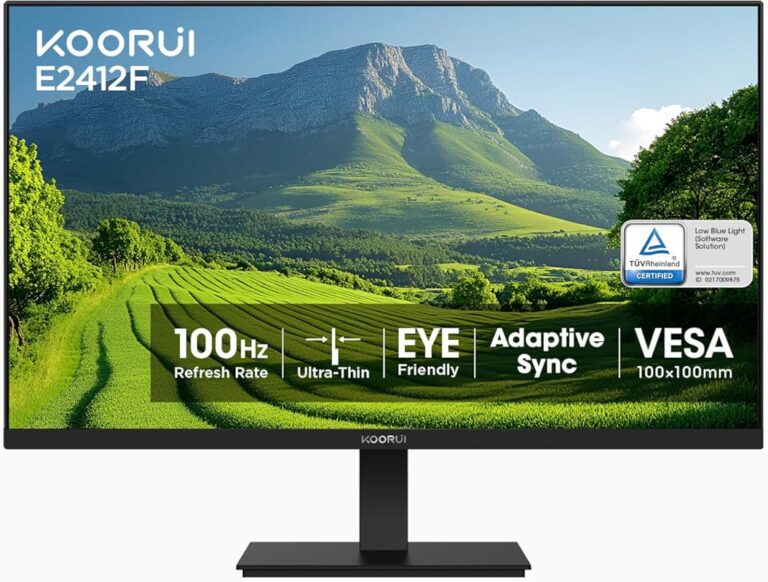
Modern monitors come in many types. IPS panels offer great color accuracy. OLED screens deliver deep blacks and vibrant colors. Curved monitors reduce eye strain during long work sessions. Choosing the right monitor depends on what you do most.
Storage Peripherals
External hard drives and USB flash drives are portable storage solutions. They let you back up files and carry data between computers. Cloud storage has reduced the need for physical peripherals, but many people still prefer having a local backup.
These devices are especially useful for professionals who work with large files. Video editors, photographers, and designers often use external SSDs for fast, portable storage.
How To Choose The Right Hardware For Your Needs
Not everyone needs the same hardware. A student doing homework has different needs than a professional 3D animator. Understanding your use case helps you pick the right components.
Match Hardware To Your Workflow
Think about what you do most on your computer. If you mostly browse the web and write documents, a basic setup works fine. You do not need an expensive GPU or 32GB of RAM. A simple configuration saves money and still delivers great performance.
But if you edit videos or play demanding games, you need stronger parts. The uses of computer hardware components vary wildly depending on your workload. Investing in the right hardware makes every task smoother and more enjoyable.
Future-Proofing Your Build
When building or upgrading a PC, think ahead. Choose a motherboard that supports future RAM generations. Pick a PSU with extra wattage headroom. Select a case with good airflow for cooling.
These choices cost a bit more upfront but save money in the long run. You will not need to replace parts as often. Your system stays relevant longer and handles new software demands with ease.
If you are looking for guidance on laptop purchases, check out our article on the best Dell laptop for home use. It covers hardware specs that matter most for everyday computing.
Conclusion
The uses of computer hardware components touch every part of your digital life. From the CPU crunching numbers to the GPU rendering stunning visuals, each part has a purpose. RAM keeps your system nimble, storage holds your precious files, and the motherboard ties everything together.
Peripheral devices make all of this usable in the real world. Keyboards, mice, and monitors bridge the gap between you and your machine. Understanding these components empowers you to make better decisions. You can troubleshoot problems, upgrade wisely, and get the most from your investment.
Take time to learn what each part does. The knowledge pays off every time you use your computer. Whether you are a casual user or a power professional, knowing your hardware gives you an edge. Start by checking your current system’s specs. Then decide what upgrades would make the biggest difference in your daily workflow.
Frequently Asked Questions
What are the main uses of computer hardware components?
Each hardware component serves a specific role. The CPU processes instructions, RAM handles short-term memory, the GPU renders visuals, and storage drives keep data safe. Together, they allow your computer to run programs, browse the web, play games, and complete work tasks efficiently.
Why is RAM important in a computer?
RAM provides fast, temporary workspace for your system. It lets you open multiple apps at once without slowdowns. More RAM means smoother multitasking, faster game loading, and better performance with heavy software like video editors and design tools.
Can I upgrade my computer hardware myself?
Yes, many components are user-upgradeable. RAM and storage drives are the easiest to swap. You can also upgrade GPUs and CPUs in desktop PCs. Just make sure your motherboard supports the new parts and that you follow proper safety steps like grounding yourself before touching components.
What is the difference between a GPU and a CPU?
The CPU handles general tasks and logic processing. It acts as the brain of the computer. The GPU specializes in visual tasks like rendering graphics and processing parallel calculations. While the CPU works on tasks one at a time very quickly, the GPU handles thousands of smaller tasks simultaneously.
How do I know which hardware components I need?
Your needs depend on what you do. Basic users need modest CPU, RAM, and storage. Gamers and creators need stronger GPUs and more RAM. Students need reliable but affordable components. Match your hardware to your workload, and you will get the best value for your money.
What happens when a hardware component fails?
A failed component can cause various symptoms. A bad RAM stick may cause crashes or blue screens. A failing hard drive leads to slow performance or data loss. A dead GPU results in no display output. Regular maintenance and quality parts help prevent most hardware failures.
=== META TITLE ===
Top Uses Of Computer Hardware Components You Should Know
=== URL SLUG ===
uses-of-computer-hardware-components
=== SEO TITLE ===
Top Uses Of Computer Hardware Components You Should Know