How to Know the Ram of Laptop
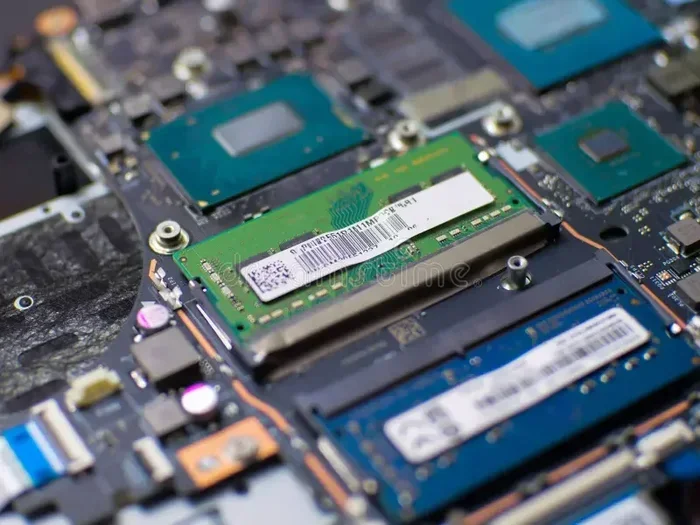
Learning how to know the RAM of your laptop is simple and fast. You can check your laptop RAM using built-in Windows tools, macOS settings, or even your BIOS. Whether you want to find RAM of laptop specs or plan an upgrade, this guide covers every easy method.
Have you ever wondered how much memory your laptop actually has? Maybe your computer feels slow, or you bought a used machine and want to know what you are working with. Either way, learning how to know the RAM of your laptop is one of the simplest and most useful skills you can pick up.
RAM, or Random Access Memory, is the short-term memory your laptop uses to run programs and tasks. The more RAM you have, the smoother your laptop handles multiple apps at once. If you want to check the RAM of your laptop, you are in the right place. This guide walks you through every easy method, step by step.
We will cover Windows laptops, MacBooks, and even how to check your RAM through BIOS settings. By the end, you will know exactly how much memory your laptop has and whether it is time to upgrade RAM on a laptop. Let us get started.
Key Takeaways
- Multiple Methods Available: You can check laptop RAM through Windows Settings, Task Manager, Command Prompt, macOS, and BIOS.
- No Tools Needed: All methods are free and built into your operating system.
- Know Your Upgrade Options: Understanding your current RAM helps you decide if you need more memory.
- Fast and Easy: Most methods take less than two minutes to complete.
- Useful for Performance: Knowing your RAM helps troubleshoot slow laptop issues.
- Works on All Laptops: These methods work on HP, Dell, Lenovo, Apple, and other brands.
📑 Table of Contents
- What Is RAM and Why Does It Matter?
- How to Know the RAM of Laptop on Windows
- How to Know the RAM of Laptop on macOS
- How to Know the RAM of Laptop Through BIOS
- Why Knowing Your Laptop RAM Is Important
- Quick Tips for Checking Laptop RAM
- Common Mistakes When Checking Laptop RAM
- Expert Insights on Laptop RAM
- How to Know If You Need More RAM
- Conclusion
What Is RAM and Why Does It Matter?
Before we dive into the methods, let us quickly understand what RAM does. Think of RAM as your laptop’s short-term workspace. When you open a browser, a game, or a video editor, your laptop loads data into RAM so it can access things quickly.
Here is why laptop RAM matters:
- Speed: More RAM means your laptop switches between tasks faster.
- Multitasking: You can run several apps at once without freezing.
- Performance: Games, video editing, and design software need plenty of memory.
- Future-Proofing: Having enough RAM keeps your laptop usable longer.
Most modern laptops come with 8GB to 16GB of RAM. Budget models sometimes have 4GB, which feels very limited today. If you want to find RAM of laptop details, the next sections will show you exactly how.
How to Know the RAM of Laptop on Windows
Windows makes it very easy to check your laptop RAM. You do not need to download any software. There are several built-in ways to find this information.
Method 1: Check RAM Through Settings
This is the simplest way to see your laptop memory. Follow these steps:
- Click the Start menu and open Settings.
- Go to System and then click About.
- Look for the Device Specifications section.
- You will see Installed RAM listed there.
That is it. In just a few clicks, you know exactly how much memory your laptop has. This method works on Windows 10 and Windows 11.
Method 2: Use Task Manager
Task Manager gives you a quick look at your RAM and how it is being used right now. Here is how to open it:
- Press Ctrl + Shift + Esc on your keyboard.
- Click on the Performance tab.
- Select Memory from the left sidebar.
You will see your total RAM, how much is in use, and how much is available. This is very helpful when your laptop feels slow because you can see if memory usage is the problem.
Method 3: Use Command Prompt
If you like using command-line tools, this method is for you. It gives detailed information about your laptop memory.
- Open the Start menu and type cmd.
- Right-click Command Prompt and select Run as Administrator.
- Type
wmic memorychip get capacity, speed, manufacturerand press Enter.
You will see a list of your RAM modules with their capacity and speed. This is great if you want to know details like RAM speed and whether you have one or two memory sticks installed.
Method 4: Check RAM Through System Information
Windows also has a built-in tool called System Information that shows all your laptop specs:
- Press Windows Key + R to open the Run dialog.
- Type msinfo32 and press Enter.
- Look for Installed Physical Memory (RAM) in the summary.
This method gives you a clean overview of your entire system, including RAM details.
How to Know the RAM of Laptop on macOS
If you use a MacBook or Apple laptop, checking your RAM is just as simple. Apple does not make it hard to find your laptop memory.
Method 1: About This Mac
This is the fastest way to check RAM on a Mac:
- Click the Apple logo in the top-left corner.
- Select About This Mac from the dropdown menu.
- You will see your Memory (RAM) listed right there.
You will see the total amount of RAM, the type of memory (like DDR4 or DDR5), and how many memory slots are used. It is clean, simple, and takes only a few seconds.
Method 2: Use System Information
For more detailed RAM information on your Mac:
- Click the Apple logo and choose About This Mac.
- Click the System Report button.
- In the left sidebar, click Memory.
Here you will see each RAM module individually, including its type, speed, and slot. This is very useful if you are planning to upgrade RAM on a laptop and want to know what kind of memory your Mac uses.
How to Know the RAM of Laptop Through BIOS
BIOS (Basic Input/Output System) is the firmware that starts your laptop before the operating system loads. Checking RAM through BIOS gives you the most accurate hardware-level information.
Steps to Check RAM in BIOS
- Restart your laptop.
- Press the BIOS key during startup. This is usually F2, F10, F12, or Del, depending on your brand.
- Navigate to the System Information or Advanced tab.
- Look for memory or RAM details.
BIOS shows you the exact amount of RAM recognized by your motherboard. Sometimes Windows might not show the full amount if a RAM stick is not seated properly. Checking through BIOS helps you confirm the true hardware state of your laptop.
If you are on a brand-name laptop like HP or Dell, the BIOS interface may look slightly different, but the general steps remain the same. This method is especially helpful when checking my laptop RAM and the operating system is not showing the correct amount.
Why Knowing Your Laptop RAM Is Important
Now that you know how to check your RAM, let us talk about why this information matters so much. Understanding your laptop memory helps you make better decisions.
Troubleshooting Slow Performance
If your laptop runs slowly, low RAM could be the cause. When your laptop runs out of memory, it uses your hard drive as temporary storage, which is much slower. Knowing your RAM helps you figure out if a memory upgrade is the fix.
Planning to Upgrade
Before you buy new RAM, you need to know how much you currently have and how many free slots are available. This is exactly why checking your RAM first is so important. If you want to increase RAM of a laptop, knowing your current setup saves time and money.
Buying or Selling a Laptop
Whether you are buying a used laptop or selling yours, knowing the RAM specs helps you set fair expectations and prices. Buyers and sellers both benefit from transparency about laptop memory.
Quick Tips for Checking Laptop RAM
Here are some handy tips to keep in mind when you are checking your laptop memory:
- Restart your laptop before checking through BIOS for the most accurate reading.
- Close unnecessary programs before checking RAM usage in Task Manager.
- Write down your RAM specs so you have them handy for future reference.
- Check your laptop manual to find out the maximum RAM your model supports.
- Use multiple methods to cross-check your RAM information for accuracy.
These simple tips make the process smoother and help you avoid common mistakes. If you ever run into issues where your mouse stops working after checking system settings, you can refer to our guide on how to get the mouse working on a laptop to get things back on track.
Common Mistakes When Checking Laptop RAM
Even though checking RAM is straightforward, people sometimes make avoidable errors. Here are a few to watch out for:
- Confusing RAM with storage: RAM is not the same as your hard drive or SSD storage. They serve different purposes.
- Ignoring RAM speed: It is not just about how much RAM you have. Speed matters too for overall performance.
- Not checking free slots: Before buying new RAM, make sure you have an available slot or use compatible RAM modules.
- Skipping BIOS checks: Sometimes Windows does not show the full RAM amount. Always double-check through BIOS if something seems off.
Avoiding these mistakes ensures you get accurate information every time you check your laptop memory.
Expert Insights on Laptop RAM
From a technical standpoint, understanding laptop RAM goes beyond just checking the number. Here are some expert insights that can help you get the most out of your laptop memory:
Dual-channel memory can significantly boost performance. If your laptop has two RAM slots, installing matching sticks in both slots allows your memory to work in parallel, which improves speed. This is especially noticeable for tasks like video editing and gaming.
RAM speed and latency also play a role. DDR4 RAM is common in most modern laptops, while newer models use DDR5 RAM for even faster performance. When you check your RAM, pay attention to both the capacity and the type to make informed decisions about upgrades.
Virtual memory is another concept worth knowing. When your physical RAM is full, your laptop uses a portion of your storage drive as virtual memory. This helps prevent crashes, but it is much slower than actual RAM. If you frequently run into memory limits, adding more physical RAM is the best solution.
How to Know If You Need More RAM
Checking your RAM is only half the battle. The other half is understanding whether you actually need more. Here are some signs your laptop might benefit from additional memory:
- Your laptop freezes or crashes when you open multiple apps.
- Your web browser uses a lot of memory with just a few tabs open.
- You notice high memory usage in Task Manager even during light tasks.
- Your laptop takes a long time to switch between applications.
- You run creative software like Photoshop or video editors and experience lag.
If any of these sound familiar, it might be time to add more memory. Most laptops support a maximum amount of RAM, so check your specific model before purchasing new modules.
Conclusion
Now you know exactly how to know the RAM of your laptop using multiple simple methods. Whether you use Windows, macOS, or BIOS, checking your laptop memory takes just a few minutes. Understanding your RAM helps you troubleshoot slow performance, plan upgrades, and make smarter buying decisions.
Remember, RAM is one of the most important parts of your laptop. It affects everything from how fast your apps open to how smoothly you can multitask. If you found this guide helpful, share it with a friend who might need help checking their laptop memory too. And if you are ready to take the next step, explore our guide on how to upgrade RAM on a laptop to get started.
Knowing your laptop specs gives you power. Use that knowledge to keep your machine running at its best.
Frequently Asked Questions
How can I check the RAM of my laptop quickly?
The fastest way is to open Settings, go to System, then About, and look for Installed RAM. This takes less than a minute on any Windows laptop. On a Mac, simply click the Apple logo and select About This Mac to see your memory instantly.
Is 8GB of RAM enough for a laptop in 2024?
8GB is the minimum for basic tasks like browsing and word processing. However, if you multitask heavily or use creative software, 16GB provides a much smoother experience. For gaming or video editing, 16GB or more is recommended.
Can I check my laptop RAM without turning on the computer?
Yes, you can check RAM through the BIOS before the operating system fully loads. Restart your laptop and press the BIOS key (usually F2, F10, F12, or Del) during startup to access hardware information including RAM details.
What is the difference between RAM and storage on a laptop?
RAM is temporary memory your laptop uses to run active programs, while storage (SSD or HDD) is where your files and apps are saved permanently. More RAM means better multitasking, while more storage means more space for files.
How do I know if my laptop RAM is upgradeable?
Check your laptop manual or the manufacturer website for maximum RAM support. You can also open your laptop and look at the RAM slots. If there is an empty slot, you can add more RAM. If all slots are filled, you may need to replace existing modules.
Does more RAM make a laptop faster?
More RAM helps your laptop handle more tasks at once without slowing down. However, if your laptop already has enough RAM for your daily tasks, adding more may not make a noticeable difference. It depends on what you use your laptop for.