Vaio Sx12 2023 Ram Ssd Upgrade How To Boost Performance
Vaio Sx12 2023 Ram Ssd Upgrade is an essential topic that provides valuable insights.
The Vaio Sx12 2023 is a sleek and powerful ultrabook. It handles everyday tasks well, but it can feel slow over time. Apps take longer to open. Files load slowly. Multitasking becomes a frustration. This is where a Vaio Sx12 2023 Ram Ssd Upgrade comes in. Upgrading your memory and storage is the single most effective way to speed things up.
Many laptop users wait too long before upgrading. They think a new device is the only answer. That is simply not true. A RAM and SSD upgrade can make your Vaio Sx12 feel like new again. You will notice faster boot times. Apps launch almost instantly. Your system handles multiple windows without breaking a sweat. This guide will show you exactly how to do it.
Key Takeaways
- Easy Performance Boost: Upgrading RAM and SSD on the Vaio Sx12 2023 can significantly improve speed and multitasking.
- Simple Process: Most users can complete the upgrade at home with basic tools.
- Cost Effective: A RAM and SSD upgrade costs far less than buying a new laptop.
- Compatible Parts Matter: Choosing the right RAM type and SSD size ensures smooth operation.
- Backup First: Always back up your data before starting any hardware upgrade.
- Warranty Check: Opening your laptop may void certain warranties, so check first.
📑 Table of Contents
- Why Upgrade the RAM and SSD on Your Vaio Sx12 2023?
- What You Need Before Starting the Upgrade
- Step-by-Step Guide to Upgrading Your Vaio Sx12
- How Much Does a Vaio Sx12 Upgrade Cost?
- Common Mistakes to Avoid During the Upgrade
- What to Expect After the Upgrade
- Is It Worth Upgrading or Buying New?
- Final Thoughts on the Vaio Sx12 2023 Ram Ssd Upgrade
Why Upgrade the RAM and SSD on Your Vaio Sx12 2023?
Your laptop relies on two key components for speed. The RAM handles active tasks and running apps. The SSD stores your files and operating system. When either one is limited, your entire system slows down. Upgrading both creates a balanced and fast machine.
Think of it this way. RAM is your workspace. The bigger the desk, the more papers you can spread out at once. SSD is your filing cabinet. The faster it works, the quicker you find what you need. When both are upgraded, everything runs smoother.
Signs Your Vaio Sx12 Needs an Upgrade
How do you know it is time to upgrade? Look for these common signs:
- Your laptop takes more than a minute to boot up.
- Apps freeze or crash when you open several at once.
- Videos and games lag even on basic settings.
- Your storage shows almost full often.
- Your laptop fans run loudly during simple tasks.
If you notice even two or three of these, an upgrade will help a lot. Many users who upgrade their laptop RAM say they wish they had done it sooner. The difference is truly noticeable right away.
What You Need Before Starting the Upgrade
Before you open your Vaio Sx12, gather the right tools and parts. Preparation makes the process much easier and safer.
Tools You Will Need
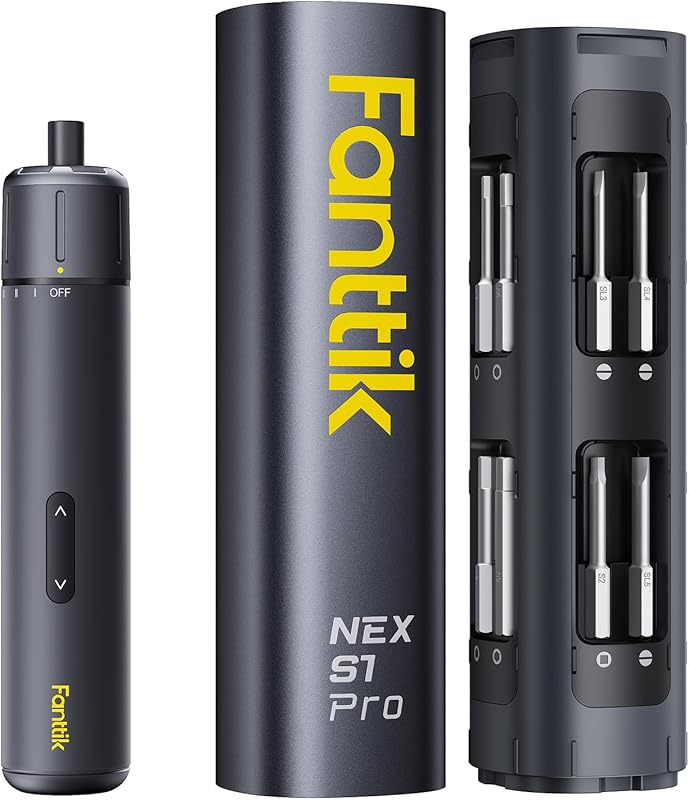
- A small Phillips-head screwdriver.
- A plastic spudger or prying tool.
- An anti-static wrist strap (optional but helpful).
- A clean, flat workspace with good lighting.
- A soft cloth to place parts on.
Choosing the Right RAM
The Vaio Sx12 2023 uses DDR4 or DDR5 RAM depending on the model. Check your specific model number before buying. Most users find that 16GB of RAM is the sweet spot for everyday use. If you run heavy software or edit videos, consider 32GB.
Make sure the RAM speed matches your motherboard. Look for the part number on the existing stick or check your Vaio manual. Buying the wrong type will not work. Always double-check compatibility before ordering.
Choosing the Right SSD
The Vaio Sx12 uses a 2280 M.2 NVMe SSD. This is a standard size that fits most modern laptops. You can choose from 512GB, 1TB, or 2TB options based on your needs.
Consider how much storage you currently use. If you are often near full capacity, go bigger. A 1TB SSD offers plenty of room for most users. If you store large files like videos or photos, a 2TB drive gives you peace of mind.
Step-by-Step Guide to Upgrading Your Vaio Sx12
Now for the hands-on part. Follow these steps carefully and you will have a successful upgrade in no time.
Step 1: Back Up Your Data
Before you touch any hardware, back up everything important. Use an external drive or cloud storage. This protects your files in case anything goes wrong during the upgrade.
Step 2: Power Down and Unplug
Turn off your Vaio Sx12 completely. Unplug the power cable. Remove any connected peripherals like a mouse or USB drive. If your laptop has a removable battery, take it out. If not, make sure the device is fully powered off.
Step 3: Open the Back Panel
Place your laptop face down on a soft surface. Locate the screws on the bottom panel. Use the Phillips-head screwdriver to remove them carefully. Keep the screws in a safe spot. Gently pry off the panel using the plastic spudger. Avoid using metal tools that could scratch the surface.
Step 4: Upgrade the RAM
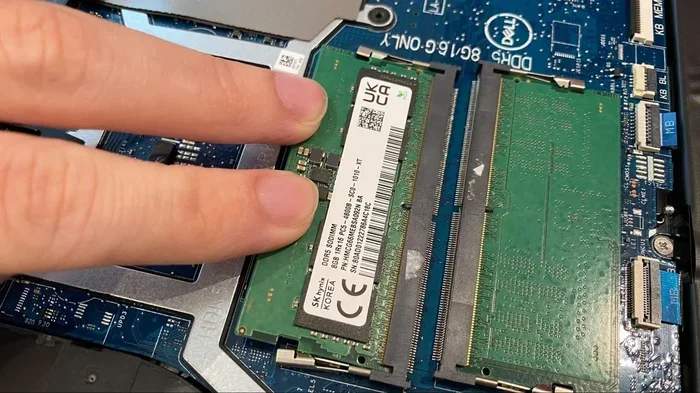
Once the panel is off, locate the RAM slots. They are usually easy to spot. Press the clips on either side of the existing RAM stick outward. The stick will pop up at an angle. Pull it gently out.
Take your new RAM stick and align the notch with the slot. Press it down firmly until the clips click into place. Make sure it is seated evenly. Repeat this process if you are adding a second stick.
If you are unsure about the process, you can also refer to guides on how to upgrade a laptop RAM for extra visual guidance.
Step 5: Upgrade the SSD
Find the M.2 SSD slot on the motherboard. There is usually a small screw holding the drive in place. Remove the screw. Slide the old SSD out at a slight angle. Take your new SSD and insert it at the same angle. Press it down gently and secure it with the screw.
Do not overtighten the screw. Hand-tight is enough. You want firm contact without stressing the slot.
Step 6: Reassemble and Test
Place the bottom panel back on. Press it gently until it clicks into place. Replace all the screws. Plug in your power cable. Turn on the laptop.
Once it boots, check the system to confirm the new parts are recognized. On Windows, go to Settings and look at System Information. You should see the new RAM amount and the new SSD listed. Run a speed test to feel the difference.
How Much Does a Vaio Sx12 Upgrade Cost?
The cost depends on the parts you choose. RAM prices vary by brand and capacity. SSD prices also fluctuate based on size and speed.
On average, a 16GB RAM stick costs between 40 and 80 dollars. A 1TB NVMe SSD ranges from 60 to 100 dollars. So a full upgrade with both components can run you around 100 to 180 dollars total. This is a fraction of the cost of a new laptop.
For a detailed breakdown of upgrade expenses, you can check the cost of RAM upgrade on our site to get a better idea of current pricing trends.
| Component | Price Range | Best For |
|---|---|---|
| 16GB RAM | $40 – $80 | Everyday use and multitasking |
| 32GB RAM | $80 – $150 | Heavy software and video editing |
| 512GB SSD | $40 – $70 | Basic storage needs |
| 1TB SSD | $60 – $100 | Balanced storage and speed |
| 2TB SSD | $120 – $200 | Large file storage and gaming |
Common Mistakes to Avoid During the Upgrade
Even with a good guide, mistakes can happen. Here are the ones to watch out for:
- Skipping the backup. Always save your data first. A simple backup saves hours of trouble.
- Using the wrong RAM type. DDR3 and DDR4 are not interchangeable. Check your model carefully.
- Overtightening screws. This can strip the threads or damage the motherboard.
- Touching components with bare hands. Static electricity can damage sensitive parts. Use an anti-static strap or touch a grounded surface first.
- Forcing parts into place. If something does not fit, stop and check the alignment. Forcing it can break the connector.
Many of these mistakes are easy to avoid with patience and care. Take your time. Rushing through an upgrade leads to problems.
What to Expect After the Upgrade
After you complete the Vaio Sx12 2023 Ram Ssd Upgrade, the improvements are immediate. Boot times drop dramatically. Apps open in seconds. Your laptop handles multiple programs without stuttering. The overall feel of the machine changes for the better.
Users who upgrade both RAM and SSD often report the biggest gains. RAM alone helps with multitasking. SSD alone helps with storage speed. Together, they create a complete performance overhaul. It is like giving your laptop a new engine.
If you are looking for laptops with great specs out of the box, you might enjoy reading about laptops with 16GB RAM and SSD to compare what a factory-configured setup looks like versus an upgraded one.
Is It Worth Upgrading or Buying New?
This is a common question. The answer depends on your situation. If your Vaio Sx12 is otherwise in good shape, an upgrade makes perfect sense. You save hundreds of dollars. You also avoid the hassle of transferring files and setting up a new device.
However, if your laptop has other serious issues, a new device might be better. A cracked screen or failing motherboard may not be worth repairing. But for slow performance and low storage, upgrading is almost always the smarter choice.
Final Thoughts on the Vaio Sx12 2023 Ram Ssd Upgrade
The Vaio Sx12 2023 Ram Ssd Upgrade is one of the simplest and most rewarding upgrades you can do. It costs little, takes about 30 minutes, and delivers noticeable results. Your laptop will feel faster, lighter, and more responsive. Whether you use your Vaio for work, school, or entertainment, the upgrade pays for itself quickly.
Follow the steps in this guide carefully. Choose compatible parts. Take your time during the process. And enjoy the boost in performance. Your Vaio Sx12 has plenty of life left in it. A simple RAM and SSD upgrade is all it needs to run like new again.
Frequently Asked Questions
Can I upgrade the RAM in a Vaio Sx12 2023?
Yes, the Vaio Sx12 2023 allows RAM upgrades in most models. Check your specific configuration to confirm the RAM type and maximum supported capacity. Most users can install up to 32GB of DDR4 or DDR5 RAM depending on the model.
What type of SSD does the Vaio Sx12 2023 use?
The Vaio Sx12 2023 uses a 2280 M.2 NVMe SSD. This is a standard form factor that is widely available and easy to install. Make sure to purchase the correct size before buying.
How long does the upgrade process take?
Most users complete the entire upgrade in about 30 to 45 minutes. The actual hardware installation takes around 20 minutes. The rest of the time goes toward backing up data and confirming the new parts are recognized.
Will upgrading void my Vaio warranty?
It depends on your warranty terms. Some manufacturers cover user-installed RAM and SSD upgrades. Others consider opening the chassis a warranty violation. Check with Vaio support before starting the process to be sure.
Do I need any special software after the upgrade?
No special software is required. Windows will automatically recognize the new RAM and SSD. You may want to update your drivers and firmware for optimal performance after the upgrade is complete.
Can I upgrade just the RAM or just the SSD?
Yes, you can upgrade either component independently. Upgrading both together gives the best performance boost. But even a single upgrade will make a noticeable difference in your Vaio Sx12’s speed and responsiveness.
=== CONCLUSION ===
The Vaio Sx12 2023 Ram Ssd Upgrade is a simple yet powerful way to transform your laptop’s performance. With the right parts, basic tools, and a little patience, you can enjoy faster speeds and more storage in under an hour. This upgrade costs a fraction of what a new laptop would, and the results speak for themselves. Whether you are a student, a professional, or a casual user, your Vaio Sx12 deserves to run at its best. Follow the steps in this guide and experience the difference a proper upgrade makes.