How to Upgrade Laptops Ram

Upgrading your laptop RAM is one of the easiest and most affordable ways to breathe new life into a slow computer. Whether you have an older machine or a newer model, adding more memory can dramatically improve multitasking, speed up apps, and make everything feel snappier. In this guide, we walk you through every step from checking your current RAM to installing new modules yourself. You do not need to be a tech expert to get this done.
If your laptop feels sluggish, takes forever to open tabs, or freezes when you run multiple apps, the problem might be insufficient RAM. Random Access Memory is the short-term workspace your laptop uses to handle everything you do. When it runs low, your system slows down significantly.
The good news? You can fix this without spending a fortune. Learning how to upgrade laptops ram is a valuable skill that saves time and money. Most laptop RAM upgrades take less than 15 minutes. You do not need special training or expensive tools. Just a small screwdriver and a little patience.
In this guide, we cover everything you need to know. We start with checking your current memory, move through choosing the right upgrade, and walk you through the actual installation process. By the end, you will feel confident upgrading your own laptop RAM. Let us get started.
Key Takeaways
- Easy DIY Upgrade: Upgrading your laptop RAM is a simple process you can do at home with basic tools.
- Big Performance Boost: More RAM means smoother multitasking, faster app loading, and better overall speed.
- Check Compatibility First: Not all laptops allow RAM upgrades, so always verify your model before buying new memory.
- DDR4 and DDR5 Are Standard: These are the most common RAM types for modern laptops today.
- Cost-Effective: A RAM upgrade costs far less than buying a new laptop and delivers noticeable results.
- Safety Matters: Always discharge static electricity and handle RAM modules carefully to avoid damage.
📑 Table of Contents
Why Upgrading Your Laptop RAM Matters
RAM plays a huge role in how your laptop performs every day. Think of it as your computer’s short-term memory. When you open a browser with 20 tabs, edit a photo, or run a video call, all of that happens in RAM. More RAM means your laptop can juggle more tasks at once without breaking a sweat.
Here are some real benefits of increasing your laptop memory:
- Faster multitasking: Switch between apps without lag or freezing.
- Quicker load times: Apps and files open faster.
- Smoother browsing: Handle more browser tabs without crashes.
- Better gaming: Many games require at least 8GB or 16GB of RAM to run well.
- Extended laptop lifespan: An upgrade can make an older laptop feel new again.
If your laptop came with 4GB of RAM, you are likely feeling the strain. Most modern tasks need at least 8GB to run comfortably. Heavy users benefit from 16GB or more. The great thing about laptop memory upgrades is that they cost much less than a brand new computer.
Before You Buy: Check Your Current RAM
Before you spend any money, you need to know what you currently have and what your laptop can support. This step is critical. Not all laptops allow RAM upgrades, and even those that do have specific requirements.
How to Check Your Current RAM
Checking your current RAM is quick and easy on any operating system. On Windows, press Ctrl + Shift + Esc to open Task Manager. Click the Performance tab and look at Memory. You will see how much RAM you have and how many slots are in use.
On a Mac, click the Apple menu, choose About This Mac, and look at the Memory section. You will see your total RAM and the type installed.
Another great way to check is by using the how to check laptop ram tools available online. These free utilities give you detailed information about your memory type, speed, and available slots.
Understanding RAM Types: DDR4 vs DDR5
Laptops use specific types of RAM modules called SODIMMs. The two most common types today are DDR4 and DDR5. DDR4 has been the standard for years and offers reliable performance. DDR5 is newer and faster, becoming more common in recent laptop models.
Here is a quick comparison:
- DDR4 RAM: Speeds range from 2400MHz to 3200MHz. Widely available and affordable.
- DDR5 RAM: Speeds start at 4800MHz and go higher. Faster but slightly more expensive.
- DDR3 RAM: Older and slower. Found in very old laptops. Not recommended for new upgrades.
Always match the RAM type to what your laptop supports. Mixing DDR4 and DDR5 will not work. Check your laptop manual or the manufacturer website to confirm which type you need.
How to Choose the Right RAM for Your Laptop
Once you know what your laptop supports, it is time to pick the right upgrade. Choosing the correct RAM module ensures compatibility and peak performance. Here are the key factors to consider.
Capacity: How Much RAM Do You Need?
The amount of RAM you need depends on how you use your laptop. Here is a simple breakdown:
- 4GB: Basic tasks only. Web browsing and word processing. Not recommended for modern use.
- 8GB: The sweet spot for everyday users. Handles office work, browsing, and light media.
- 16GB: Ideal for multitaskers, students, and casual gamers. Handles heavy apps with ease.
- 32GB: For power users. Video editing, 3D rendering, and professional workloads.
Most people benefit from upgrading to 8GB or 16GB. If your laptop currently has 4GB, doubling to 8GB or 16GB makes a massive difference. You can also check how to increase ram of a laptop guides for more capacity planning tips.
Speed and Frequency
RAM speed, measured in MHz, affects how fast data moves between the memory and the processor. Higher numbers mean faster performance. However, the difference is most noticeable in demanding tasks like gaming or video editing.
For most users, 3200MHz DDR4 RAM is more than enough. If you are choosing DDR5, look for speeds of 4800MHz or higher. Your laptop motherboard will only support certain speeds, so always check the specifications first.
Single Channel vs Dual Channel
Laptops with two RAM slots can run in dual channel mode. This means both modules work together, doubling the data transfer rate. For the best performance, always install matching pairs of RAM. If you have one 8GB stick, consider adding another 8GB stick rather than a single 16GB module.
Step-by-Step: How to Upgrade Laptop RAM
Now comes the fun part. Installing new RAM in your laptop is straightforward if you follow the steps carefully. Even if you have never opened a laptop before, you can do this. Let us walk through the entire process.
Step 1: Gather Your Tools
You need very little to complete a RAM upgrade. Here is what you will need:
- A small Phillips-head screwdriver
- The new RAM module (SODIMM)
- A soft, clean workspace
- An anti-static wrist strap (optional but recommended)
Make sure you purchase the correct RAM for your laptop model. Check the part number and specifications before ordering. If you are unsure about compatibility, refer to guides on how to install ram in laptop for model-specific advice.
Step 2: Power Down and Disconnect
Turn off your laptop completely. Unplug the power cable and remove any connected peripherals. If your laptop has a removable battery, take it out. This prevents any electrical damage during the upgrade.
Press and hold the power button for 10 seconds after unplugging. This drains any remaining electricity from the motherboard. It is a simple safety step that protects your components.
Step 3: Open the Laptop Back Panel
Flip your laptop over and locate the screws holding the back panel. Use your screwdriver to carefully remove them. Keep the screws in a safe place, like a small bowl. Different laptops have different panel designs, so refer to your model’s service manual if needed.
Gently pry the panel open using a plastic spudger or your fingernail. Avoid metal tools that could scratch or damage the laptop chassis.
Step 4: Locate the RAM Slots
Once the panel is off, you will see the RAM slots. They are long, thin slots with metal clips on each end. Most laptops have one or two slots. If both slots are occupied, you will need to remove the existing modules before installing new ones.
Take a photo of the current setup before touching anything. This helps you remember the configuration when you reassemble the laptop.
Step 5: Remove Old RAM (If Necessary)
If you need to replace existing RAM, gently push the metal clips on each side of the module outward. The RAM stick will pop up at an angle. Carefully pull it straight out of the slot.
Handle the old module by the edges. Avoid touching the gold contacts on the bottom. Place it in an anti-static bag or safe location.
Step 6: Install the New RAM
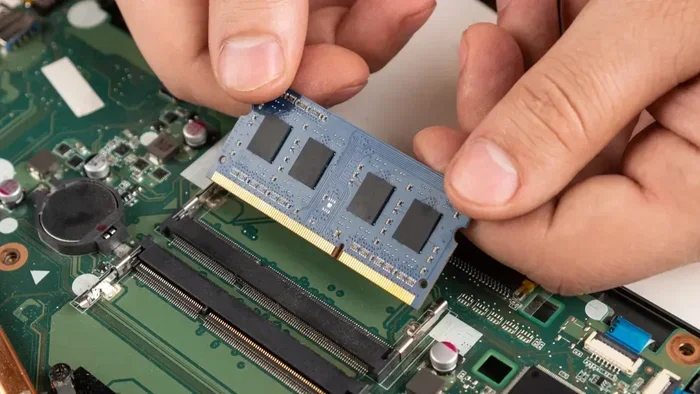
Take your new RAM module out of its packaging. Hold it by the edges and align the notch on the gold connector with the ridge inside the slot. Insert the module at a 30-degree angle and press it firmly down until the metal clips snap into place.
You should hear a click when the module is fully seated. This confirms it is properly installed. Do not force it. If it does not go in easily, double-check the alignment.
Step 7: Close Up and Test
Replace the back panel and screw it back in securely. Reconnect the battery if you removed it. Plug in the power cable and turn on your laptop.
Once the laptop boots up, check your RAM again using Task Manager or the About This Mac screen. The new amount should display correctly. If it does, congratulations, you just completed a successful RAM upgrade!
Common Mistakes to Avoid
Even simple upgrades can go wrong if you are not careful. Here are the most common mistakes people make when upgrading laptop RAM:
- Buying the wrong RAM type: DDR3 will not work in a DDR4 slot. Always double-check compatibility.
- Forcing the module: RAM should slide in smoothly. Forcing it can damage the slot or the module.
- Skipping the anti-static precaution: Static electricity can fry sensitive components. Touch a metal surface before handling RAM.
- Not checking slot limits: Some laptops have only one upgradeable slot. Check before buying two modules.
- Mixing different brands or speeds: While it sometimes works, matching modules ensures the best performance and stability.
Avoiding these mistakes will save you time, money, and frustration. Take your time and follow each step carefully.
When to Consider Professional Help
While most RAM upgrades are simple, some situations call for professional assistance. If your laptop has a sealed battery or soldered RAM, you cannot upgrade it yourself. Ultra-thin models like certain MacBooks often have memory that is not user-replaceable.
In these cases, a professional technician can help or advise you on alternative upgrades. Sometimes adding an SSD or optimizing your software setup can deliver similar performance gains. If you are ever unsure, it is always safe to consult an expert rather than risk damaging your laptop.
Also, if your laptop is still under warranty, opening it yourself may void the coverage. Check your warranty terms before proceeding with any hardware changes.
How Much Does a Laptop RAM Upgrade Cost?
The cost of a RAM upgrade varies based on the type and capacity you need. DDR4 8GB SODIMM modules typically cost between $20 and $40. DDR5 modules are slightly more expensive, ranging from $35 to $60 for 8GB. 16GB modules cost more, usually between $50 and $90.
Compared to buying a new laptop, this is incredibly affordable. A $40 RAM upgrade can turn a sluggish 4GB laptop into a smooth 16GB machine. That is a huge return on investment for a small amount of money.
Final Thoughts
Learning how to upgrade laptops ram is one of the most rewarding DIY tech projects you can tackle. It is fast, affordable, and delivers immediate results. Whether you are a student, a professional, or a casual user, more RAM will improve your daily computing experience.
Start by checking your current memory and your laptop’s compatibility. Choose the right module, follow the installation steps carefully, and enjoy the speed boost. You do not need expensive tools or technical skills. Just a little confidence and attention to detail.
Your laptop does not have to be slow forever. A simple RAM upgrade can transform it. Give it a try and feel the difference for yourself.
Frequently Asked Questions
Can I upgrade my laptop RAM myself?
Yes, most laptops allow you to upgrade RAM yourself. You only need a small screwdriver and about 15 minutes. Just make sure you buy compatible RAM and follow the steps carefully. If your laptop is under warranty, check if opening it voids the coverage first.
How do I know if my laptop RAM is upgradeable?
Check your laptop manual or visit the manufacturer website for specifications. Look for terms like “user-upgradeable memory” or “replaceable RAM.” You can also use system information tools to see how many RAM slots your laptop has and whether they are currently occupied.
What happens if I install the wrong type of RAM?
The laptop will not recognize the RAM or will not boot at all. DDR4 and DDR5 modules look similar but are not interchangeable. Always verify the RAM type, speed, and form factor before purchasing. Matching the specifications to your laptop model is essential.
How much RAM do I really need for everyday use?
For most everyday tasks like browsing, office work, and streaming, 8GB of RAM is the minimum recommended amount. If you multitask heavily or use demanding applications, 16GB provides a much smoother experience. Power users like video editors and gamers should aim for 32GB or more.
Does upgrading RAM make a laptop faster?
Yes, upgrading RAM can make a laptop significantly faster, especially if you were running low memory before. More RAM allows your laptop to handle more apps and browser tabs simultaneously without slowing down. However, if your laptop already has enough RAM, adding more may not produce a noticeable difference.
Is it better to upgrade RAM or buy a new laptop?
Upgrading RAM is far more cost-effective than buying a new laptop. A RAM upgrade can cost as little as $20 to $60 and dramatically improve performance. A new laptop costs hundreds or thousands of dollars. Unless your laptop has other major issues, a RAM upgrade is the smarter choice.