What Are the Main Parts of a Spreadsheet
Learning the main parts of a spreadsheet is essential for anyone who works with data. A spreadsheet is made up of cells, rows, columns, worksheets, and powerful tools like the formula bar and ribbon menu. Whether you use Excel or Google Sheets, understanding these parts helps you work faster and smarter.
Have you ever opened a spreadsheet and felt overwhelmed by all the buttons, bars, and grids? You are not alone. Many people use spreadsheets every day without truly understanding what makes them tick. But here is the good news. Once you learn the main parts of a spreadsheet, everything starts to make sense. What are the main parts of a spreadsheet, and why does each one matter? This guide walks you through every key component in plain, simple language. By the end, you will feel confident navigating any spreadsheet like a pro.
A spreadsheet is more than just a grid full of numbers. It is a powerful tool that helps you organize, calculate, and analyze data. Whether you are tracking a personal budget or managing a company payroll, the same core parts apply. The parts include cells, rows, columns, worksheets, toolbars, and menus. Each part plays a specific role. Think of it like a car. You do not need to be a mechanic to drive, but knowing what the engine, wheels, and steering wheel do makes you a better driver. The same idea applies here.
So let us dive right in. We will go section by section and break down every major part. Along the way, we will share tips and examples that make the learning process fun and easy. No jargon. No fluff. Just clear, helpful information you can use right away. Let us get started.
Key Takeaways
- Cells and Grids: The basic building blocks where all your data lives.
- Rows and Columns: They organize information in a clear, structured way.
- Formula Bar and Ribbon: These tools make entering data and creating formulas easy.
- Worksheets and Workbooks: They let you manage multiple sheets in one file.
- Cell References: Understanding how cells connect makes complex tasks simple.
📑 Table of Contents
- Understanding the Spreadsheet Grid: Cells, Rows, and Columns
- The Formula Bar and Ribbon Menu
- Worksheets and Workbooks: Managing Multiple Sheets
- Cell References and Formulas: Making Spreadsheets Dynamic
- Toolbars, Navigation, and Formatting Tools
- Spreadsheet Software Options and Hardware Considerations
- Common Mistakes People Make with Spreadsheets
- Final Thoughts on the Main Parts of a Spreadsheet
Understanding the Spreadsheet Grid: Cells, Rows, and Columns
The grid is the heart of any spreadsheet. It is the visual area where you see all your data laid out. The grid is made up of three basic parts: cells, rows, and columns. Together, they form the structure that holds everything in place. Without this grid, a spreadsheet would just be a blank screen. Let us look at each one closely.
What Is a Cell?
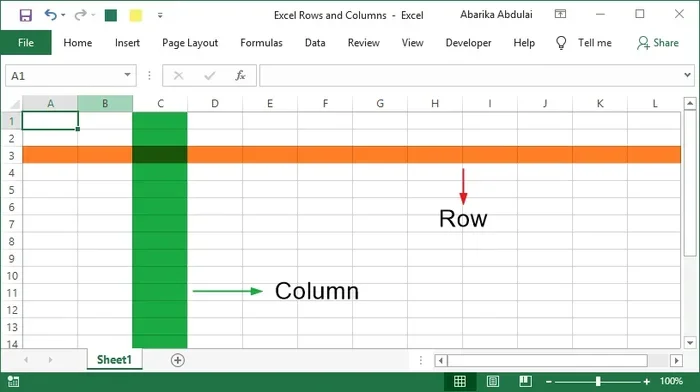
A cell is the smallest unit in a spreadsheet. It is the tiny box where a row and a column meet. Every cell has its own unique address. For example, the cell at the top-left corner is usually called A1. The letter stands for the column, and the number stands for the row. You can type text, numbers, or formulas into any cell. Cells are where all your data entry happens.
When you click on a cell, it becomes the active cell. You will know it is active because it will have a thick border around it. You can also format cells by changing the font, color, or size. This makes your data easier to read and more visually appealing. What are the main parts of a spreadsheet without cells? They would not exist. Cells are the foundation of every single spreadsheet you will ever use.
What Are Rows?
Rows run horizontally across the spreadsheet. They are numbered on the left side of the screen, starting with 1, 2, 3, and so on. Each row can hold a set of related data. For example, in a budget spreadsheet, row 1 might be your January income, row 2 might be February, and so on. Rows help you organize information in a logical, easy-to-follow order.
You can also sort and filter data by rows. This means you can rearrange your information or show only the rows that meet certain criteria. Sorting is incredibly useful when you have large amounts of data. Instead of scrolling through hundreds of rows manually, you let the spreadsheet do the work for you.
What Are Columns?
Columns run vertically up and down the spreadsheet. They are labeled with letters at the top, starting with A, B, C, and so on. Each column represents a specific type of data. In a student grade sheet, column A might hold student names, column B might hold math scores, and column C might hold science scores.
Columns make it easy to compare data across different categories. You can also adjust the width of a column to fit your content. If you have long text in a cell, widening the column keeps everything readable. Columns are just as important as rows because they give your data structure and meaning.
The Formula Bar and Ribbon Menu
Now that you understand the grid, let us look at the tools that make spreadsheets so powerful. The formula bar and ribbon menu are two of the most important parts of any spreadsheet. They are where the magic happens. These tools help you enter data, create formulas, and format your sheets with ease.
What Is the Formula Bar?
The formula bar sits just above the grid. When you click on a cell, the formula bar shows you what is inside that cell. If the cell contains a simple number like 50, you will see 50 in the formula bar. But if the cell contains a formula, the formula bar shows the actual formula. For example, you might see =A1+B1 instead of the result 100.
The formula bar is essential for creating calculations. You can type formulas directly into it, which gives you more control. Formulas are what turn a simple grid into a powerful data tool. What are the main parts of a spreadsheet without a way to calculate? The formula bar fills that gap perfectly. It lets you add, subtract, multiply, and divide with ease.
What Is the Ribbon Menu?
The ribbon menu runs across the top of the spreadsheet window. It contains tabs like Home, Insert, Formulas, Data, and View. Each tab holds a group of related tools. The Home tab has formatting options like bold, italic, and font size. The Insert tab lets you add charts, tables, and images. The Formulas tab helps you build complex calculations.
The ribbon menu might look overwhelming at first, but it is designed to be intuitive. You click on a tab, and the relevant tools appear right below it. Over time, you will learn which tabs to visit most often. Mastering the ribbon menu saves you a ton of time and makes your work look much more professional.
Worksheets and Workbooks: Managing Multiple Sheets
One of the best features of a spreadsheet is the ability to work with multiple sheets at once. This is done through worksheets and workbooks. Understanding the difference between them is key to staying organized.
What Is a Worksheet?
A worksheet is a single page within a spreadsheet file. It is the grid you see when you open a file. You can think of it as a single page in a notebook. Each worksheet has its own grid of cells, rows, and columns. You can name each worksheet to keep things clear. For example, you might name one sheet “January,” another “February,” and another “March.”
Worksheets are great for separating different sets of data. Instead of cramming everything onto one sheet, you spread it across multiple sheets. This keeps your file clean and easy to navigate. You can also link data between worksheets, which is incredibly useful for creating summaries and reports.
What Is a Workbook?
A workbook is the entire file that contains one or more worksheets. When you save a spreadsheet, you are saving a workbook. Think of the workbook as a binder, and each worksheet as a page inside that binder. A single workbook can hold dozens of worksheets, depending on your needs.
Workbooks make it easy to keep related data together. Instead of saving multiple separate files, you keep everything in one place. This makes sharing and backing up your data much simpler. Workbooks are a core part of what makes spreadsheets so versatile for both personal and business use.
Cell References and Formulas: Making Spreadsheets Dynamic
If there is one thing that sets spreadsheets apart from simple tables, it is the ability to use formulas and cell references. These parts turn static data into living, changing information. Let us break down how they work.
What Are Cell References?
A cell reference tells a formula which cells to use in a calculation. Instead of typing numbers directly into a formula, you reference the cells where those numbers live. For example, if cell A1 contains 10 and cell B1 contains 20, you can write =A1+B1 in cell C1. The result will be 30. If you change A1 to 15, C1 automatically updates to 35.
Cell references make your spreadsheets flexible. You do not need to rewrite formulas every time your data changes. There are two main types of cell references: relative and absolute. Relative references adjust when you copy a formula to another cell. Absolute references stay locked in place using the dollar sign, like $A$1. Understanding this difference is a big step toward becoming a spreadsheet pro.
Common Formulas You Should Know
Spreadsheets come with built-in formulas that make common tasks easy. Here are a few you will use often:
- SUM: Adds up a range of cells quickly.
- AVERAGE: Calculates the average of a group of numbers.
- COUNT: Counts how many cells contain numbers.
- IF: Lets you set conditions and return different results based on those conditions.
- VLOOKUP: Searches for a value in one column and returns a matching value from another column.
These formulas are the building blocks of more advanced spreadsheet work. Once you get comfortable with them, you can tackle much more complex tasks. Knowing your formulas is one of the best ways to get value out of any spreadsheet.
Toolbars, Navigation, and Formatting Tools
A spreadsheet is not just about data. It is also about how that data looks and how easily you can move around. Toolbars, navigation features, and formatting tools all play a role in making your spreadsheet experience smooth and efficient.
Quick Access Toolbar
The Quick Access Toolbar sits at the very top of the window, usually above the ribbon menu. It holds shortcuts to your most-used commands like Save, Undo, and Redo. You can customize this toolbar by adding the tools you use most often. This saves you from digging through menus every time you need a common function.
Scroll Bars and Zoom
Scroll bars let you move up, down, left, and right through your spreadsheet. They appear on the right side and bottom of the window. The zoom control, usually found in the bottom-right corner, lets you make your view larger or smaller. Zooming in is helpful when you are working on detailed data. Zooming out gives you a big-picture view of your entire sheet.
Cell Formatting Options
Formatting makes your spreadsheet easier to read and more professional looking. You can change font styles, add borders, apply cell colors, and adjust number formats. For example, you can format currency values with a dollar sign or percentage values with a percent symbol. Good formatting does not just look nice. It also helps others understand your data faster.
Spreadsheet Software Options and Hardware Considerations
Not all spreadsheets are created equal. Different software options offer different features, and your hardware can affect how well your spreadsheet performs. Let us explore both.
Popular Spreadsheet Software
The most well-known spreadsheet software is Microsoft Excel. It is the industry standard and packed with powerful features. Google Sheets is another popular option that runs in your web browser. It is free and great for collaboration. Other options include LibreOffice Calc and Apple Numbers. Each has its strengths, but they all share the same core parts we have discussed.
When choosing software, consider what you need. For basic tasks, Google Sheets works great. For advanced data analysis and large files, Excel is hard to beat. No matter which software you choose, the main parts of a spreadsheet stay the same. The interface may look slightly different, but cells, rows, columns, formulas, and menus all serve the same purpose.
Hardware That Supports Spreadsheet Work
Running a spreadsheet smoothly depends partly on your device. If you work with large files that have thousands of formulas, you need a reliable machine. The what is the ram on a laptop becomes an important consideration here. RAM, or random access memory, helps your laptop handle multiple tasks at once, including complex spreadsheet calculations.
Most modern laptops can run spreadsheet software without any issues. But if you work with massive data sets or run heavy macros, having more RAM makes a noticeable difference. For the best laptop options that handle spreadsheet work well, check out guides on what are the best laptop brands to find a machine that fits your needs. A laptop with at least 8GB of RAM is a solid choice for most spreadsheet users.
Common Mistakes People Make with Spreadsheets
Even experienced spreadsheet users make mistakes. Knowing what to avoid can save you a lot of frustration. Here are some common pitfalls and how to steer clear of them.
- Forgetting to save: Always save your work frequently. A power outage or crash can erase hours of work in seconds.
- Using hard-coded numbers in formulas: Instead of typing numbers directly into a formula, use cell references. This makes your spreadsheet easier to update.
- Ignoring cell formatting: Unformatted data is hard to read. Take a few extra minutes to make your sheets look clean.
- Not checking formulas: A small typo in a formula can throw off your entire sheet. Always double-check your work.
- Overcomplicating things: You do not need a complicated formula for every task. Sometimes a simple SUM or AVERAGE is all you need.
Avoiding these mistakes keeps your spreadsheets accurate and professional. Over time, you will build good habits that make your work faster and more reliable.
Final Thoughts on the Main Parts of a Spreadsheet
Now you have a solid understanding of what are the main parts of a spreadsheet. From the grid of cells, rows, and columns to the formula bar, ribbon menu, worksheets, and workbooks, each part plays a vital role. You also learned about cell references, common formulas, formatting tools, and hardware considerations. All of these parts work together to make spreadsheets one of the most useful tools in tech today.
The beauty of spreadsheets is that they are both simple and powerful. Anyone can open one and start entering data. But those who take the time to understand the parts and how they connect can do incredible things. Whether you are a student, a small business owner, or a data analyst, mastering these parts will serve you well.
So the next time you open a spreadsheet, take a moment to appreciate all the working parts behind the screen. Each cell, each formula, each menu has a purpose. And now, you know exactly what that purpose is. Start putting this knowledge into practice today, and you will be amazed at how much more productive and confident you feel.
Frequently Asked Questions
What are the main parts of a spreadsheet?
The main parts include cells, rows, columns, the formula bar, the ribbon menu, worksheets, workbooks, and cell references. Each part plays a specific role in organizing and calculating data. Together, they make spreadsheets powerful and flexible tools for managing information.
What is the difference between a worksheet and a workbook?
A worksheet is a single page or sheet within a spreadsheet file. A workbook is the entire file that contains one or more worksheets. Think of the workbook as a binder and each worksheet as a page inside it.
Why is the formula bar important in a spreadsheet?
The formula bar shows you what is inside a selected cell, including any formulas. It lets you type and edit data or formulas directly. Without it, creating calculations and seeing the actual formula behind a result would be much harder.
How do cell references work in a spreadsheet?
Cell references tell a formula which cells to use in a calculation. For example, =A1+B1 adds the values in cells A1 and B1. Using references instead of hard-coded numbers makes your spreadsheet flexible and easy to update.
Can I use a spreadsheet on a low-end laptop?
Yes, basic spreadsheets run fine on most laptops. However, if you work with large files or complex formulas, having enough RAM matters. Checking what is the ram on a laptop before purchasing can help ensure smooth performance with spreadsheet software.
Which spreadsheet software is the best?
Microsoft Excel is the most powerful and widely used option. Google Sheets is excellent for free, browser-based collaboration. The best choice depends on your needs, budget, and how you plan to use your spreadsheets.
=== CONCLUSION ===
Understanding what are the main parts of a spreadsheet is the first step toward becoming proficient with this essential tool. Every part, from the humble cell to the powerful formula bar, serves a purpose that makes your data work for you. By learning how cells, rows, columns, worksheets, and formulas interact, you unlock the full potential of any spreadsheet you open. Keep practicing, keep exploring, and soon you will be creating spreadsheets that are both functional and impressive.