What Causes a Motherboard to Fry
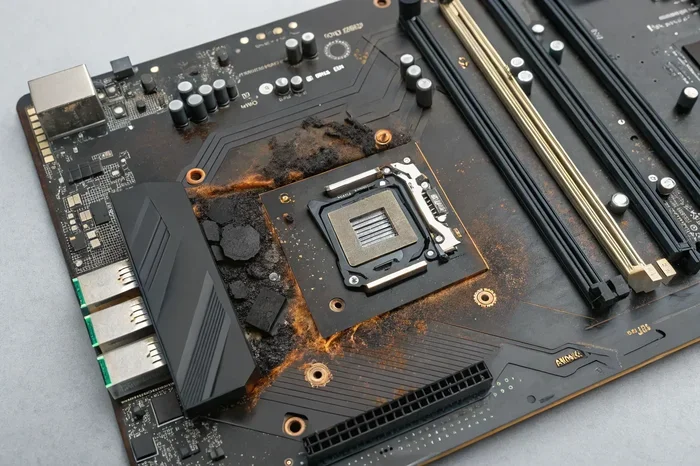
A fried motherboard is one of the most costly and frustrating hardware failures you can face. Power surges, overheating, short circuits, and poor installation practices are the leading culprits behind motherboard failure. Understanding these causes helps you protect your investment and avoid expensive repairs or replacements.
Key Takeaways
- Power surges and voltage spikes are the #1 cause of motherboard damage, often happening during storms or through faulty power supplies.
- Overheating from poor airflow slowly degrades motherboard components over time, leading to sudden failure.
- Electrostatic discharge (ESD) can silently kill motherboard circuits even before you notice any symptoms.
- Liquid damage and corrosion create conductive paths that short out sensitive circuits on the board.
- Incompatible or improperly installed hardware like RAM or GPUs can overload motherboard power delivery and cause fry damage.
- Age and capacitor degradation are natural causes of motherboard failure that no user can fully prevent.
- Regular maintenance and surge protection are the best ways to extend your motherboard lifespan.
📑 Table of Contents
- What Causes a Motherboard to Fry
- Power Surges and Voltage Spikes
- Overheating and Thermal Damage
- Short Circuits and Physical Damage
- Electrostatic Discharge (ESD)
- Incompatible Hardware and Installation Errors
- Capacitor Degradation and Age-Related Failure
- How to Tell if Your Motherboard Is Fried
- Prevention Tips to Protect Your Motherboard
- Final Thoughts
What Causes a Motherboard to Fry
Your motherboard is the backbone of your entire computer system. Every component connects to it. Every signal passes through it. So when your motherboard fries, everything goes down with it. But what actually causes a motherboard to fail? And more importantly, how can you stop it from happening?
The answer is more varied than most people think. A motherboard can fry from a single lightning strike during a storm. It can also die slowly over years from heat buildup and aging capacitors. In this guide, we will walk through every major cause of motherboard failure. We will also share practical tips to help you prevent damage before it starts.
Whether you are a casual user or a PC enthusiast, this article will help you understand why motherboards fail and what you can do about it. Let us dive in.
Power Surges and Voltage Spikes
The most common cause of a fried motherboard is a sudden power surge. A power surge sends way more electricity through your system than any component can handle. This excess energy fries delicate circuits almost instantly.
Power surges can come from many sources:
- Lightning strikes near your home or power grid
- Faulty power supply units (PSUs) that deliver unstable voltage
- Grid fluctuations from your local power company
- Tripped breakers or faulty wiring in your building
- Plugging in high-power devices on the same circuit
Even a small surge that does not completely kill your motherboard can weaken it over time. Each surge degrades the components a little more. Eventually, the damage adds up and the board fails suddenly.
How to Protect Against Power Surges
The easiest fix is a good surge protector. A surge protector absorbs excess voltage and redirects it safely. However, not all surge protectors are equal. Look for one with a high joule rating and a clamping voltage below 400 volts.
For the best protection, unplug your PC during thunderstorms. A surge protector helps, but a direct lightning strike can overwhelm even the best gear. If you live in an area with frequent storms, consider a whole-home surge protector installed at your electrical panel.
Overheating and Thermal Damage
Heat is the silent killer of motherboards. Most motherboard components are rated to run at specific temperatures. When those temperatures are exceeded, the damage starts to accumulate fast.
Overheating happens for several reasons:
- Clogged or dusty fans that stop moving air properly
- Dried-out thermal paste between the CPU and heatsink
- Failed case fans that reduce overall airflow
- Poor cable management that blocks air channels inside the case
- Overclocking without adequate cooling that pushes components beyond safe limits
When your system overheats, the motherboard absorbs a lot of that heat. Capacitors are especially sensitive. They can bulge, leak, or burst when exposed to prolonged high temperatures. Once a capacitor fails, it can take nearby components down with it.
Signs Your Motherboard Is Overheating
Watch for these warning signs that your motherboard is running too hot:
- Your PC shuts down randomly under load
- You notice a burning smell coming from the case
- System performance drops without explanation
- Blue screens appear more frequently
- Your fans are running at full speed all the time
If you notice any of these symptoms, open your case and check the airflow immediately. Clean dust from fans and heatsinks. Replace dried thermal paste. And make sure all your fans are actually spinning.
Overheating can also affect other components. For example, if your GPU runs too hot, it can radiate heat onto nearby motherboard traces. You can learn more about safe GPU temperatures in our guide on what is a good idle GPU temperature. Keeping your GPU cool helps protect the motherboard too.
Short Circuits and Physical Damage
A short circuit occurs when electricity takes an unintended path through the motherboard. This usually happens when two contact points that should not touch end up making contact. The result is often an instant and irreversible fry of the board.
Common Causes of Short Circuits
Short circuits on a motherboard can happen in many ways:
- Loose screws or standoffs touching the back of the board
- Spilled liquids creating conductive paths between traces
- Improperly seated components like RAM or GPU causing bent pins
- Damaged or frayed cables making contact with the board
- Metal debris left inside the case after assembly
One of the most common short circuit causes is a misplaced screw. When you assemble a PC, a tiny screw can fall behind the motherboard and touch the back side. This creates a direct short that can destroy the board in seconds.
Liquid spills are another major risk. Even a small amount of water or coffee can cause corrosion and short circuits on a motherboard. If you spill liquid on your PC, power it off immediately and unplug it. Do not try to turn it back on until it is completely dry and cleaned.
Electrostatic Discharge (ESD)
Electrostatic discharge is one of the sneakiest causes of motherboard failure. ESD happens when static electricity jumps from your body to a sensitive component. The voltage can be thousands of volts, but it is so brief that you never feel it.
The problem is that ESD damage is often invisible. Your motherboard might seem fine after a static shock, but the internal circuits are already weakened. The board may work for days or weeks before failing completely.
How to Prevent ESD Damage
Preventing electrostatic discharge is simple with the right precautions:
- Use an anti-static wrist strap when handling the motherboard
- Work on a non-conductive surface like a wooden table
- Touch the metal case of your PC to ground yourself before touching components
- Avoid working on carpeted floors which generate more static
- Keep components in anti-static bags until you are ready to install them
Many people ignore these precautions and never have a problem. But the risk is real. One moment of carelessness can kill a motherboard that cost hundreds of dollars. Always take ESD seriously, especially when building or upgrading a PC.
Incompatible Hardware and Installation Errors
Installing the wrong hardware or making installation mistakes can also fry your motherboard. This is especially common when upgrading components like RAM or GPUs.
RAM Compatibility Issues
Installing incompatible RAM is one of the easiest ways to damage a motherboard. If you use RAM with the wrong voltage or speed, it can overload the motherboard’s memory controller. In some cases, the mismatch causes enough heat to damage the RAM slots permanently.
Before buying RAM, always check your motherboard’s compatibility list. You can also read our detailed guide on how to know what RAM is compatible with your laptop to make sure you are buying the right memory for your system.
Proper installation matters too. If you do not press RAM sticks firmly into the slots, they may not make full contact. This causes intermittent connection issues and can generate excess heat that damages both the RAM and the motherboard slot.
GPU Installation Mistakes
Forcing a GPU into a PCIe slot at the wrong angle can bend or break pins. A damaged PCIe slot can then cause power delivery problems that stress the motherboard. Always line up the connector carefully and press down evenly when installing a graphics card.
Capacitor Degradation and Age-Related Failure
Every motherboard has capacitors that regulate voltage and filter power for different components. Over time, these capacitors degrade naturally. The electrolyte inside them dries out, reducing their ability to function properly.
This degradation is a normal part of the hardware lifecycle. A well-built motherboard should last 5 to 10 years under normal conditions. But several factors can speed up capacitor failure:
- Excessive heat exposure over long periods
- Overvoltage from an unstable power supply
- Cheap capacitors used in budget motherboard designs
- Humidity and moisture accelerating internal corrosion
When capacitors fail, you will often notice your system becoming unstable first. Random reboots, blue screens, and failure to POST are common early signs. Eventually, a completely dead capacitor can cause a power delivery failure that fries the entire board.
How to Tell if Your Motherboard Is Fried
Not all motherboard failures are instant and dramatic. Sometimes the symptoms build up slowly. Here are the most common signs of a fried motherboard:
- PC will not turn on at all, even with power connected
- No display output despite working RAM and GPU
- Burning smell coming from the case
- Visible scorch marks or bulging capacitors on the board
- Random shutdowns that happen frequently
- USB ports or audio jacks stop working suddenly
- BIOS resets itself every time you restart
If you notice any of these signs, power off your PC immediately and inspect the motherboard visually. A burned smell or scorch marks are clear signs of a fried motherboard. At that point, you will likely need a replacement.
Sometimes the issue is not the motherboard itself but a related component. For instance, if your speakers are crackling or producing distorted sound, the problem might be with your audio hardware or connections rather than the motherboard. You can explore common audio hardware issues in our article on what causes speakers to crackle to rule out other causes.
Prevention Tips to Protect Your Motherboard
Preventing motherboard failure comes down to a few simple habits. Here is what you should do:
- Use a quality surge protector or UPS. This is your first line of defense against power spikes.
- Keep your PC clean. Dust buildup causes overheating. Clean your fans and heatsinks every 3 to 6 months.
- Monitor temperatures. Use software to track CPU and motherboard temperatures. Act if they climb too high.
- Handle components with care. Always ground yourself and work in a clean, dry environment.
- Use compatible hardware. Check specifications before installing any new component.
- Replace aging components. If your PC is over 5 years old, consider upgrading the power supply and thermal paste proactively.
These steps take very little time but can save you hundreds of dollars in repair costs. Prevention is always cheaper than replacement.
Final Thoughts
A fried motherboard is a serious problem, but it is not always inevitable. Most causes of motherboard failure are preventable with the right knowledge and habits. Power surges, overheating, short circuits, ESD, incompatible hardware, and age all play a role in how long your motherboard lasts.
The good news is that protecting your motherboard is straightforward. Use a surge protector, keep your system cool, handle components carefully, and stay on top of maintenance. These simple steps will help your motherboard serve you well for many years.
Remember, your motherboard is the foundation of your entire PC. Take care of it, and it will take care of everything else connected to it.
Frequently Asked Questions
Can a power outage damage a motherboard?
A power outage itself usually does not fry a motherboard. However, the power surge that happens when electricity returns after an outage can cause serious damage. Always use a surge protector or unplug your PC during outages to stay safe.
How long should a motherboard last before it fries?
A quality motherboard typically lasts 5 to 10 years with proper care. Some last even longer. However, factors like heat, power quality, and usage habits can shorten or extend that lifespan significantly.
Is it cheaper to repair or replace a fried motherboard?
In most cases, replacing the motherboard is more cost-effective than repairing it. Professional repair costs can be high, and the success rate varies depending on the type and extent of the damage.
Can overheating alone fry a motherboard?
Yes, prolonged overheating can fry a motherboard. Heat degrades solder joints, warps the board, and causes capacitors to fail. Keeping your system well-ventilated is essential to prevent thermal damage.
What should I do immediately if my motherboard fries?
Unplug your PC right away to prevent further damage to other components. Do not attempt to power it back on. Take it to a professional for diagnosis, or replace the motherboard if the damage is confirmed.
Can a bad RAM stick damage the motherboard?
Yes, incompatible or faulty RAM can damage motherboard memory slots and even the memory controller on the CPU. Always verify RAM compatibility before installation and handle sticks carefully to avoid bending pins.