What Causes a Master Boot Record Error
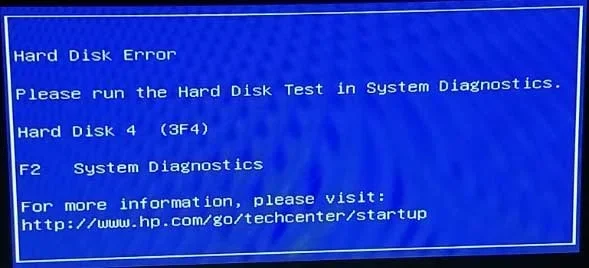
A Master Boot Record error stops your computer from starting up properly. It happens when the MBR — the tiny but critical first sector of your drive — gets damaged, corrupted, or overwritten. Common causes include hard drive failure, power outages, malware, incorrect partitioning, and physical disk damage.
A Master Boot Record error is one of the most frustrating problems you can face. You press the power button, and instead of Windows loading up, you get a scary message saying your boot record is missing or corrupted. It happens to millions of PC users every year, and it can strike without warning.
The good news is that most MBR errors are fixable. You do not need to be a tech expert to understand what went wrong or how to fix it. This guide walks you through every major cause of a Master Boot Record error in plain language. We also cover practical steps you can take to prevent it from happening again.
Key Takeaways
- Corrupted MBR: A damaged or overwritten master boot record prevents Windows from loading and triggers a boot error.
- Hard Drive Failure: Failing or degraded disks are one of the leading causes of MBR corruption and boot issues.
- Malware and Viruses: Boot-sector viruses can overwrite or destroy the MBR, causing serious startup problems.
- Power Surges and Outages: Sudden power loss during a write operation can corrupt the master boot record.
- Improper Partitioning: Incorrect disk partitioning or dual-boot setups can overwrite or damage the MBR.
- Physical Damage: Bad sectors, head crashes, or physical wear on the disk can affect the MBR location.
- Fixable with Tools: Most MBR errors can be repaired using built-in Windows tools like bootrec or diskpart.
📑 Table of Contents
What Is the Master Boot Record?
Before we dive into causes, it helps to understand what the MBR actually does. The Master Boot Record is a tiny section at the very beginning of your hard drive or SSD. It sits in the first sector — just 512 bytes — but it plays a huge role in your system’s startup process.
When you turn on your computer, the BIOS or UEFI firmware looks for a bootable device. It finds the MBR and reads the boot code inside. That code then tells the system where the operating system lives on the disk. Without a healthy MBR, your PC has no idea how to start Windows.
Think of the MBR as the table of contents in a book. If that page gets torn out or scribbled on, you cannot find the chapters. The book is still there, but you cannot access it. The same idea applies to your hard drive and the operating system stored on it.
Top Causes of a Master Boot Record Error
Several things can damage or corrupt the MBR. Some are software related, and others are physical. Let us look at each one in detail so you can figure out what might have gone wrong with your system.
1. Hard Drive or SSD Failure
The most common cause of an MBR error is a failing storage drive. Over time, hard drives wear out. The read/write heads degrade, and bad sectors develop. When the MBR sits on a damaged sector, it becomes unreadable or partially corrupted.
SSDs are more reliable than traditional HDDs, but they are not immune. An NVMe SSD that disconnects unexpectedly can interrupt write operations, which may corrupt the MBR. Similarly, if the drive experiences firmware bugs or controller failures, the boot record can become damaged.
Signs that your drive is failing include:
- Slow performance before the error appeared
- Unusual clicking or grinding noises (on HDDs)
- Frequent system freezes or crashes
- Bad sector warnings from disk diagnostic tools
If you suspect drive failure, stop using the computer immediately. Continuing to write data to a dying drive can make the MBR damage worse and reduce your chances of recovery.
2. Power Outages and Surges
Sudden power loss is another major culprit. When your computer is writing data to the disk — especially during a Windows update or a disk operation — and the power cuts out, the MBR can end up half-written. That incomplete data makes the boot record unreadable.
Power surges make this problem even worse. A surge can fry delicate electronic components on the drive’s circuit board, which may damage the area where the MBR is stored. Even a brief brownout can interrupt a critical write cycle and leave your system unbootable.
Here are some tips to protect against power-related MBR errors:
- Use a surge protector or UPS (uninterruptible power supply)
- Avoid shutting down during Windows updates
- Enable SSD power-loss protection if your drive supports it
- Save your work frequently to reduce write operations during outages
3. Malware and Boot-Sector Viruses
Malicious software can target the MBR directly. Boot-sector viruses are designed to overwrite the master boot record with their own code. This lets the malware load before the operating system, giving it deep control over your system.
These viruses spread through infected USB drives, email attachments, and malicious downloads. Once the MBR is overwritten, your PC cannot boot normally. You may see strange error messages, experience extremely slow startups, or notice that your system behaves oddly even before the error appears.
Some common malware types that target the boot record include:
- Bootkit viruses that hide deep in the boot process
- Ransomware that encrypts the partition table
- Trojans disguised as legitimate system files
Running a full system scan with updated antivirus software is essential. If the virus has already damaged the MBR, you will need to repair or rebuild the boot record using recovery tools.
4. Incorrect Partitioning or Dual-Boot Conflicts
When you install multiple operating systems on one computer, each one tries to write its own bootloader to the MBR. This can cause conflicts that overwrite the previous boot record. A dual-boot setup between Windows and Linux, for example, often leads to one system overwriting the other’s MBR.
Incorrect partitioning is another risk. If you resize partitions, delete volumes, or format the wrong drive, you can accidentally destroy the MBR. Disk management tools like diskpart or third-party partition software can cause this if used carelessly.
An NVMe SSD that falls out of its slot during a partitioning operation can also cause the system to lose the boot record entirely. Always double-check which drive you are working on before making any changes.
5. Physical Damage to the Drive
Physical damage is less common but still a real cause of MBR errors. Dropping a laptop, exposing a drive to extreme heat, or using a damaged cable can all lead to problems. The MBR sits at a specific physical location on the disk, and if that area becomes damaged, the boot record fails.
Hard drives have moving parts, and they are sensitive to shocks and vibrations. An SSD has no moving parts, but the NAND flash chips can still suffer from wear, electrical damage, or manufacturing defects over time.
Watch for these physical warning signs:
- The drive was dropped or bumped recently
- The computer has been exposed to heat or moisture
- You hear clicking or beeping sounds from the drive
- The drive is not recognized in BIOS or Disk Management
Physical damage often requires professional data recovery services. Trying to repair the MBR yourself on a physically damaged drive can make things worse.
6. BIOS or UEFI Settings Issues
Your BIOS or UEFI firmware controls how the computer starts. If the boot order is set incorrectly, the system may try to boot from a non-bootable device, which can trigger an MBR-related error message. This is especially common after installing a new drive or changing hardware.
Switching between Legacy BIOS and UEFI modes can also cause problems. The MBR format is tied to Legacy BIOS, while UEFI systems use a different boot structure called the EFI System Partition. If you change these settings without adjusting your disk layout, the system may fail to find a valid boot record.
An NVMe SSD boot configuration on a device like a Raspberry Pi 5 works differently than a standard PC, but the principle is similar — the system needs the correct boot record format for its firmware type. On a Windows PC, always verify your boot mode in BIOS matches your disk’s partition style (MBR for Legacy, GPT for UEFI).
How to Recognize an MBR Error
Not all MBR errors look the same. The error message you see depends on your version of Windows and how the MBR was damaged. Here are the most common symptoms:
- “Operating System not found” — The system cannot locate a bootable partition.
- “Missing Operating System” — The MBR exists but the partition table points to nothing valid.
- “Invalid Partition Table” — The partition information inside the MBR is corrupted.
- “Bootmgr is Missing” — The boot manager file that follows the MBR is absent or damaged.
- “Reboot and Select Proper Boot Device” — The system cannot find a valid boot device.
If you see any of these messages, the MBR is the most likely culprit. You can confirm by checking if your drive is detected in BIOS or by using a live Linux USB to see if the data is still accessible on the disk.
How to Fix a Master Boot Record Error
Once you know what caused the error, fixing it is the next step. Here are the most effective methods, listed from easiest to most advanced.
Method 1: Use the Windows Startup Repair Tool. Boot from your Windows installation USB or recovery drive. Select “Repair your computer” and choose Startup Repair. The tool automatically scans for and fixes common boot issues, including MBR corruption.
Method 2: Rebuild the MBR with bootrec. Open the Command Prompt from the recovery environment and type bootrec /fixmbr. This command writes a fresh, clean MBR to the drive without touching your data. Follow it up with bootrec /fixboot and bootrec /rebuildbcd for a complete repair.
Method 3: Use diskpart to clean and repartition. If the MBR is severely corrupted and other methods fail, you can use diskpart to clean the disk. Warning: this erases all data on the drive. Type diskpart, then list disk, select the correct disk, and run clean. Then recreate the partition and reinstall Windows.
Method 4: Replace the drive. If the MBR error is caused by physical drive failure, no software fix will help. Replace the damaged drive, restore your data from a backup, and reinstall Windows if needed.
How to Prevent MBR Errors in the Future
Prevention is always better than repair. Here are simple steps you can take to protect your MBR and avoid boot errors down the road.
- Keep your system updated. Windows updates often include fixes for boot-related bugs.
- Use a surge protector. A UPS can save your drive from power-related corruption.
- Run regular antivirus scans. Keep your antivirus software active and up to date to block boot-sector threats.
- Back up your data regularly. Use cloud storage or an external drive for backups so you are covered if the MBR fails.
- Be careful with disk tools. Always double-check which drive you are targeting when using partition or formatting tools.
- Monitor drive health. Use tools like CrystalDiskInfo to check your drive’s SMART status and catch problems early.
When to Seek Professional Help
Most MBR errors can be fixed at home with the methods described above. But there are times when you should call in a professional. If your drive makes clicking sounds, if the system does not recognize the drive at all, or if you have critical data that you cannot afford to lose, seek help from a qualified data recovery specialist.
Attempting DIY repairs on a physically damaged drive can reduce your chances of successful recovery. A professional has clean-room facilities and specialized tools that can read data from damaged sectors safely.
Conclusion
A Master Boot Record error can feel like the end of the world, especially when you have important work or personal files on the drive. But understanding what causes it is the first step toward a fix. Whether the culprit is a failing drive, a power outage, malware, or a partitioning mistake, most MBR problems are solvable with the right approach.
Take the time to understand your system’s boot process, keep your drives healthy, and always maintain backups. These simple habits will save you from the headache of an unbootable PC and keep your Master Boot Record error from becoming a recurring nightmare.
Frequently Asked Questions
Can a Master Boot Record error cause data loss?
Not always. The MBR itself only contains a tiny amount of boot code and partition information. Your actual files and data usually remain intact on the drive. However, if the underlying cause is physical drive failure, you risk losing data if you do not act quickly.
Is a Master Boot Record error the same as a blue screen of death?
No. A blue screen of death is a Windows stop error that occurs while the system is running. An MBR error happens before Windows even starts loading. They are different problems, though both can be caused by failing hardware or corrupted system files.
Can malware overwrite the Master Boot Record?
Yes. Certain types of malware, especially bootkit viruses, are designed specifically to overwrite the MBR. This gives the malware control before the operating system loads, making it very difficult to detect and remove with standard antivirus tools.
How long does it take to repair a Master Boot Record error?
A simple MBR repair using the bootrec command takes only a few minutes. If you need to reinstall Windows or replace a failed drive, the process can take one to several hours depending on your setup and data size.
Should I use MBR or GPT partitioning for a new PC?
For most modern systems, GPT (GUID Partition Table) is the better choice. It supports larger drives, is more resilient to corruption, and works with UEFI firmware. Use MBR only if you need Legacy BIOS compatibility or are working with drives smaller than 2TB.
Can a faulty RAM stick cause a Master Boot Record error?
Not directly. RAM issues typically cause blue screens or system crashes while Windows is running. However, if faulty RAM corrupts data during a disk write operation, it could indirectly contribute to MBR damage. If you suspect RAM problems, run Windows Memory Diagnostic to check your modules.