What Is a Rollover Button
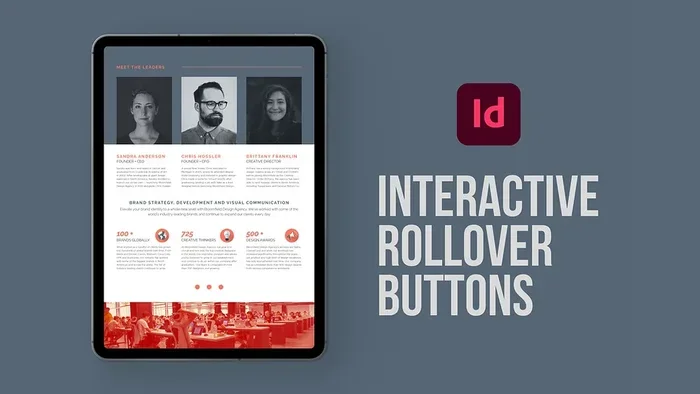
A rollover button is a web element that changes its appearance when you move your mouse over it. It is a core part of interactive web design and helps users know what is clickable. Rollover buttons improve navigation, boost engagement, and make websites feel professional and polished.
A rollover button is one of the simplest yet most powerful tools in web design. You have probably seen one a hundred times without even noticing it. Think about the last time you moved your cursor over a link on a website. Did it change color? Did it get bigger? Did it shift slightly? If yes, you just interacted with a rollover button.
These small design elements do more than just look pretty. They guide users, signal what is clickable, and make websites feel alive. Whether you are building a personal blog, an online store, or a complex SaaS environment, rollover buttons play a big role in how people experience your site. In this article, we will break down everything you need to know about rollover buttons, from the basics to advanced techniques.
By the end, you will understand what a rollover button is, how it works, the different types available, and how to create one yourself. We will also cover best practices and common mistakes so you can use rollover buttons the right way.
Key Takeaways
- Definition: A rollover button is an interactive element that visually responds when a user hovers their mouse over it.
- How It Works: It uses CSS, JavaScript, or HTML to detect mouse movement and swap styles like color, size, or shape.
- Types: There are several types including color change, image swap, animation, and 3D rollover buttons.
- Where Used: Rollover buttons appear in navigation menus, SaaS platforms, call-to-action areas, and even Excel spreadsheets.
- Best Practices: Keep changes subtle, ensure accessibility, test on all devices, and maintain consistent design.
- Common Mistakes: Avoid overcomplicating effects, ignoring mobile users, and making rollovers too slow or too fast.
- SEO Impact: Good rollover buttons improve user experience, which can positively affect your site’s search rankings.
📑 Table of Contents
What Is a Rollover Button?
A rollover button is a clickable element on a webpage that changes its appearance when you hover your mouse over it. The term “rollover” comes from the action of rolling your mouse cursor over the button. This interaction triggers a visual change, which can include color shifts, size adjustments, shadow effects, or even animated transitions.
Rollover buttons are a staple of user interface design. They serve two main purposes. First, they give users visual feedback that tells them, “Yes, this is clickable.” Second, they make the browsing experience more engaging and intuitive. Without rollover buttons, websites would feel flat and unresponsive.
You will find rollover buttons in almost every modern website. From the navigation bar at the top of the page to the “Buy Now” button at the bottom of a product listing, these elements are everywhere. They are small, but they matter a lot for user experience and web accessibility.
Why Are Rollover Buttons Important?
Rollover buttons are not just decorative. They serve real functional purposes on any website. Here is why they matter:
- Visual Feedback: When a button changes on hover, users instantly know it is interactive. This reduces confusion and helps people navigate with confidence.
- Better Navigation: Rollover effects in menus help users see where they are and where they can go next.
- Increased Engagement: Animated or visually appealing buttons draw attention and encourage clicks.
- Professional Look: Websites with well-designed rollover buttons feel polished and trustworthy.
- Accessibility: Properly implemented rollover buttons can also support keyboard navigation and screen readers, making sites more inclusive.
How Rollover Buttons Work
Understanding how a rollover button works is easier than you might think. The magic happens behind the scenes using a mix of web technologies. Let us look at the main methods used to create rollover effects.
CSS Rollover Buttons
CSS, or Cascading Style Sheets, is the most common way to create rollover buttons today. With CSS, you can define two states for any button: the normal state and the hover state. When a user moves their mouse over the button, the CSS hover selector kicks in and applies the new styles.
For example, you might write a simple CSS rule that changes a button’s background color from blue to green when hovered. This is lightweight, fast, and works on all modern browsers. Most web designers prefer CSS rollovers because they are easy to code and require no JavaScript.
JavaScript Rollover Buttons
JavaScript allows for more complex rollover behavior. With JavaScript, you can create buttons that change not just color but also text, shape, or even content. You can add timing delays, chain multiple effects, or trigger other actions when a rollover occurs.
However, JavaScript rollovers are heavier than CSS ones. They can slow down page load times if not used carefully. For most simple hover effects, CSS is the better choice. Reserve JavaScript for situations where you need advanced interactivity.
Image-Based Rollover Buttons
In the early days of the web, rollover buttons were often created using two separate images. One image showed the normal state, and a second image showed the hover state. When the user hovered, the browser would swap the images using JavaScript or CSS.
This method is less common today but still used in some legacy systems. It has downsides, like increased page load time from extra image files. Modern CSS techniques have mostly replaced image-based rollovers.
Types of Rollover Buttons
Not all rollover buttons look the same. Designers use different styles depending on the website’s purpose and aesthetic. Here are the most common types you will encounter.
Color Change Rollover
This is the simplest and most popular type. The button shifts from one color to another when you hover over it. For example, a gray button might turn bright blue on hover. This type is clean, subtle, and very effective for navigation menus and call to action buttons.
Size Change Rollover
With this type, the button grows slightly larger when hovered. This gives a sense of depth and makes the button feel more prominent. Size change rollovers work great for interactive web elements where you want to draw extra attention.
Image Swap Rollover
An image swap rollover replaces one graphic with another on hover. This is common in portfolio websites and image galleries. For instance, a thumbnail might shift to show a highlighted border or a different color overlay when rolled over.
Animated Rollover
Animated rollover buttons add motion to the hover effect. This could be a sliding gradient, a pulsing glow, or a rotating icon. Animated rollovers are eye-catching and work well for landing pages and creative portfolios. However, they should be used sparingly to avoid distracting users.
3D and Shadow Rollover
This style adds depth using shadows and perspective. The button might appear to lift off the page when hovered, creating a 3D effect. It is a popular trend in modern web design and gives buttons a tactile, physical feel.
Where Rollover Buttons Are Used
Rollover buttons are versatile and show up in many digital contexts. Let us explore the most common places where you will find them.
Website Navigation Menus
The most common use of a rollover button is in website navigation. When you move your cursor over a menu item, it often changes color or gets underlined. This tells you, “This is a link you can click.” Without rollover effects, users would have to guess which items are clickable.
E-Commerce Product Pages
Online stores rely heavily on rollover buttons. The “Add to Cart” or “Buy Now” button often changes on hover to encourage purchases. Product images might also have rollover effects that reveal additional views or quick details.
SaaS Dashboards
If you have ever used a SaaS platform, you have seen rollover buttons in action. Dashboard menus, settings icons, and action buttons all use hover effects to help users navigate complex interfaces. A well-designed mockup for a SaaS product will always include rollover button states to test the user experience before development.
Excel and Spreadsheet Tools
Rollover buttons are not just for websites. Even tools like Microsoft Excel use rollover-style buttons in their toolbars and ribbons. When you hover over an icon, you often see a tooltip or a visual highlight. If you are learning spreadsheet tools, you might encounter these interactive UI elements regularly.
Mobile and Touch Interfaces
On mobile devices, the traditional hover effect does not exist because there is no cursor. However, designers have adapted rollover concepts for touch. Tapping a button might trigger a similar visual change, creating the same feedback that a rollover provides on desktop.
How to Create a Rollover Button
Creating a rollover button is easier than most people think. You do not need to be an expert coder to get started. Let us walk through the basic steps.
Step 1: Set Up Your HTML Button
Start with a simple HTML button element. Give it a class or ID so you can style it with CSS. A basic button looks like this:
<button class="rollover-btn">Click Me</button>
This creates a plain button on your page. Right now, it does nothing special. That is where CSS comes in.
Step 2: Add CSS Styles for the Normal State
Define how your button looks in its normal state. Set the background color, text color, padding, border, and font size. Keep it simple and aligned with your overall design.
For example, you might set the button to have a dark background with white text and rounded corners. This is the default look that users see before they hover.
Step 3: Add the Hover State with CSS
Now comes the fun part. Use the CSS :hover pseudo-class to define what happens when the user moves their mouse over the button. You can change the background color, add a shadow, increase the size slightly, or adjust the cursor style.
Keep the transition smooth by adding a CSS transition property. This makes the change feel natural rather than abrupt. A transition duration of 0.3 seconds usually works well.
Step 4: Test Across Devices and Browsers
Always test your rollover button on different devices and browsers. What looks great on Chrome might behave differently on Safari or Firefox. Make sure the hover effect is smooth, the colors are accessible, and the button is easy to click.
If you are building a responsive website, remember that hover effects do not work the same way on touch devices. Consider adding an active state or a tap feedback effect for mobile users.
Quick Tips for Rollover Button Creation
- Use CSS transitions for smooth, professional animations.
- Keep hover changes subtle so they do not distract users.
- Test your buttons on both desktop and mobile devices.
- Use high-contrast colors so the hover state is clearly visible.
- Add ARIA labels for better accessibility and screen reader support.
Best Practices for Rollover Button Design
Designing a great rollover button is about balance. You want the effect to be noticeable without being overwhelming. Here are some proven best practices to follow.
Keep It Simple
The best rollover buttons are the ones that feel natural. Avoid over-the-top animations or dramatic effects that distract from the content. A simple color shift or subtle size increase is often all you need. The goal is to guide the user, not to impress them with flashy effects.
Make It Accessible
Accessibility should always come first. Some users cannot use a mouse, so your rollover button must also work with keyboard navigation. Use focus states alongside hover states. Make sure the color contrast meets WCAG guidelines so that all users can see the button clearly.
Stay Consistent
Use the same rollover style throughout your website. If your navigation buttons use a color change on hover, do not suddenly switch to a size change on a different page. Consistency builds trust and helps users learn how your site works faster.
Optimize for Speed
Heavy rollover effects can slow down your website. Use lightweight CSS instead of large JavaScript files whenever possible. Compress any images you use for rollover buttons. A fast-loading site keeps users happy and helps your search engine rankings.
Consider the User Journey
Think about where the rollover button fits in the user’s journey. A rollover effect on a navigation link helps with wayfinding. A rollover on a call-to-action button can boost conversions. Always design with the user’s goal in mind, not just aesthetics.
Common Mistakes to Avoid
Even experienced designers make mistakes with rollover buttons. Here are the most common pitfalls and how to avoid them.
- Overcomplicating the Effect: Too many animations or rapid changes can confuse users. Stick to one or two simple effects per button.
- Ignoring Mobile Users: Hover does not exist on touch screens. Always provide an alternative interaction method for mobile visitors.
- Poor Color Contrast: If the hover color is too similar to the normal color, users will not notice the change. Make the difference obvious.
- Slow Transition Times: A rollover that takes too long to activate feels sluggish. Aim for transitions between 0.2 and 0.4 seconds.
- Forgetting Focus States: Keyboard users rely on focus indicators. Always style the focus state the same way you style the hover state.
- Using Rollovers Everywhere: Not every element needs a rollover effect. Use them strategically on the most important interactive elements.
The Future of Rollover Buttons
Rollover buttons have been a part of web design for decades, but they are still evolving. New technologies like CSS animations, hardware acceleration, and even gesture-based interfaces are changing how hover effects work. In the future, we may see rollover buttons that respond to touch pressure, voice commands, or even eye tracking.
For now, the core principles remain the same. A rollover button should provide clear feedback, improve navigation, and enhance the overall user experience. Whether you are a beginner learning web design or a seasoned developer, mastering the rollover button is a valuable skill that will serve you well across all kinds of digital projects.
If you are building a website or a digital product, take a moment to review your rollover buttons. Are they working smoothly? Are they accessible? Do they guide users toward the right actions? Small details like these can make a big difference in how people perceive and use your site.
Start simple, test often, and always put the user first. A well-designed rollover button might be small, but its impact on user engagement and conversion rates is enormous.
Frequently Asked Questions
What is the difference between a rollover button and a regular button?
A regular button looks the same all the time. A rollover button changes its appearance when you hover your mouse over it. This visual change gives users feedback that the element is interactive and clickable.
Can rollover buttons work on mobile devices?
Traditional hover effects do not work on touch screens because there is no cursor. However, designers adapt rollover concepts for mobile by using tap or active states. This ensures users on phones and tablets still get visual feedback when they interact with buttons.
Do rollover buttons affect website loading speed?
It depends on how they are built. Simple CSS rollovers are very lightweight and have almost no impact on speed. Heavy JavaScript rollovers or image-based rollovers can slow things down. Always use efficient code and compress images to keep your site fast.
Are rollover buttons important for SEO?
Indirectly, yes. Search engines like Google care about user experience. Well-designed rollover buttons improve navigation, reduce bounce rates, and keep visitors on your site longer. All of these factors can positively influence your search engine rankings.
What tools can I use to create rollover buttons?
You can create rollover buttons using plain HTML and CSS, which is the most common approach. You can also use design tools like Figma or Adobe XD to create mockups with rollover states before coding. Some website builders like WordPress or Webflow also offer built-in rollover button options.
What is the purpose of a mockup when designing rollover buttons?
A mockup lets you visualize how your rollover buttons will look and behave before you build them. You can test different colors, sizes, and hover effects in a mockup environment. This saves time and ensures the final product matches your design vision.
=== CONCLUSION ===
A rollover button might seem like a small design detail, but it plays a huge role in how users interact with your website. From guiding navigation to boosting conversions, these interactive elements are essential in modern web design. Whether you use a simple color change or a more complex animated effect, the key is to make the experience smooth, accessible, and intuitive.
Now that you understand what a rollover button is and how it works, you can start applying these concepts to your own projects. Focus on simplicity, test on all devices, and always keep the user at the center of your design decisions. With the right approach, a well-crafted rollover button can elevate your entire website and leave a lasting impression on every visitor.