How To Disassemble A Mouse And Put It Back Together
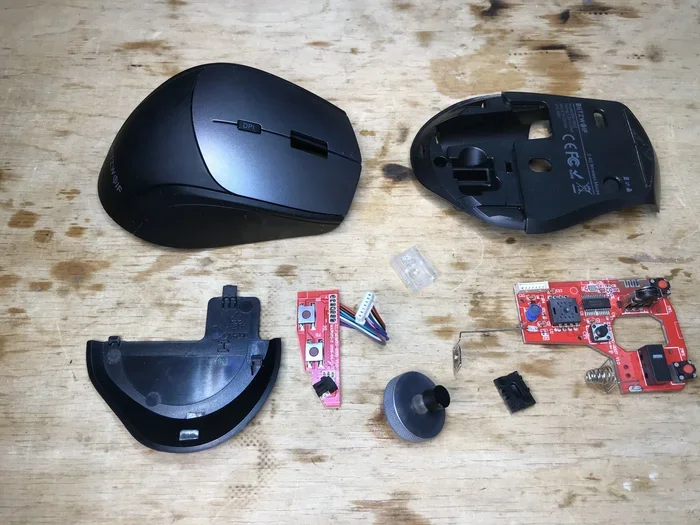
Our complete guide shows you exactly how to disassemble a mouse and reassemble it like a pro. Whether you need to clean your sensor, replace a switch, or just troubleshoot issues, this tutorial covers every step in detail. You will learn the tools you need, the disassembly process for different mouse types, and tips to avoid common mistakes.
There comes a time when your trusty mouse starts acting up. Maybe the left click feels mushy. Perhaps the cursor drifts across your screen for no reason. Or maybe you just want to give your gear a thorough cleaning. Whatever the reason, knowing how to disassemble a mouse is a handy skill every computer user should have.
Taking apart your mouse might sound intimidating, but it really is not that hard. With a few basic tools and a little patience, you can open up your device, clean the inside, replace faulty parts, and put everything back together. This guide walks you through the entire process step by step. You do not need to be a tech expert to get it right.
We will cover everything from the tools you need to the specific steps for different mouse types. By the end of this article, you will feel confident opening up your mouse and handling basic repairs on your own. Let us get started.
Key Takeaways
- Disassembling a mouse is simple: Most mice only need a few screws and gentle prying to open up.
- You can fix sticky buttons and sensor issues: Cleaning internal parts often solves common mouse problems without buying a new one.
- Keep track of every screw: Organizing screws during disassembly makes reassembly smooth and stress-free.
- Know your mouse type: Optical, wireless, and gaming mice each have slightly different disassembly steps.
- Reassembly is just reverse order: Following the disassembly steps backward ensures nothing gets missed or damaged.
- Avoid forcing parts apart: Using the right tools and patience prevents accidental damage to your mouse.
📑 Table of Contents
Why You Should Disassemble Your Mouse
Many people never think about opening their mouse until something goes wrong. But regularly taking your mouse apart can save you money and extend its lifespan. Here are some of the most common reasons you might want to disassemble your mouse.
Cleaning Sticky or Dirty Buttons
Over time, dust, crumbs, and oils from your fingers build up inside your mouse. This gunk can make buttons feel sticky or unresponsive. A simple wipe on the outside does not fix the problem. You need to get inside and clean the actual mechanical parts. Disassembling your mouse gives you direct access to those hard-to-reach spots.
Fixing a Faulty Sensor
If your cursor jumps around or stops moving altogether, the sensor might be dirty or damaged. Optical sensors sit at the bottom of your mouse and can collect dust and hair. Opening up the mouse lets you clean the sensor lens and check for any physical damage. This simple fix often solves tracking problems without needing a replacement.
Replacing Worn-Out Parts
Mouse switches wear out over time, especially if you click heavily. Instead of buying a whole new mouse, you can swap out the old switches for new ones. The same goes for the scroll wheel or the mouse feet on the bottom. Disassembly gives you the access you need to make these replacements.
Troubleshooting Connection Issues
Sometimes a wireless mouse stops connecting properly. Loose internal connections or a dying battery contact could be the cause. Opening the mouse lets you inspect the internal wiring and battery compartment more closely. You can reseat connections and clean the battery contacts to restore proper function.
Tools You Need Before You Start
Before you dive into disassembling your mouse, gather the right tools. Having everything ready makes the process much smoother and prevents frustrating pauses mid-project.
- Small Phillips-head screwdriver: Most mice use tiny Phillips screws. A precision screwdriver set works best.
- Plastic prying tool or spudger: This helps you pop open the mouse shell without scratching or cracking it. Avoid using metal tools that can damage internal components.
- Compressed air can: Great for blowing out dust and debris from hard-to-reach areas inside the mouse.
- Isopropyl alcohol (90% or higher): Use this to clean contacts and remove grime from internal parts. It evaporates quickly and does not leave residue.
- Cotton swabs: Perfect for applying cleaning solution to small areas and wiping away dirt.
- A small tray or organizer: You will be removing several tiny screws. Keeping them organized prevents you from losing any.
- A bright light or flashlight: Helps you see inside the mouse and spot any issues clearly.
Once you have your tools ready, find a clean, well-lit workspace. A table with a soft cloth or towel works great. The cloth protects your mouse from scratches while you work.
How To Disassemble Your Mouse Step By Step
Now comes the fun part. The exact steps vary slightly depending on your mouse model, but the general process is very similar across most designs. Follow these steps carefully and you will have your mouse open in no time.
Step 1: Unplug or Power Off Your Mouse
Before you touch anything, disconnect your mouse from the computer. If you use a wired mouse, simply pull the USB cable out. For wireless mice, turn them off if there is a power switch. Some wireless mice use a small button on the bottom to power down. This step is important because working on an energized device can damage the internal electronics.
Also, remove any batteries from wireless mice before disassembly. This prevents short circuits and keeps you safe while working on the internal components.
Step 2: Flip the Mouse and Locate the Screws
Turn your mouse over and look at the bottom. You will usually see one or more small screws near the feet or along the edges. Some mice hide their screws under small stickers or rubber pads. If you see a round sticker on the bottom, gently peel it back to check for a screw underneath.
Use your precision screwdriver to remove all the screws you find. Place each screw in a different compartment of your tray or organizer. This way, you will know exactly which screw goes where during reassembly.
Step 3: Gently Pry Open the Shell
With all screws removed, carefully insert your plastic prying tool between the top and bottom halves of the mouse shell. Start at one corner and work your way around. The shell is usually held together with clips, so you will feel slight resistance as you release each one.
Go slowly and do not force anything. If a section feels stuck, stop and check for hidden screws or clips you might have missed. Forcing the shell apart can crack the plastic and cause more problems than it solves.
Once the clips are released, lift the top half of the shell off gently. Set it aside on your soft cloth.
Step 4: Disconnect the Internal Ribbon Cable
Inside the mouse, you will see the main circuit board connected to the top shell by a thin ribbon cable. This cable plugs into a socket on the board. Before you do anything else, gently disconnect this cable.
Most ribbon cables have a small locking tab. Flip the tab up with a fingernail or a small flat tool, then carefully pull the cable out. Do not yank or twist the cable. Treating it gently ensures it stays functional for reassembly.
Step 5: Remove the Circuit Board
With the ribbon cable disconnected, you can now lift the circuit board out of the bottom shell. Some boards are held in place by a single screw or clip. Check for any additional fasteners before lifting the board out completely.
Set the circuit board on a clean surface. Now you have full access to all the internal components of your mouse.
How To Clean and Inspect Internal Parts
With your mouse fully disassembled, this is the perfect time to clean and inspect everything. Regular maintenance keeps your mouse performing at its best and prevents many common issues.
Cleaning the Sensor
The optical sensor is usually a small square or circle on the bottom side of the circuit board. Use a cotton swab lightly dampened with isopropyl alcohol to gently wipe the sensor lens. Blow compressed air around the sensor area to remove any loose dust or debris. A clean sensor means accurate and smooth cursor movement.
Cleaning the Buttons and Switches
The mechanical switches under each button can accumulate dirt and oil. Use compressed air to blow around each switch. For stubborn grime, apply a small amount of isopropyl alcohol with a cotton swab. Let it dry completely before reassembling. This simple cleaning often fixes sticky or unresponsive buttons.
Inspecting the Scroll Wheel
Check the scroll wheel for debris and smooth movement. Spin it gently and feel for any resistance or grinding. If the scroll wheel feels stiff, a drop of isopropyl alcohol on the sides can help. Let it sit for a few minutes, then spin the wheel several times to work the lubricant in.
Checking the Battery Contacts
For wireless mice, inspect the battery compartment. Look for corrosion on the battery contacts. If you see any greenish or white buildup, gently clean it with a cotton swab dipped in isopropyl alcohol. Clean contacts ensure reliable power delivery to your wireless mouse.
Inspecting the Cable (For Wired Mice)
If your mouse has a cable, follow it from the connector to the circuit board. Look for any fraying, kinks, or exposed wires. A damaged cable can cause intermittent connection problems. If you find damage, you may need to replace the cable or consider using your mouse with a different cable.
How To Put Your Mouse Back Together
Reassembly is simply the reverse of disassembly. Follow these steps in order to make sure everything goes back together correctly.
Step 1: Place the Circuit Board Back In
Set the circuit board into the bottom shell of the mouse. Make sure all components sit properly and nothing is pinched or bent. If your board was held by a screw or clip, secure it now.
Step 2: Reconnect the Ribbon Cable
Plug the ribbon cable back into its socket on the circuit board. Make sure the locking tab clicks back into place. A loose ribbon cable can cause your mouse to malfunction or not work at all.
Step 3: Align and Snap the Shell Halves Together
Carefully align the top shell with the bottom shell. Press down gently all around the edges until you hear each click of the internal clips. The shell should fit snugly with no gaps. If you feel uneven resistance, stop and check that the ribbon cable is not pinched between the two halves.
Step 4: Replace All Screws
Now it is time to put the screws back in. Refer to your organized tray to place each screw in its original position. Tighten them gently with your screwdriver. Do not overtighten, as this can strip the screw holes or crack the plastic.
Step 5: Replace Stickers or Pads
If your mouse had stickers or rubber pads covering screws, place them back now. Some people skip this step, but it helps keep your mouse looking clean and protects the screws from dust.
Step 6: Reconnect and Test
Plug your mouse back in or insert fresh batteries for wireless models. Move the mouse around and test every button and the scroll wheel. Check that the cursor moves smoothly and responds accurately. If everything works, congratulations. You have successfully disassembled, cleaned, and reassembled your mouse.
Common Mistakes To Avoid When Disassembling a Mouse
Even with the best intentions, mistakes can happen during mouse disassembly. Here are some common pitfalls and how to avoid them.
- Using metal tools instead of plastic: Metal screwdrivers or prying tools can scratch the internal components and short-circuit the circuit board. Always use plastic tools for prying.
- Forgetting to disconnect the ribbon cable first: This is the most common mistake. Pulling on the top shell while the ribbon cable is still connected can tear the cable and damage the mouse.
- Losing screws: Tiny screws are easy to lose on a cluttered desk. Always use a tray or small container to keep track of them.
- Using too much force: If something does not want to come apart, stop and figure out why. Forcing parts apart leads to broken clips and cracked shells.
- Not letting cleaning solutions dry: If you use isopropyl alcohol or any liquid cleaner, make sure everything is completely dry before reassembling. Moisture inside the mouse can cause short circuits.
- Skipping the test before full reassembly: After reconnecting the ribbon cable and before snapping the shell closed, do a quick test. This way, if something is wrong, you can still open it up and fix it easily.
By avoiding these mistakes, you protect your mouse and ensure a smooth reassembly process every time.
When To Seek Professional Help
Disassembling and reassembling a mouse works great for cleaning and basic repairs. But some problems go beyond what a simple teardown can fix. If your mouse has a broken circuit board, a damaged sensor, or severely worn-out mechanical parts, you might need professional repair. Also, if your mouse is still under warranty, opening it up could void the warranty. In these cases, it is best to contact the manufacturer or a qualified repair service.
For everyday maintenance and minor fixes, though, you can absolutely handle it yourself. The skills you learn from disassembling your mouse once will serve you well for many years to come.
Final Thoughts
Learning how to disassemble a mouse is one of the easiest and most rewarding DIY tech skills you can pick up. It saves you money, extends the life of your device, and gives you a deeper understanding of how your equipment works. Whether you are cleaning out dust, fixing a sticky button, or simply curious about what is inside, this guide has you covered.
Remember to take your time, use the right tools, and follow each step carefully. With a little practice, you will be able to open up and service your mouse quickly and confidently. Your mouse will thank you with smoother clicks, better tracking, and a longer lifespan.
Now that you know how to take apart and put back together your mouse, you can tackle any basic maintenance task with ease. Grab your screwdriver, find a clean workspace, and give your mouse the care it deserves.
Once you are done, test your mouse thoroughly and make sure everything works perfectly. If you use your mouse with a laptop regularly, you might also want to check out how to use a mouse on a laptop for the best setup and comfort. And if you ever run into connection issues after reassembly, a quick guide on how to connect a wireless mouse to laptop can help you get back up and running smoothly.
Frequently Asked Questions
Can I disassemble any type of mouse?
Most standard mice can be disassembled using the steps in this guide. However, some ultra-thin or sealed designs may have hidden clips or non-removable shells. Check your specific mouse model online before attempting disassembly.
Will disassembling my mouse void the warranty?
It might. Many manufacturers consider opening the mouse shell as tampering, which can void the warranty. Check your warranty terms before disassembling, especially if your mouse is still under coverage.
How often should I disassemble my mouse for cleaning?
Every three to six months is a good interval for most users. If you eat near your computer or have pets that shed, you may want to clean it more frequently to prevent dust and hair buildup inside.
What should I do if I cannot find a screw on the bottom of my mouse?
Some mice hide screws under rubber feet or adhesive stickers. Carefully peel back these covers to check for hidden screws. If your mouse has no visible screws at all, it likely uses clips that you can pry open with a plastic tool.
Can I replace the switches inside my mouse after disassembly?
Yes, in most cases. After disassembling, you can desolder or carefully remove the old switches and replace them with compatible new ones. This is a common repair for gaming mice with worn-out click switches.
My mouse stopped working after reassembly. What should I do?
First, check that the ribbon cable is properly connected. Make sure the locking tab is fully engaged. Also verify that no screws are pressing on the circuit board or cable. If the issue persists, open the mouse again and double-check each connection.