What Is an App Tile in Windows
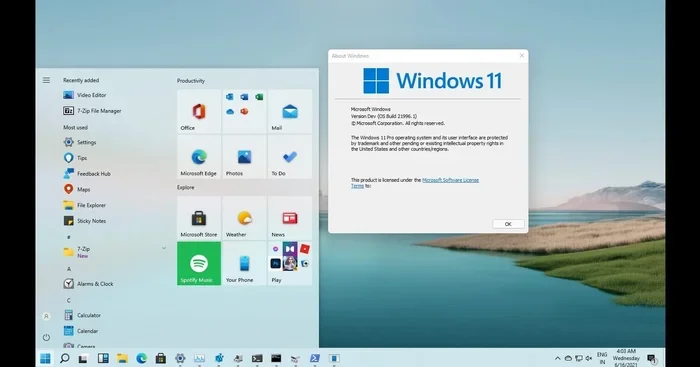
An app tile in Windows is a visual shortcut on the Start menu that lets you open apps quickly. You can resize, group, and pin tiles to personalize your Windows experience. Whether you are on Windows 10 or Windows 11, understanding app tiles helps you navigate your laptop faster and smarter.
If you have used a Windows laptop for any amount of time, you have probably noticed those little colored squares and rectangles on the Start menu. They are called app tiles, and they are one of the most useful features Windows has to offer. But what exactly is an app tile, and how can you get the most out of it?
In this guide, we will break everything down in plain language. You will learn what app tiles are, how they work, and why they matter for your daily workflow. Whether you are a student, a professional, or just someone who wants a faster laptop experience, this article has you covered. We will also touch on how app tiles differ between Windows 10 and Windows 11, so you get the full picture.
Before diving in, it helps to understand that app tiles are not the same as desktop shortcuts. They live on the Start menu and connect directly to your apps. Think of them as your personal dashboard for everything on your laptop.
Key Takeaways
- App tiles are visual shortcuts: They sit on the Windows Start menu and give you one-click access to your favorite apps.
- You can resize them: Windows lets you choose from small, medium, wide, and large tile sizes.
- Live tiles show real-time updates: Some tiles display live information like weather, news, or email previews.
- Windows 11 changed the game: The Start menu in Windows 11 is simpler and more centered, with fewer live tile options.
- Pinning and unpinning is easy: You can add or remove tiles in just a few clicks.
- Tile groups keep things organized: You can group related tiles together for a cleaner Start menu.
📑 Table of Contents
What Is an App Tile in Windows?
An app tile is a visual representation of an application on the Windows Start menu. When you click or tap a tile, it opens the corresponding app instantly. Tiles can show app icons, labels, and in some cases, live updates that change in real time.
The concept of app tiles was introduced with Windows 8 and carried forward into Windows 10. Microsoft wanted a touch-friendly way for users to access their favorite programs. Instead of scrolling through a long list, users could see colorful squares that represented their apps at a glance.
In Windows 11, Microsoft simplified the Start menu. The live tile feature was largely removed, and tiles now behave more like static icons. However, the core idea remains the same. App tiles still serve as quick-access shortcuts to the programs you use most.
If you are using a best Windows 2-in-1 laptop, app tiles become even more valuable. On a touchscreen device, tapping a tile is far more natural than clicking a tiny desktop icon. The tile format was designed with touch interaction in mind.
How App Tiles Differ from Desktop Shortcuts
It is easy to confuse app tiles with desktop shortcuts, but they are not the same thing. A desktop shortcut lives on your desktop and opens an app when you double-click it. An app tile lives on the Start menu and opens an app with a single click or tap.
Here are the key differences:
- Location: Tiles are on the Start menu. Shortcuts are on the desktop.
- Interaction: Tiles need one click. Shortcuts need a double-click.
- Visual style: Tiles can be resized and colored. Shortcuts look like tiny file icons.
- Live updates: Tiles can show live content. Shortcuts cannot.
Understanding this difference helps you use both tools more effectively. Many power users keep both tiles and shortcuts for different purposes.
Types of App Tiles in Windows
Not all app tiles look the same. Windows offers several tile sizes and styles to fit your needs. Let us explore what is available.
Square Tiles
A square tile is the default size for most apps. It shows the app icon and a small label underneath. Square tiles take up minimal space on the Start menu, which makes them great for organizing a large number of apps.
Wide Tiles
A wide tile is twice as wide as a square tile but the same height. This size gives you a bit more room to display information. Some apps use wide tiles to show additional details, like upcoming calendar events or news headlines.
Large Tiles
A large tile takes up the space of two square tiles. It is perfect for apps you use constantly, like your email client or weather app. Large tiles are also the best size for displaying live updates because they have more screen real estate.
Static vs. Live Tiles
In Windows 10, tiles could be either static or live. A static tile shows a fixed icon and does not change. A live tile updates periodically with fresh content. For example, a live mail tile might show your latest unread email count.
Windows 11 moved away from live tiles for a cleaner, more minimalist look. If you prefer the live tile experience, Windows 10 is still the better choice for that feature.
How to Customize App Tiles
One of the best things about app tiles is how easy they are to customize. You can resize them, move them around, and even turn live updates on or off. Here is how to do it.
Resizing Tiles
To resize an app tile, right-click on it and select “Resize.” You will see options for small, medium, wide, and large (where supported). Choose the size that fits your workflow best.
Pro tip: Use large tiles for your most-used apps. Use small tiles for apps you rarely open. This keeps your Start menu clean and efficient.
Moving and Grouping Tiles
You can drag and drop tiles to rearrange them on the Start menu. To create a group, simply drag one tile on top of another. You can then name the group by scrolling down to the bottom of the Start menu and clicking “Name Group.”
Grouping tiles is a great way to stay organized. You might create a group for work apps, another for social media, and another for system tools.
Pinning and Unpinning Tiles
To pin a new tile, find the app in the Start menu, right-click it, and select “Pin to Start.” To remove a tile, right-click it and choose “Unpin from Start.”
If you have a lot of apps installed, pinning only the ones you use daily keeps your Start menu manageable. This is especially helpful on laptops with smaller screens.
Turning Off Live Updates
If a live tile is using too much battery or distracting you, you can turn it off. Right-click the tile, select “More,” and then choose “Turn live tile off.” The tile will become static and stop updating.
App Tiles in Windows 10 vs. Windows 11
The experience of using app tiles changed significantly between Windows 10 and Windows 11. Here is a side-by-side look at what is different.
| Feature | Windows 10 | Windows 11 |
|---|---|---|
| Live Tiles | Fully supported | Removed |
| Tile Resizing | Small, medium, wide, large | Limited options |
| Start Menu Layout | Left-aligned, customizable | Centered, simplified |
| Tile Groups | Supported with names | Basic grouping only |
| Touch Optimization | Excellent | Good |
Windows 10 remains the better choice if you love app tiles and want full customization. Windows 11 focuses on simplicity and a modern look. If you are currently dealing with mouse speed not changing in laptop Windows 11 or other Windows 11 quirks, adjusting your tile setup can help streamline your experience.
Why App Tiles Matter for Laptop Users
If you use your laptop daily, app tiles can save you a surprising amount of time. Instead of hunting through folders or searching for apps, you can launch them directly from the Start menu with a single click.
Here are some reasons why app tiles matter:
- Speed: One click is all it takes to open an app.
- Organization: Tile groups keep your most-used apps in one place.
- Visual clarity: Colorful tiles make it easy to spot the app you need.
- Touch-friendly: On convertible laptops and tablets, tiles are much easier to tap than desktop icons.
- Low resource usage: Tiles use very little system memory, so they will not slow down your laptop.
If your laptop feels slow, consider upgrading your ram to improve overall performance. More memory helps Windows run smoothly, even when you have many tiles and apps open at once. You can learn more about what the ram does in a laptop to understand why this matters so much.
Another factor that affects laptop performance is storage. If your drive is nearly full, even simple tasks like opening the Start menu can lag. Keeping your system well-maintained is one of the best investments for lifespan of PC you can make.
Common Mistakes People Make with App Tiles
Even though app tiles are simple to use, many people make avoidable mistakes. Here are a few to watch out for.
overcrowding the Start Menu
It is tempting to pin every app you install. But after a while, your Start menu becomes cluttered and hard to navigate. A good rule of thumb is to pin only the apps you open at least once a week.
Ignoring Tile Sizes
Using the same tile size for every app wastes space. Large tiles for your go-to apps and small tiles for everything else creates a much better layout. Taking two minutes to adjust your tile sizes can make a big difference.
Leaving Live Tiles On for Unused Apps
Live tiles update in the background, which can drain your battery. If you have not opened an app in days but its tile is still live, turn off the live updates. Your battery will thank you.
Forgetting to Unpin Old Apps
When you uninstall an app, its tile may still appear on the Start menu. Take a moment to unpin it. A clean Start menu is a fast Start menu.
Expert Tips for Getting the Most Out of App Tiles
Here are some tips from power users who get the most out of their app tiles every day.
- Use large tiles for your top 5 apps. This gives you quick visual access to the programs you use most.
- Create a “Quick Tools” group. Pin calculator, notepad, and file explorer tiles together for fast access.
- Turn off live tiles for apps you do not check often. This saves battery and reduces visual clutter.
- Use the search bar. Windows 11 has a search bar on the Start menu. You can find apps quickly even without pinning all of them.
- Keep your Windows updated. Updates often improve tile performance and fix bugs related to the Start menu.
Another great way to boost your laptop’s overall performance is to ensure your mouse speed is set correctly. If your cursor is not responding the way you expect, it can slow down your workflow. Check your mouse settings regularly to keep everything running smoothly.
If you are using your laptop for creative work or gaming, you might also want to check your GPU temperature. Overheating can cause lag and slow down even the simplest tasks like opening app tiles from the Start menu.
Final Thoughts on App Tiles in Windows
App tiles are a small but powerful feature in Windows that can transform how you interact with your laptop. They offer quick access to your favorite apps, visual organization, and in Windows 10, live updates that keep you informed at a glance.
Whether you are on Windows 10 or Windows 11, taking a few minutes to customize your tiles can make a real difference. Resize them, group them, and pin only the apps you truly need. A well-organized Start menu means a faster, more enjoyable computing experience.
Remember, your laptop is a tool, and every feature matters. From app tiles to ram optimization, each piece contributes to a smoother workflow. Keep exploring, keep customizing, and your laptop will serve you well for years to come.
Frequently Asked Questions
What is an app tile in Windows?
An app tile is a visual shortcut on the Windows Start menu that lets you open an app with a single click or tap. Tiles can be resized, grouped, and customized to fit your workflow.
Can I resize app tiles in Windows?
Yes. Right-click any app tile on the Start menu, select “Resize,” and choose from small, medium, wide, or large sizes. Not all sizes are available for every app.
Do app tiles work in Windows 11?
Yes, but with limitations. Windows 11 simplified the Start menu and removed most live tile features. Tiles in Windows 11 are more static and minimalist compared to Windows 10.
How do I pin an app tile to the Start menu?
Find the app in the Start menu, right-click it, and select “Pin to Start.” The tile will appear on your Start menu for quick access.
Why are my app tiles not showing live updates?
This is normal in Windows 11, which removed live tile support. If you are on Windows 10, right-click the tile, select “More,” and make sure “Turn live tile off” is not enabled.
Are app tiles the same as desktop shortcuts?
No. App tiles live on the Start menu and open with a single click. Desktop shortcuts live on your desktop and require a double-click to open. Tiles also support live updates in Windows 10, while shortcuts do not.
=== CONCLUSION ===
App tiles are a simple yet essential part of the Windows experience. They give you fast, visual access to your favorite apps right from the Start menu. By resizing, grouping, and pinning the right tiles, you can turn your Start menu into a powerful productivity tool.
Take a few minutes today to organize your tiles. You will be surprised at how much faster and more enjoyable your laptop experience becomes. A clean, well-designed Start menu is a small change that makes a big difference.