What Is Anti Aliasing in Minecraft
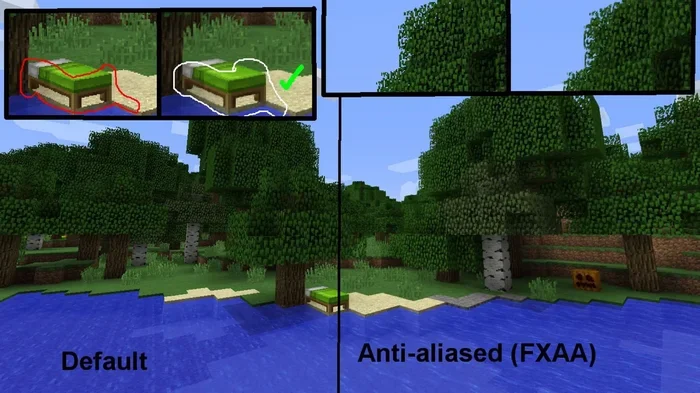
Anti aliasing in Minecraft is a graphics setting that smooths out jagged, pixelated edges on blocks and textures. It makes the game look cleaner and more polished without changing your world. Whether you play on a low-end laptop or a powerful gaming rig, understanding this feature helps you get the best balance of visual quality and performance.
Minecraft is a blocky, pixelated world by design. But sometimes those sharp, jagged edges on every block and texture can look a little rough on your eyes. That is where anti aliasing in Minecraft comes in. This simple graphics option smooths out those stair-step edges and makes everything look noticeably cleaner. If you have ever wondered why some Minecraft worlds look buttery smooth while others look crunchy and pixelated, this setting is a big part of the answer.
Anti aliasing is one of the most talked-about graphics options in Minecraft. It affects how your computer renders every line and edge in the game. But here is the tricky part: it can also affect how fast your game runs. In this guide, we will break down exactly what anti aliasing does, why it matters, and how to use it to get the best experience on your setup. Whether you are on a budget laptop or a high-end gaming machine, understanding this setting will help you play smarter, not harder.
Key Takeaways
- Smoother visuals: Anti aliasing removes jagged edges and makes Minecraft look much cleaner.
- Multiple types available: Options like FXAA and MSAA each work differently and impact performance in unique ways.
- Performance trade-off: Turning on anti aliasing uses more GPU power, which can lower your frame rate on weaker laptops.
- Easy to toggle: You can find and adjust the setting directly in Minecraft’s video settings menu.
- Works with shaders: Anti aliasing pairs well with shader packs to create stunning, smooth visuals.
- Laptop RAM matters: Having enough RAM in your laptop helps the game handle anti aliasing without slowdowns.
📑 Table of Contents
- What Is Anti Aliasing in Minecraft?
- Why Does Anti Aliasing Matter in Minecraft?
- Types of Anti Aliasing in Minecraft
- How to Enable Anti Aliasing in Minecraft
- How Anti Aliasing Affects Laptop Performance
- Anti Aliasing and Shaders: A Perfect Match
- Common Mistakes People Make with Anti Aliasing
- Expert Tips for the Best Anti Aliasing Experience
- Frequently Asked Questions
- Conclusion
What Is Anti Aliasing in Minecraft?
Anti aliasing is a rendering technique that smooths out jagged edges in digital images. In Minecraft, every block has sharp corners and straight lines. When these lines appear on your screen, they can create a stair-step effect known as aliasing. Anti aliasing blends the colors along those edges to make them look smoother and more natural.
Think of it like this. Imagine drawing a straight line on a grid made of tiny squares. The line looks jagged because it has to hop from square to square. Anti aliasing is like adding a soft blur around that line so it looks smooth to the eye. It does not change the actual blocks or the world. It just makes the edges look better.
Minecraft offers several anti aliasing options built into the game. You can turn the feature on or off, and you can choose from different methods depending on your hardware. Each method has its own strengths. Some give smoother results, while others use less processing power. We will cover each of these in detail below.
Why Does Anti Aliasing Matter in Minecraft?
Minecraft is famous for its blocky, retro-style graphics. That is part of its charm. But even blocky games benefit from smoother edges. Anti aliasing in Minecraft makes the world feel more polished and professional. It removes the harsh pixel boundaries that can strain your eyes during long gaming sessions.
There are a few key reasons why this setting matters:
- Better visual quality: Smoothed edges make textures and blocks look cleaner and more refined.
- Reduced eye strain: Jagged edges can cause visual fatigue over time. Smoothing them out helps your eyes feel more comfortable.
- Improved immersion: A smoother world feels more polished and draws you deeper into the Minecraft experience.
- Screenshot quality: If you take screenshots or record videos, anti aliasing makes your images look much better.
On the flip side, anti aliasing does require extra work from your computer. Your GPU has to calculate those smooth edges on every frame. This means turning it on can lower your frame rate or FPS, especially on older or less powerful hardware. So it is always a trade-off between looks and performance.
Types of Anti Aliasing in Minecraft
Minecraft gives you several options when it comes to anti aliasing. Each one works differently and has different effects on performance. Here is a closer look at the most common types you will encounter.
FXAA (Fast Approximate Anti Aliasing)
FXAA is the most popular anti aliasing option in Minecraft. It is fast and works well on most hardware. FXAA applies a smooth blur to the entire image, which removes jagged edges without requiring much GPU power. This makes it a great choice for laptops and lower-end systems.
The downside of FXAA is that it can make the image look slightly blurry. Fine details in textures may lose some sharpness. But for most players, the difference is barely noticeable, and the performance gain is well worth it.
MSAA (Multisample Anti Aliasing)
MSAA provides a much higher quality smooth than FXAA. It works by sampling multiple points along each edge and blending them together. The result is a much cleaner image with less blur. MSAA comes in different levels, such as 2x, 4x, and 8x. The higher the number, the smoother the edges, but the more GPU power it demands.
MSAA is best for players with a strong graphics card. If you are running Minecraft on a powerful laptop with a dedicated GPU, MSAA can make the game look absolutely stunning. On weaker systems, it can cause noticeable lag and dropped frames.
SMAA (Subpixel Morphological Anti Aliasing)
SMAA is a more advanced technique that combines edge detection with smart blending. It produces results similar to MSAA but uses less processing power. SMAA is a great middle-ground option if you want smooth visuals without a big performance hit. However, it is not always available in the base Minecraft settings and may require mod support.
No Anti Aliasing (Off)
Turning anti aliasing off gives you the raw, pixelated Minecraft look. Every edge is sharp and jagged. This is the default setting for most players and it places the least demand on your hardware. If you are playing on a very old laptop or want maximum frame rates, keeping anti aliasing off is a perfectly valid choice.
How to Enable Anti Aliasing in Minecraft
Enabling anti aliasing in Minecraft is simple and takes just a few clicks. Here is how to do it step by step:
- Launch Minecraft and go to the Main Menu.
- Click on Options.
- Select Video Settings.
- Look for the Graphics option.
- Change the setting from Fast to Fabulous or adjust the anti aliasing slider if available.
- Return to the main menu and re-enter your world to see the changes.
Note that the exact steps may vary slightly depending on your Minecraft version. Some versions use a simple on/off toggle, while newer versions offer a slider with multiple quality levels. If you are using a shader pack, anti aliasing settings may be built into the shader configuration instead.
How Anti Aliasing Affects Laptop Performance
Running Minecraft on a laptop is different from running it on a desktop. Laptops have limited cooling, shared graphics processors, and less overall power. This makes the anti aliasing choice even more important for laptop players.
When you turn on anti aliasing, your laptop’s GPU has to work harder. It needs to process more data for every single frame. This can lead to:
- Lower frame rates: Your game may feel less smooth if the GPU cannot keep up.
- Increased heat: A harder-working GPU generates more heat, which can throttle performance on laptops.
- Higher battery drain: More GPU work means your battery will drain faster while playing.
The amount of RAM in your laptop also plays a role here. Minecraft is well known for being a memory-hungry game. If your laptop does not have enough memory to handle the game and the anti aliasing processing at the same time, you may experience stuttering or crashes. Having a good amount of RAM helps ensure smooth performance even with graphics options turned up.
Here are some quick tips for balancing anti aliasing and performance on a laptop:
- Start with FXAA for the best balance of quality and speed.
- Lower your render distance if you notice frame drops.
- Close other background apps while playing to free up system resources.
- Make sure your laptop is on a flat surface for proper airflow.
- Consider adjusting your Minecraft video settings to find the sweet spot for your specific hardware.
Anti Aliasing and Shaders: A Perfect Match
Shaders are one of the most popular ways to upgrade Minecraft’s visuals. They add realistic lighting, shadows, and water reflections. But shaders can also make jagged edges more noticeable. This is where anti aliasing in Minecraft really shines. Pairing anti aliasing with a shader pack creates a dramatic improvement in visual quality.
Many shader packs include their own anti aliasing features. SEUS (Sonic Ether’s Unbelievable Shaders) and BSL Shaders are popular examples that build smooth edges right into their rendering pipeline. If you are using a shader pack, check the shader options before adjusting the in-game anti aliasing settings.
Keep in mind that combining shaders and anti aliasing puts a heavy load on your GPU. Only do this if your laptop or desktop can handle it. If your frame rate drops too low, try lowering the shader quality or switching to a lighter anti aliasing method like FXAA.
Common Mistakes People Make with Anti Aliasing
There are a few common mistakes that players make when using anti aliasing in Minecraft. Avoiding these will help you get the best experience:
- Turning on the highest setting without testing: Not every laptop can handle MSAA 8x. Always test each setting before committing.
- Ignoring other video settings: Anti aliasing is just one piece of the puzzle. Render distance, smooth lighting, and cloud quality all affect performance too.
- Forgetting to update drivers: Old GPU drivers can cause anti aliasing features to malfunction or perform poorly.
- Using anti aliasing on a low-resolution screen: If your screen resolution is already low, anti aliasing may not make much of a visible difference and will still cost performance.
Another mistake is assuming that more anti aliasing always equals better visuals. In reality, the best setting is the one that gives you smooth edges and a playable frame rate. Experiment to find what works for your setup.
Expert Tips for the Best Anti Aliasing Experience
Here are some expert-backed tips to help you get the most out of anti aliasing in Minecraft:
- Use FXAA as your default: It is the safest option for most laptops and provides a good visual boost with minimal performance cost.
- Monitor your FPS: Use the Minecraft debug screen (press F3) to check your frame rate while adjusting anti aliasing settings.
- Combine with OptiFine: OptiFine is a popular mod that gives you more control over graphics settings, including advanced anti aliasing options.
- Consider your screen size: Larger screens make jagged edges more visible, so anti aliasing matters more on bigger displays.
- Keep your laptop cool: A cooler laptop performs better under load, so use a cooling pad if you are playing for long sessions.
Remember, the goal is to enjoy Minecraft. Anti aliasing is a tool to enhance that experience, not a requirement. If you prefer the raw pixelated look, that is perfectly fine too. The best setting is always the one that makes you happy while playing.
Frequently Asked Questions
Does anti aliasing make Minecraft look better?
Yes, anti aliasing in Minecraft smooths out jagged edges and makes the game look noticeably cleaner. The improvement is most visible on block edges and texture boundaries. However, the exact difference depends on your screen resolution and personal preference.
Will turning on anti aliasing lag my laptop?
It can, especially on weaker hardware. Anti aliasing requires your GPU to do extra work for every frame. FXAA has a minimal performance impact, but MSAA can cause noticeable lag on older laptops. Always test each setting to find what works for your system.
What is the best anti aliasing setting for low-end laptops?
FXAA is the best choice for low-end laptops. It provides a smooth visual improvement while using very little GPU power. If you still experience lag, try turning anti aliasing off completely and lowering other video settings like render distance.
Can I use anti aliasing with Minecraft shaders?
Yes, many shader packs include their own anti aliasing features. You can also use the in-game anti aliasing setting alongside shaders. Just be aware that combining both can be demanding on your GPU, so monitor your frame rate closely.
Is anti aliasing the same as smoothing in Minecraft?
Not exactly. Smoothing in Minecraft usually refers to smooth lighting or smooth terrain options. Anti aliasing specifically targets jagged edges on rendered images. They are related but separate features that both contribute to a better visual experience.
Do I need a powerful GPU to use anti aliasing in Minecraft?
Not necessarily. FXAA works well on almost any GPU, including integrated graphics. But if you want to use higher-quality options like MSAA 4x or 8x, a dedicated graphics card will give you much better results. Check your laptop specifications to see what your GPU can handle.
Conclusion
Anti aliasing in Minecraft is a simple but powerful tool that can transform the way your game looks. It smooths out those harsh, jagged edges and makes the blocky world feel more refined and polished. Whether you choose FXAA for quick performance gains or MSAA for stunning visual quality, the choice is yours.
The key is finding the right balance for your hardware. A gaming laptop with a strong GPU and plenty of memory can handle higher settings with ease. A budget laptop may need to stick with lighter options or turn the feature off entirely. Either way, understanding what anti aliasing does puts you in control of your Minecraft experience.
Take some time to experiment with the settings in your own game. Try turning it on and off. Compare the visuals. Watch your frame rate. Once you find the sweet spot, you will enjoy a smoother, more immersive Minecraft world every time you play. Happy crafting!