What Is Scroll Lock on Keyboard
Scroll lock is a toggle key found on most keyboards that was originally designed to change how screen scrolling works. Today, it is rarely used but still exists on many laptop keyboards and external setups. Understanding its purpose can help you troubleshoot odd behavior and unlock hidden shortcuts in programs like Excel.
Have you ever looked at your keyboard and wondered about that tiny Scroll Lock key tucked away in the corner? You are not alone. Many people use their computers every day without ever touching this mysterious key. Yet it has been part of keyboards for decades. In this guide, we will explore everything about scroll lock. You will learn what it does, where it is, and why it still exists on modern laptop keyboards. Whether you are a casual user or someone who works with spreadsheets all day, understanding this key can save you from confusion.
The scroll lock key is one of those legacy features that survived the evolution of computing. It dates back to the early days of PCs when screens were small and scrolling was a manual process. Back then, every key on the keyboard had a clear purpose. Today, most of us use a mouse or trackpad to scroll through pages. So the scroll lock function feels outdated. But it is not completely useless. Programs like Microsoft Excel still rely on it for specific behaviors. And on some laptops, it can cause unexpected issues if turned on by accident.
In the sections below, we will break down the history, function, location, and practical uses of scroll lock. We will also cover common problems and how to fix them. By the end, you will know more about this key than most people ever do. Let us dive in.
Key Takeaways
- Scroll lock is a legacy toggle key: It was created to control screen scrolling behavior before modern mice became standard.
- It rarely affects modern computing: Most programs today ignore scroll lock entirely, but Excel still uses it for specific functions.
- Not all keyboards have it: Many compact and laptop keyboards omit the scroll lock key to save space.
- You can enable or disable it easily: Use the on-screen keyboard or function key combinations to toggle it on and off.
- An active scroll lock can cause confusion: Arrow keys may stop scrolling the page and instead move the cursor, which puzzles many users.
- Troubleshooting is straightforward: A simple toggle or restart usually fixes any scroll lock-related issues.
📑 Table of Contents
What Is Scroll Lock on a Keyboard?
The scroll lock key is a toggle key on a computer keyboard. When you press it once, it turns on. Press it again, and it turns off. It works just like caps lock or number lock. The key was designed in the early days of computing to change how the screen responded to arrow keys. When scroll lock was active, the arrow keys would scroll the entire page up or down instead of moving the cursor cell by cell.
Think of it this way. Without scroll lock, pressing the down arrow moves your cursor to the next line. With scroll lock turned on, pressing the down arrow scrolls the page down while your cursor stays in place. This was very useful when screens could not scroll on their own. Users had to rely on keyboard commands to move through long documents.
Today, most software ignores scroll lock completely. Your computer screen scrolls smoothly with a mouse wheel or trackpad gesture. But some applications still honor the setting. Microsoft Excel is the most notable example. In Excel, scroll lock changes how the arrow keys behave within a spreadsheet. This can be helpful or confusing, depending on what you are trying to do.
The History of Scroll Lock
The scroll lock key first appeared on IBM keyboards in the 1980s. The IBM Model F and Model M keyboards both included it. At that time, computer screens were text-based. Users read data through command-line interfaces and early text editors. There was no smooth scrolling with a mouse. So the scroll lock key gave users a way to navigate long documents using only the keyboard.
As graphical user interfaces became popular in the 1990s, the need for scroll lock declined. Mice made it easy to scroll. Scroll bars appeared on every window. The key became a relic of an older computing era. But keyboard manufacturers kept it to maintain compatibility with older software and user habits. Even today, many full-size keyboards include it.
Where Is the Scroll Lock Key Located?
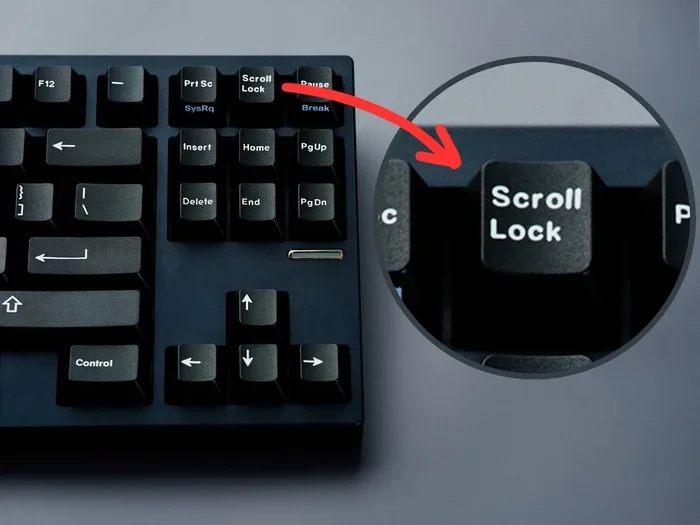
The location of the scroll lock key depends on your keyboard type. On a full-size desktop keyboard, you will usually find it in the top row, near the pause and break keys. It is often grouped with these keys on the upper left side of the keyboard. The label may simply say “Scr Lk,” “Scroll Lock,” or “Scroll Lk.”
On a laptop keyboard, things are different. Many laptops do not have a dedicated scroll lock key. Instead, you may need to use a function key combination. For example, on some laptops, pressing Fn plus a numbered or symbol key activates scroll lock. The exact combination varies by brand and model. This is one reason many laptop users never even know they have this feature.
External keyboards designed for laptops sometimes include a scroll lock key, especially if they are full-size replacements. Compact or travel keyboards often leave it out entirely to save space. If you cannot find the key on your keyboard, do not worry. You can still access scroll lock through the on-screen keyboard in Windows.
Finding Scroll Lock on Different Keyboard Brands
Different keyboard brands place the scroll lock key in slightly different spots. Here are some common locations:
- Dell keyboards: Usually near the top-left corner, next to the F12 key.
- HP keyboards: Often found in the top row, between F12 and the power button.
- Lenovo keyboards: May share the key with another function, requiring the Fn key to activate.
- Logitech external keyboards: Typically has a dedicated key in the top-left control row.
- Compact or wireless keyboards: May not include it at all.
If you are using an external keyboard with your laptop, check the top row first. If you are on a built-in laptop keyboard, look for the Fn key combination or use the on-screen keyboard to find it.
What Does Scroll Lock Actually Do?
The scroll lock function changes how your keyboard interacts with on-screen content. When scroll lock is turned on, the behavior of certain keys changes. The most affected keys are the arrow keys. Instead of moving the cursor through a document or spreadsheet, the arrow keys scroll the entire view.
But here is the thing. In most modern programs, scroll lock does absolutely nothing. You can turn it on or off, and you will not notice a difference. The screen still scrolls with your mouse. The cursor still moves with the arrow keys. This is because most developers no longer program their software to respond to scroll lock. It is essentially a dormant feature on most systems.
However, there are a few places where scroll lock still matters:
- Microsoft Excel: When scroll lock is on, arrow keys scroll through the spreadsheet without moving the active cell. This can be useful when reviewing large datasets.
- Some terminal emulators: Text-based interfaces may use scroll lock to freeze the screen output.
- Older software: Programs built before the 2000s may still respond to scroll lock as originally intended.
- Certain games: Rarely, some games use scroll lock as a toggle for specific in-game features.
For the average user, scroll lock is mostly a curiosity. But for spreadsheet workers and IT professionals, it can be a useful tool. If you work with large Excel files, turning on scroll lock lets you review data without accidentally changing your active cell.
Scroll Lock and Excel: A Special Relationship
Microsoft Excel is the standout application when it comes to scroll lock. In Excel, the arrow keys normally move the active cell selection one step in the chosen direction. But when scroll lock is enabled, the arrow keys scroll the entire worksheet view instead. The active cell stays where it is.
This behavior can be very helpful. Imagine you are reviewing a massive spreadsheet. You want to look at data in different areas without losing your place. With scroll lock on, you can scroll freely using the arrow keys while keeping your current cell selected. When you are ready to edit, you turn scroll lock off and continue as normal.
You can tell if scroll lock is active in Excel by looking at the status bar at the bottom of the window. It will display the words “Scroll Lock” when the feature is enabled.
How to Use Scroll Lock in Everyday Tasks
Using scroll lock is simple. Press the key once to turn it on. Press it again to turn it off. That is all there is to it. But knowing when and why to use it makes all the difference.
Here are some practical situations where scroll lock can be useful:
- Reviewing Excel spreadsheets: Keep your active cell in place while scrolling through rows and columns of data.
- Working in terminal windows: Freeze the output of a command-line session to read it without interruption.
- Using legacy software: Some older programs still rely on scroll lock for proper navigation.
- Keyboard navigation practice: If you prefer not to use a mouse, scroll lock gives you another way to move through content.
Most of the time, you will not need to use scroll lock at all. But it is good to know it exists. If you ever run into a situation where your arrow keys are scrolling the page instead of moving the cursor, check the scroll lock status. It might just be the culprit.
Quick Tips for Using Scroll Lock
- Check the status bar: In Excel and some other apps, scroll lock status is displayed at the bottom of the window.
- Use the on-screen keyboard: If your physical keyboard lacks a scroll lock key, open the Windows on-screen keyboard to toggle it.
- Watch for the LED indicator: Some keyboards have a small light that turns on when scroll lock is active.
- Combine with function keys: On laptops, you may need to hold Fn while pressing the scroll lock key combination.
Common Scroll Lock Problems and How to Fix Them
Even though scroll lock is a simple feature, it can cause some frustrating problems. The most common issue is accidentally turning it on and not realizing it. When this happens, the arrow keys stop working as expected. You press the down arrow and expect the cursor to move. Instead, the page scrolls. This can be confusing, especially for people who are not aware scroll lock is active.
Another common problem is the scroll lock light staying on even after you press the key. This can happen due to software glitches, stuck keys, or driver issues. In rare cases, a malfunctioning laptop keyboard may register the scroll lock key as constantly pressed.
Fixing Accidental Scroll Lock Activation
If your arrow keys are not behaving as expected, the first thing to check is the scroll lock status. Here is how to do it:
- Look at the keyboard indicator: Check if the scroll lock LED is lit. If it is, press the scroll lock key once to turn it off.
- Check the on-screen keyboard: Open the on-screen keyboard in Windows and look for the scroll lock key. If it is highlighted, click it to deactivate.
- Restart your computer: A simple reboot can clear any stuck key states, including scroll lock.
- Update keyboard drivers: Go to your device manager and update the keyboard driver. Outdated drivers can cause erratic behavior.
If you are working with the RAM on a laptop or performing hardware upgrades, sometimes a loose connection can cause keyboard keys to behave unpredictably. Make sure all internal connections are secure. Also, if you are troubleshooting keyboard issues, it is worth checking whether your how to know what RAM is compatible with my laptop guide mentions any peripheral interference.
When Scroll Lock Causes Excel Issues
Excel users sometimes complain that their arrow keys are not moving between cells. This is almost always caused by scroll lock being turned on. The fix is simple. Press the scroll lock key to turn it off. The arrow keys will return to their normal behavior of moving the active cell selection.
If you cannot find the scroll lock key on your laptop, you can use the on-screen keyboard. Open the Start menu, type “on-screen keyboard,” and launch it. Click the ScrLk key to toggle scroll lock on or off. This works on all versions of Windows and is a quick workaround for laptops without a dedicated key.
Scroll Lock on Laptops Without a Dedicated Key
Many modern laptops do not include a dedicated scroll lock key. This is because manufacturers are making keyboards smaller and more compact. Every millimeter of space counts on a portable device. As a result, some legacy keys are removed or combined with other functions.
On laptops without a scroll lock key, you can still access the feature through several methods. The most common way is to use a function key combination. Look at the top row of your keyboard. One of the F keys (usually F10, F11, or F12) may have a scroll lock symbol printed on it in a smaller font. Press and hold the Fn key while pressing that F key to toggle scroll lock.
Another option is to use the on-screen keyboard built into Windows. This is especially helpful if you are using an external mouse on your laptop and the keyboard layout is unfamiliar. The on-screen keyboard provides a visual representation of all keys, including scroll lock, and lets you click them with your mouse.
Alternative Ways to Toggle Scroll Lock
Here are some alternative methods to enable or disable scroll lock on a laptop:
- On-screen keyboard: Go to Settings, then Accessibility, then Keyboard, and turn on the on-screen keyboard. Click the ScrLk key to toggle.
- Action Center: Some Windows laptops let you toggle scroll lock from the quick settings panel.
- Third-party software: Programs like AutoHotkey allow you to remap keys or create custom scroll lock shortcuts.
- Keyboard settings in Windows: Go to Settings, then Devices, then Typing, and explore advanced keyboard settings for toggle options.
If you are dealing with keyboard issues on your laptop, it is also worth checking whether your touchpad or pointing device is working properly. Sometimes keyboard and pointing device issues overlap. You can learn more about what the mouse on a laptop is called and how it interacts with keyboard functions in related guides.
Some users also confuse scroll lock with other keyboard issues. If your keyboard is not responding correctly, it could be a hardware problem rather than a scroll lock issue. In such cases, checking your laptop hardware connections or updating drivers can help resolve the problem.
Should You Use Scroll Lock Regularly?
For most people, the answer is no. The scroll lock key serves a very niche purpose in today’s computing environment. Most of us rely on a mouse, trackpad, or touchscreen to scroll through content. The days of using arrow keys to navigate long documents are largely behind us.
That said, there are specific scenarios where keeping scroll lock in your toolkit is valuable. If you work with large Excel spreadsheets regularly, scroll lock can improve your workflow. If you use terminal emulators or legacy software, it may be essential. And if you are a keyboard enthusiast who prefers to minimize mouse usage, every toggle key counts.
The key takeaway is this. Scroll lock is not something you need to use every day. But knowing it exists and understanding how it works can save you time and frustration when the need arises. It is one of those hidden features that separates casual users from power users.
The Future of Scroll Lock
As computing continues to evolve, it is possible that scroll lock will eventually disappear from keyboards entirely. Already, many compact and wireless keyboards omit it. Apple keyboards have never included a scroll lock key. As laptops continue to get thinner and more portable, the pressure to remove legacy keys will only increase.
However, for now, scroll lock remains on most full-size keyboards. It is a small reminder of how far computing has come. From text-based interfaces to smooth, mouse-driven scrolling, the journey has been remarkable. And the scroll lock key is a piece of that history that still sits quietly on your keyboard, waiting for the moment you might need it.
Understanding this key also connects you to a broader knowledge of laptop hardware and keyboard functionality. If you are curious about other keyboard-related features, learning about the components inside your device can be fascinating. For instance, exploring what makes up the internal memory and processing power of your machine helps you appreciate how far technology has come since the scroll lock key was first introduced.
In the end, scroll lock is a small but interesting part of your keyboard. It may not be essential, but it is a piece of computing history that is still alive and functional on millions of keyboards around the world. The next time you spot that ScrLk key, you will know exactly what it does and when it might come in handy.
Frequently Asked Questions
What happens when scroll lock is turned on?
When scroll lock is on, the arrow keys on your keyboard scroll the entire page instead of moving the cursor. In programs like Microsoft Excel, it keeps your active cell in place while you navigate through the spreadsheet. Most other programs ignore scroll lock completely.
Why does my laptop not have a scroll lock key?
Many modern laptops remove the scroll lock key to save space and create a more compact keyboard. If your laptop lacks this key, you can still access scroll lock through the on-screen keyboard or by using a function key combination specific to your laptop brand.
How do I turn off scroll lock on my laptop?
Press the scroll lock key once if your keyboard has one. If it does not, open the on-screen keyboard in Windows and click the ScrLk key. You can also check the keyboard status in the taskbar or try pressing Fn plus the assigned function key to toggle it off.
Is scroll lock still useful in 2024?
Scroll lock is useful in specific situations, especially in Microsoft Excel and some legacy software. For most everyday tasks, it has little practical value since modern mice and trackpads handle scrolling much more efficiently. However, power users and spreadsheet workers still find it helpful.
Can scroll lock damage my keyboard?
No, scroll lock cannot damage your keyboard. It is a simple software toggle that changes how certain keys behave. Leaving it on or off will not cause any harm to your hardware or system. It is completely safe to leave it in any state.
Where is the scroll lock indicator light on a keyboard?
The scroll lock indicator light is usually located near the top-right area of the keyboard, close to the number lock and caps lock LEDs. Not all keyboards have this light. If your keyboard lacks an LED, you can check the scroll lock status in the Windows on-screen keyboard or in the status bar of applications like Excel.
=== CONCLUSION ===
Scroll lock is a legacy keyboard feature that has survived decades of technological change. While most users never touch it, understanding what it does can be surprisingly helpful. From changing arrow key behavior in Excel to troubleshooting unexpected scrolling issues, this small key plays a role worth knowing about. Whether you are working on a full-size desktop keyboard or a compact laptop, scroll lock is still there, waiting in the background. The next time you encounter odd keyboard behavior, check your scroll lock status first. It might just be the simple fix you were looking for.