What Is Comcast Imap Tls and Port 993
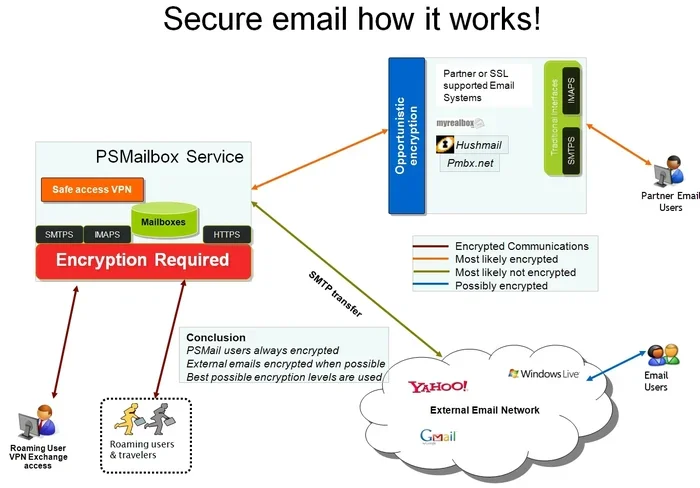
Comcast IMAP TLS and Port 993 are key settings that let you securely receive emails through your Comcast email account. These settings encrypt your connection and keep your messages safe from unauthorized access. Knowing the right configuration helps you set up email on any device without frustrating connection errors.
Setting up email on your laptop or desktop can feel confusing. There are server names, port numbers, and encryption options that sound like tech jargon. But understanding these settings is easier than you think. One of the most important combinations is Comcast IMAP TLS and Port 993. These settings control how your email app connects to Comcast mail servers to receive messages.
Whether you are setting up a new laptop or fixing an existing email problem, getting these settings right matters. A wrong port number or missing encryption can stop your email from working entirely. In this guide, we break down everything you need to know. You will learn what each part means, why it matters, and how to configure it step by step.
Let us start with the basics. IMAP stands for Internet Message Access Protocol. It is the language your email app uses to talk to the mail server. TLS stands for Transport Layer Security. It is the encryption that keeps your emails safe while they travel across the internet. Port 993 is the specific doorway your email app uses to connect securely. Together, these three pieces form the backbone of your Comcast email setup.
Key Takeaways
- IMAP syncs emails across devices: Unlike POP3, IMAP keeps your messages on the server so you can access them from multiple devices.
- TLS encryption protects your data: Using TLS with Port 993 ensures your email transmissions are encrypted and secure.
- Correct port settings prevent errors: Wrong port numbers are the most common cause of email connection failures.
- Comcast uses specific server addresses: The incoming mail server for Comcast is imap.comcast.net.
- Authentication is required: You must use your full Comcast email address and password to connect.
- Troubleshooting is straightforward: Most issues are fixed by double-checking your port and encryption settings.
📑 Table of Contents
- What Is IMAP and Why Does It Matter?
- Understanding TLS Encryption
- What Is Port 993 and How Does It Work?
- How to Configure Comcast IMAP TLS Port 993
- Troubleshooting Common Comcast Email Connection Issues
- Best Practices for Secure Email Setup
- Why These Settings Are Important for Everyday Email Use
- Final Thoughts on Comcast IMAP TLS and Port 993
What Is IMAP and Why Does It Matter?
IMAP is a mail protocol that lets you access emails stored on a remote server. Think of it like a library. Your emails are books stored on the server shelves. IMAP lets you browse, read, and organize them without downloading copies to your device. This is different from POP3, which downloads emails and removes them from the server.
How IMAP Works With Comcast
When you use Comcast email, IMAP keeps your messages on Comcast servers. This means you can check your email from your phone, tablet, and laptop. Everything stays in sync. If you read a message on your phone, it shows as read on your laptop too. This sync feature is why IMAP is the preferred choice for most users today.
To use IMAP with Comcast, you need the correct incoming mail server address. For Comcast, this is imap.comcast.net. Your email app needs this address to find the server and pull your messages. Without the right server name, your app cannot connect at all.
IMAP vs POP3: Which Should You Use?
Many people wonder whether they should use IMAP or POP3. Here is a quick comparison:
- IMAP: Keeps emails on the server. Syncs across multiple devices. Uses more server storage.
- POP3: Downloads emails to one device. Removes them from the server. Works offline easily.
For most people, IMAP is the better choice. It offers flexibility and convenience. You can check your email from anywhere without worrying about losing access to old messages.
Understanding TLS Encryption
TLS stands for Transport Layer Security. It is a protocol that encrypts data sent between your device and the mail server. Without TLS, your emails travel in plain text. Anyone who intercepts the data could read your messages. TLS puts your emails in a locked box that only the intended recipient can open.
Why TLS Is Essential for Email
Email contains sensitive information. Think about passwords, personal messages, and financial details. If someone intercepts unencrypted email, they can steal this data. TLS prevents that by scrambling the content during transmission. Even if someone manages to intercept the data, they cannot read it without the decryption key.
Comcast requires TLS for secure email connections. When you set up your email client, you should always enable TLS. This ensures your Comcast email settings meet the highest security standards. Most modern email apps enable TLS by default, but it is always worth checking.
TLS vs SSL: What Is the Difference?
You may see both TLS and SSL mentioned in email guides. SSL stands for Secure Sockets Layer. It was the older encryption protocol. TLS is the newer and more secure version. Today, almost all email services use TLS instead of SSL. When you see Port 993 mentioned, it is almost always tied to TLS encryption.
Some older email clients still reference SSL. But Comcast now uses TLS for its secure connections. If your app only offers SSL, it may not work with Comcast servers. Always look for TLS options in your email client settings.
What Is Port 993 and How Does It Work?
A port is like a numbered doorway on your computer. Different services use different ports. Web browsing uses Port 80 for HTTP and Port 443 for HTTPS. Email uses specific ports too. Port 993 is the standard port for IMAP over TLS.
Why Port 993 Matters for Comcast
When your email app connects to Comcast servers, it needs to know which port to use. Port 993 tells the app to use IMAP with TLS encryption. If you use the wrong port, the connection fails. Your app might show error messages like “cannot connect to server” or “connection timed out.”
Here is a quick look at common Comcast port settings:
- Port 993: IMAP with TLS encryption. This is the recommended setting.
- Port 143: IMAP without encryption. Less secure and not recommended.
- Port 465: SMTP with SSL for sending mail.
- Port 587: SMTP with TLS for sending mail.
For receiving emails with Comcast, Port 993 is the correct choice. It combines the IMAP protocol with TLS security. This gives you both reliable message retrieval and strong encryption.
Common Port Mistakes and How to Avoid Them
One of the biggest causes of email setup failures is using the wrong port. People sometimes enter Port 143 instead of 993. Or they forget to enable TLS. Here are some tips to avoid these mistakes:
- Always double-check your port numbers before saving settings.
- Make sure TLS or SSL encryption is turned on.
- Use the latest version of your email app.
- Restart your email app after changing settings.
If you are setting up email on a new device, make sure your What Is The Ram On A Laptop meets the minimum requirements for running email apps smoothly. Low RAM can sometimes cause email clients to freeze during setup.
How to Configure Comcast IMAP TLS Port 993
Now that you understand the basics, let us walk through the actual setup process. These steps work for most email apps including Apple Mail, Outlook, and Thunderbird. The process is similar across different platforms.
Step-by-Step Setup Guide
Follow these steps to configure your Comcast email correctly:
- Open your email app and go to Settings.
- Choose Add Account or Manage Accounts.
- Select IMAP as the account type.
- Enter your full Comcast email address and password.
- Set the incoming server to imap.comcast.net.
- Set the incoming port to 993.
- Choose TLS as the encryption method.
- Set the outgoing server to smtp.comcast.net.
- Set the outgoing port to 587 with TLS.
- Save the settings and test the connection.
That is all there is to it. Once you save these settings, your email app will connect to Comcast servers. You should see your inbox populate within a few seconds. If you encounter any issues, do not worry. We will cover troubleshooting next.
Setting Up on Popular Email Clients
Different email apps have slightly different setup screens. Here are quick tips for the most popular ones:
- Outlook: Go to File > Add Account. Select Manual setup and choose IMAP. Enter the server details as listed above.
- Apple Mail: Go to Mail > Preferences > Accounts. Click Add Account and select Other. Fill in the IMAP details carefully.
- Thunderbird: Go to Account Settings > Account Actions > Add Mail Account. Enter your email and the app will try to auto-configure. Verify that it uses Port 993 with TLS.
Auto-configuration tools are helpful. But they do not always pick the right port or encryption method. Always verify the settings manually after auto-setup. This simple habit saves a lot of troubleshooting time later.
When configuring email on your device, consider whether your What Is A Good Ram Size For A Laptop is sufficient. Email apps with large inboxes benefit from having adequate memory to sync messages quickly.
Troubleshooting Common Comcast Email Connection Issues
Even with the correct settings, email problems can still happen. Let us look at the most common issues and how to fix them.
Connection Timeout Errors
A connection timeout means your email app cannot reach the Comcast server. This usually happens for one of three reasons. First, your internet connection might be unstable. Second, a firewall or antivirus software could be blocking the connection. Third, you might have entered the wrong port number.
To fix timeout errors, start by checking your internet connection. Try opening a website in your browser. If the web works fine, the problem is likely with your email settings. Double-check that Port 993 is selected and TLS is enabled. Also make sure your What Is The Laptop Mouse Called or trackpad is responsive so you can navigate settings menus without issues.
Authentication Failed Errors
An authentication error means Comcast rejected your login credentials. This usually happens when the password is wrong. But it can also occur if you recently changed your Comcast password and forgot to update it in your email app.
To fix this, go back to your email app settings and re-enter your password. Make sure you are using your full Comcast email address, not just the username part. Also check that your Comcast account is active and not suspended.
Emails Not Syncing Across Devices
If your emails show up on one device but not another, IMAP sync might be the issue. First, make sure all devices use IMAP and not POP3. POP3 downloads emails to one device only. Second, check that your Comcast server storage is not full. Third, force a sync by pulling down on your inbox or clicking the refresh button.
Best Practices for Secure Email Setup
Security should always be a priority when setting up email. Here are some best practices to keep your Comcast account safe.
- Always use TLS encryption: Never connect without encryption. Unencrypted connections expose your emails to interception.
- Use a strong password: Combine uppercase letters, lowercase letters, numbers, and symbols. A strong password makes brute-force attacks much harder.
- Enable two-factor authentication: Comcast offers 2FA for email accounts. Turn it on for an extra layer of protection.
- Keep your email app updated: Updates often include security patches. Running outdated software leaves you vulnerable.
- Review your settings regularly: Periodically check that your port numbers and encryption settings have not changed.
Following these practices keeps your email secure and your connection stable. A properly configured Comcast IMAP TLS and Port 993 setup gives you peace of mind every time you check your inbox.
Why These Settings Are Important for Everyday Email Use
You might wonder why all these technical details matter for everyday email use. The truth is, they affect your daily experience more than you realize. Correct settings mean faster sync times, fewer dropped connections, and better security.
When your email app connects using TLS on Port 993, your messages are protected from the moment they leave Comcast servers. This is especially important if you check email on public Wi-Fi networks. Coffee shops, airports, and hotels often have unsecured networks. TLS encryption keeps your emails safe even on these networks.
Additionally, proper IMAP configuration ensures you never lose emails. Since messages stay on the server, you can access them from any device. If your laptop breaks or gets stolen, your emails are still safe on Comcast servers. You simply log in from another device and everything is there.
Final Thoughts on Comcast IMAP TLS and Port 993
Setting up Comcast email does not have to be complicated. The key is understanding what Comcast IMAP TLS and Port 993 do and why they matter. IMAP keeps your emails synced across devices. TLS encrypts your connection to keep data safe. Port 993 is the secure doorway your email app uses to connect.
With the correct server addresses, port numbers, and encryption settings, your email will work smoothly on any device. If you run into issues, go back to the basics. Check your port, verify TLS is enabled, and confirm your password is correct. These three checks solve the vast majority of Comcast email problems.
Take a few minutes today to verify your email settings. A small effort now saves hours of frustration later. Your inbox will thank you for it.
Frequently Asked Questions
What is the Comcast IMAP server address?
The Comcast IMAP incoming mail server address is imap.comcast.net. You need to enter this in your email app settings when configuring your account. Make sure to also set the port to 993 and enable TLS encryption for a secure connection.
Can I use Port 143 instead of Port 993 for Comcast email?
You can use Port 143, but it does not support encryption. Port 993 is the recommended setting because it uses TLS to encrypt your email data. Always choose Port 993 for the safest and most reliable connection to Comcast servers.
Why does my email keep saying connection failed with Comcast?
Connection failures usually happen when the port number, server address, or encryption setting is incorrect. Double-check that you are using Port 993 with TLS and that your incoming server is imap.comcast.net. Also verify that your internet connection is stable.
Is TLS the same as SSL for Comcast email?
TLS is the modern version of SSL. Comcast currently uses TLS for secure email connections. If your email app only offers SSL, it may not work properly. Always select TLS when configuring your Comcast IMAP settings.
Do I need to change my Comcast email settings when switching devices?
No, your Comcast IMAP settings remain the same across all devices. You just need to enter the same server address, port number, and encryption settings on each new device. This is one of the main benefits of using IMAP for your email.
What should I do if TLS is not available in my email app?
If your email app does not offer TLS, try updating it to the latest version. Older apps may not support modern encryption protocols. You can also contact Comcast support for guidance on compatible email clients and their latest configuration requirements.