What Is Msi Fan Hysteresis
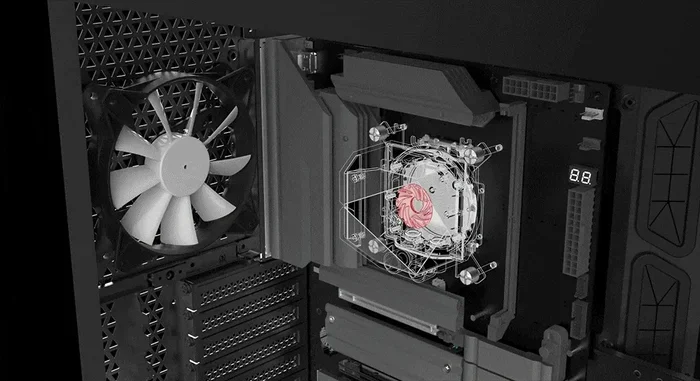
MSI fan hysteresis is a smart cooling feature that prevents your laptop fans from constantly switching on and off. It creates a temperature buffer zone so the fan only kicks in when needed and stays off longer when things cool down. This simple setting can reduce fan noise, extend component lifespan, and keep your MSI laptop running smoothly during heavy tasks.
If you own an MSI laptop, you may have noticed a setting called “fan hysteresis” hiding somewhere in your Dragon Center or BIOS menu. It sounds technical, and honestly, the name does not do it any favors. But here is the good news: fan hysteresis is one of the simplest and most useful cooling features your laptop has to offer.
In plain terms, MSI fan hysteresis is a small temperature gap that stops your fans from turning on and off every few seconds. Without it, your GPU fan might spin up the moment your temperature hits 60 degrees, then shut off the second it drops to 59 degrees. That constant cycling wears out your fan, creates annoying noise, and does very little to actually cool your system. Hysteresis fixes all of that.
Think of it like a thermostat in your home. You do not want your heater turning on every time the temperature drops by one degree. You set a range so the system only activates when things really need attention. MSI fan hysteresis works the same way for your laptop.
Key Takeaways
- Fan hysteresis prevents rapid on-off cycling: It adds a temperature gap between when the fan turns on and when it turns off.
- It reduces fan noise significantly: Fewer start-stop cycles mean less irritating buzzing and whirring.
- MSI implements this in Dragon Center and BIOS: You can adjust hysteresis settings through MSI’s software tools.
- It protects your GPU and CPU: Stable fan behavior means more consistent cooling and less thermal stress.
- You can customize the settings: Advanced users can tweak hysteresis values for their specific needs.
- It works alongside temperature thresholds: Hysteresis complements your fan speed curves and activation points.
📑 Table of Contents
- What Is Fan Hysteresis and How Does It Work?
- How MSI Implements Fan Hysteresis
- Why Fan Hysteresis Matters for Your Laptop
- How to Adjust Fan Hysteresis Settings on Your MSI Laptop
- Common Fan Hysteresis Problems and How to Fix Them
- Expert Tips for Optimizing MSI Laptop Cooling
- How Fan Hysteresis Compares Across MSI Laptops
- Final Thoughts on MSI Fan Hysteresis
What Is Fan Hysteresis and How Does It Work?
Fan hysteresis is a built-in delay mechanism. It tells your laptop’s fan control system to wait before reacting to small temperature changes. The idea is simple but very effective.
When your GPU or CPU heats up, the fan starts spinning. Without hysteresis, the fan would shut off the moment the temperature dips even slightly below the activation point. With hysteresis enabled, the fan keeps running until the temperature drops below a lower threshold. That lower threshold is the “hysteresis gap.”
For example, let us say your fan turns on at 65 degrees Celsius. With a hysteresis gap of 5 degrees, the fan will not shut off until the temperature falls to 60 degrees. This gap prevents rapid toggling and gives your cooling system time to do its job properly.
Why Does Rapid Fan Cycling Matter?
You might wonder why fan cycling is such a big deal. Here is the truth. Constant on-off switching puts mechanical stress on your fan bearings. Over time, this leads to faster wear and tear. Your fan gets louder, less efficient, and eventually needs replacement.
Beyond hardware damage, rapid cycling creates a poor user experience. The noise alone can be distracting during gaming, video calls, or even casual browsing. Fans that spin up and down every few seconds make a repetitive clicking or whining sound that can drive anyone crazy.
Hysteresis smooths all of this out. It creates a more stable cooling environment and a quieter experience. If you have ever wondered why your MSI laptop fans seem to behave erratically, lack of hysteresis could be the culprit.
How MSI Implements Fan Hysteresis
MSI has built fan hysteresis into its software ecosystem, primarily through Dragon Center and the BIOS firmware. The exact location and options vary depending on your laptop model and the version of software you are running.
Dragon Center Fan Settings
Dragon Center is MSI’s central hub for laptop customization. Inside the Dragon Center app, you can find fan control options under the “Cooler Boost” or “Settings” section. Here, you will see options for fan profiles, speed curves, and hysteresis settings.
Some MSI laptops offer preset hysteresis modes like “Standard,” “Silent,” and “Turbo.” In Silent mode, the hysteresis gap is usually wider. This means the fan stays off longer and only kicks in when temperatures rise more significantly. In Turbo mode, the gap is narrower so the fan responds faster to heat.
BIOS-Level Hysteresis Controls
For users who prefer deeper control, MSI BIOS also includes fan hysteresis settings. You can access these by pressing the Delete or F2 key during boot. Look for the “Hardware Monitor” or “Fan Control” section in your BIOS.
In BIOS, you can often set custom temperature thresholds for fan activation and deactivation. This gives you fine-grained control over how your laptop manages heat. If you are comfortable with BIOS settings, this is where you can really fine-tune your cooling performance.
MSI Afterburner and Third-Party Tools
Some users also use MSI Afterburner or other third-party fan control software. While MSI Afterburner primarily focuses on GPU overclocking, it does include fan speed curve controls. However, the native hysteresis feature is typically managed through Dragon Center or BIOS rather than Afterburner.
If you are already using what temperature your GPU fan turns on as a reference point, adjusting hysteresis can help you create a more practical and comfortable cooling setup.
Why Fan Hysteresis Matters for Your Laptop
You might be thinking, “Does this setting really make that much of a difference?” The answer is yes. Fan hysteresis affects several aspects of your laptop experience, from noise levels to long-term hardware health.
Improved Cooling Stability
When your fan responds to every tiny temperature fluctuation, it never stays on long enough to make a real difference. The fan spins up, cools the component by a degree or two, and then shuts off. This stop-start pattern does not allow for sustained heat dissipation.
With hysteresis, the fan runs for longer continuous periods. This gives it time to actually pull heat away from your GPU and CPU effectively. The result is more stable temperatures and better overall thermal management.
Reduced Noise Levels
One of the biggest complaints about gaming laptops is fan noise. MSI laptops are known for their Cooler Boost technology, but even the best cooling systems can get noisy without proper hysteresis settings.
By widening the hysteresis gap, you reduce the number of times your fan starts up. Fewer start cycles mean less noise overall. If you use your laptop in a quiet room or during late-night work sessions, this can make a noticeable difference.
Longer Fan and Component Lifespan
Fans are mechanical parts. They have bearings that wear out over time. Every start-stop cycle adds a tiny bit of wear to those bearings. Over thousands of cycles, this adds up.
Hysteresis reduces the total number of fan cycles significantly. Your fan runs fewer times per day, which means it lasts longer. The same goes for your GPU and CPU. More stable cooling means less thermal stress on these expensive components.
If you are curious about how to keep your laptop components running at healthy temperatures, checking what a good idle GPU temperature looks like can help you set better hysteresis thresholds.
How to Adjust Fan Hysteresis Settings on Your MSI Laptop
Adjusting your MSI fan hysteresis is straightforward. Here is a step-by-step guide to help you get started.
- Open Dragon Center. Launch the app from your Start menu or taskbar.
- Navigate to the Fan section. Click on “Cooler Boost” or “Fan Settings” depending on your version.
- Select your fan profile. Choose from Silent, Standard, or Custom mode.
- Adjust the hysteresis value. If available, increase or decrease the hysteresis gap in degrees.
- Apply and test. Run a demanding task like a game or benchmark and observe fan behavior.
- Fine-tune as needed. Adjust the values until you find a balance between cooling and noise.
For BIOS-level adjustments, restart your laptop, press the appropriate key to enter BIOS, and look for the fan control or hardware monitor section. Change the hysteresis or temperature offset values there, save your settings, and exit.
Quick Tips for Getting the Most Out of Hysteresis
- Start with the default settings and only change one variable at a time.
- Use a temperature monitoring tool to track changes in real time.
- Wider hysteresis gaps work best for quiet environments.
- Narrower gaps are better for intensive workloads where temperatures spike quickly.
- Do not set the hysteresis gap too wide or your laptop may overheat before the fan responds.
Remember, hysteresis works hand in hand with your overall thermal management strategy. It is not a magic fix but a valuable tool in your cooling toolkit.
Common Fan Hysteresis Problems and How to Fix Them
Even with the best settings, you might run into issues with fan hysteresis. Here are the most common problems and their solutions.
Fan Still Cycles Rapidly
If your fan is still turning on and off frequently despite enabling hysteresis, the hysteresis gap may be too small. Try increasing the gap by 3 to 5 degrees. Also, check that you are not using a fan profile that overrides hysteresis settings.
Sometimes, third-party software can conflict with Dragon Center’s fan controls. Close any other fan management apps and let MSI’s native tools take over.
Fan Does Not Turn On When It Should
This usually happens when the hysteresis gap is set too wide. The temperature may rise well above safe levels before the fan activates. If this happens, reduce the hysteresis gap or lower the activation temperature threshold.
You should also check your fan speed curve settings. A poorly configured speed curve can make even the best hysteresis settings ineffective.
Inconsistent Behavior After Updates
MSI regularly updates Dragon Center and BIOS firmware. Sometimes these updates reset your custom fan settings, including hysteresis. After any major update, check your fan settings and reapply your preferred configuration.
Keeping your laptop cooling system well-maintained also helps. Clean your air vents regularly and make sure your laptop is on a hard, flat surface for proper airflow.
Expert Tips for Optimizing MSI Laptop Cooling
Fan hysteresis is just one piece of the puzzle. Here are some expert-level tips to get the most out of your MSI laptop’s cooling system.
Use a Cooling Pad
An external cooling pad can dramatically improve airflow around your laptop. It works especially well when combined with optimized hysteresis settings. The pad provides extra intake and exhaust fans that supplement your laptop’s built-in cooling.
Monitor Temperatures Regularly
Use free tools like HWMonitor or MSI’s own Center Engine to keep an eye on your GPU and CPU temperatures. Knowing your baseline temperatures helps you set better hysteresis thresholds.
Keep Your Laptop Elevated
Even a simple laptop stand can improve airflow significantly. Elevating the back of your laptop allows more air to reach the bottom vents. This is a small change that can make a big difference in cooling performance.
Consider Your Environment
Ambient room temperature plays a huge role in how your laptop cools itself. In a hot room, your fan will need to work harder and may benefit from a narrower hysteresis gap. In a cool room, a wider gap keeps things quiet.
If you are looking for broader advice on keeping your laptop in top shape, check out what is the best investment for the lifespan of your PC for more tips on protecting your hardware.
How Fan Hysteresis Compares Across MSI Laptops
Not all MSI laptops handle hysteresis the same way. Higher-end models like the GE Raider and Titan series offer more granular control. Budget and mid-range models may have simpler fan profiles with fewer customization options.
Here is a quick comparison of what to expect across different MSI laptop lines.
- Gaming Series (GE, GT, Titan): Full hysteresis controls in Dragon Center and BIOS. Wide range of customizable fan profiles.
- Creator Series (Creator, Prestige): Balanced hysteresis settings optimized for quiet operation. Good default values out of the box.
- Budget Series (GF, Thin, Modern): Basic hysteresis options. May rely more on preset profiles than manual adjustments.
Regardless of your model, understanding and adjusting fan hysteresis can improve your experience. The feature is designed to work with your specific hardware, so take the time to explore the options available on your machine.
Final Thoughts on MSI Fan Hysteresis
MSI fan hysteresis is a small setting that makes a big impact. It keeps your fans from cycling on and off constantly, reduces noise, protects your hardware, and improves overall cooling performance. Whether you are a gamer, a content creator, or just someone who uses their laptop for everyday tasks, taking a few minutes to understand and adjust this setting is well worth it.
The beauty of hysteresis is its simplicity. You do not need to be a tech expert to benefit from it. Start with the default settings, monitor your temperatures, and make small adjustments until you find the sweet spot. Your laptop, your ears, and your hardware will all thank you.
Take control of your MSI laptop’s cooling today. Adjust your fan hysteresis, enjoy a quieter experience, and rest easy knowing your system is running at its best.
Frequently Asked Questions
What does hysteresis mean in MSI fan control?
Hysteresis in MSI fan control refers to the temperature gap between when a fan turns on and when it turns off. It prevents the fan from rapidly cycling on and off by requiring the temperature to drop below a lower threshold before the fan stops spinning. This creates more stable and quieter cooling performance.
Where can I find fan hysteresis settings on my MSI laptop?
You can find fan hysteresis settings in Dragon Center under the Cooler Boost or Fan Settings section. Some models also offer hysteresis controls in the BIOS under the Hardware Monitor or Fan Control menu. Check both locations to get the most options.
Does fan hysteresis affect gaming performance?
Fan hysteresis does not directly affect gaming performance, but it indirectly helps. By providing more stable and consistent cooling, it prevents thermal throttling during long gaming sessions. Stable temperatures allow your GPU and CPU to maintain their boost clocks for longer periods.
Can I turn off fan hysteresis on my MSI laptop?
Yes, you can disable hysteresis in most MSI laptops by setting the hysteresis gap to zero in Dragon Center or BIOS. However, disabling it may cause your fans to cycle more frequently, which can increase noise and wear on the fan bearings over time.
What is the best hysteresis gap for MSI laptop fans?
A hysteresis gap of 3 to 5 degrees Celsius works well for most users. If you prioritize silence, try a wider gap of 5 to 8 degrees. If you need maximum cooling response, keep the gap narrow at 2 to 3 degrees. Adjust based on your usage environment and workload.
How is fan hysteresis different from a fan speed curve?
A fan speed curve determines how fast the fan spins at different temperatures. Hysteresis determines when the fan turns on and off. They work together but serve different purposes. The speed curve controls intensity while hysteresis controls timing and prevents rapid cycling.
=== CONCLUSION ===
MSI fan hysteresis is one of those features that quietly does a lot of heavy lifting behind the scenes. It keeps your laptop cool, your fans quiet, and your hardware healthy. By understanding what it does and how to adjust it, you take control of your laptop’s thermal performance in a meaningful way.
Whether you tweak it through Dragon Center or dig into BIOS settings, even small adjustments to your hysteresis gap can lead to noticeable improvements. Combine this with good habits like keeping your vents clean and using your laptop on hard surfaces, and you will enjoy a cooler, quieter machine for years to come.