What Is a Router Web Management Interface

A router web management interface is a browser-based control panel that lets you configure and monitor your home or office network. You access it by typing your router’s IP address into any web browser on a connected device. It gives you full control over Wi-Fi settings, security options, and network performance from one simple dashboard.
Have you ever wondered how you can change your Wi-Fi password, update your network name, or block a device from your home network? The answer lies in a tool called the router web management interface. It is the control center for your entire home network, and you access it right from your web browser.
Think of it like the settings app on your phone, but for your router. Everything you need to manage, monitor, and secure your network lives inside this digital dashboard. Whether you are a tech beginner or a seasoned user, understanding how this interface works puts you in charge of your internet experience.
In this guide, we will walk you through everything you need to know. You will learn what it is, how to access it, what features it offers, and how to troubleshoot common issues. By the end, you will feel confident navigating your own router settings like a pro.
Key Takeaways
- Easy Access: You can manage your router from any device with a browser and an internet connection.
- Full Control: The interface lets you change Wi-Fi names, passwords, security settings, and more.
- Security Matters: Always change default admin credentials to keep your network safe.
- Troubleshooting Made Simple: You can diagnose and fix common network issues right from the dashboard.
- Firmware Updates: The web interface is where you update your router’s software for best performance.
- Parental and Bandwidth Controls: Many interfaces offer tools to manage usage across your network.
📑 Table of Contents
- What Exactly Is a Router Web Management Interface?
- How to Access Your Router’s Web Management Interface
- Key Features You Will Find in the Interface
- Why You Should Use the Web Interface Regularly
- Common Troubleshooting Tips for the Web Interface
- Best Practices for Securing Your Router Interface
- Conclusion
What Exactly Is a Router Web Management Interface?
A router web management interface is a built-in web page hosted by your router. You open it using a standard web browser like Chrome, Firefox, or Safari. It acts as the command center where you adjust all the settings that control how your network operates.
Unlike mobile apps that some router brands offer, the web interface works on any device with a browser. You do not need to install anything special. Just connect to your network, open a browser, and type in the router’s IP address. That is all it takes to get started.
The interface is different from one router brand to another. Brands like TP-Link, Netgear, ASUS, and Linksys all build their own versions. But the core functions remain very similar across them all. You will always find options for Wi-Fi settings, security, and device management.
How Does It Work Behind the Scenes?
When you type your router’s IP address into your browser, your device sends a request to the router. The router responds by serving up its built-in web page. This page runs locally on the router itself, not on the internet. That is why you can still access it even if your internet connection goes down.
The interface communicates with your router’s firmware. Firmware is the software that runs the hardware. Any changes you make through the web interface get saved directly into the firmware. This means your settings persist even after you restart the router.
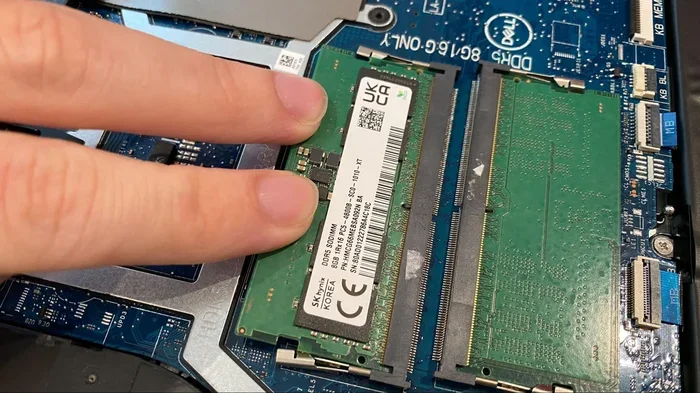
For those managing their network from a laptop, the amount of ram on a laptop matters less when simply accessing the router interface. However, having a smooth experience depends on your browser and connection quality. If you want to learn more about laptop memory and how it affects your workflow, check out our guide on what is the ram on a laptop.
How to Access Your Router’s Web Management Interface
Accessing your router’s web interface is straightforward. You just need a few pieces of information. Let us walk through the steps together.
Step 1: Find Your Router’s IP Address
Every router has a default IP address. The most common ones are 192.168.0.1, 192.168.1.1, or 10.0.0.1. You can find this address printed on a sticker on the bottom or back of your router. It is also listed in the user manual that came with the device.
If you cannot find it, you can look it up from your computer. On Windows, open the Command Prompt and type ipconfig. On Mac, go to System Preferences and click on Network. Your router’s IP address will show up as the “Default Gateway.”
Step 2: Open a Web Browser
Once you have the IP address, open any web browser you prefer. Type the IP address into the address bar at the top and press Enter. Make sure you type it into the browser bar, not a search engine box.
You should see a login page appear. This is the gateway to your router’s settings. If the page does not load, double-check the IP address and make sure you are connected to the router’s network.
Step 3: Log In with Your Credentials
The login page will ask for a username and password. Most routers use “admin” for both by default. Some brands use “admin” as the username and “password” as the password. Check the sticker on your router or the manual for the exact defaults.
Important: If you have never changed these credentials and cannot log in, you may need to reset the router. Look for a small reset button on the back. Press and hold it for about 10 seconds using a paperclip. This restores all settings to factory defaults.
Step 4: Explore the Dashboard
Once logged in, you will see the main dashboard. This is where all the magic happens. The layout varies by brand, but you will typically see sections for Wi-Fi settings, security, device lists, and advanced configurations.
Take a few minutes to browse around. Do not be afraid to click on different tabs. Most settings have clear labels and descriptions. If you are unsure about a setting, it is usually safe to leave it at the default value.
Key Features You Will Find in the Interface
The router web management interface is packed with useful features. Here are the most important ones you will encounter.
Wi-Fi Settings
This is where you control your wireless network. You can change the network name (SSID), set the password, and choose the security type. Most modern routers support WPA3, which is the most secure option available today. If your router supports it, always choose WPA3 or at least WPA2 for the best protection.
You can also adjust the wireless channel here. Channels help reduce interference from neighboring networks. The interface may even have an auto-select feature that picks the best channel for you.
Security and Firewall Settings
Security is one of the most critical sections. The interface lets you enable or disable the built-in firewall. You can set up MAC address filtering, which allows only specific devices to join your network. You can also enable or disable remote management, which controls whether the router can be accessed from outside your home network.
Many interfaces also include a feature to hide your Wi-Fi network from public view. This is called disabling SSID broadcast. It adds a layer of privacy, though it is not a substitute for strong passwords.
Parental Controls and Device Management
Parental controls let you manage internet access for specific devices. You can set time limits, block certain websites, and pause internet access for particular devices. This is especially helpful for families managing children’s screen time.
The device management section shows all connected devices. You can see their names, IP addresses, and how much data they are using. If you spot an unknown device, you can block it right from this page. Keeping your network free of unauthorized devices is essential for maintaining speed and security.
Port Forwarding and Advanced Settings
Port forwarding is a more advanced feature. It allows external devices to access specific services on your network, like a home server or a gaming console. The interface provides a simple form where you enter the port number and the device’s local IP address.
Other advanced settings include DHCP configuration, DNS settings, and QoS (Quality of Service). QoS lets you prioritize certain types of traffic, such as video calls or gaming, over less critical activities like file downloads.
For those who want to learn more about router compatibility and performance, understanding your device specs helps. If you are curious about how much memory your laptop needs for smooth network management, our article on is 8 Gb ram good for a laptop offers great insights.
Why You Should Use the Web Interface Regularly
Many people set up their router once and never touch the settings again. But regularly accessing the web management interface offers real benefits. Here is why you should make it a habit.
Keep Your Firmware Updated
Router manufacturers release firmware updates regularly. These updates fix security vulnerabilities, improve performance, and add new features. The web interface is where you check for and install these updates. Neglecting updates leaves your network exposed to known threats.
Monitor Network Performance
The interface often includes real-time traffic monitoring. You can see how much bandwidth each device is using and identify slowdowns. This is incredibly useful when someone in your household is experiencing slow internet speeds.
Troubleshoot Problems Quickly
When something goes wrong with your network, the web interface gives you diagnostic tools. You can check connection logs, see which devices are online, and test signal strength. Many issues can be resolved without calling your internet service provider.
Maintain Strong Security
Cyber threats evolve constantly. By regularly reviewing your security settings, you stay ahead of potential risks. Change your admin password every few months. Update your Wi-Fi password if you suspect unauthorized access. These small steps go a long way in protecting your personal data.
For those who want to optimize their entire setup, knowing your laptop specs matters. If you are researching compatible hardware, take a look at our guide on how to know what ram is compatible with my laptop for helpful tips.
Common Troubleshooting Tips for the Web Interface
Sometimes things do not go as planned when accessing your router settings. Here are the most common issues and how to fix them.
Page Will Not Load
If the login page does not load, first check that you are connected to the router’s network. Try using a different browser or clearing your cache. Make sure you typed the IP address correctly. A single wrong digit will prevent the page from loading.
Forgot Login Credentials
If you forgot your custom username or password, a factory reset is the fastest solution. Press and hold the reset button for 10 seconds. This restores all settings, including the default login credentials. Keep in mind that you will need to reconfigure your Wi-Fi name and password after a reset.
Settings Not Saving
If your changes do not stick, try restarting the router after applying them. Some routers require a reboot to fully implement new settings. Also, make sure you are logged in with an admin account, as standard user accounts may have limited access.
Slow Interface Performance
If the web interface feels sluggish, it could be due to network congestion or an outdated browser. Try closing other tabs and applications. Update your browser to the latest version. If the problem persists, check if a firmware update is available for your router.
Best Practices for Securing Your Router Interface
Your router’s web interface is the gateway to your entire network. Securing it should be a top priority. Here are some best practices everyone should follow.
- Change the default admin password: Default credentials are widely known and easily exploited. Choose a strong, unique password.
- Disable remote management: Unless you specifically need it, turn off remote access to the interface.
- Use HTTPS if available: Some routers offer an HTTPS option for the web interface. This encrypts your login credentials.
- Keep firmware updated: Regular updates patch security holes and improve stability.
- Limit connected devices: Only allow trusted devices on your network.
- Use WPA3 or WPA2 encryption: Never use WEP, as it is outdated and easily cracked.
Taking these steps ensures that your network remains safe and your personal data stays protected. A few minutes of effort today can save you from serious security headaches tomorrow.
For those looking to get the most out of their laptop when managing router settings, having a well-configured device helps. Our article on what is a good ram for a laptop can help you understand the right specifications for smooth multitasking and network management.
Conclusion
The router web management interface is one of the most powerful yet overlooked tools in your home network setup. It gives you direct control over your Wi-Fi settings, security configurations, and device management. You do not need to be a tech expert to use it. With just a browser and your router’s IP address, you can take charge of your entire network.
Make it a habit to check your router settings regularly. Update your firmware, review connected devices, and strengthen your passwords. These small actions add up to a faster, safer, and more reliable internet experience for everyone in your household.
Now that you know what the interface is and how to use it, you have everything you need to get started. Open your browser, type in that IP address, and explore your router’s capabilities. You will be surprised at how much control you actually have over your network.
Frequently Asked Questions
Can I access the router web management interface from my phone?
Yes, you can access it from any device with a web browser and a connection to the router’s network. Simply open Chrome, Safari, or any other browser on your phone and type in the router’s IP address. The interface will load just like it would on a computer.
What should I do if I accidentally changed a setting and broke my network?
Do not panic. You can perform a factory reset by pressing and holding the reset button on the back of your router for about 10 seconds. This will restore all settings to their original defaults, including your Wi-Fi name and password. You will need to reconfigure your network after the reset.
Is it safe to access the router interface over Wi-Fi?
Yes, it is generally safe as long as you are connected to your own trusted network. The communication happens locally between your device and the router. For an extra layer of security, always change the default admin credentials and disable remote management if you do not need it.
How often should I check my router’s web management interface?
It is a good idea to check it at least once a month. Use that time to look for firmware updates, review connected devices, and verify that your security settings are current. Regular checkups help keep your network running smoothly and securely.
Can I access the interface if my internet is down?
Yes, you can. The web management interface runs locally on the router itself. As long as your device is connected to the router via Wi-Fi or Ethernet, you can access the interface even if your internet service is not working.
Do all routers have a web management interface?
Most routers do, including models from major brands like TP-Link, Netgear, ASUS, and Linksys. Some newer routers also offer companion apps that mirror the web interface features. However, the web-based interface remains the most universal and reliable way to manage any router.