What Is Screen Connect
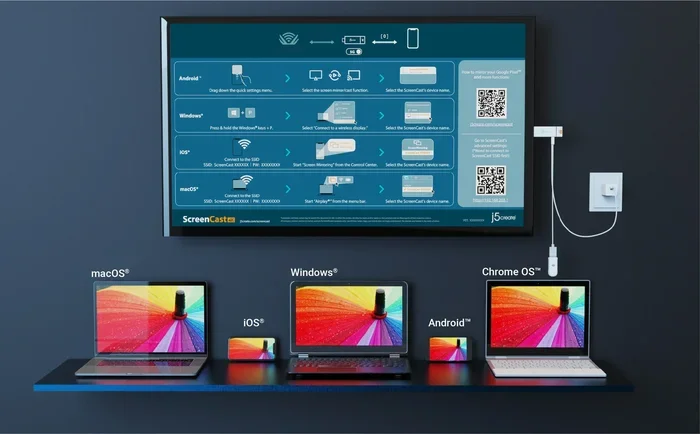
Screen Connect is the technology that lets you link your laptop display to another screen, whether wirelessly or through a cable. It enables screen mirroring, casting, and extension for work, presentations, and entertainment. This guide covers how Screen Connect works, setup steps, and common uses for everyday users.
Key Takeaways
- Screen Connect lets you share your laptop display with external screens easily and quickly.
- You can use wireless casting or wired cables like HDMI to set up Screen Connect in minutes.
- Understanding your laptop display settings helps you get the best Screen Connect experience every time.
- Screen Connect is useful for presentations, multitasking, streaming content, and sharing with others.
- Common issues like lag or no signal can be fixed with simple troubleshooting steps.
- Investing in the right adapter or cable makes your Screen Connect setup more reliable and stable.
📑 Table of Contents
What Does Screen Connect Do For Your Laptop?
Screen Connect is a feature or technology that allows your laptop display to link with another screen. Whether you want to mirror what is on your laptop screen or extend your workspace, Screen Connect makes it possible. You can use it with a monitor, a projector, or even a smart TV. The process is simple and does not require advanced technical skills.
Many people wonder what Screen Connect really means. In simple terms, it is the bridge between your laptop and a second display. You can cast your screen, mirror it, or extend it depending on what you need. This technology has become a must-have for workers, students, and anyone who enjoys media on a bigger screen.
The beauty of Screen Connect lies in its flexibility. You can go wireless using protocols like Miracast or Chromecast. Or you can plug in an HDMI cable for a stable connection. Either way, Screen Connect gives you the freedom to use your laptop display wherever you are. It is one of the most practical tools for modern laptop users.
How Does Screen Connect Work?
Screen Connect works by sending your laptop display output to another screen. This can happen through a cable or over a wireless network. Let us break down how each method works so you can choose the best option for your needs.
Wired Screen Connect
When you use a cable for Screen Connect, you plug one end into your laptop and the other into the external display. The most common cable is HDMI. It carries both video and audio signals in one simple connection. Other options include USB-C, DisplayPort, and VGA for older setups.
Wired Screen Connect offers a stable and lag-free experience. You do not have to worry about signal drops or buffering. This makes it ideal for presentations and gaming. If your laptop has a USB-C port, you may need a display adapter to connect to an HDMI monitor. A good display adapter ensures smooth and clear output every time.
Wireless Screen Connect
Wireless Screen Connect uses your Wi-Fi network to send your display to another screen. Technologies like Miracast, AirPlay, and Chromecast make this possible. You simply select the target screen from your laptop display settings and start casting.
Wireless Screen Connect is convenient and cable-free. You can cast from across the room without any cords. However, it depends on a strong Wi-Fi signal. If your network is slow, you may experience lag or lower screen resolution. For the best results, use a 5GHz Wi-Fi band when possible. This keeps your wireless display fast and responsive.
Ways To Use Screen Connect
Screen Connect is not just for one purpose. It serves many needs depending on your situation. Here are the most common and useful ways people use it every day.
Screen Mirroring
Screen mirroring shows the exact same image on both your laptop and the external display. Whatever you do on your laptop appears on the second screen in real time. This is great for sharing photos, showing slides, or demonstrating something to a group.
To set up screen mirroring, go to your laptop display settings and choose the mirror option. Your laptop screen size will match the external display. Make sure both screens have similar resolutions for the best picture quality. Screen mirroring is quick, easy, and requires no extra software in most cases.
Screen Extension
Screen extension lets you use the second display as extra workspace. Your laptop screen shows one set of windows, and the external monitor shows another. This is a game changer for multitasking and productivity.
Many professionals use screen extension to have their email open on one screen and their work document on the other. It keeps your workflow organized and saves time. If your laptop has enough RAM, you will notice smoother performance when extending your display. Check what is a good RAM size for a laptop to make sure your system can handle extended use without slowing down.
Presentations And Screen Sharing
Screen Connect shines during presentations. You can cast your laptop display to a projector or large TV in a meeting room. Your audience sees exactly what you see. This makes meetings, classes, and team sessions more engaging and interactive.
For the best presentation experience, use a wired connection when possible. It is more reliable than wireless casting. If you must go wireless, test the connection beforehand to avoid any surprises. Screen sharing through Screen Connect is a skill that helps you communicate better in any setting.
Benefits Of Using Screen Connect
There are many reasons to use Screen Connect with your laptop. Here are the key benefits that make it worth setting up.
- Bigger Display: Screen Connect lets you view content on a larger screen. This is helpful for watching movies, editing photos, or reading long documents comfortably.
- Better Productivity: Extending your display gives you more workspace. You can open multiple windows side by side without constantly switching between tabs.
- Easy Sharing: You can share your laptop screen with others instantly. This is perfect for team meetings, classrooms, and family gatherings.
- Flexible Setup: Screen Connect works with many types of displays. You are not limited to one brand or model of monitor or TV.
- Cost Savings: Instead of buying a second laptop, you can use Screen Connect with an affordable external monitor. It is one of the best investments for the lifespan of your PC setup.
Common Problems With Screen Connect And How To Fix Them
Screen Connect is generally reliable, but you may run into issues now and then. Here are the most common problems and their simple solutions.
No Signal On External Display
If your external monitor shows no signal, check the cable connection first. A loose HDMI or USB-C cable is often the cause. Try unplugging and replugging the cable firmly. If you are using wireless Screen Connect, make sure both devices are on the same Wi-Fi network.
Also check your display settings. Your laptop may not be set to output to the external screen. Press the display toggle key on your keyboard to cycle through output options. This simple step fixes the problem for many users.
Lag Or Delay In Wireless Screen Connect
Wireless Screen Connect can sometimes lag. This usually happens when the Wi-Fi signal is weak. Move closer to your router or switch to a less crowded channel. You can also reduce the screen resolution to improve performance and reduce delay.
If lag persists, try a wired connection. A cable will always give you a faster and more stable experience than wireless casting. It is the most reliable way to connect your laptop to a second display.
Audio Not Working On Connected Screen
Sometimes your laptop screen connects to the external display but audio does not play. Check your sound settings and make sure the output is set to the external display. On Windows, right-click the speaker icon and select the correct output device. On macOS, go to sound preferences and choose the external display as your output.
Tips For The Best Screen Connect Experience
Follow these simple tips to get the most out of Screen Connect on your laptop every single time.
- Use A High Quality Cable: A good HDMI or USB-C cable ensures a clear and stable connection. Cheap cables can cause signal issues and lower screen quality over time.
- Check Your Display Settings: Before connecting, review your laptop display settings. Set the correct resolution and refresh rate for the best picture quality on your external monitor.
- Keep Your Laptop Cool: When you extend your display, your laptop works harder. Make sure your CPU cooler is functioning well to prevent overheating during long sessions.
- Update Your Display Drivers: Outdated graphics drivers can cause problems with Screen Connect. Keep your drivers up to date for smooth and reliable performance.
- Invest In A Good Adapter: If your laptop has USB-C but your monitor uses HDMI, a quality adapter makes all the difference. It is a small investment that improves your Screen Connect setup greatly.
These tips apply whether you are a casual user or a professional who relies on screen connectivity every day. A little preparation goes a long way toward a seamless experience.
Final Thoughts On Screen Connect
Screen Connect is a simple yet powerful tool that enhances how you use your laptop. Whether you mirror, extend, or cast your display, it opens up new possibilities. You can work more efficiently, present with confidence, and enjoy media on a bigger screen without any hassle.
The technology behind Screen Connect continues to improve. Wireless casting is getting faster and more reliable every year. New standards make it even easier to connect without a router. As laptops become more versatile, Screen Connect will only grow in importance for everyday users and professionals alike.
If you have not tried Screen Connect yet, now is the perfect time. Grab a cable or open your wireless settings and give it a try. You will wonder how you ever worked without it. Your laptop display was made to do more than sit on your desk. Screen Connect unlocks that full potential and makes every screen a better screen.
Frequently Asked Questions
Is Screen Connect the same as screen mirroring?
Screen Connect is a broader term that includes screen mirroring. Mirroring shows the same image on both screens. But Screen Connect also covers extending your display and casting content. So mirroring is one part of what Screen Connect can do.
Do I need special software to use Screen Connect?
Most laptops have built-in Screen Connect features. Windows includes Miracast support, and Macs support AirPlay. You may need third-party software only if your display does not support these standard protocols. Check your display settings first before downloading anything.
Can I use Screen Connect with any external monitor?
Yes, Screen Connect works with most external monitors and TVs. You just need the right cable or adapter. Make sure your external display supports the input type your laptop uses. HDMI is the most common and widely compatible option for screen connectivity.
Does Screen Connect affect laptop battery life?
Wireless Screen Connect uses more battery than wired connections. The Wi-Fi radio works harder to send your display output. If you are on battery power, a wired HDMI connection is more efficient. It keeps your laptop running longer while still delivering great screen quality.
What is the best cable for Screen Connect?
HDMI is the most popular and reliable cable for Screen Connect. It carries both video and audio in one cable. USB-C is also excellent if your laptop and monitor both support it. Choose a cable that matches your laptop ports for the easiest setup.
Can I connect my laptop to a projector using Screen Connect?
Yes, you can connect your laptop to a projector using Screen Connect. Use an HDMI cable for the most stable connection. Many projectors also support wireless screen casting through built-in features. Check your projector manual for compatible connection options before your next presentation.