What Is an Unsupported Windows 11 Installation
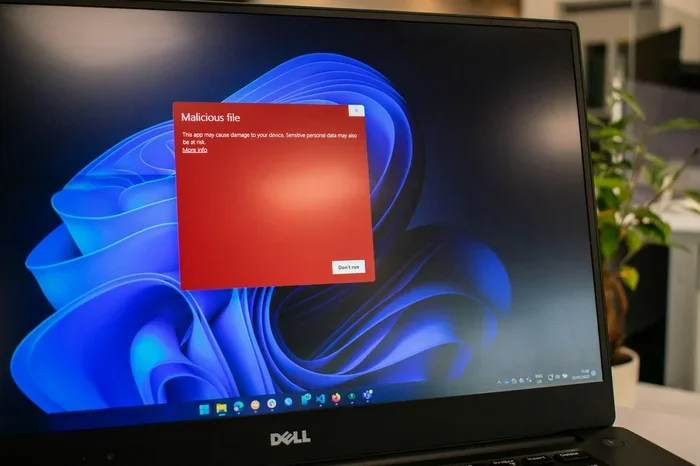
An unsupported Windows 11 installation happens when your PC does not meet the official system requirements set by Microsoft. This means you may see warnings, miss updates, or face security risks. Understanding the causes and solutions helps you protect your laptop and get the most out of your system.
You try to install Windows 11 on your laptop. Everything seems fine. Then a red warning pops up. Your PC is not supported. This is more common than you might think.
An unsupported Windows 11 installation occurs when your computer does not meet the minimum hardware requirements set by Microsoft. You can still install the operating system. But you will face warnings, missing features, and potential security gaps. This guide explains everything you need to know. We cover why it happens, what the risks are, and how to fix it.
Whether you are upgrading an older laptop or building a new one, understanding Windows 11 compatibility is essential. Let us break it all down in simple terms.
Key Takeaways
- Unsupported Windows 11 means your PC fails to meet Microsoft’s official hardware requirements.
- Common causes include old processors, missing TPM 2.0, lack of Secure Boot, or insufficient RAM.
- You can still install Windows 11 on unsupported hardware using workarounds, but with risks.
- Running an unsupported version may leave you without critical security updates.
- Checking compatibility before installing saves time and prevents frustration.
- Upgrading RAM or replacing older parts can help your laptop qualify for supported Windows 11.
📑 Table of Contents
- What Does Unsupported Windows 11 Mean?
- System Requirements for Windows 11
- Why Does an Unsupported Windows 11 Installation Happen?
- Risks of Running an Unsupported Windows 11 Installation
- How to Check If Your PC Supports Windows 11
- Workarounds for Unsupported Windows 11 Installation
- Quick Tips for a Smooth Windows 11 Installation
- Common Mistakes People Make
- When Should You Accept an Unsupported Installation?
- Final Thoughts
What Does Unsupported Windows 11 Mean?
Microsoft released Windows 11 with strict hardware rules. These rules ensure your PC runs smoothly and securely. If your computer does not pass these checks, the installation is flagged as unsupported. This does not mean Windows 11 will not work. It means Microsoft does not officially back it.
Think of it like a restaurant with a dress code. You can still walk in. But the staff may not serve you the full menu. Similarly, an unsupported Windows 11 installation may work, but you miss out on updates and support.
Why Does Microsoft Set These Requirements?
Microsoft wants Windows 11 to be fast, safe, and reliable. The requirements are based on real-world testing. They ensure that every certified PC delivers a consistent experience. Here are the main reasons Microsoft sets these rules:
- Security: Newer hardware includes built-in protection features.
- Performance: Modern components handle Windows 11 tasks better.
- Stability: Supported hardware reduces crashes and errors.
- Driver Support: Certified devices get regular driver updates.
System Requirements for Windows 11
Before we dive deeper, let us look at the official requirements. Your PC must meet every single one. Even one missing piece can trigger the unsupported warning.
Processor
Windows 11 requires a compatible 64-bit processor. It must be from the official Microsoft supported CPU list. Many older processors, even if they run Windows 10 fine, will not qualify for Windows 11. If your processor is too old, you will see the unsupported message right away.
RAM
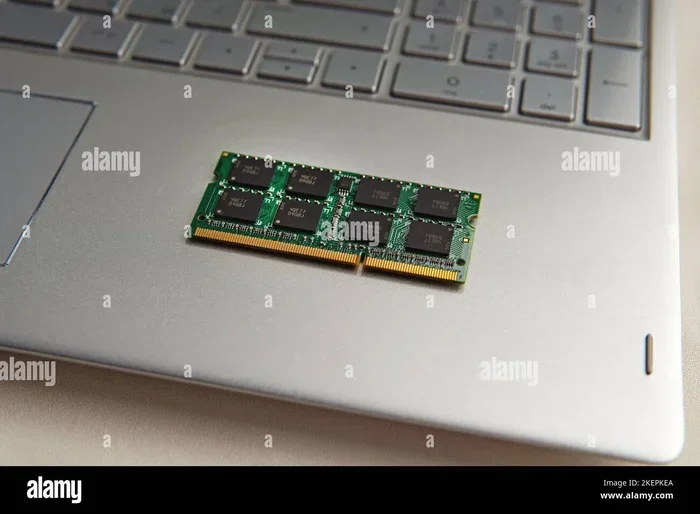
The minimum RAM for Windows 11 is 4 GB. However, 4 GB is very tight for daily use. For a smoother experience, 8 GB is the sweet spot. If you are unsure about your current setup, check whether your laptop qualifies by reading about Windows 11 8GB RAM Laptop configurations.
Storage
You need at least 64 GB of free storage space. This is the bare minimum. Windows 11 updates and apps take up space quickly. A larger SSD gives you more room to breathe.
TPM 2.0
TPM stands for Trusted Platform Module. Version 2.0 is a security chip that encrypts your data. Most modern laptops have it built in. Older PCs may lack it entirely. Without TPM 2.0, Windows 11 will not install through normal means.
Secure Boot
Secure Boot is a feature that prevents unauthorized software from loading during startup. It must be enabled in your BIOS settings. If Secure Boot is off or unsupported, your installation gets flagged.
Graphics Card
Your GPU must be compatible with DirectX 12. It also needs a WDDM 2.0 driver. Most modern graphics cards meet this requirement. Very old GPUs may not.
Display
The screen must be at least 9 inches diagonally. It must also support HD resolution (720p). This is rarely an issue with modern laptops.
Why Does an Unsupported Windows 11 Installation Happen?
Several reasons can cause your PC to be flagged as unsupported. Let us explore the most common ones.
Old or Incompatible Processor
This is the number one reason. Microsoft maintains a short list of supported CPUs. Processors older than certain generations simply do not make the cut. For example, many Intel 7th generation and older chips are not supported. Even if they run perfectly fine, they fail the compatibility check.
Missing TPM 2.0 Chip
Older laptops and desktops often lack TPM 2.0. Some have TPM 1.2, which is not enough. Windows 11 requires TPM 2.0 for security reasons. Without it, the installation wizard blocks you from proceeding normally.
Insufficient RAM
If your laptop has less than 4 GB of RAM, it will not pass the check. But even with 4 GB, performance can be sluggish. Many users wonder what a good setup looks like. If you want to know more about choosing the right amount, read this guide on what amount of RAM is good on a laptop to make an informed decision.
Secure Boot Not Enabled
Some users disable Secure Boot for various reasons. When they try to install Windows 11, the system rejects it. This is a common issue with custom-built PCs and older machines.
BIOS Settings and Firmware
Outdated BIOS firmware can cause compatibility issues. Sometimes a simple BIOS update is all it takes. Other times, the motherboard itself is too old to support the required features.
Risks of Running an Unsupported Windows 11 Installation
You might be tempted to ignore the warnings and proceed anyway. Here is why that is a bad idea.
No Security Updates
Microsoft does not push security patches to unsupported PCs. This leaves your system vulnerable to malware and hackers. In today’s online world, that is a serious risk.
Missing Feature Updates
Unsupported installations do not receive new features. Microsoft focuses its updates on supported devices. Over time, your PC will fall further behind.
Poor Performance
Hardware that barely meets the requirements will struggle. You may experience slow boot times, app crashes, and general sluggishness.
No Official Support
Microsoft will not help you troubleshoot problems on unsupported hardware. If something goes wrong, you are on your own.
Driver Compatibility Issues
Hardware manufacturers prioritize drivers for supported systems. Your printer, webcam, or Wi-Fi adapter may stop working properly over time.
How to Check If Your PC Supports Windows 11
Microsoft provides a free tool to check compatibility. It is called the PC Health Check app. Here is how to use it:
- Download the PC Health Check app from the Microsoft website.
- Open the app and click “Check now.”
- Wait for the results to appear.
- The app will tell you if your PC is supported or not.
If your PC fails the check, the app will show you which requirement you are missing. This helps you decide your next steps.
Manual Checking Method
You can also check manually. Go to Settings, then System, then About. Look at your processor, RAM, and TPM version. Compare these with the official requirements listed above. This method takes a bit more effort but gives you full control.
Workarounds for Unsupported Windows 11 Installation
So your PC is unsupported. Does that mean you are out of luck? Not entirely. There are a few workarounds. But proceed with caution.
Using the Registry Hack
Some users modify the Windows registry to bypass the TPM and Secure Boot checks. This allows the installation to proceed on unsupported hardware. The process involves editing the registry during setup. It is not officially supported by Microsoft and can cause instability.
Using Third-Party Installation Tools
Several tools online claim to remove the Windows 11 compatibility check. These tools modify the installation media. They work in many cases. However, they also carry security risks. Always download tools from trusted sources.
Upgrading Your Hardware
The best long-term solution is to upgrade your hardware. Adding more RAM or replacing an old SSD can make a big difference. If you want to learn about compatible upgrades, check out this guide on how to know what RAM is compatible with my laptop. Upgrading your RAM is often the easiest and most affordable fix.
Staying on Windows 10
If your PC is old and unsupported, Windows 10 might still be the best choice. Microsoft supports Windows 10 until October 2025. After that, it will also reach end of life. Plan your upgrade path accordingly.
Quick Tips for a Smooth Windows 11 Installation
- Back up your data before starting any installation.
- Update your BIOS to the latest version available.
- Use a USB drive of at least 8 GB for installation media.
- Connect to power during the entire installation process.
- Disable antivirus software temporarily to avoid conflicts.
- Check your drivers after installation to ensure everything works.
Common Mistakes People Make
Avoid these pitfalls when dealing with an unsupported Windows 11 installation:
- Ignoring the warning: It is there for a reason. Skipping it can lead to problems later.
- Downloading tools from shady sites: Some third-party tools contain malware. Stick to trusted sources.
- Forgetting to back up: A failed installation can wipe your data. Always create a backup first.
- Assuming it will work perfectly: Unsupported installations often have hidden issues that appear weeks later.
- Not checking RAM compatibility: Even if you pass the installation, wrong RAM can cause crashes. Learn more about what is good RAM for laptop setups to avoid this issue.
When Should You Accept an Unsupported Installation?
There are rare cases where an unsupported installation makes sense. Maybe you have a very old laptop that still works fine for basic tasks. Maybe you are using it as a media center or a home server. In these situations, the risks may be acceptable.
But for a primary work or gaming PC, you should aim for a supported installation. The security and performance benefits are worth the effort.
Final Thoughts
An unsupported Windows 11 installation is not the end of the world. But it is not ideal either. Your PC may work for now. But over time, you will face security gaps, missing updates, and compatibility issues. The best approach is to check compatibility first. Then either upgrade your hardware or stick with a supported operating system.
Take the time to understand your PC’s specs. Use the tools available. Make an informed decision. Your laptop will thank you for it.
Frequently Asked Questions
Can I install Windows 11 on an unsupported PC?
Yes, you can. Microsoft has not blocked the installation entirely. However, you will see warnings and may need to use workarounds like registry hacks or third-party tools. Keep in mind that you will not receive official support or security updates.
What happens if I ignore the unsupported warning?
Windows 11 will still install and run. But you will miss out on feature updates and security patches. Over time, this can leave your system exposed to threats and performance issues.
How do I know if my laptop supports Windows 11?
Use the free PC Health Check app from Microsoft. It scans your hardware and tells you if your PC meets all the requirements. You can also check manually by looking at your processor, RAM, TPM version, and Secure Boot status in Settings.
Is it safe to use workarounds for an unsupported Windows 11 installation?
Workarounds can be risky. They bypass security checks and are not officially supported by Microsoft. If you choose to use them, make sure you download tools from trusted sources and back up your data first.
Can upgrading RAM help my laptop support Windows 11?
Upgrading RAM can help if your current amount is below the 4 GB minimum. However, RAM is just one of several requirements. You also need a compatible processor, TPM 2.0, and Secure Boot support. Check all requirements before assuming a RAM upgrade will solve the problem.
Will Microsoft eventually stop supporting Windows 10?
Yes. Microsoft has announced that Windows 10 support will end on October 14, 2025. After that date, Windows 10 will no longer receive security updates. This makes it even more important to either upgrade to a supported Windows 11 PC or plan your next steps carefully.