Why Does My Computer Fan Keep Running All The Time

Your computer fan keep running all the time usually means something is causing your system to work harder than it should. This can happen because of dust buildup, high CPU usage, background processes, or even a failing fan. In this guide, we break down every common reason and share practical fixes you can try right now. Understanding why your fan never stops is the first step to a cooler, quieter, and faster computer.
There’s nothing more annoying than a fan that never shuts up. You’re trying to work, watch a video, or even just browse the web, and your computer fan keep running all the time. It sounds like a small airplane is taking off on your desk. You’re not alone. Thousands of people search for answers to this problem every single day.
The truth is, your fan running constantly is your computer’s way of telling you something. It might be a simple fix, or it might be a sign that something deeper needs attention. Either way, ignoring it can lead to laptop overheating, slower system performance, and even permanent damage to your hardware. This guide walks you through every reason your fan might be spinning nonstop and gives you clear steps to fix it.
Key Takeaways
- Dust buildup is the #1 reason fans run constantly and blocks proper airflow inside your PC.
- High CPU and GPU usage from background apps can force your cooling system to work overtime.
- Bad thermal paste or a broken fan can cause persistent overheating and constant fan noise.
- Power settings and BIOS tweaks let you control fan speed and reduce unnecessary spinning.
- Simple fixes like cleaning vents and closing unused programs often solve the problem fast.
- Laptop cooling pads and proper placement help keep your device cool during heavy tasks.
- Knowing when to seek help from a professional saves money and prevents further damage.
📑 Table of Contents
Why Does My Computer Fan Keep Running All The Time?
Your cooling system works hard to keep your processor workload safe from heat. When temperatures rise, the fan speeds up to push hot air out and pull cool air in. But when the fan never slows down, something is pushing your CPU temperature too high for too long. Let’s look at the most common reasons this happens.
1. Dust and Dirt Buildup
This is the number one cause of a fan that never stops. Over weeks and months, dust collects inside your computer. It clogs up the air vents, coats the heat sink, and blocks airflow. When air can’t move freely, heat builds up fast. Your fan responds by spinning louder and longer to try to cool things down.
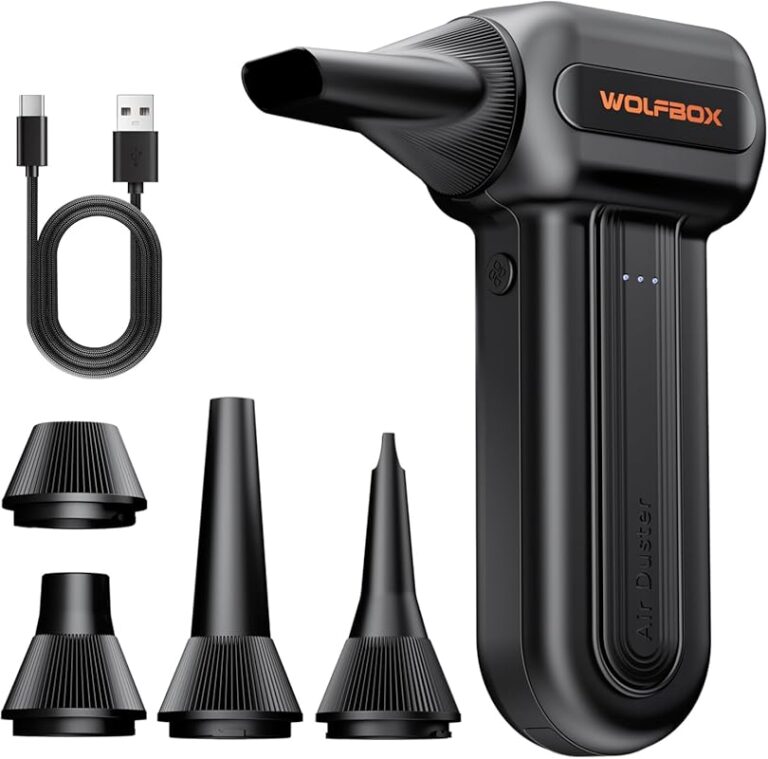
You don’t need to be a tech expert to fix this. A can of compressed air and a soft brush can do wonders. Just open up your case (if it’s a desktop) or carefully blow air through the vents on your laptop. Do this every few months to keep dust from becoming a big problem.
2. High CPU or GPU Usage
Sometimes your computer is just working too hard. Maybe you have dozens of browser tabs open, or a heavy app is running in the background. Your GPU usage might spike without you even noticing. When your processor and graphics card work hard, they generate more heat. Your fan speeds up to match.
Check your task manager (Ctrl + Shift + Esc on Windows) to see what’s using the most resources. You might be surprised by how many programs are running without your knowledge. Closing the ones you don’t need can bring down your temperatures and quiet your fan right away.
3. Background Processes and Software Issues
Not all fan noise comes from hardware. Sometimes software issues are to blame. A program might be stuck running in the background, using up your processor workload even when you’re not actively using it. Malware or viruses can also cause strange behavior, including constant fan spinning.
Running a full system scan with a trusted antivirus tool is a smart first step. Also, check for programs that start up automatically when you turn on your computer. Disabling unnecessary startup apps can reduce the load on your system and help your fan calm down.
4. Bad Thermal Paste
Thermal paste is a sticky material that sits between your processor and the heat sink. It helps transfer heat away from the CPU efficiently. Over time, this paste dries out and loses its effectiveness. When that happens, heat stays trapped inside your computer, and your fan has to work harder.
Replacing thermal paste is not as scary as it sounds. You can buy a tube for a few dollars and apply it yourself. Just make sure to clean off the old paste first with isopropyl alcohol. If you’re not comfortable doing it yourself, a local repair shop can handle it quickly.
5. Broken or Failing Fan
Sometimes the fan itself is the problem. A fan with a worn-out bearing makes loud grinding or buzzing noises. It might spin at full speed all the time because the fan speed settings aren’t working correctly. In some cases, the fan controller on your motherboard fails, and the fan just runs at maximum speed.
If you hear rattling or grinding sounds, your fan might need to be replaced. Desktop computers are easy to fix because fans are cheap and widely available. Laptops can be trickier, but a technician can swap out a damaged fan in most cases.
6. Power Settings and Performance Modes
Your computer’s power plan has a big effect on fan behavior. If you’re running in high performance mode, your system stays at higher clock speeds and generates more heat. This forces the cooling system to work harder. Switching to a balanced or power-saver mode can reduce heat output significantly.
On Windows, you can change this by going to Settings > System > Power & Sleep > Additional Power Settings. Pick the Balanced plan and see if your fan behavior improves. You’ll be surprised at how much difference this simple change can make.
7. Overheating During Heavy Tasks
Gaming, video editing, and 3D rendering push your hardware to its limits. These activities create a lot of heat in a short amount of time. If your cooling system isn’t up to the task, your fan will run at full speed the entire time you’re working.
For desktops, adding more case fans or upgrading to a better CPU cooler can help a lot. For laptops, using a cooling pad lifts the device and improves airflow underneath. Also, make sure your laptop sits on a hard, flat surface. Using it on a bed or couch blocks the vents and traps heat.
8. BIOS and Firmware Settings
Your BIOS controls how your hardware behaves, including fan speed settings. Some BIOS versions have aggressive fan curves that keep fans spinning even when temperatures are low. Updating your BIOS to the latest version can sometimes fix this issue.
You can also go into your BIOS and manually adjust the fan curve. This lets you set quieter fan speeds for everyday tasks and louder speeds only when the CPU temperature rises. Just be careful not to set it too quiet, or your system might overheat during heavy loads.
How to Check If Your Fan Is Working Properly
Before you start fixing things, you should confirm that your fan is actually working. A fan that spins but doesn’t move air is almost as bad as a broken fan. Here’s a quick way to test it.
Listen carefully to the sound. A healthy fan makes a smooth, steady hum. If you hear clicking, grinding, or scraping, something is wrong. You can also hold a thin piece of tissue near the vent. If the tissue flutters, air is flowing properly. If it doesn’t, your fan might be spinning but not moving air, which means it needs cleaning or replacing.
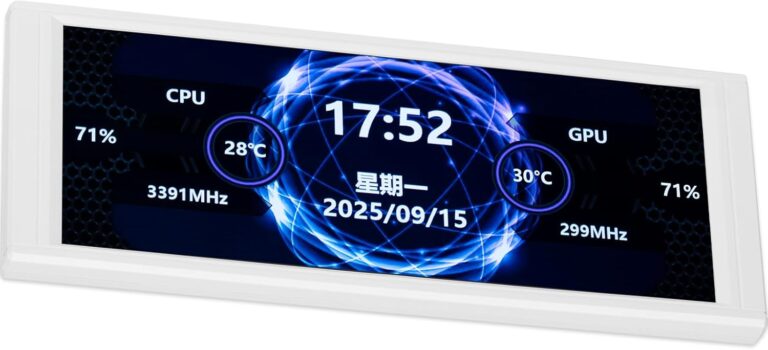
Software tools like SpeedFan or HWMonitor can also help. These programs show you real-time fan speed and temperature readings. If your fan is at 100% but your CPU temperature is still high, you likely have a cooling problem that needs more than just a fan fix.
Simple Fixes to Stop Your Fan From Running Constantly
Now that you know the reasons, here are the practical fixes you can try today. Most of these are free and take just a few minutes.
- Clean your vents and fans with compressed air every two to three months.
- Close unused programs and browser tabs to reduce CPU usage.
- Switch to a balanced power plan instead of high performance.
- Update your drivers and BIOS to the latest versions.
- Use a cooling pad if you’re a laptop user who works on soft surfaces.
- Replace thermal paste if your computer is more than two years old.
- Scan for malware using a trusted antivirus program.
- Adjust fan curves in your BIOS for quieter operation during light tasks.
If none of these fixes work, the problem might be deeper. A failing motherboard, a damaged heat pipe, or a defective fan controller could be the real issue. In these cases, it’s best to consult a professional. Trying to fix complex hardware problems on your own can sometimes make things worse.
When Should You See a Professional?
Most fan problems are easy to solve at home. But there are times when you need expert help. If your computer keeps shutting down unexpectedly, shows blue screen errors, or runs extremely hot even after cleaning, a professional can diagnose the root cause safely. Also, if your laptop is still under warranty, opening it up yourself might void the coverage.
Don’t wait too long to get help. A computer that runs hot all the time will wear out its components faster. Your hard drive, motherboard, and RAM all suffer when temperatures stay high for extended periods. Catching the problem early saves you money and keeps your system performance running strong.
Prevention Tips to Keep Your Computer Cool
Prevention is always better than repair. Here are some easy habits that keep your cooling system working well for years.
- Keep your computer in a cool, dry room. Hot and humid environments make cooling harder.
- Don’t block your air vents. Give your desktop or laptop plenty of space on all sides.
- Clean the inside of your PC every three to six months. Dust is the enemy of good airflow.
- Avoid running too many heavy programs at once. Your processor workload will thank you.
- Use a surge protector. Power fluctuations can damage components and cause overheating.
- Monitor temperatures regularly. Free tools like Core Temp or Open Hardware Monitor make this easy.
These small habits add up over time. A well-maintained computer runs cooler, quieter, and faster. Your fan won’t need to work as hard, and your hardware will last longer.
Final Thoughts
A computer fan keep running all the time is frustrating, but it’s almost always fixable. Whether it’s dust buildup, high GPU usage, bad thermal paste, or a simple power setting, there’s a solution for every cause. Start with the easiest fixes and work your way up. Most people solve the problem with just a cleaning and a few settings changes.
Remember, your fan is there to protect your computer. When it runs constantly, it’s trying to tell you something. Listen to it, take action, and your system will stay cool and quiet for years to come. If you want to learn more about fan behavior and temperature management, check out this detailed guide on Why Does My Computer Fan Keep Running for even more insights.
Also, if your fan issues are causing your computer to slow down or freeze up, you might want to read about how to fix computer running slow and freezing to address related performance problems. And if you’re noticing that your CPU temperature stays high even when you’re not doing anything, this article on why your CPU temperature is so high at idle can help you dig deeper into the root cause.
Take care of your computer, and it will take care of you. A little maintenance goes a long way toward keeping everything running smoothly and quietly.
Frequently Asked Questions
Why does my computer fan keep running even when I’m not doing anything?
This usually happens because of background processes using up your CPU, dust blocking your air vents, or a high CPU temperature even at idle. Check your task manager for apps using resources and clean your fans and vents to see if the problem improves.
Is it bad if my computer fan runs all the time?
It’s not immediately dangerous, but constant fan running means your system is working too hard to stay cool. Over time, this can wear out your fan and reduce your hardware’s lifespan. Fixing the root cause helps protect your computer.
Can I turn off my computer fan if it’s too loud?
You shouldn’t turn it off completely. The fan exists to prevent overheating. Instead, adjust the fan speed settings in your BIOS or use software tools to set quieter speeds during light tasks while keeping your system safe.
How often should I clean my computer to prevent fan issues?
Every three to six months for desktops and every two to three months for laptops. If you live in a dusty area or have pets, you may need to clean more often. Regular cleaning keeps your cooling system working efficiently.
Will a cooling pad help if my laptop fan runs constantly?
Yes, a cooling pad improves airflow underneath your laptop and can reduce laptop overheating significantly. It’s especially helpful if you use your laptop on soft surfaces like beds or couches that block the air vents.
When should I replace the thermal paste on my computer?
Every two to three years is a good rule of thumb. If your computer fan keep running all the time and temperatures are high even after cleaning, dried-out thermal paste is a likely culprit. Replacing it is inexpensive and easy to do.