Why Does My Gpu Spike to 100
A GPU spike to 100 is a frustrating but common issue that can slow down your PC and cause overheating. The main culprits include background apps, outdated drivers, malware, and demanding games or software. In this guide, we walk you through the causes and simple fixes to get your graphics card running smoothly again.
You are sitting at your desk, maybe just browsing the web or watching a video. Suddenly, your PC starts to lag. You open Task Manager and see that your GPU usage has jumped to 100 percent. It is confusing, annoying, and a little scary.
A GPU spike to 100 does not always mean something is broken. Sometimes it is a simple fix. Other times, it signals a deeper problem that needs attention. Either way, understanding why it happens is the first step to solving it.
In this article, we break down every common reason your graphics card might spike to full usage. We also share practical fixes you can try right now. Whether you are a gamer, a content creator, or just someone who uses a PC for everyday tasks, this guide will help you take back control of your system.
Key Takeaways
- Background processes are the #1 cause of unexpected GPU spikes, even when you are not gaming.
- Outdated or corrupted drivers can force your GPU to work overtime and spike to 100 percent.
- Malware and hidden mining scripts quietly use your graphics card power in the background.
- Power settings and hardware acceleration in browsers and apps can trigger sudden GPU jumps.
- Monitoring tools like Task Manager and MSI Afterburner help you track what is using your GPU.
- Simple fixes like driver updates, closing unused apps, and adjusting settings often solve the problem fast.
📑 Table of Contents
- What Does It Mean When Your GPU Spikes to 100?
- Common Reasons Your GPU Spikes to 100
- How to Fix a GPU Spike to 100
- How to Monitor Your GPU Usage
- When a GPU Spike Is Normal and When to Worry
- Preventing Future GPU Spikes
- Expert Insight: The Hidden Culprits
- Quick Tips to Remember
- Frequently Asked Questions
- Final Thoughts
What Does It Mean When Your GPU Spikes to 100?
Your GPU, or graphics processing unit, is the part of your PC that handles everything visual. It renders images, videos, animations, and game graphics. When your GPU is working hard, the usage percentage goes up. A GPU spike to 100 means your graphics card is running at full capacity.
Here is the thing: a spike is not always bad. When you are playing a heavy game or editing a video, your GPU should run high. The problem starts when your GPU jumps to 100 percent during simple tasks. Watching a YouTube video or browsing the web should not push your graphics card that hard.
A sudden spike can cause several issues:
- Frame rate drops in games and apps
- Stuttering and lag during everyday use
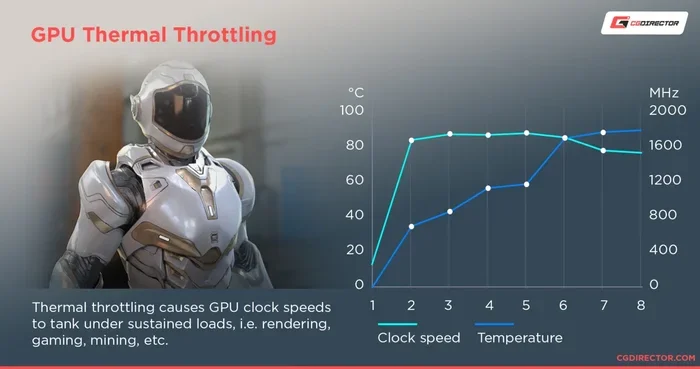
- Overheating of your graphics card
- Fan noise that gets really loud
- System slowdowns across the board
If you notice these symptoms, your GPU is telling you something. The key is figuring out what is causing it.
Common Reasons Your GPU Spikes to 100
Several factors can push your graphics card to full usage. Let us look at the most common ones.
Background Processes and Apps
This is the number one reason people see a GPU spike to 100. Your PC runs many background processes you may not even know about. Apps like Discord, Spotify, Steam, and even your web browser can use your GPU heavily.
For example, modern browsers like Chrome use hardware acceleration to speed up page loading. This means your GPU handles web content. With too many tabs open, that usage adds up fast. Other apps like screen recorders, overlay software, and cloud sync tools can also eat up your GPU resources.
Outdated or Corrupted Graphics Drivers
Your GPU needs drivers to communicate with your operating system. When those drivers get outdated or corrupted, your graphics card may work overtime for no reason. GPU utilization can spike randomly, even when you are doing nothing demanding.
Driver issues are especially common after a Windows update. The new system might not fully support your current driver version. This mismatch can cause your graphics card to work harder than it should.
Malware and Crypto Mining Scripts
Malware is a sneaky cause of high GPU usage. Some malicious programs use your graphics card to mine cryptocurrency in the background. You might not notice anything unusual except the slow performance and heat.
Browser-based mining scripts are another threat. If you visit a compromised website, it might secretly use your GPU power. These scripts run hidden in your browser tabs and can cause a sudden GPU spike to 100 without you clicking anything.
Demanding Games and Software
Let us keep it real: some games and apps are just heavy. Modern AAA titles, video editing software, and 3D rendering tools push your GPU to its limits. A GPU spike to 100 during these activities is normal and expected.
The problem arises when your GPU spikes during light tasks. If you are watching a movie and your usage hits 100 percent, something else is going on. It could be a background app, a driver issue, or a setting that needs adjusting.
Power Settings and Hardware Acceleration
Your PC’s power plan affects how your GPU behaves. If you are on a power-saving mode, your system might struggle to manage resources efficiently. Switching to a balanced or performance mode can sometimes cause temporary spikes.
Hardware acceleration in apps and browsers also plays a role. When enabled, it offloads tasks to your GPU. While this speeds things up, it can also cause unexpected usage spikes. Some apps use your GPU even when you are not actively using them.
How to Fix a GPU Spike to 100
Now that you know the causes, let us talk about solutions. Here are the most effective ways to stop your graphics card from spiking to full usage.
Step 1: Check Task Manager for the Culprit
Open Task Manager by pressing Ctrl + Shift + Esc. Click on the “GPU” column to sort processes by GPU usage. You will see exactly which app or process is causing the spike.
Once you identify the offender, you have options:
- Close the app if you are not using it
- Update the app if it is a known program with GPU issues
- Uninstall the app if it is suspicious or unnecessary
This simple step solves the problem for many users. It takes less than a minute and gives you immediate insight into what is happening.
Step 2: Update Your Graphics Drivers
Keeping your drivers up to date is one of the best things you can do for your GPU. New driver updates often fix bugs that cause high usage spikes.
Here is how to update your drivers:
- Open Device Manager on your PC
- Expand the “Display adapters” section
- Right-click your GPU and select “Update driver”
- Choose “Search automatically for drivers”
You can also visit your GPU manufacturer’s website (NVIDIA, AMD, or Intel) to download the latest drivers directly. This method is often faster and more reliable.
Step 3: Disable Hardware Acceleration
If your browser or apps are causing the spike, try turning off hardware acceleration. This stops your GPU from handling tasks that your CPU can manage instead.
In Chrome, go to Settings > System and toggle off “Use hardware acceleration when available.” In other apps, look for similar settings in the preferences or options menu. This small change can make a big difference in GPU utilization.
Step 4: Scan for Malware
Run a full system scan using a trusted antivirus program. Look for any hidden mining scripts or suspicious background processes. If you find malware, remove it immediately and restart your PC.
For extra protection, consider using a dedicated anti-malware tool. These programs can catch threats that standard antivirus might miss.
Step 5: Adjust Your Power Settings
Go to your Windows power settings and switch to the “Balanced” plan. Avoid power-saving modes if you experience frequent spikes. A balanced plan gives your GPU the right amount of power without overworking it.
You can also check your GPU-specific power settings in the NVIDIA Control Panel or AMD Radeon Software. Lowering the maximum power limit can help reduce unexpected spikes.
How to Monitor Your GPU Usage
Keeping an eye on your GPU usage helps you catch spikes early. Here are some great tools to monitor your graphics card.
| Tool | Best For | Free? |
|---|---|---|
| Windows Task Manager | Quick overview of GPU usage by app | Yes |
| MSI Afterburner | Detailed GPU metrics and temperature tracking | Yes |
| GPU-Z | In-depth GPU specifications and sensor data | Yes |
| HWiNFO | Comprehensive system monitoring | Yes |
| NVIDIA GeForce Experience | NVIDIA GPU-specific monitoring and optimization | Yes |
Using these tools regularly can help you spot patterns. Maybe your GPU spikes every time you open a specific app. Or perhaps it happens at the same time each day. These patterns give you clues about the root cause.
When a GPU Spike Is Normal and When to Worry
Not every GPU spike to 100 is a problem. Here is a simple way to tell the difference.
Normal spikes happen when:
- You are playing a demanding game
- You are rendering video or 3D models
- You are running a benchmark test
- You just launched a heavy application
Worrisome spikes happen when:
- Your GPU hits 100 percent during idle or light tasks
- The spike happens randomly with no clear cause
- Your PC overheats or the fans get extremely loud
- You experience frequent crashes or frame drops
- You notice a new, unfamiliar process using your GPU
If your spikes fall into the “worrisome” category, it is time to dig deeper. Start with the fixes we shared above and see if the problem improves.
Preventing Future GPU Spikes
Once you fix the current issue, you want to stop it from happening again. Here are some preventive measures:
- Keep your drivers updated at all times. Set a reminder to check for updates every two weeks.
- Close apps you are not using. Even idle apps can consume GPU resources in the background.
- Use a reputable antivirus program and run regular scans.
- Limit browser tabs. Each open tab uses GPU memory, especially with hardware acceleration on.
- Monitor your GPU temperature. Keep it below 85 degrees Celsius during heavy use.
- Adjust your in-game settings. Lowering graphics options reduces GPU load and prevents spikes.
These habits take little effort but go a long way in keeping your graphics card healthy and efficient.
Expert Insight: The Hidden Culprits
Sometimes the cause of a GPU spike to 100 is not obvious. Here are a few hidden culprits that even experienced users overlook.
Windows Visual Effects. Windows comes with fancy animations and visual effects that use your GPU. If you are on an older PC, these effects can cause noticeable spikes. Go to System Properties > Advanced > Performance Settings and choose “Adjust for best performance” to disable them.
Desktop Wallpaper. A live or animated wallpaper can use your GPU constantly. Switch to a static image to free up resources.
Overlay Software. Apps like Discord overlay, Xbox Game Bar, and Steam overlay run in the background and use GPU power. Try disabling them to see if your usage drops.
Multiple Monitors. Running multiple displays increases your GPU load. If you are not using the second monitor, disconnect it and see if the spikes stop.
These small tweaks can make a surprising difference in your GPU utilization and overall PC performance.
Quick Tips to Remember
- Always check Task Manager first when you see a GPU spike
- Update your graphics drivers at least once a month
- Use MSI Afterburner or GPU-Z for detailed monitoring
- Disable hardware acceleration in your browser if spikes are frequent
- Keep your PC well-ventilated to prevent overheating-related spikes
- Run regular malware scans to catch hidden GPU-hogging programs
Frequently Asked Questions
Why does my GPU spike to 100 when I am not doing anything?
This usually happens because of background processes or apps using your graphics card. Open Task Manager to find the culprit. Common offenders include browsers with hardware acceleration, overlay software, and hidden malware.
Is it bad for my GPU to spike to 100 percent?
Short spikes are normal and not harmful. Your GPU is designed to run at full capacity. However, constant spikes during idle or light tasks can cause overheating and reduce your graphics card’s lifespan over time.
How do I lower my GPU usage when it spikes?
Close unnecessary apps, disable hardware acceleration in your browser, update your graphics drivers, and scan for malware. Adjusting your power settings and lowering in-game graphics settings also help reduce GPU load.
Can a virus cause my GPU to spike to 100?
Yes, malware and crypto-mining scripts can use your GPU without your knowledge. Run a full system scan with a trusted antivirus program to check for threats. Remove any suspicious programs you find.
Should I worry about GPU temperature during a spike?
Yes, sustained 100 percent usage can cause your GPU to overheat. Keep your GPU temperature below 85 degrees Celsius. Clean your fans, improve airflow, and consider reapplying thermal paste if temperatures run high.
How often should I update my GPU drivers?
Check for driver updates at least once a month. Major updates from NVIDIA and AMD often fix bugs that cause high GPU usage spikes. Using GeForce Experience or AMD Adrenalin makes this process automatic.
Final Thoughts
A GPU spike to 100 can be alarming, but it is almost always fixable. The causes range from simple background apps to more serious issues like malware or outdated drivers. By following the steps in this guide, you can identify the root cause and apply the right fix.
Start with the quick fixes: check Task Manager, update your drivers, and scan for malware. If the problem persists, dig deeper into power settings, hardware acceleration, and hidden processes. Monitoring your GPU regularly with tools like MSI Afterburner helps you stay ahead of issues before they become big problems.
Your graphics card is a powerful piece of hardware. Treat it well, keep it updated, and it will serve you reliably for years. Take action today, and you will notice a real difference in your PC’s performance and stability.