Why Is My Asus Monitor Displayport and Hdmi No Signal
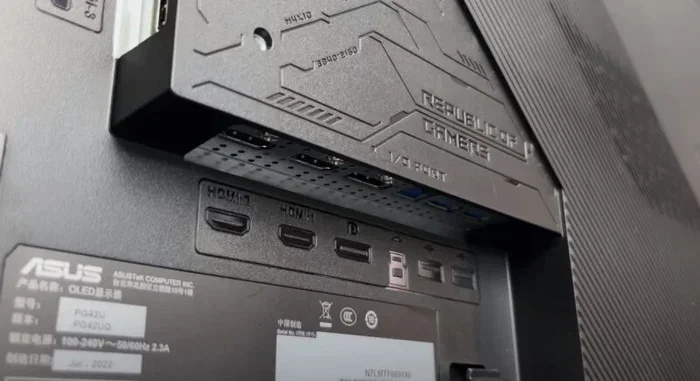
Dealing with an Asus monitor that shows no signal on DisplayPort or HDMI? You are not alone — this is one of the most common display problems users face. The issue can stem from loose cables, incorrect input settings, GPU problems, or even driver conflicts. In this guide, we walk you through every likely cause and the exact steps to fix it. By the end, you will know how to troubleshoot your Asus monitor and get your display back up and running.
You sit down at your desk, ready to work or game, and then you see it — a black screen with the dreaded “No Signal” message on your Asus monitor. Whether it is on the DisplayPort or the HDMI cable, this problem can be incredibly frustrating. The good news is that in most cases, the fix is simpler than you think.
When your Asus monitor DisplayPort and HDMI no signal, it means your computer is not sending a visual output to the display. This can happen for dozens of reasons, ranging from a loose cable to a failing graphics card. Understanding what triggers this issue is the first step toward solving it. Let us break down every possible cause and walk you through the fixes, one by one.
Key Takeaways
- Loose or damaged cables are the #1 reason for no signal on DisplayPort or HDMI.
- Wrong input source selection on your Asus monitor can cause a black screen even when everything is connected.
- GPU driver issues and outdated graphics card software often trigger signal loss.
- Resolution or refresh rate mismatches between your PC and monitor can block the signal entirely.
- Port hardware problems on either the monitor or the graphics card need professional inspection.
- Simple resets like unplugging, holding the power button, and reconnecting solve most cases.
- Overclocking your monitor beyond its rated specs can also cause no signal issues.
📑 Table of Contents
- Understanding Why Your Asus Monitor Shows No Signal
- Check Your Cables and Connections First
- Verify the Input Source on Your Asus Monitor
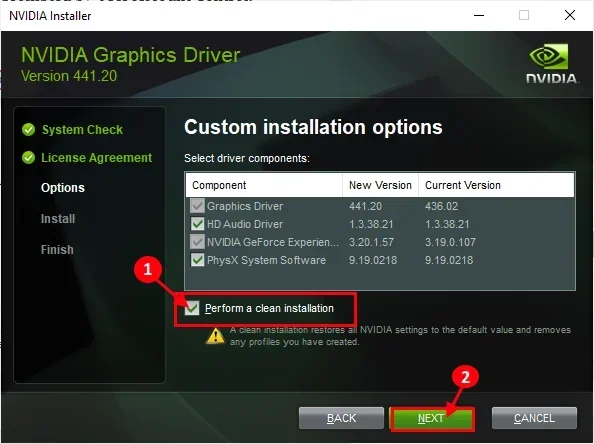
- Update or Reinstall Your Graphics Card Drivers
- Adjust Resolution and Refresh Rate Settings
- Hardware Troubleshooting for Persistent Signal Issues
- When to Seek Professional Help
- Prevent Future No Signal Issues
- Final Thoughts
Understanding Why Your Asus Monitor Shows No Signal
A monitor no signal error does not always mean something is broken. Sometimes it is a simple configuration problem. Other times, it points to a deeper hardware or software issue. Let us look at the most common reasons this happens on Asus monitors specifically.
What Does “No Signal” Actually Mean?
When your screen says “No Signal,” it means the monitor is powered on but is not receiving any video data from your computer. Think of it like a phone call where the other end has muted themselves. The connection exists, but nothing is coming through. Your Asus monitor is waiting for a video input from your GPU, and when that input is missing or incorrect, it displays this message.
This can happen on both DisplayPort and HDMI connections. The signal path involves your graphics card sending a video output through a cable to the monitor. If any part of that chain fails, you get a black screen. The good news is that troubleshooting this chain is straightforward once you know what to look for.
Common Causes of Signal Loss on Asus Monitors
Several factors can cause your Asus monitor to lose signal. Here are the most frequent culprits:
- Loose or unplugged cables — A cable that is slightly disconnected will not carry a signal.
- Damaged or worn-out cables — Frayed or bent cables lose their ability to transmit data properly.
- Wrong input source selected — If your monitor is set to DisplayPort but you plugged in HDMI, you will see no signal.
- GPU driver issues — Outdated or corrupted graphics drivers can stop sending output entirely.
- Resolution or refresh rate mismatch — Setting an output beyond what your monitor supports can block the signal.
- Faulty GPU or monitor port — Physical damage to the port or graphics card can prevent any connection.
- Overclocking beyond rated limits — Pushing your monitor past its supported refresh rate can cause signal loss.
Knowing these causes helps you narrow down the problem quickly. Start with the simplest fixes and work your way up to the more complex ones.
Check Your Cables and Connections First
The most common reason for an Asus monitor DisplayPort and HDMI no signal problem is a cable issue. Before you dig into software or drivers, always start here. This alone fixes the majority of cases.
Inspect Both Ends of Your Cable
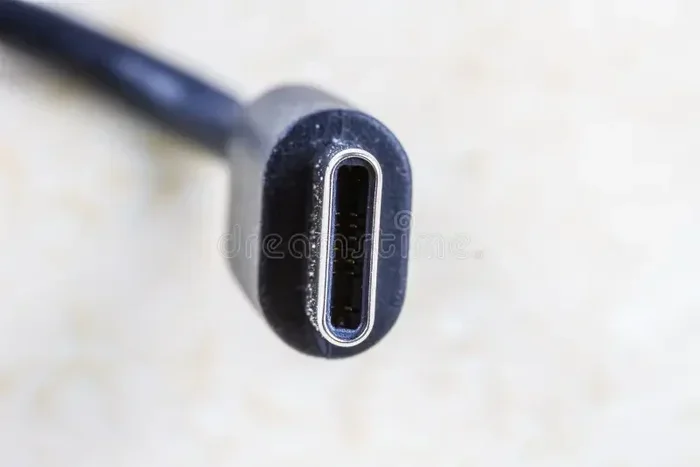
Unplug the cable from both your computer and your monitor. Look closely at the connector pins and the cable itself. Do you see any bent pins, dirt, or visible damage? A loose DisplayPort connection is especially common because the latch mechanism can fail to click fully into place. For HDMI, the cable can feel secure but still have a weak connection inside the port.
Try these steps:
- Unplug the cable from both ends.
- Blow out any dust from the ports on your PC and monitor.
- Reinsert the cable firmly until you feel or hear it click.
- Check if the monitor now detects a signal.
Try a Different Cable
If the cable looks fine but you still have no signal, swap it out. Grab a different HDMI cable or DisplayPort cable that you know works. Sometimes cables fail internally without any visible damage. A new cable costs very little and can save you hours of troubleshooting.
Also, avoid using adapters unless absolutely necessary. Every adapter is a potential point of failure. If you must use one, make sure it is a high-quality adapter from a reputable brand.
Verify the Input Source on Your Asus Monitor
It sounds obvious, but this mistake happens all the time. If your PC is outputting video through HDMI but your Asus monitor is set to look for a DisplayPort signal, you will see a black screen with “No Signal.”
How to Switch Input Sources
Here is how to change the input source on your Asus monitor:
- Press the Input Source button on your monitor (usually on the bottom or side).
- Use the joystick or arrow keys to navigate to the correct input.
- Select HDMI 1, HDMI 2, or DisplayPort depending on which port you are using.
- Wait a few seconds for the monitor to detect the signal.
Some Asus models also let you set the input source through the On-Screen Display (OSD) menu. Go to the menu, find the input or source option, and switch it to match your cable type. This simple step resolves the issue more often than people realize.
Update or Reinstall Your Graphics Card Drivers
Your GPU is responsible for sending the video signal to your monitor. If the drivers are outdated, corrupted, or missing, your Asus monitor will show no signal even though everything is physically connected correctly.
How to Safely Update GPU Drivers
Whether you have an NVIDIA or AMD graphics card, keeping your drivers up to date is essential. Here is a safe approach:
- Boot your PC into Safe Mode if your display is completely black.
- Open Device Manager and find your graphics card under “Display adapters.”
- Right-click and select “Uninstall device.” Check the box to delete the driver software.
- Restart your PC normally.
- Download the latest driver from the official NVIDIA or AMD website.
- Install the driver and restart again.
If you recently updated your GPU and started seeing signal issues, rolling back to the previous driver version might help. You can do this in Device Manager under the driver tab. Sometimes the newest driver has a bug that affects certain monitor models.
It is also worth noting that a GPU spike to 100 percent at idle can sometimes be related to driver conflicts that affect display output. Keeping your drivers current helps prevent both issues.
Adjust Resolution and Refresh Rate Settings
Setting your display output to a resolution or refresh rate that your Asus monitor does not support is another major cause of the no signal problem. This often happens after a Windows update or when you connect your monitor to a different device.
How to Reset Display Settings Safely
If your screen is black but you can still hear your PC running, try this method:
- Press Win + P to open the Project menu.
- Select “Duplicate” or “Second screen only” to force the PC to push a standard signal.
- Go to Settings > System > Display > Advanced display settings.
- Lower the resolution to something your monitor definitely supports, like 1920×1080.
- Reduce the refresh rate to 60 Hz as a test.
If your monitor supports a maximum of 144Hz and you have it set to 240Hz, the monitor simply cannot handle that signal and will show no output. Always check your Asus monitor’s specifications to confirm the supported resolutions and refresh rates.
Hardware Troubleshooting for Persistent Signal Issues
If none of the software fixes work, the problem might be hardware-related. This section covers the physical checks you should perform before seeking professional help.
Test Different Ports on Your GPU
Most graphics cards have multiple output ports. If your DisplayPort is not working, try plugging into the HDMI port instead, or vice versa. This helps you determine whether the issue is with the port on your GPU or the cable itself. If one port works and another does not, you have identified the problematic port.
Test with Another Device
Connect your Asus monitor to a different computer, laptop, or even a gaming console. If the monitor works with another device, the problem is with your PC or GPU, not the monitor. If it still shows no signal, the monitor itself might have a hardware fault.
Check for Overheating and Hardware Stress
Overheating components can cause intermittent or permanent signal loss. If your CPU temp is high at idle, your system might be throttling or shutting down video output to protect itself. Similarly, if your computer fan keeps running at full speed, it could indicate thermal stress that affects the GPU’s ability to output a signal. Make sure your PC has adequate ventilation and that your cooling system is functioning properly.
Also, if you have been overclocking your monitor, that could be the culprit. Overclocking your monitor beyond its rated specifications can push the panel past its limits and cause a complete loss of signal. Reset your monitor to factory defaults and see if that restores the connection.
When to Seek Professional Help
Most no signal issues are fixable at home with the steps above. However, some situations require professional attention. If you have tried every cable, every port, and every software fix and still see no signal, it is time to consider deeper hardware problems.
Signs that you need professional help include:
- The monitor powers on but remains black with no “No Signal” message at all.
- You notice physical damage to the monitor ports or the cable connectors.
- The problem only happens after your PC has been running for a while (thermal issue).
- Your GPU is making unusual noises or showing artifacting on other displays.
- The monitor works on other devices but never on your main PC.
A technician can test your GPU, check the monitor’s internal circuitry, and replace any faulty components. Do not open your monitor yourself, as the internal capacitors can hold a dangerous charge even when unplugged.
Prevent Future No Signal Issues
Once you have your Asus monitor working again, take these steps to prevent the problem from coming back:
- Use high-quality cables — Cheap cables are the most common cause of intermittent signal loss.
- Keep your drivers updated — Set a monthly reminder to check for GPU driver updates.
- Avoid overclocking beyond rated specs — Stick within your monitor’s supported refresh rate and resolution.
- Keep your PC well-ventilated — Good airflow prevents thermal throttling that can affect display output.
- Check cable connections regularly — A quick visual check every few weeks can catch loose cables before they cause problems.
Taking these simple precautions can save you from the frustration of a sudden black screen and keep your Asus monitor running smoothly for years.
Final Thoughts
Dealing with an Asus monitor DisplayPort and HDMI no signal issue can feel overwhelming at first, but most causes are easy to fix. Start with the basics — check your cables, verify the input source, and update your GPU drivers. If those steps do not work, move on to resolution settings and hardware checks. The vast majority of users find that a simple cable swap or input source correction solves the problem entirely.
Remember, your monitor is just one part of the signal chain. The GPU, the cables, the ports, and the settings all work together. When one element fails, the whole chain breaks. By following the troubleshooting steps in this guide, you can quickly identify which element is causing the problem and fix it. Do not panic when you see that black screen — just work through the list, and you will be back to full display in no time.
Frequently Asked Questions
Why does my Asus monitor say no signal on both DisplayPort and HDMI?
This usually points to a problem with the graphics card or the PC itself rather than the monitor. Try booting with a different cable or connecting the monitor to another device. If neither works, your GPU may need to be checked or updated.
Can a bad HDMI cable cause no signal on my Asus monitor?
Absolutely. A damaged or low-quality HDMI cable is one of the most common reasons for a no signal error. Swapping in a known working cable is the fastest way to rule this out as the cause.
How do I know if my GPU is causing the no signal issue?
If your monitor works on another device but not your PC, the GPU is likely the culprit. You can also check if your GPU is properly seated in its PCIe slot and whether the fans are spinning when you power on the system.
Is it safe to overclock my Asus monitor to fix signal issues?
No, overclocking your monitor can actually cause no signal problems if pushed beyond its rated limits. Always keep your monitor settings within the manufacturer’s supported specifications to avoid signal loss.
What should I do if my Asus monitor shows no signal after a Windows update?
Windows updates can sometimes change display driver settings or resolution outputs. Boot into Safe Mode, lower your resolution to 1920×1080 at 60Hz, and then update your GPU drivers to the latest version.
How long does it take to fix a no signal issue on an Asus monitor?
Most no signal issues are resolved within 10 to 30 minutes using the steps in this guide. Cable swaps and input source changes are the fastest fixes, while driver updates and hardware checks may take a bit longer.