Why Is Usb Headset Not Working
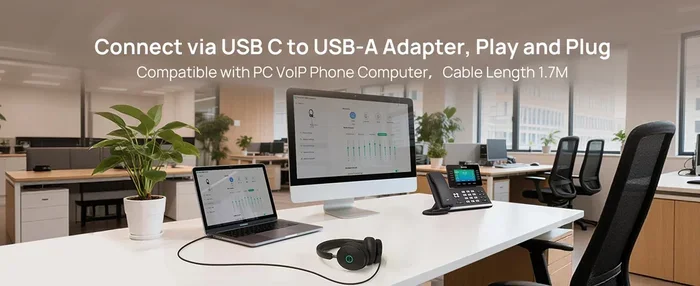
A USB headset not working is a common frustration, but the fix is often simpler than you think. Whether your headset has no sound, is not detected, or the microphone fails, this guide covers every likely cause and solution. We walk you through driver updates, port checks, and settings tweaks that resolve most USB headset problems in minutes.
You plug in your USB headset, ready for a call or a gaming session, and nothing happens. No sound. No microphone pickup. Just silence. It is incredibly frustrating, especially when you need your gear working right now. The good news is that a USB headset not working is almost always fixable at home. You do not need to be a tech expert. Most of the time, the problem comes down to a simple setting, a loose connection, or a driver that needs updating.
This guide walks you through every common reason your USB headset might be misbehaving. We also show you the exact steps to fix each one. By the end, you will know exactly what to check and how to get your audio back up and running. Let us dive in.
Key Takeaways
- Check Your USB Port First: A loose or damaged port is the most common reason a USB headset stops working.
- Update Audio Drivers Regularly: Outdated or corrupted drivers are the second biggest cause of USB headset failures.
- Try a Different Device: Plugging your headset into another computer helps you isolate the problem fast.
- Windows Sound Settings Matter: Incorrect default playback or recording devices can make your headset seem broken.
- Hardware Defects Happen: If software fixes fail, the headset itself may be damaged and need replacement.
📑 Table of Contents
Why Is My USB Headset Not Working
A USB headset can stop working for many reasons. Sometimes the problem is on your computer. Sometimes it is the headset itself. Understanding the root cause helps you fix it faster. Here are the most common culprits behind a USB headset not working situation.
Faulty or Loose USB Connection
This sounds obvious, but it happens more than you would think. A USB plug that is not seated properly will not transfer data or power. Dust inside the port can also block a solid connection. If your headset works on one computer but not another, the port on the second machine is likely the issue.
Try unplugging the headset and plugging it back in firmly. If you are using a USB hub, connect the headset directly to the computer instead. A USB hub can sometimes fail to provide enough power, which causes audio dropouts or no sound at all.
Outdated or Corrupted Audio Drivers
Your computer uses drivers to communicate with USB devices. When a driver becomes outdated or corrupted, your headset may not show up at all. This is one of the top reasons for a USB headset not working on Windows PCs. Drivers can break after a system update or simply age over time.
Windows often handles driver updates automatically, but it does not always get it right. If your headset was working yesterday and stopped today, a recent update may have caused the conflict. Rolling back or reinstalling the audio driver usually solves this problem quickly.
Incorrect Default Audio Device Settings
Windows and other operating systems let you choose which device plays sound. If your computer is still sending audio to your old speakers or monitors, your headset will stay silent even though it is plugged in. This is a very common reason people think their USB headset is broken when it is really just a settings issue.
The same goes for microphone input. If your system is set to use a different microphone, your headset mic will not pick up your voice. Checking your default playback and recording devices takes only a minute and solves this problem instantly.
USB Port Power Management Issues
Modern computers are designed to save energy. They can automatically shut off power to USB ports that are not in use. This feature, called USB selective suspend, can sometimes turn off your headset even when you are actively using it. The result is sudden audio cutouts or a completely unresponsive headset.
This power management setting is especially common on laptops running on battery. When you switch to a power outlet, the behavior may change. Adjusting these settings can prevent your USB headset from losing power unexpectedly.
Hardware Defects in the Headset Itself
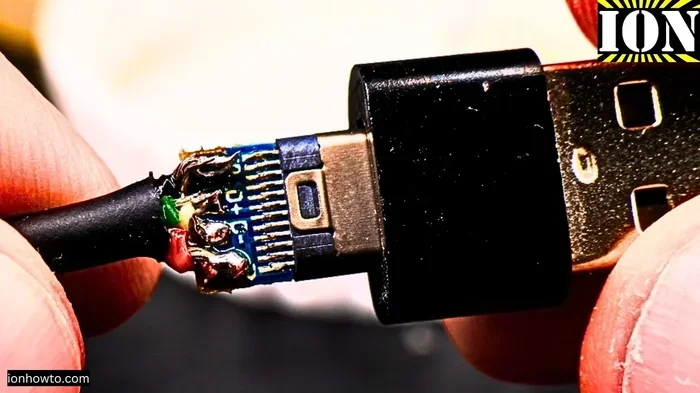
Not every problem is on the computer side. USB headsets can develop internal faults. A damaged cable, a broken USB connector, or a failed audio chip inside the headset all lead to the same symptoms. If none of the software fixes work, the headset hardware itself may be to blame.
Testing your headset on a different computer is the best way to rule this out. If it fails on every machine you try, the hardware is likely defective. Check if your headset is still under warranty before buying a replacement.
Step-by-Step Fixes for a USB Headset That Is Not Working
Now that you know the common causes, let us get into the fixes. Follow these steps in order. Most people solve their problem within the first three steps.
Step 1: Check the Physical Connection
Start with the simplest possible fix. Unplug your USB headset from your computer. Look at the USB connector for any visible damage or dirt. Blow gently into the port to remove dust. Plug the headset back in firmly. You should feel it click into place.
If you are on a desktop computer, try a different USB port on the back of the machine. Front panel ports sometimes provide less stable connections. Avoid using extension cables or USB hubs at this stage. Plug directly into the computer.
Step 2: Restart Your Computer
This might sound like a cliché, but restarting your computer resolves a surprising number of USB device issues. A fresh boot clears temporary glitches and reinitializes all USB connections. Close all programs, save your work, and restart. Plug in your headset after the computer fully boots up.
If a simple restart does not help, try restarting with the headset unplugged. Plug it in only after the computer is fully on. This forces Windows to detect the device as a new connection, which can trigger a fresh driver installation.
Step 3: Update or Reinstall Audio Drivers
Open your Device Manager by right-clicking the Start button and selecting it from the menu. Look for the Sound, video, and game controllers section. Expand it and find your headset or audio device. Right-click it and select Update driver. Choose the automatic search option.
If updating does not work, uninstall the driver entirely. Right-click the device and select Uninstall device. Restart your computer. Windows will automatically reinstall a fresh driver during boot. This method fixes most driver-related USB headset problems.
You can also visit the headset manufacturer’s website and download the latest driver manually. Brands like Logitech, HyperX, and SteelSeries often provide updated drivers on their support pages. This is especially helpful for gaming headsets with custom software.
Step 4: Set the Correct Default Audio Device
Right-click the speaker icon in your taskbar and select Sound Settings. Scroll down to the Output section. Your USB headset should appear in the list. Click on it and set it as the default device. Do the same for the Input section if your microphone is not working.
On older versions of Windows, you can access these settings through the Control Panel. Go to Sound and look for the Playback and Recording tabs. Right-click your headset and choose Set as Default Device. Make sure to set it as the Default Communication Device as well.
Step 5: Disable USB Selective Suspend
Open the Control Panel and navigate to Power Options. Click Change plan settings next to your active power plan. Then click Change advanced power settings. Expand the USB settings section and then the USB selective suspend setting. Set it to Disabled for both On Battery and Plugged In.
This prevents Windows from cutting power to your USB ports during idle periods. It is especially useful for laptop users who frequently unplug and replug their headsets. After making this change, restart your computer and test your headset again.
Step 6: Test on Another Device
Plug your USB headset into a different computer or even a gaming console. If it works on another device, the problem is with your original computer. If it does not work anywhere, the headset itself is likely faulty. This simple test saves you hours of troubleshooting on the wrong device.
When testing on another device, make sure to use a different USB port. A bad port on the second device could give you a false negative. If the headset works on a second computer, focus your troubleshooting efforts on your original machine.
Common Mistakes That Cause USB Headset Problems
Many people make the same mistakes when dealing with a USB headset not working issue. Avoiding these pitfalls can save you a lot of time and frustration.
- Ignoring software updates: Operating system updates can change how USB devices are handled. Always check for updates after a major system upgrade.
- Using a USB hub without power: Passive USB hubs do not provide enough power for audio devices. Plug your headset directly into the computer.
- Forgetting to check mute settings: It sounds silly, but muted headsets are more common than you think. Check both the headset controls and the system volume.
- Not restarting after changes: Driver updates and setting changes often require a restart to take effect. Always reboot after making adjustments.
- Assuming the headset is broken too quickly: Most USB headset issues are software-related. Exhaust all software fixes before concluding the hardware is defective.
How to Prevent USB Headset Issues in the Future
Prevention is always better than troubleshooting. A few simple habits can keep your USB headset working reliably for years.
- Keep your drivers updated: Set a monthly reminder to check for driver updates. This is especially important for gaming headsets with dedicated software.
- Store your headset properly: Coil the cable loosely and avoid tight bends. Damaged cables are a leading cause of USB headset failures.
- Use quality USB ports: Back-panel ports on desktop computers tend to be more reliable than front-panel ports. They have better electrical connections.
- Avoid unplugging while powered on: Always eject USB devices properly before unplugging them. This prevents data corruption and connection issues.
- Clean your USB connectors regularly: Dust and lint can build up in USB ports over time. A quick blow or a soft brush keeps connections clean.
Following these simple practices dramatically reduces the chances of running into a USB headset not working situation again. Think of it like maintaining any other piece of tech gear. A little care goes a long way.
When to Seek Professional Help
Most USB headset issues resolve with the steps above. But sometimes, the problem goes deeper. If you have tried every fix and your headset still does not work, it may be time to seek professional help.
Consider visiting a technician if you notice any of these signs. A burning smell or visible damage to the USB connector means stop using the headset immediately. If your computer fails to recognize any USB devices at all, there may be a motherboard or USB controller issue. A professional can diagnose problems that go beyond the headset itself.
Also, if your headset is under warranty, contact the manufacturer before attempting major repairs. Opening the headset yourself may void the warranty. Most reputable brands offer solid warranty support for USB audio devices.
Final Thoughts
A USB headset not working does not have to ruin your day. In most cases, the fix is quick and straightforward. Start with the physical connection and work your way through the software settings. Update your drivers, check your audio settings, and test on another device if needed. The vast majority of USB headset problems are caused by drivers, settings, or loose connections. These are all things you can fix yourself at home.
Remember that prevention plays a big role too. Keep your drivers updated, store your headset properly, and treat your USB connections with care. These small habits keep your audio gear in great shape. Now go ahead and enjoy your crystal-clear calls and immersive sound again.
Frequently Asked Questions
Why does my USB headset work one day and not the next?
This is usually caused by a driver conflict or a Windows update that changed your audio settings. Restarting your computer and checking your default playback device often fixes this. If the problem persists, update your audio drivers through Device Manager.
Can a USB hub cause my headset to stop working?
Yes, especially if the hub is unpowered. USB headsets need a stable power and data connection. Plugging the headset directly into your computer bypasses the hub and can resolve the issue immediately.
How do I know if my USB headset is broken or just a software issue?
Test your headset on a different computer. If it works on another machine, the problem is software-related on your original device. If it fails everywhere, the headset hardware is likely defective and may need replacement.
Why is my USB headset connected but has no sound?
This is almost always a default audio device issue. Go to your sound settings and make sure your USB headset is set as the default playback device. Also check that the volume is not muted on the headset itself or in your system settings.
Do I need special drivers for my USB headset?
Most USB headsets work with generic Windows drivers right out of the box. However, gaming headsets with advanced features like surround sound or custom EQ often require manufacturer-specific drivers. Visit the brand’s website to download the latest version.
Can a Windows update break my USB headset?
Yes, Windows updates can sometimes overwrite or conflict with audio drivers. If your headset stopped working after an update, try rolling back the driver or uninstalling and reinstalling it. Checking the Windows Update history can help confirm if this is the cause.