Why Wont an Hdmi Work with My Iphone
Struggling with HDMI not working on your iPhone? You are not alone. This guide covers the most common reasons your iPhone HDMI connection fails and gives you clear, step-by-step fixes. From adapter compatibility to settings tweaks, you will find the real solution fast.
You plug in your HDMI cable, stare at the TV screen, and… nothing happens. Your iPhone is right there, the adapter is connected, but the big screen stays dark or shows a “no signal” message. It is frustrating, especially when you just want to share photos, watch a movie, or present something on a larger display.
The good news is that this problem is very common and usually easy to fix. In this article, we will walk you through exactly why HDMI does not work with your iPhone and what you can do about it. We keep things simple and practical. No tech degree required.
Whether you are trying to mirror your iPhone screen to a living room TV or connect to a projector for a work meeting, understanding the root cause saves you time and money. Let us get into it.
Key Takeaways
- Wrong Adapter: Using a non-Apple or uncertified HDMI adapter is the top reason HDMI fails with iPhones.
- Software Settings Matter: Your iPhone display settings and screen mirroring options must be correctly configured.
- Cable Quality Counts: A damaged or low-quality HDMI cable can cause connection failures and no-display issues.
- iOS Updates Help: Outdated software can cause compatibility problems with HDMI adapters and cables.
- Restart Before Replacing: Simple fixes like restarting your device often solve HDMI problems without buying new gear.
📑 Table of Contents
- Why HDMI and iPhone Sometimes Do Not Get Along
- Understanding Your iPhone’s Video Output Options
- Common Reasons HDMI Does Not Work with Your iPhone
- How to Fix HDMI Issues Step by Step
- Quick Tips for a Smooth HDMI Experience
- When to Consider Wireless Alternatives
- Expert Insights on iPhone HDMI Compatibility
- Comparison: Wired HDMI vs. Wireless Mirroring
- Why Your iPhone HDMI Connection Might Fail on Certain TVs
- How to Choose the Right HDMI Adapter for Your iPhone
- Final Thoughts
Why HDMI and iPhone Sometimes Do Not Get Along
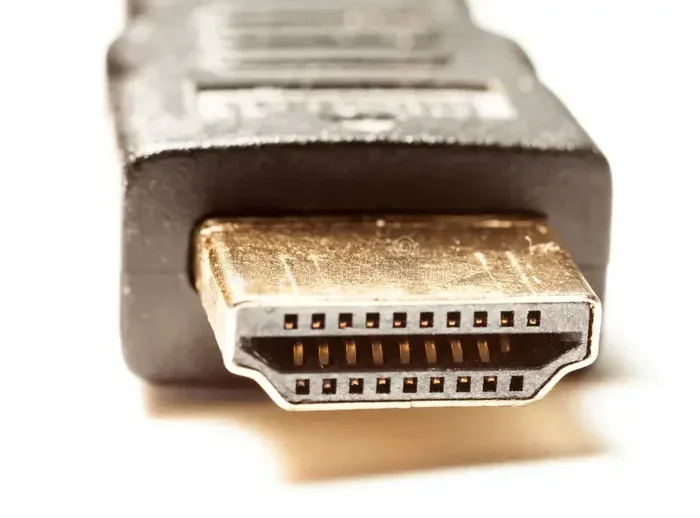
Apple iPhones use a Lightning port or, on newer models, a USB-C port. HDMI cables, on the other hand, use a completely different connector. This means you need an adapter to bridge the gap. When that bridge has a problem, your HDMI connection fails.
Here are the main reasons your iPhone HDMI connection might not be working:
- Incompatible Adapter: Not every HDMI adapter works with every iPhone model. Apple uses specific protocols that third-party adapters sometimes do not support.
- Outdated iOS: Older software versions may not recognize newer adapters or handle video output correctly.
- Faulty Cable or Adapter: Wear and tear, bent pins, or cheap materials can break the connection.
- Wrong Display Settings: Your iPhone might not be set to output video through the HDMI port.
- HDCP or Handshake Errors: Some TVs and projectors require a specific digital handshake that can fail during connection.
Each of these issues has a clear solution. Let us look at them one by one.
Understanding Your iPhone’s Video Output Options
Before you troubleshoot, it helps to understand how your iPhone connects to external displays. Apple offers a few official ways to get video from your phone to a screen.
Lightning to HDMI Adapters
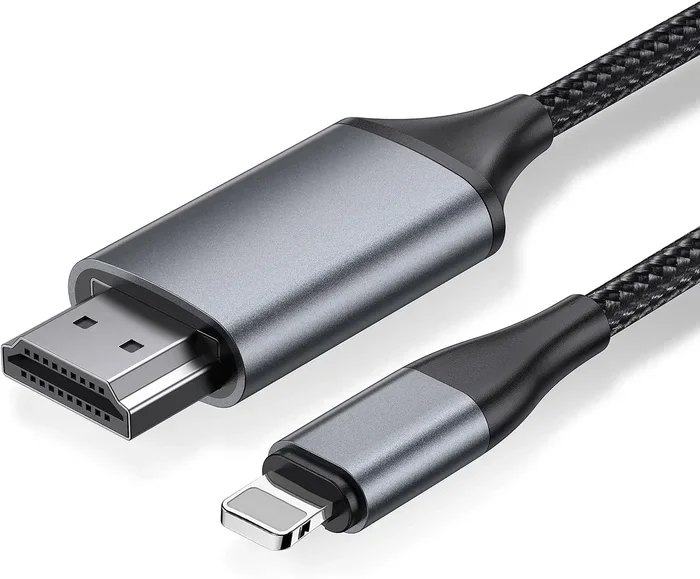
If your iPhone has a Lightning port, you need a Lightning to HDMI adapter. Apple sells its own version called the Digital AV Adapter. It works reliably with most iPhones and supports 1080p video output. The key thing to remember is that this adapter must be MFi certified, which means Apple has approved it for use with iOS devices.
Using a non-certified adapter is like using a cheap key for a secure lock. It might work sometimes, but it often fails. If you have tried a generic adapter and HDMI still does not work, this could be the reason.
USB-C to HDMI for Newer iPhones
iPhone 15 and iPhone 16 models use USB-C. These phones need a USB-C to HDMI adapter or cable. Apple’s USB-C Digital AV Multiport Adapter is a solid choice. It also supports charging while you display content, which is a nice bonus. If you are using a third-party USB-C to HDMI cable, make sure it supports DisplayPort Alt Mode for the best results.
Wireless Options as Alternatives
If your HDMI setup keeps giving you trouble, consider wireless alternatives. AirPlay lets you mirror your iPhone screen to an Apple TV or a smart TV that supports AirPlay. It does not need any cables or adapters. For a wired alternative, you can also look into screen mirroring apps that work over Wi-Fi.
Common Reasons HDMI Does Not Work with Your iPhone
Let us get specific. Here are the most common culprits when your HDMI connection fails, along with practical fixes.
1. The Adapter Is Not Compatible
This is the number one reason people say HDMI does not work with my iPhone. Many cheap adapters found online do not support the Apple protocol needed for video output. They might charge your phone but fail to send video to a TV or monitor.
What to do: Buy an Apple-certified adapter. Look for the MFi logo or buy directly from Apple or trusted retailers. If you are currently using a generic brand, swap it out and test with the official adapter.
2. The HDMI Cable or Adapter Is Damaged
HDMI cables take a beating. They get bent, yanked, and stuffed into bags. A damaged cable or a loose adapter connection will prevent any signal from reaching your TV.
What to do: Inspect both ends of your cable for bent or broken pins. Try a different HDMI cable. Try a different HDMI port on your TV. If the connection works with a new cable, your old one was the problem.
3. Your iPhone Needs a Restart
It sounds too simple, but restarting your iPhone clears temporary software glitches that can block video output. This is similar to how a frozen mouse not connecting to a laptop often gets fixed with a simple restart. The system just needs a fresh start to re-establish connections.
What to do: Power off your iPhone completely, wait 10 seconds, and turn it back on. Then try the HDMI connection again.
4. Display Settings Are Not Configured Correctly
Your iPhone has specific settings that control how it outputs video. If these are not set right, your TV will show nothing even though the physical connection is fine.
What to do: Go to Settings, then Display & Brightness. Look for the screen mirroring or external display option. Make sure your TV is selected as the output device. You can also try pulling down the Control Center and tapping the screen mirroring icon to choose your TV manually.
5. Your TV or Monitor Is Not on the Right Input
This one is surprisingly common. You plug everything in, but your TV is still showing its home screen instead of your iPhone’s content. The TV needs to be set to the correct HDMI input channel.
What to do: Use your TV remote to switch to the HDMI port you plugged into. Most TVs have an Input or Source button. Select the right HDMI port and your iPhone content should appear.
6. iOS Software Is Outdated
Apple regularly updates iOS to fix bugs and improve compatibility with accessories. If your iPhone is running an older version, it might not communicate properly with your HDMI adapter.
What to do: Go to Settings, then General, then Software Update. Install any available updates. After updating, restart your phone and try the HDMI connection again.
How to Fix HDMI Issues Step by Step
If your HDMI is still not working, follow this simple troubleshooting sequence. Work through each step in order.
- Check the physical connections. Unplug and replug all cables. Make sure the adapter is firmly seated in your iPhone.
- Try a different HDMI cable. A bad cable is the easiest fix. Borrow one from another device and test it.
- Switch HDMI ports on your TV. A faulty TV port can mimic a phone problem.
- Restart your iPhone. Hold the power button, slide to power off, wait, then turn it back on.
- Update your iOS. Go to Settings, General, Software Update.
- Reset display settings. Go to Settings, General, Transfer or Reset iPhone, then Reset All Settings. This clears display configuration issues without deleting your data.
- Try a different adapter. If nothing else works, the adapter itself may be defective.
Most people find the fix within the first three steps. The issue is almost always a physical connection problem or a settings glitch.
Quick Tips for a Smooth HDMI Experience
Follow these tips to avoid HDMI headaches in the future:
- Always use an Apple-certified or MFi-certified adapter for reliable performance.
- Keep your cables in a safe place to prevent damage.
- Update your iPhone software regularly to maintain accessory compatibility.
- If you are using a USB-C iPhone, invest in a quality USB-C to HDMI cable rather than a cheap adapter dongle.
- Check your TV’s HDMI-CEC settings, as these can sometimes interfere with external device detection.
- When buying accessories, avoid the cheapest options on the market. A $5 adapter from an unknown brand is more likely to fail than a $25 one from a trusted source.
When to Consider Wireless Alternatives
Sometimes, fighting with cables and adapters is not worth the effort. If your HDMI setup keeps failing, wireless screen mirroring is a great backup plan. AirPlay works seamlessly with Apple TV and many modern smart TVs. You just swipe up from the bottom of your screen, tap Screen Mirroring, and select your TV.
Wireless options also mean fewer cables to manage and no adapter compatibility headaches. The trade-off is that you need a strong Wi-Fi connection for smooth, lag-free streaming. For presentations or movie nights, a wired HDMI connection still offers the best quality and reliability. But for casual sharing, AirPlay works just fine.
If you own other Apple accessories, you might also run into similar connection issues. For example, problems with your iPhone charger spy camera with audio or other peripherals often stem from the same root causes: incompatible accessories, outdated software, or physical damage. The troubleshooting mindset is the same across the board.
Also worth noting, if you experience display-related issues on your laptop or computer, the problem might overlap with GPU or display driver issues. For instance, if your GPU spikes to 100 when connecting an external display, it could indicate a driver or hardware bottleneck that affects your overall viewing experience.
Expert Insights on iPhone HDMI Compatibility
From years of troubleshooting tech issues, here is what the experts say about iPhone HDMI connections:
- Stick with Apple accessories when possible. The Digital AV Adapter from Apple has the highest success rate and the fewest compatibility issues.
- HDCP content will not mirror. Some streaming apps like Netflix block HDMI output due to copyright protection. This is normal and not a hardware problem.
- Third-party apps can help. Apps like Reflector or AirServer let you mirror your iPhone to a computer connected to a TV, bypassing adapter issues entirely.
- Check your TV firmware. Some older TVs need firmware updates to properly recognize HDMI input from mobile devices.
These insights save a lot of guesswork. Before you buy a new adapter or cable, try these expert-backed tips first.
Comparison: Wired HDMI vs. Wireless Mirroring
| Feature | Wired HDMI | Wireless (AirPlay) |
|---|---|---|
| Video Quality | 1080p or 4K depending on adapter | 1080p, depends on Wi-Fi strength |
| Lag or Delay | Minimal to none | Slight delay possible |
| Setup Complexity | Requires adapter and cable | Just needs Wi-Fi and Apple TV |
| Cost | Adapter and cable needed | Apple TV or compatible TV required |
| Reliability | Very reliable | Depends on network stability |
| Best For | Movies, presentations, gaming | Casual sharing, quick mirroring |
Both options have their place. Choose wired HDMI for the best quality and reliability. Choose wireless for convenience and simplicity.
Why Your iPhone HDMI Connection Might Fail on Certain TVs
Not all TVs treat iPhone HDMI input the same way. Some smart TVs have strict handshake protocols that can reject a mobile device signal. Older TVs with only HDMI 1.3 or 1.4 ports may not support the video resolution your iPhone outputs.
If you are using a projector, soundbar, or older monitor, check the device specifications for HDMI version compatibility. A simple adapter that works on your living room TV might not work on a conference room projector. This is especially true for older equipment that does not support the latest HDMI standards.
Another common issue is HDCP (High-bandwidth Digital Content Protection). This is a copy protection system that some content providers enforce. If you try to mirror a Netflix or Disney+ video through HDMI, the screen might go black. This is not a broken adapter. It is the app protecting its content from unauthorized recording.
To test if HDCP is the issue, try mirroring a photo or a local video file instead of a streaming app. If the photo shows but the streaming app does not, HDCP is the cause. This is expected behavior and not something you can easily fix without using the app’s built-in casting feature instead.
How to Choose the Right HDMI Adapter for Your iPhone
Not all adapters are created equal. Here is what to look for when buying one:
- MFi Certification: This Apple certification guarantees the adapter works with iOS devices. Always check for this label.
- Port Type: Match the adapter to your iPhone’s port. Lightning for older models, USB-C for iPhone 15 and newer.
- Supported Resolution: Look for adapters that support at least 1080p. Some premium ones support 4K output.
- Build Quality: Metal-bodied adapters tend to last longer than plastic ones. They also dissipate heat better.
- Extra Ports: Some adapters include USB-A or USB-C ports for charging while you display. This is a handy feature for long viewing sessions.
Investing in a quality adapter upfront saves you from the frustration of constant troubleshooting later.
Final Thoughts
Dealing with a HDMI connection that will not work on your iPhone can be annoying, but it is almost always fixable. Start with the simplest solutions: check your cables, restart your phone, and verify your TV input. Then move to software updates and adapter replacements if needed.
The most important takeaway is this: use Apple-certified accessories. They cost a bit more, but they work reliably and save you hours of frustration. Pair that with regular software updates and a little patience, and you will have your iPhone screen on the big screen in no time.
Remember, if HDMI simply does not fit your needs, AirPlay and wireless mirroring are excellent alternatives that require zero cables. Explore both options and pick what works best for your situation.
Frequently Asked Questions
Why does my HDMI adapter work sometimes but not others?
This usually happens because of a loose connection or a software glitch. Try unplugging the adapter, restarting your iPhone, and plugging it back in. If it still works inconsistently, the adapter itself may be faulty or incompatible with your iPhone model.
Can I use any HDMI cable with my iPhone?
No, you need the right adapter first. The HDMI cable itself is standard, but the adapter that connects to your iPhone must be compatible. Use an Apple-certified Lightning to HDMI or USB-C to HDMI adapter for the best results.
Why does my iPhone screen go black when connected to HDMI?
A black screen often means HDCP is blocking the content, especially if you are streaming from Netflix or Disney+. Try mirroring a photo or local video instead. If the black screen persists, restart your iPhone and check the adapter connection.
Do I need to buy an expensive HDMI adapter for my iPhone?
Not necessarily expensive, but it should be Apple-certified or MFi-certified. A mid-range adapter from a reputable brand works great. Avoid the cheapest unbranded options, as they are the most likely to fail or damage your iPhone port.
Why does my iPhone show a message that the accessory is not compatible?
This message means your adapter or cable is not recognized by iOS. It could be because the accessory is uncertified, damaged, or not designed for your iPhone model. Replace it with an Apple-certified adapter and the message should disappear.
Can I connect my iPhone to a monitor using HDMI?
Yes, you can connect your iPhone to any HDMI-compatible monitor using the right adapter. A Lightning to HDMI or USB-C to HDMI adapter will work. Make sure your monitor is set to the correct HDMI input, and your iPhone screen should mirror to the monitor automatically.
=== CONCLUSION ===
Getting your iPhone HDMI setup working comes down to a few key things: the right adapter, the right cable, the right settings, and a little patience. Most HDMI problems are not hardware failures. They are simple compatibility or configuration issues that take just a few minutes to resolve.
Start with the basics. Check your connections. Restart your device. Update your software. Then dig deeper into adapter compatibility and TV settings. If all else fails, wireless mirroring through AirPlay is a reliable fallback that works without any extra hardware.
Now that you know the common reasons HDMI will not work with your iPhone and how to fix them, you can get back to enjoying your content on the big screen. Try these steps today and see how quickly your HDMI connection comes back to life.